
Claims: Creating Claims
Claims can be submitted to Medicaid, Private Insurance, TRICARE, and other medical reimbursement payers. A claim always belongs to the business within which it was created.
There are two methods to create claims: Direct Creation from the Billing Tab and from Billable Visits.
The Claims processing feature is only available if you are subscribed to a HIPAA Plan (Premium or Impact). See Setup & Getting Started if you haven't set up claims yet.
Method 1: Direct Creation
-
From the main Dashboard, click on Billing.

On the left menu panel, go to Claims.

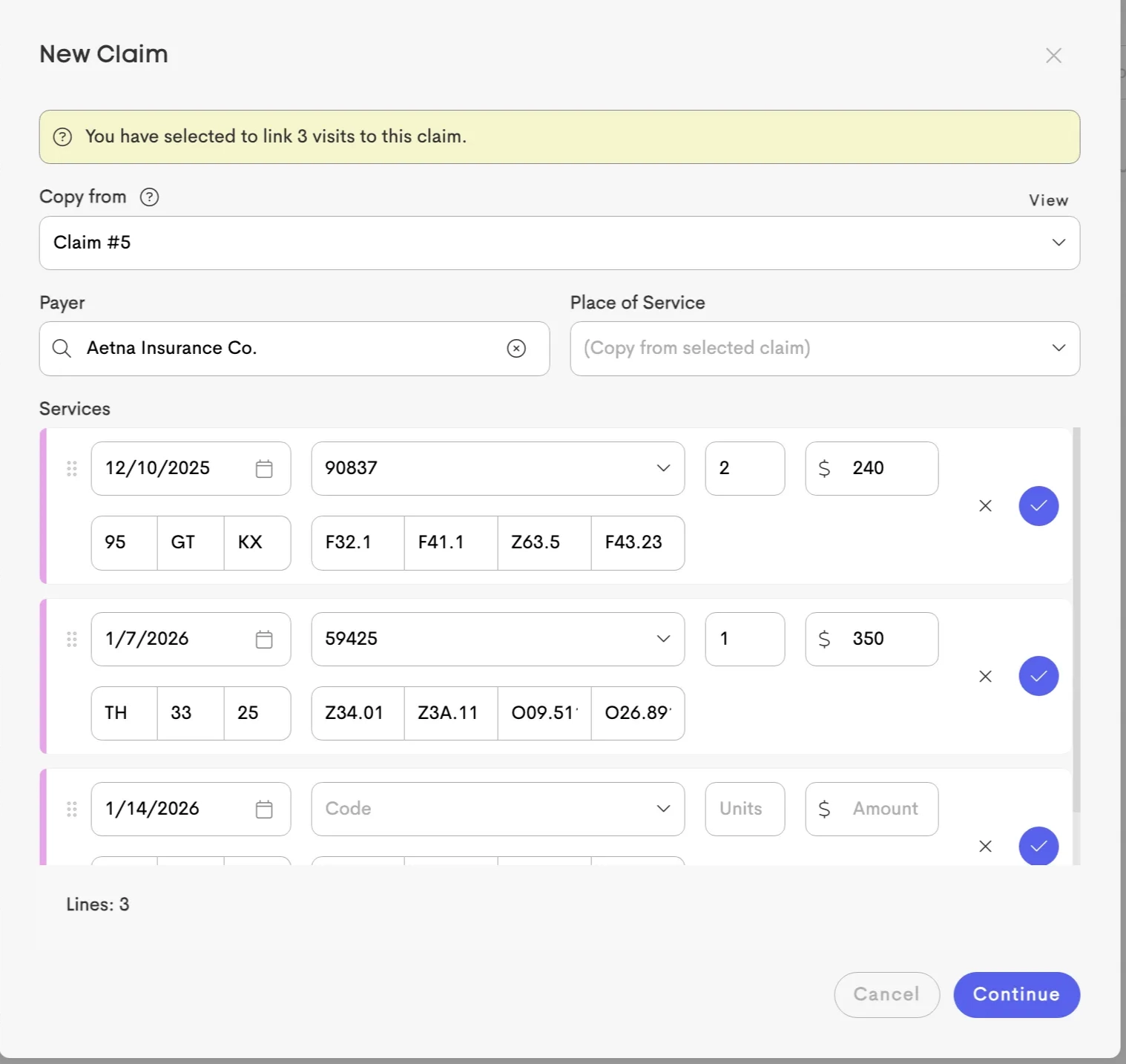
Click on +New Claim and fill out the modal with the required information.

Copy from logic:
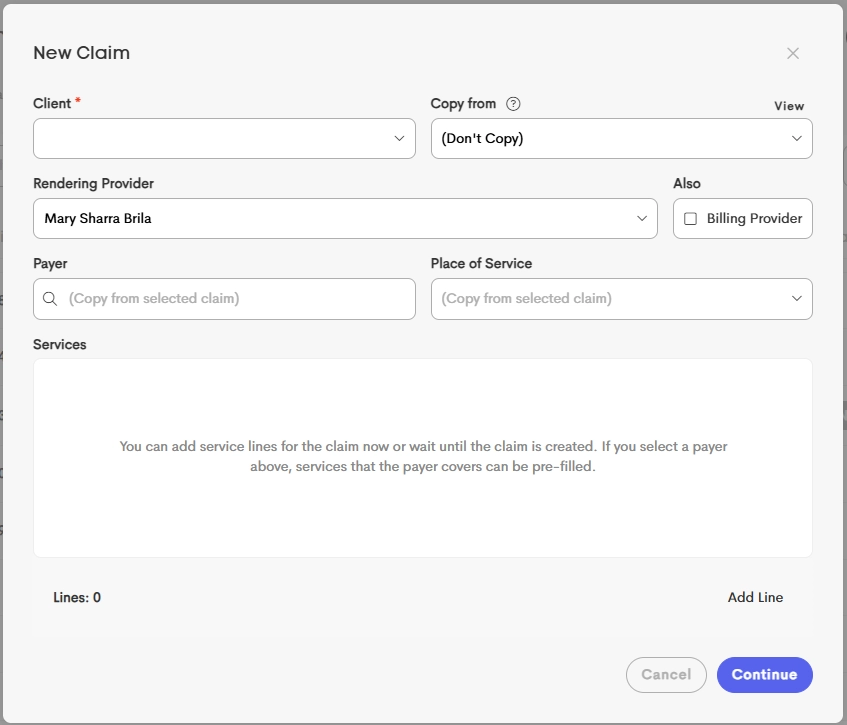
The claim form adheres to CMS-1500 standards, limiting each claim to 6 service lines. Multiple claims are needed for billing more than 6 visits. - Same Client: If copying from a previous claim for the same client, almost all data is duplicated (Diagnoses, Payer, Facility, etc.).
- Different Client: If you copy from a claim belonging to a different client, the system only copies administrative and provider fields to prevent data leaks:
- Federal Tax ID (TIN)
- Accept Assignment status
- Facility Information
- Billing Provider details
- Once done, click on Continue to see the Claim Form on the next screen.
-
All commonly required fields are highlighted in yellow, but it's better to fill out the claim form as completely as you can.

-
Click on the Submit button on the right corner and confirm the submission in the pop-up.


Method 2: From Billable Visits
Before you can start a claim from a visit, that visit must first have a duration (as a result of having a End Date and/or End Time).
Billing Context:
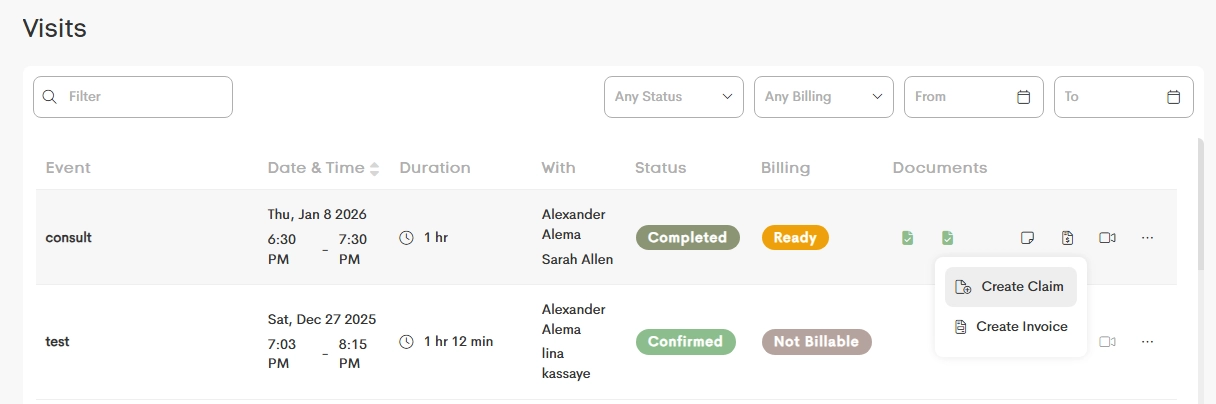
- Navigate to Billing → Visits.
- On the right-side row actions, click on Billing and select Create Claim.
Client Context
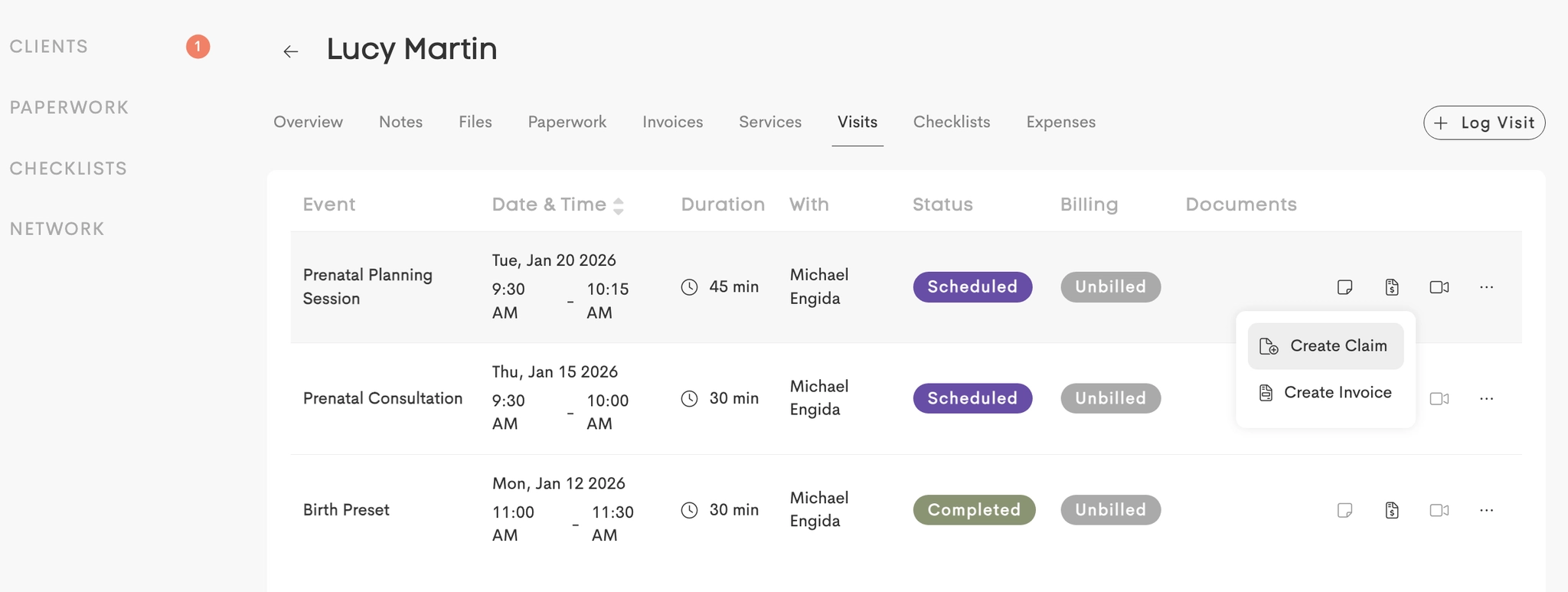
- Navigate to Clients and choose a client profile.
- Switch to the Visits tab and click on Billing from the row actions.
- Choose Create Claim.
Both would open the Visit Billing modal with option to select up to 6 visits (each getting a service line) to use a blank or an invoice template.
Selectable Visits
The list automatically filters to show only relevant visits.
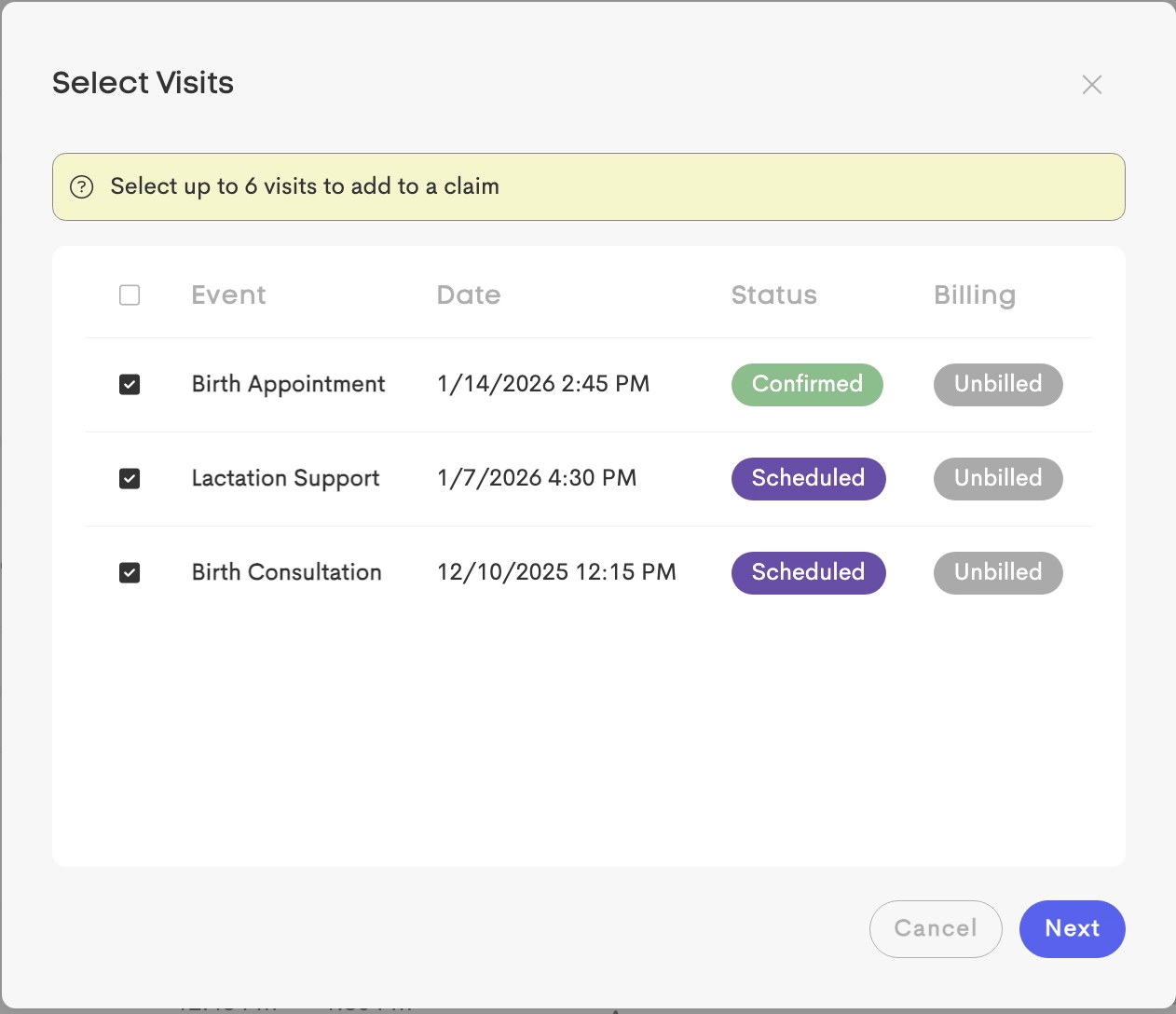
To appear in this list, a visit must:
- Match Context: Belong to the same Client (Journey) and Provider.
- Valid Status: Be
Scheduled,Confirmed, orCompleted. - Billable: Have a billing status that is not
Not Billable. - The visit must not already be attached to an existing claim.
Visit & Service Mapping Logic
When generating a claim from selected visits, on the claim form:
- Each selected visit (up to 6) creates one service line, showing Date of Service
- Service Code selection becomes available after choosing a Payer (If any Covered Services were added to the selected payer)
- Units calculate automatically based on visit duration:
- Time-Based: Uses the Medicaid 8-minute rule. See Time-Based Services for more information.
- Quantity-Based: Defaults to 1 unit.
- Amount = Units for the visit × Service Rate
See Covered Services for unit calculation logic and how services map to the CMS-1500 form.