
September 2026
We’ve been busy making Doulado work better for you and your business. Explore details about changes we've recently released to improve your experience.
What's New
- Client List Ordering on Mobile
- Invoice Names
- Client Phone Number Search
- Required Documents on Visit
- Claim Ownership
- Email Required to Send Paperwork
- Resolved Bugs
Client List Ordering on Mobile
When using a mobile device, you can now customize how your clients are ordered on the clients page.
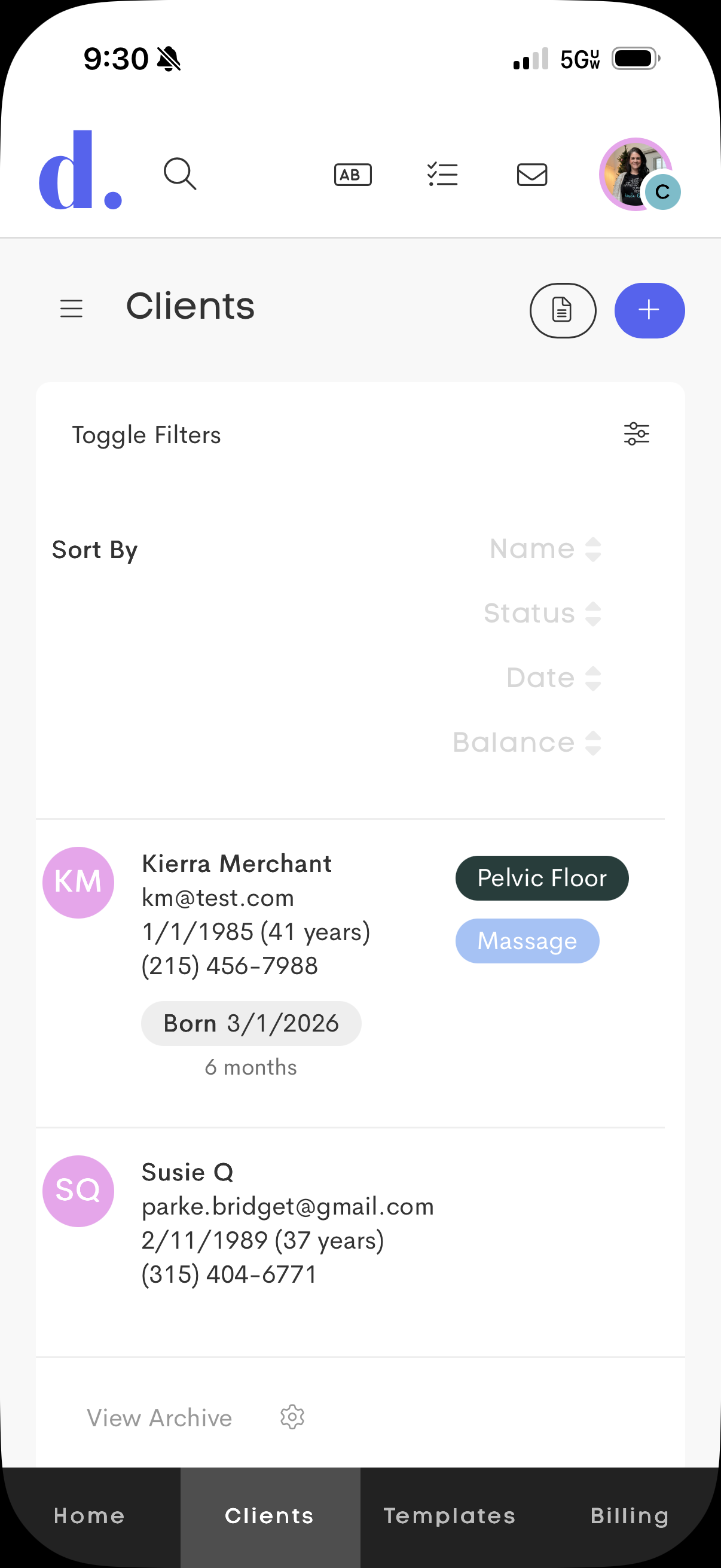
- If no sorting is currently active, press on the Sort By strip at the top of your clients list to access the sorting controls.
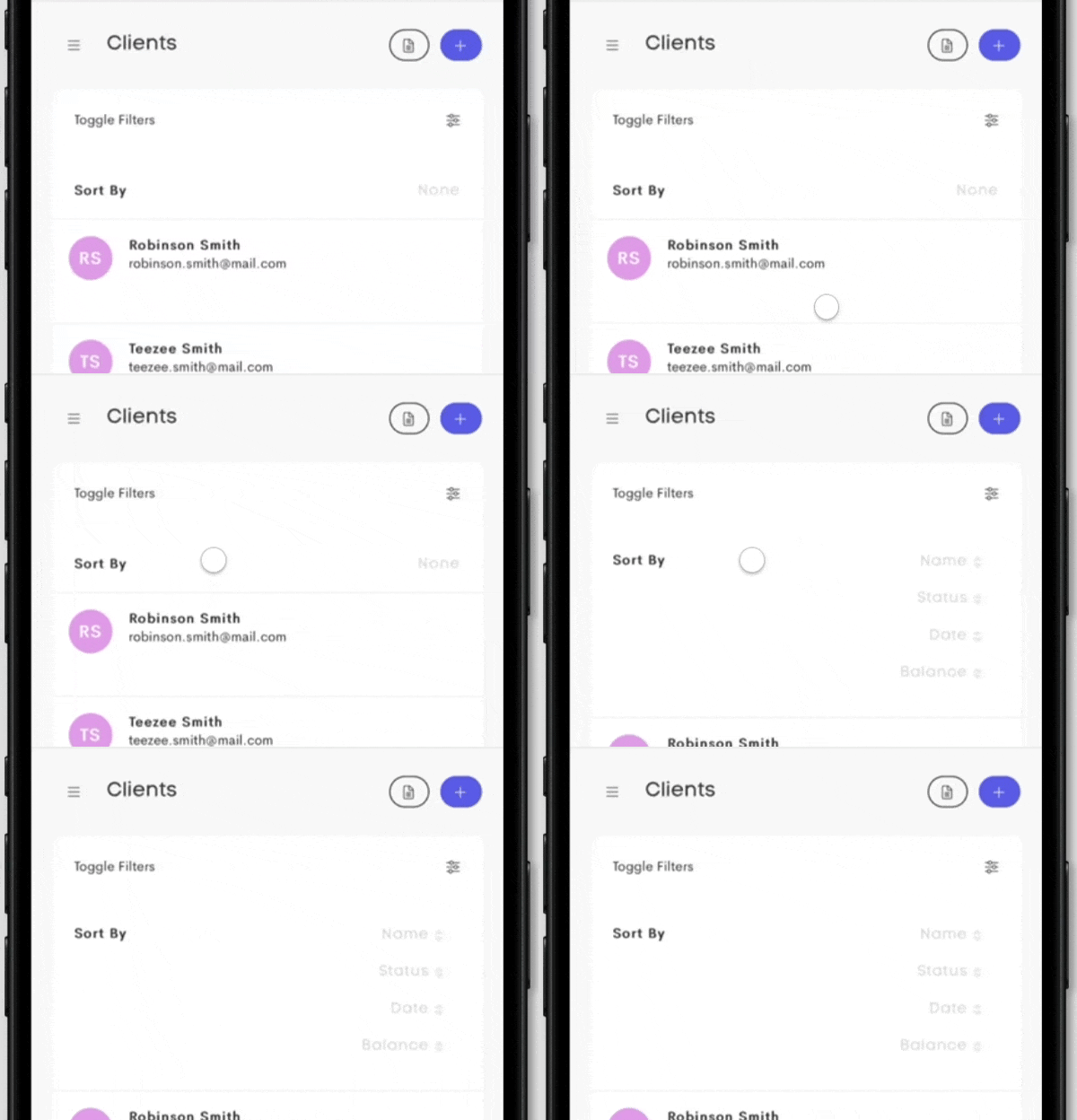
- Press on one of the available column options, to sort clients by that column, in ascending order.
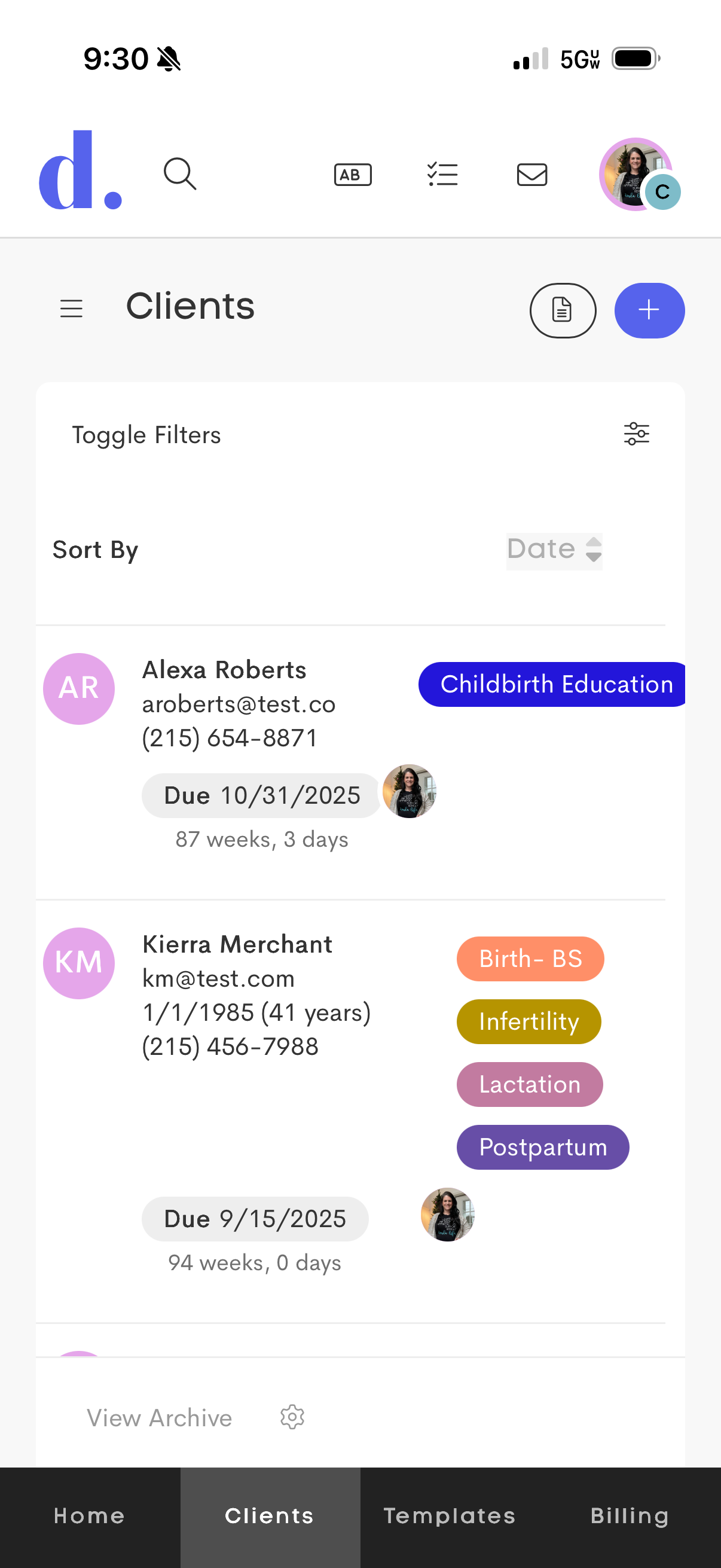
- When already sorting by a column in ascending order, press on it again to switch to sorting in descending order.
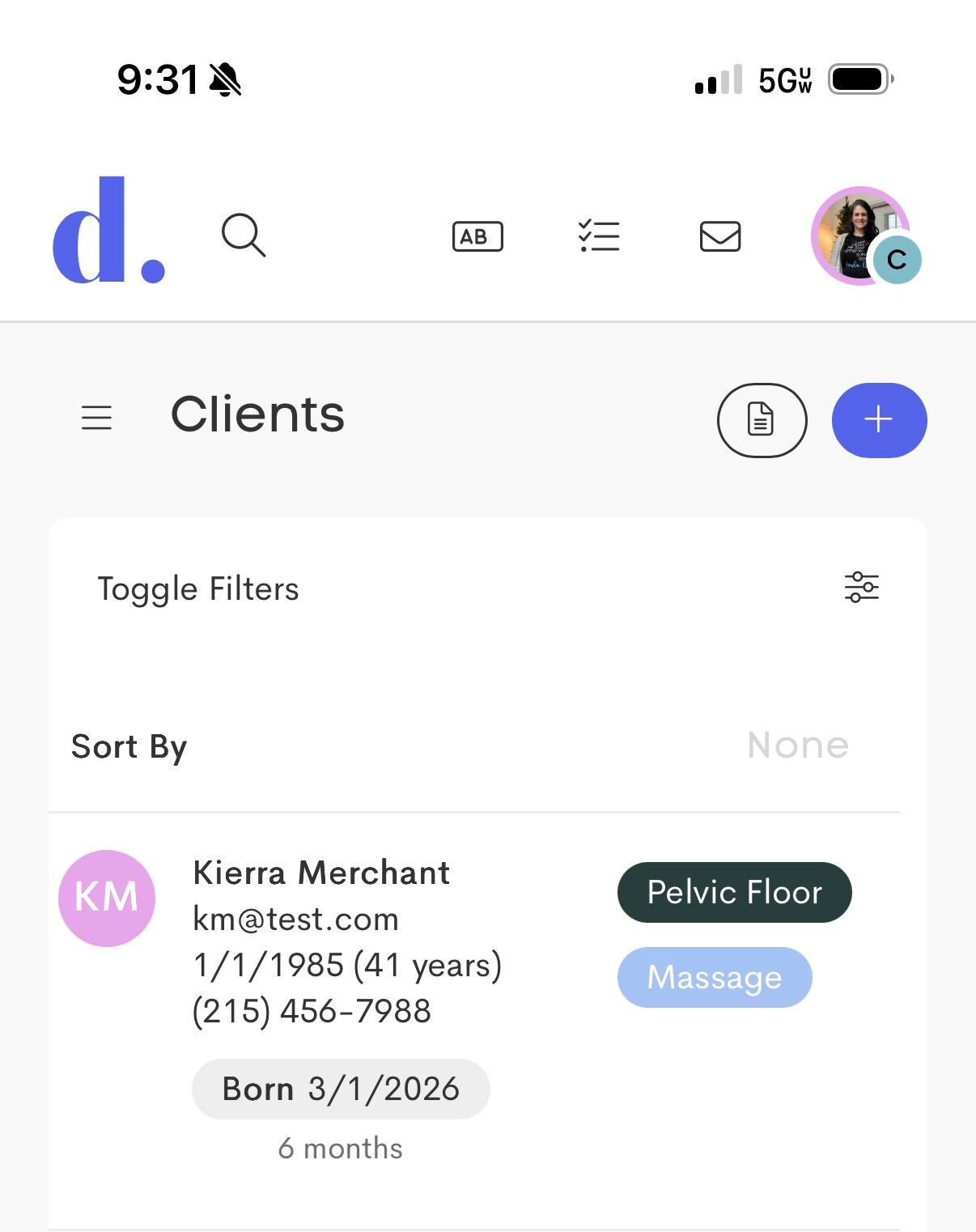
- When already sorting in descending order, simply press on it again to deactivate sorting.
Invoice Names
Although invoice numbers have always allowed quickly differentiating between invoices, they don't always best convey its subject matter.
Each invoice can now be given a Name, in addition to its invoice number.
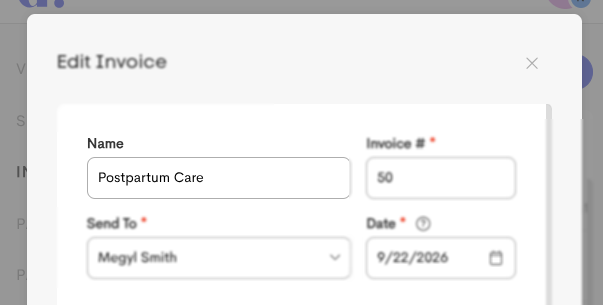
The Name column (formerly Invoice #) in your invoices list reflects the name, as well as the invoice number.
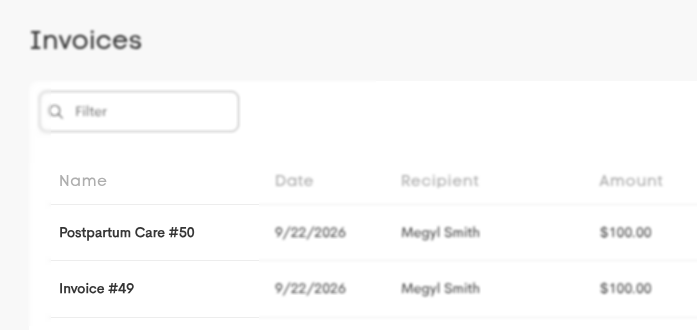
When not given a name, the Name column will default to reflecting that invoice's number (in the format Invoice #1).
Adopt Template Name on Invoices
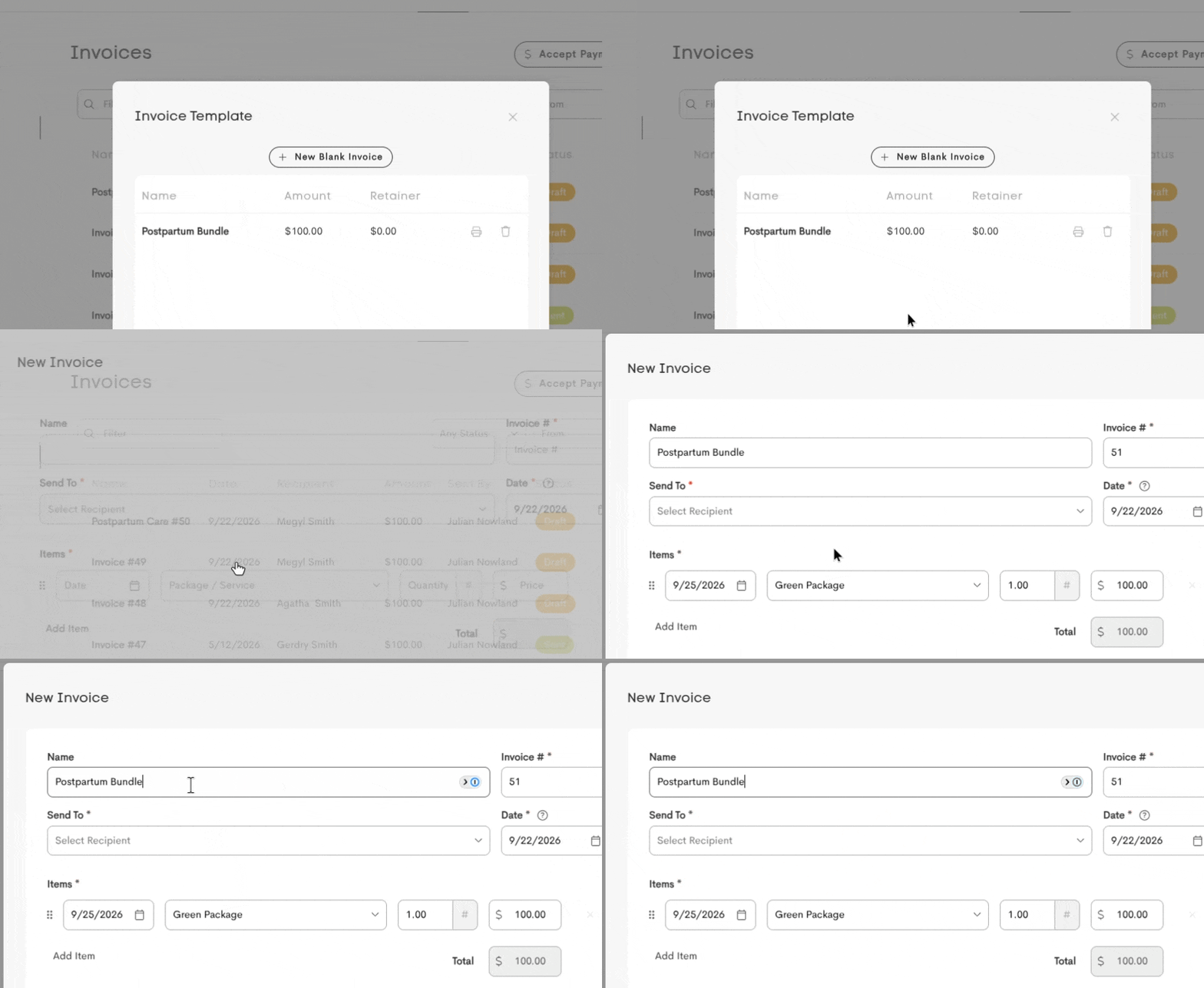
In Invoice Settings, you can now enable the Adopt Template Name on Invoices option.

With this enabled, when you create an invoice using a template, the name field will default to being populated with the template's name.
Client phone number search
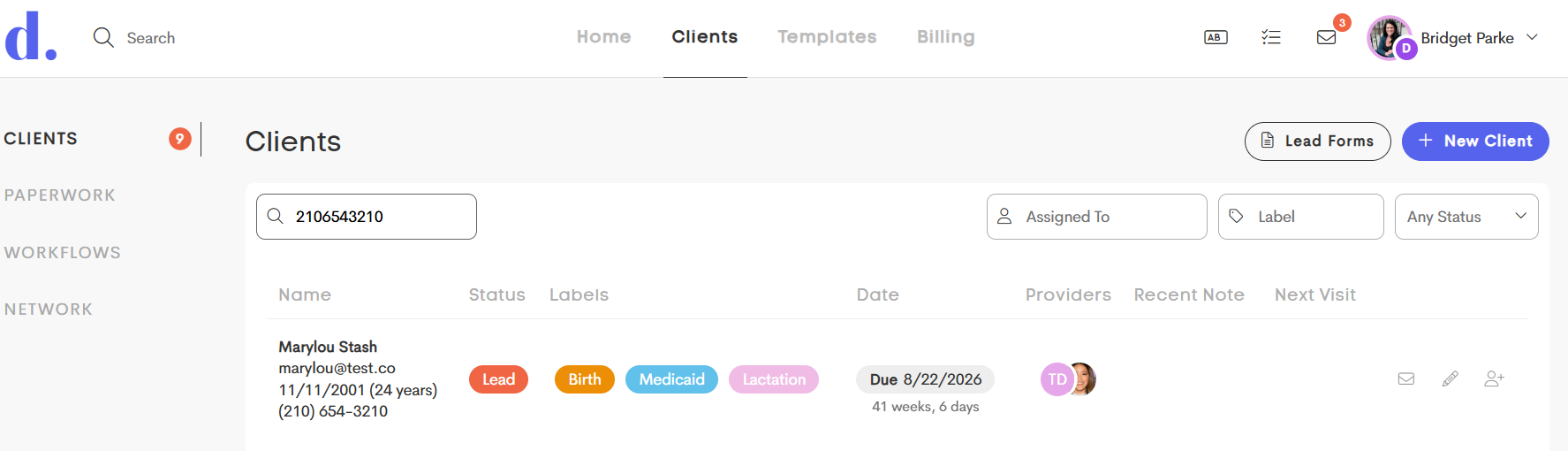
You can now search for clients by phone number directly from the main Client List!
- You’ll need to enter the full 10-digit phone number for a result to appear. Searching just an area code or a partial number won’t return results.
- The phone number should be recognized in several common formats, including:
- (123) 345-6789
- 123-345-6789
- 1236456789
Required Documents on Visit
Teams now have more control over how required documentation affects visit completion.
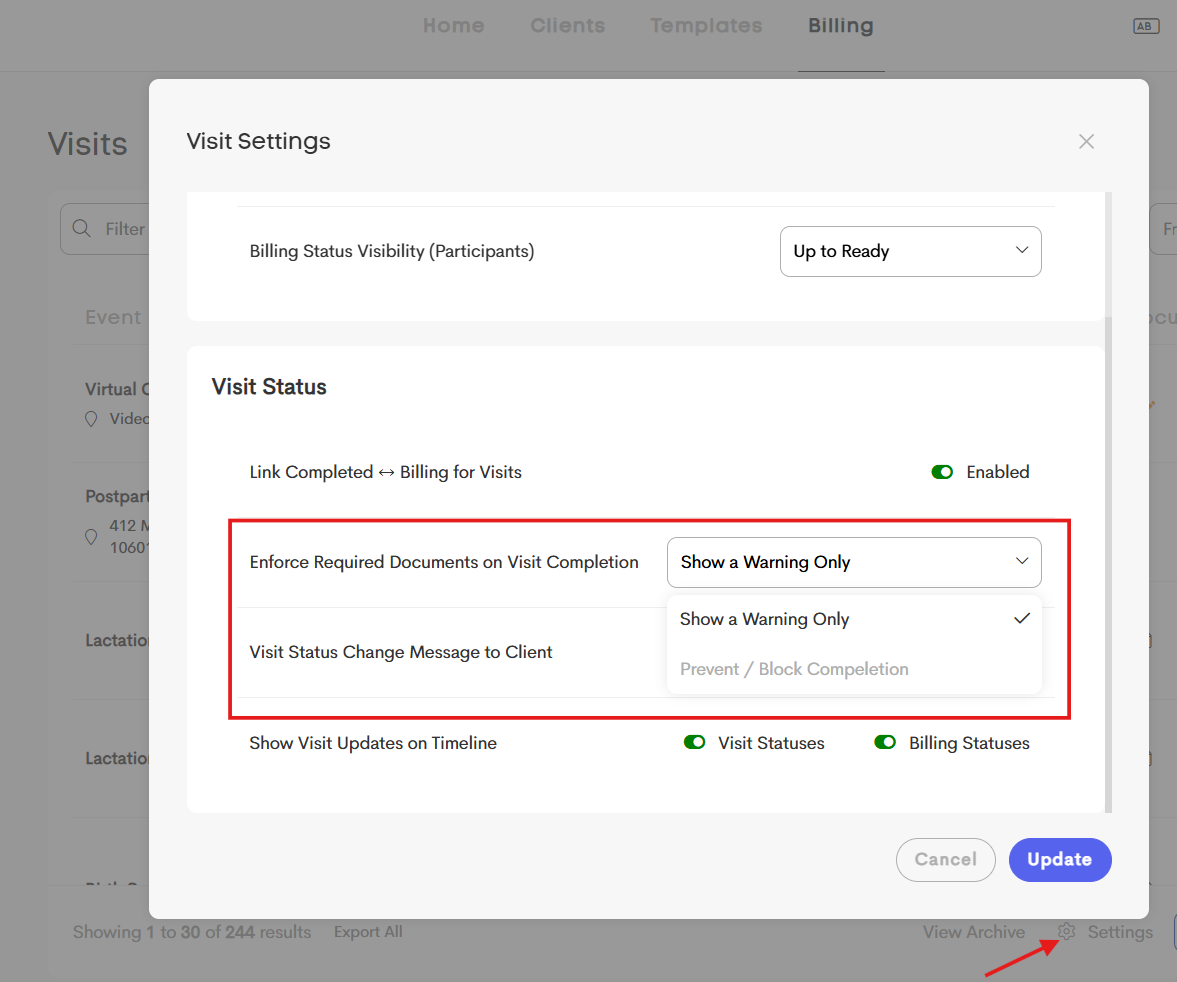
A new setting is available under Settings → Billing → Visits that determines what happens when a provider tries to mark a visit as Complete while required documentation is still unfinished.
You can choose between:
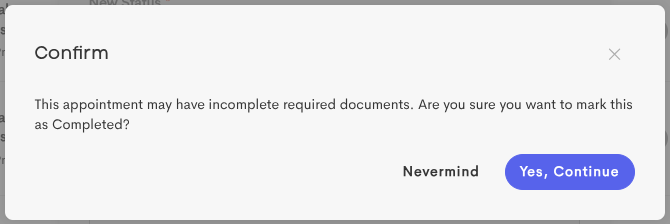
- Show Warning (Default): Providers will see a confirmation prompt when changing the visit status to Complete without finishing the required documentation.
- Prevent / Block: Providers will not be able to change the visit status to Complete until all required documentation has been completed.

Optional documentation will not prevent a visit from being completed.
This setting gives teams the flexibility to either allow providers to bypass unfinished required documentation with a warning, or require all required documentation to be completed before a visit can be marked Complete.
See the "Enforce Required Documents on Visit Completion" setting below:
Claim Ownership
Although claims have always been tied to the client's journey, claims now also belong to a specific business (e.g. team or personal clients area).
This means that now, when you need to transfer a client's journey to another business, claims you've created for that client can continue to be accessed in your Claims list.
Email Required to Send Paperwork
Your client may not always be able to share an email address with you. This can cause challenges when you or your team still go to send documents or forms to the client through Doulado, and may not be aware the client isn't able to be reached via email.
Doulado now helpfully prevents paperwork from being sent if none of the contacts on a client's journey have email that can be used to access it.

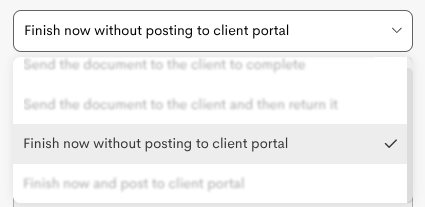
Even though it isn't able to be sent, you can still save a finished paperwork against a client journey, by choosing the Finish now without posting to client portal option.
Resolved Bugs
- Send Now button unexpectedly appearing when finishing paperwork by default.
- Issue previewing templates with Simplify the Final PDF enabled.
- An issue could occur when closing messages too soon after opening.
- On mobile, issue properly viewing documents with content wider than the device.
- New journey no longer visible on journeys where team members are not permitted to create clients.