
Managing Packages & Services
Packages and Services are both considered Products, and have some common properties:
|
Property |
Description |
|---|---|
| Name | The name that will be shown when choosing this product, as well as what it shown on the invoice line to clients |
| Price | The total price per quantity of this product |
| Kind | Whether the product price is fixed ($ Amount) or based on the total price of lines above it on the invoice ($ Percent) |
| Description | The description for this product, which can be shown on invoices |
| Options | The options that can be checked for this product |
Editing/Deleting a service/package does NOT affect existing invoices (Previously invoiced items remain unchanged)
Creating a Service
Services represent individual line items that can be added to an invoice. They can also be assigned a Unit, which determines how the service is measured and tracked as a deliverable.
Services can also be linked to Appointment Presets to support invoice and claim creation and track service fulfillment.

Here's how you can create a service and link it to an appointment preset:
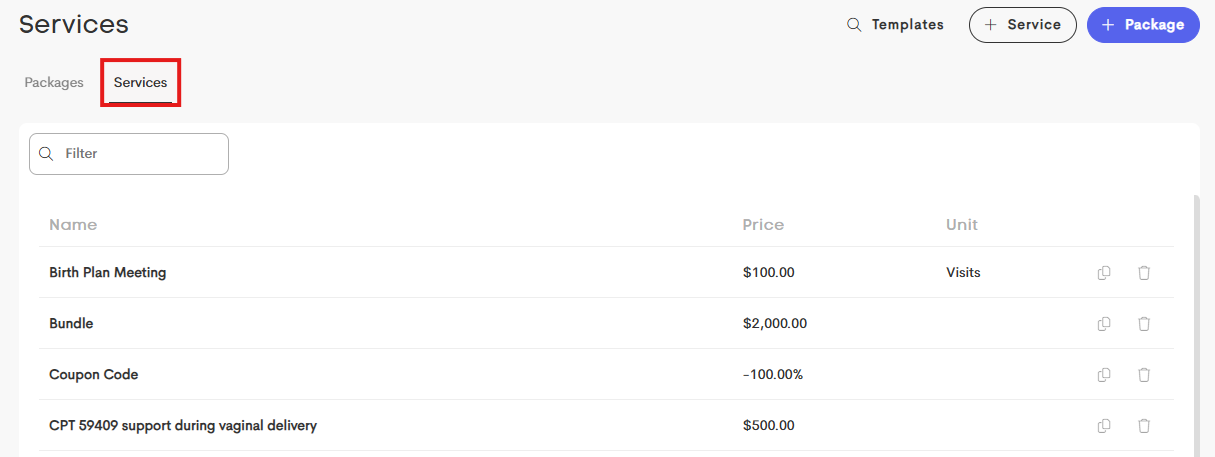
- Navigate to the main Billing tab > Services.
- Click on the + Service button.
-
Fill out the modal with the necessary details.
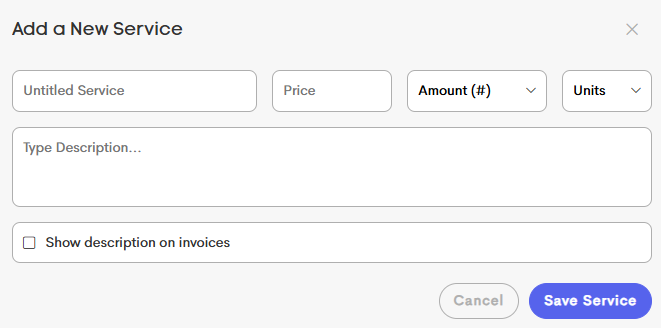
When Show Description on Invoices is enabled, the service description will appear on invoices when the service is added directly. This does not apply to services included as part of a Package.
-
Click on Save Service once you're finished. The new service will now appear under the Services tab in the dashboard.
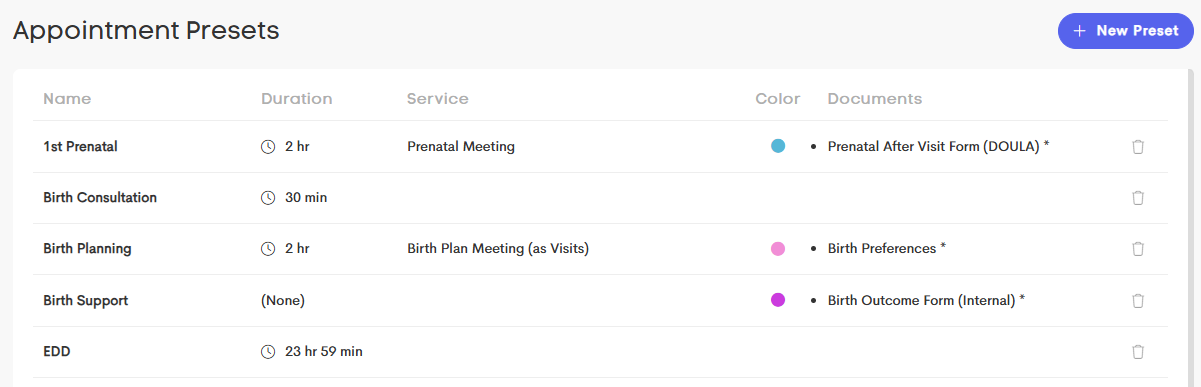
- If you want to link this service to an appointment preset, go to Templates > Appointments.
-
Choose an appointment preset from the list.
-
Choose a service to from the dropdown under Linked Service.
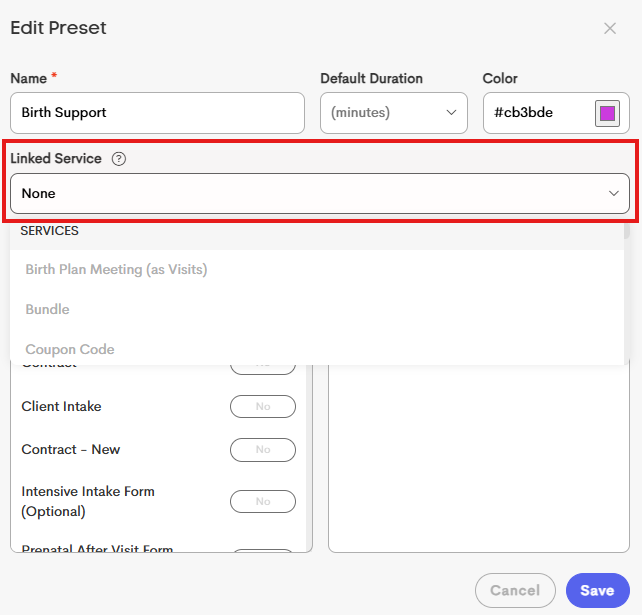
- Click Save when you're done.
Creating a Package
Packages bundle multiple services together into a single offering. When an invoice containing a package is approved or paid, each included service is tracked as a deliverable based on the quantity included in the package.

Here's how you can create a package:
-
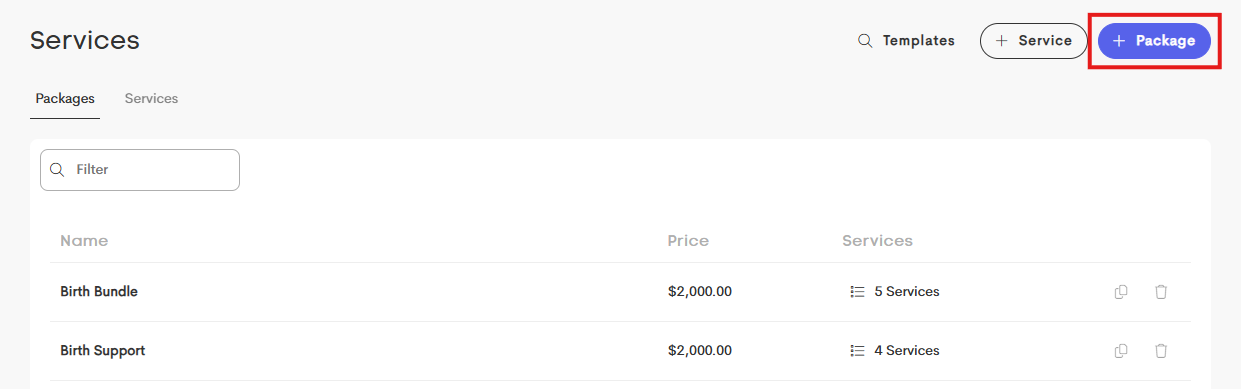
From the Billing tab > Services, click on the + Package button.
-
Fill out the necessary details about the package you want to add.
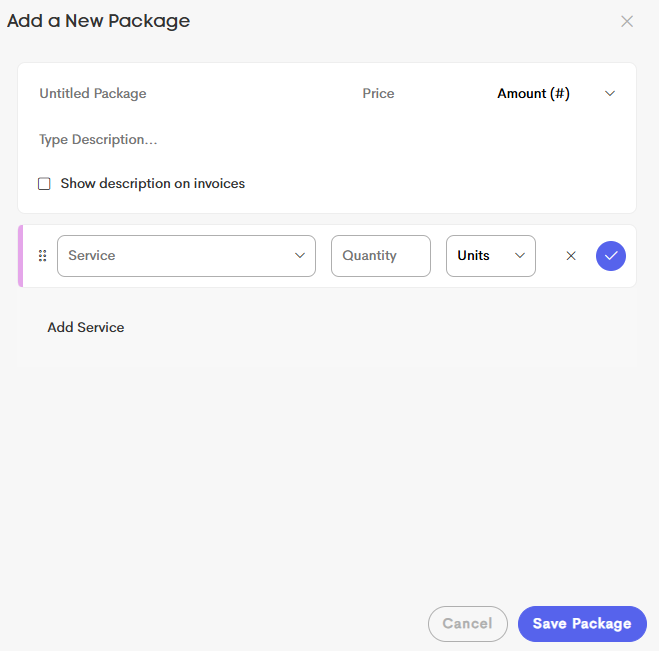
- Click Save Package once you're done.
When you create a package, you can specify the quantity of each service included.
Once an invoice containing the package is paid, these services appear in the Services tab of the client’s profile, where you can track how much has been used and how much remains.