
July 2026
We've made several updates to Doulado to improve documentation, claims, and client communication. These enhancements give you more control over paperwork, simplify insurance workflows, and make it easier for clients to access their information..
#1: Documentation and Visit Notes
-
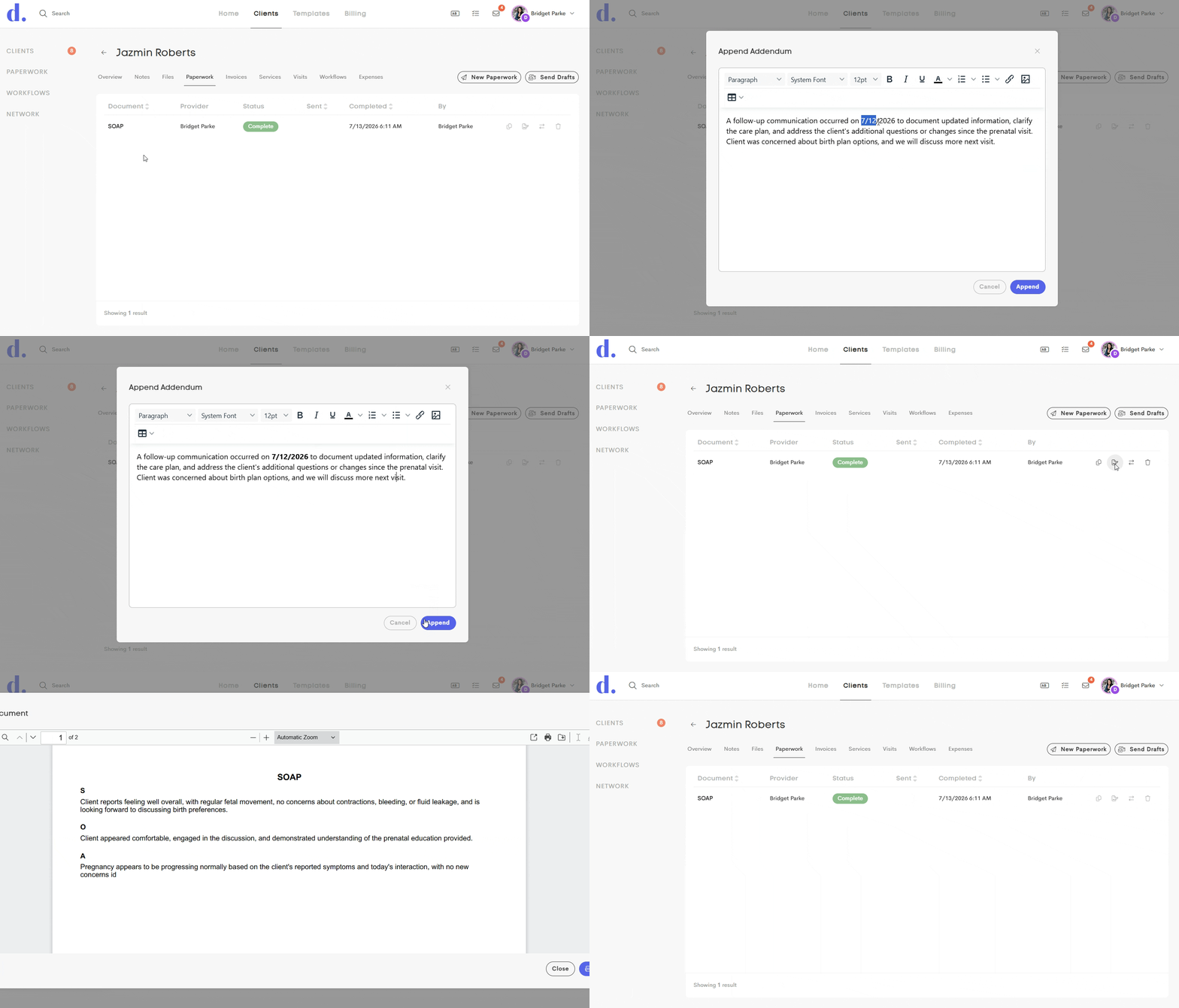
Paperwork now supports addendums: When enabled on a document or form template, completed paperwork can no longer be edited directly. Instead, updates are added as timestamped addendums, preserving the original document while maintaining a clear history of changes.
We've also expanded the document history to track key events throughout the document lifecycle, supporting insurance, compliance, and recordkeeping requirements.
To use this feature, go to Templates > Paperwork.
This update applies to both Documents and Forms, so simply open the appropriate tab and edit the template you'd like to update.
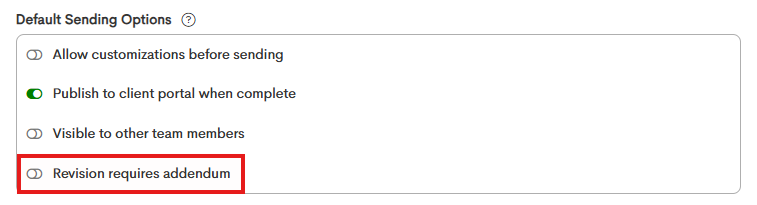
In the Default Sending Options, you can toggle the Revision requires addendum button.
Once a document is finalized for a client, any revisions will be tracked as addendum. You'll also see this activity recorded in the Paperwork History within the Client Journey, as shown below.

-
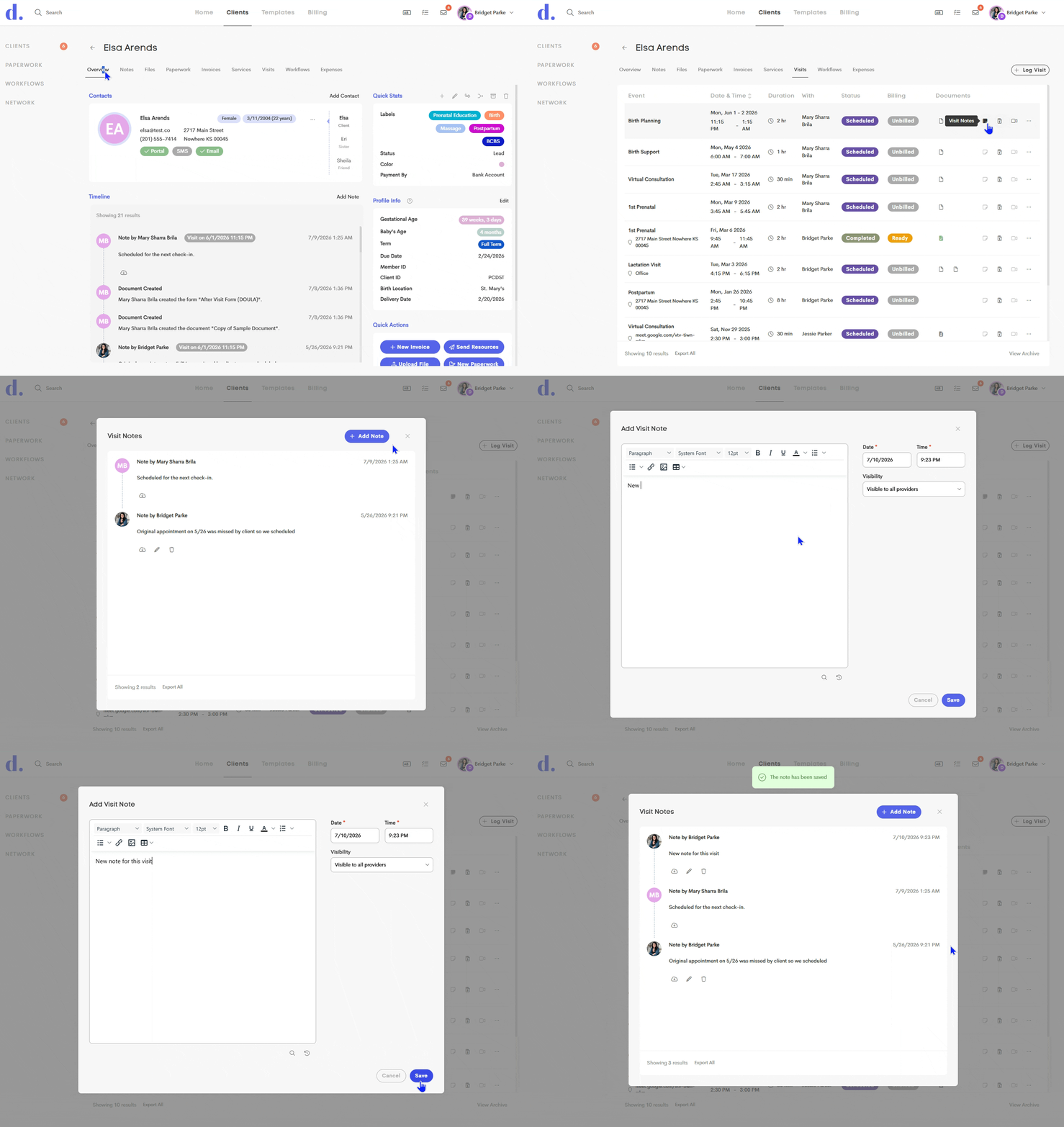
Visit notes are now more flexible: You can now add multiple notes to each visit through a dedicated Visit Notes section, replacing the previous single-note format.
Each note includes the author along with the date and time it was created, making it easier to document care as it happens.
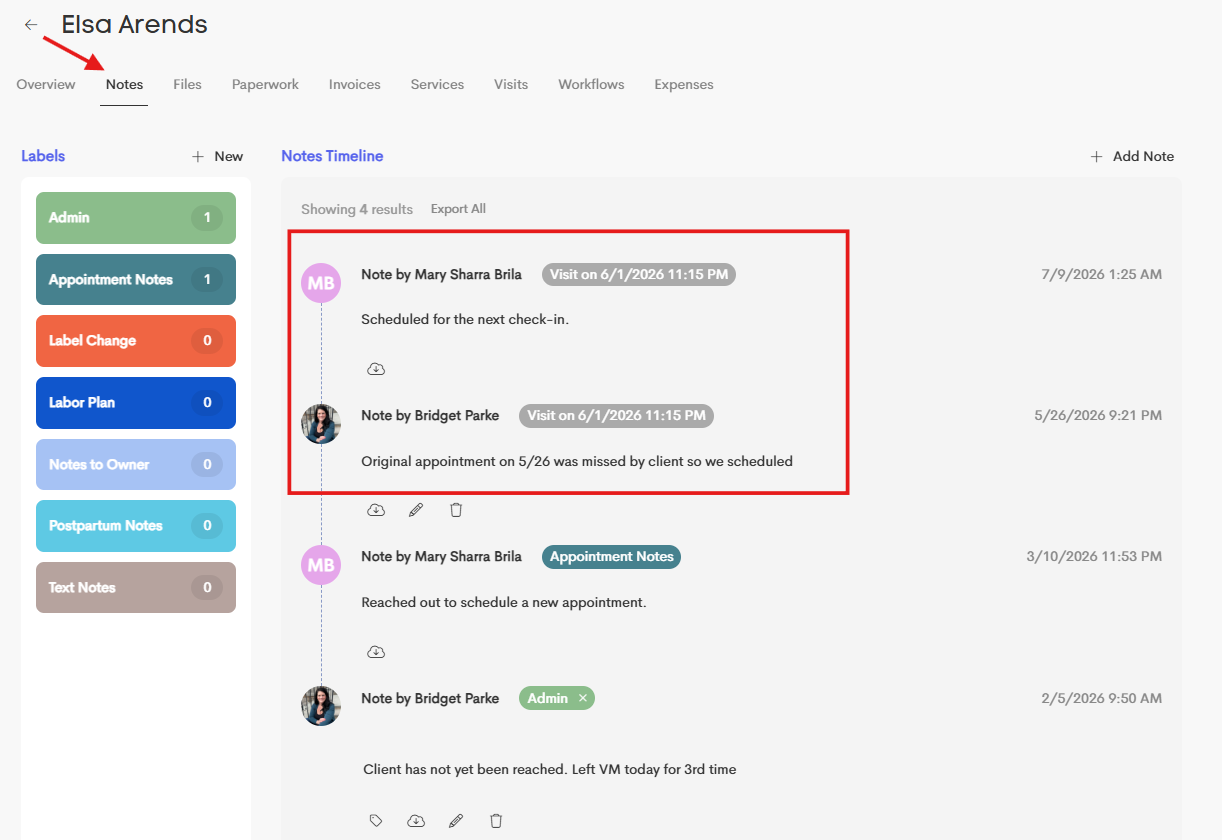
Visit notes also now appear in the main Notes Timeline within the Client Journey, where they're labeled with the corresponding visit date and time for easier reference.
#2: Claims & Insurance
-
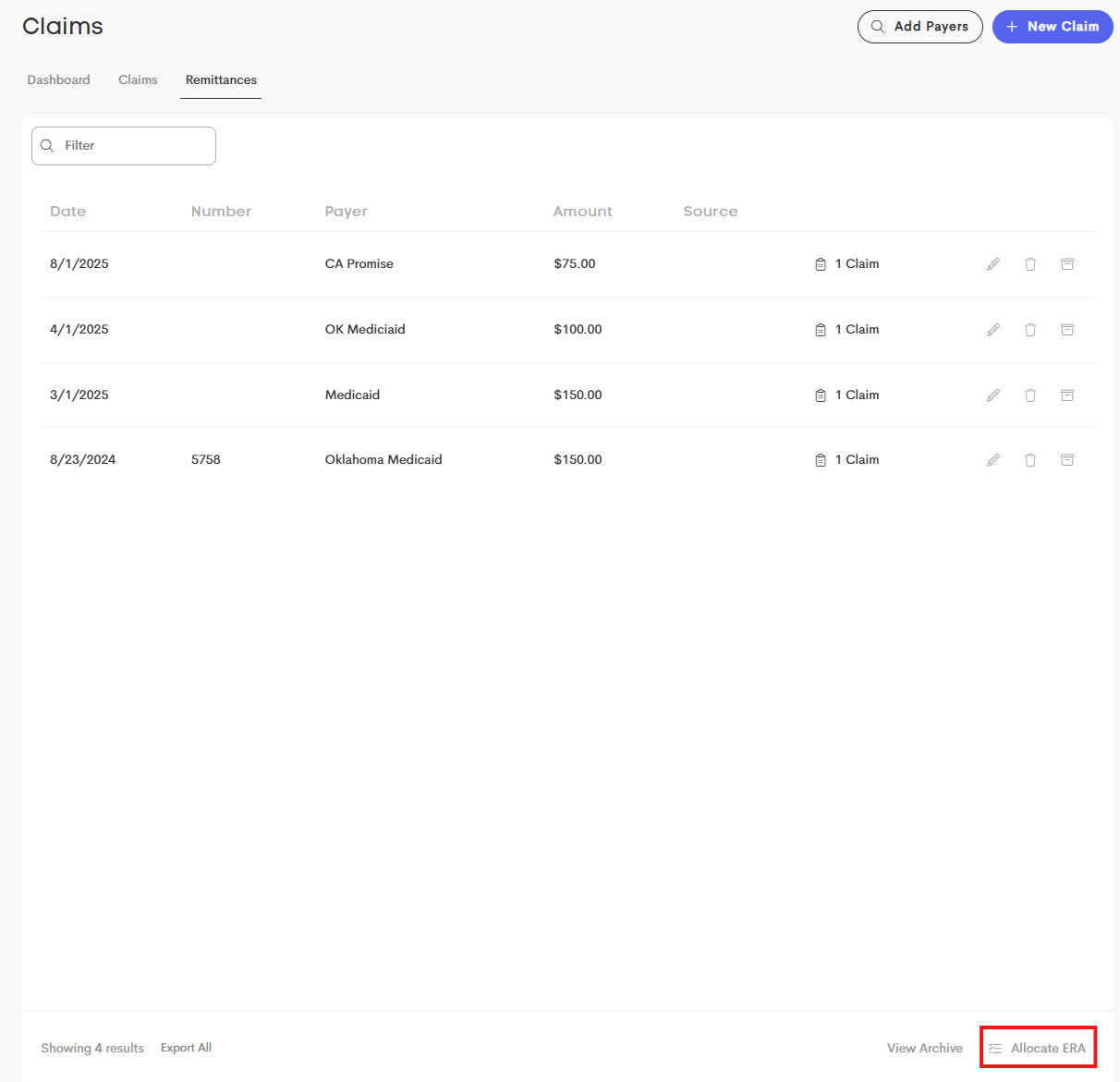
Allocate remittances to the correct business: When an incoming Electronic Remittance Advice (ERA) matches more than one business, eligible team members can now review and assign it to the appropriate business directly within Billing > Claims > Remittances.
A new Allocate ERA area displays remittances awaiting assignment. Once an ERA is allocated, it will automatically appear in the selected business's Remittances list for ongoing management.
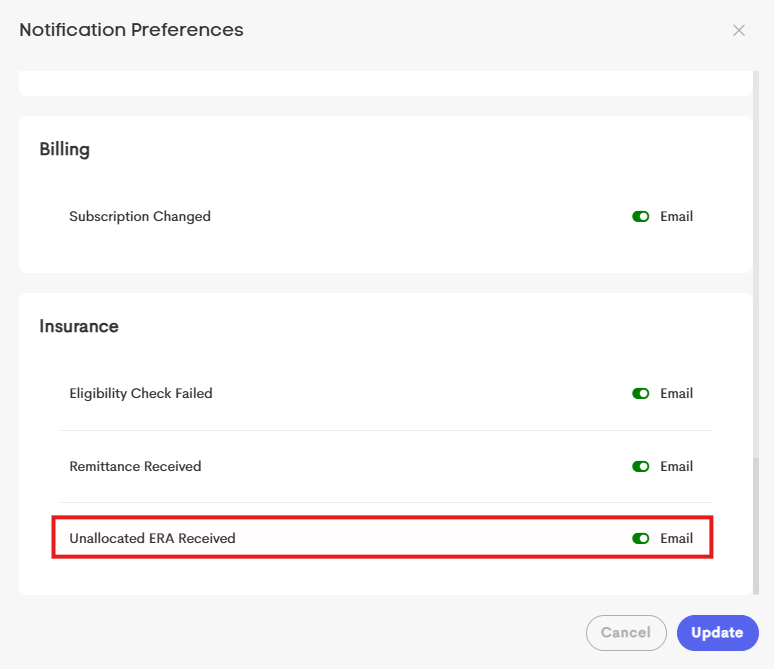
From you Notification Preferences, you can also enable notifications for unallocated ERAs to stay on top of remittances that require your attention. To avoid interruptions to ERA services, be sure to allocate any pending ERAs within 30 days.
-
Clearer business NPI guidance for enrollments: Doulado now provides helpful warnings when requesting Eligibility or ERA enrollments if your business's NPI is missing or doesn't match the NPI entered during enrollment.
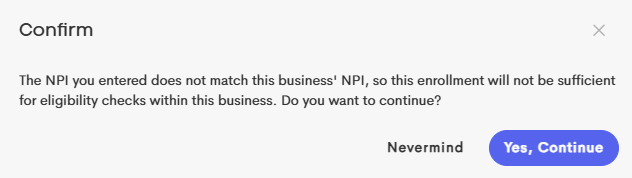
These reminders help you identify potential issues before submitting your request, making it easier to complete enrollments correctly and ensure eligibility checks and remittance processing work as expected.
Note: This warning does not prevent you from submitting the enrollment. You may still continue, but we recommend verifying that the NPI is correct before proceeding.
In order to run an eligibility check, the business' NPI needs to be saved in the business settings area, and match with the enrolled NPI.
#3: Files & Communication
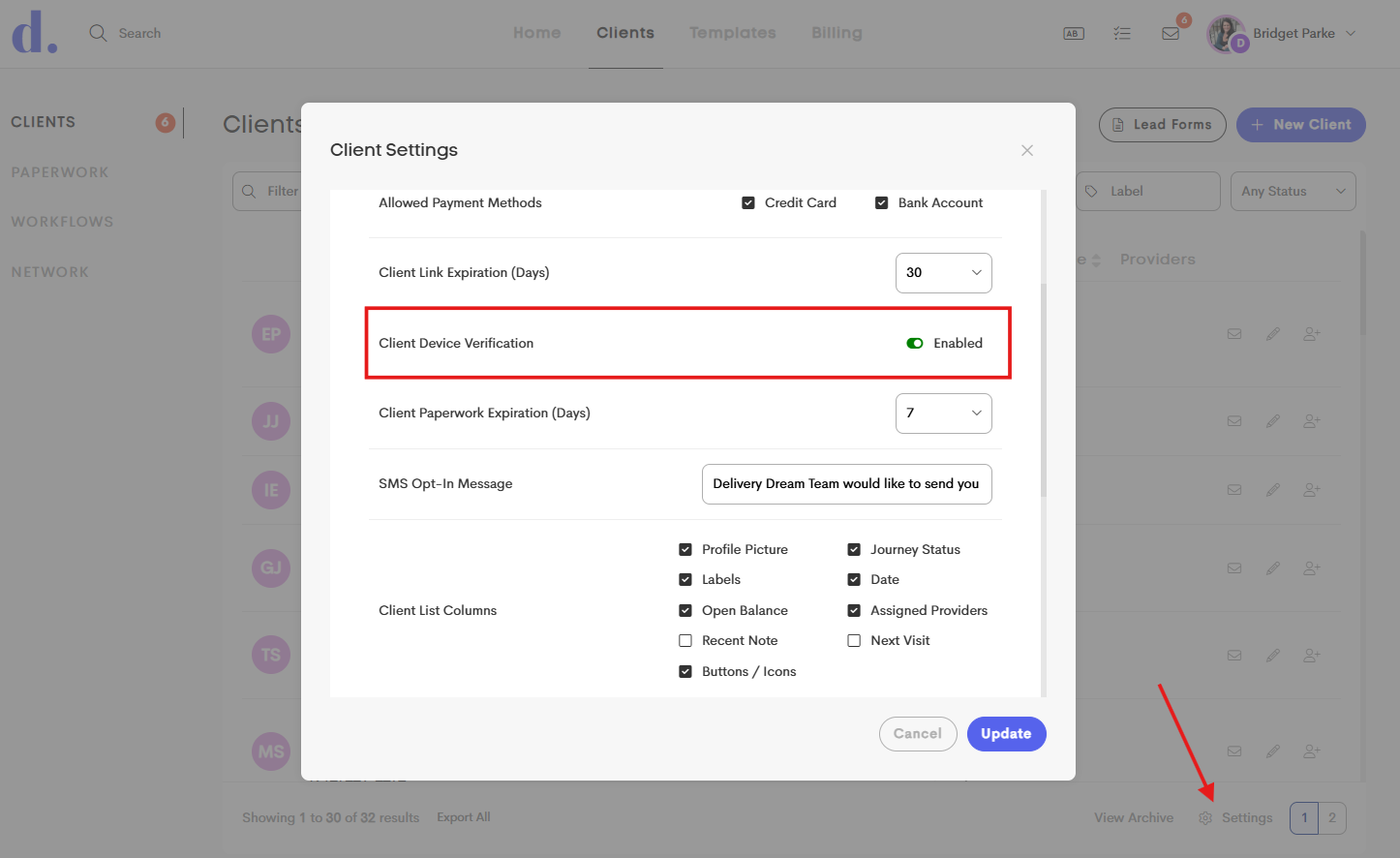
- Device verification for secure client links: To further protect sensitive client information, Doulado now verifies a client's device the first time they open a secure notification link (such as messages, documents, forms, visits, or shared files) on a new device. Clients receive a one-time 6-digit verification code by email, and once that device is verified, future secure links open normally on that device. This security feature is enabled by default to help ensure only the intended recipient can access secure information, but it can be turned off in Client Settings if desired.
Learn more here: Security Update: Device Verification for Client Links or share this link with your client's for instructions if needed: Why Am I Being Asked to Verify My Device?
-
Larger file uploads are now supported: File upload limits have been standardized across Doulado, allowing you to upload files up to 50 MB in supported areas of the platform.
To make uploads even easier, very large images will now be automatically optimized before uploading. If an image is resized, you'll be notified so you know it has been compressed while maintaining a quality suitable for documentation.

This update applies to the following areas:
- Paperwork file uploads
- Resources
- Attachments (claims, expenses)
- Lead Forms file uploads
-
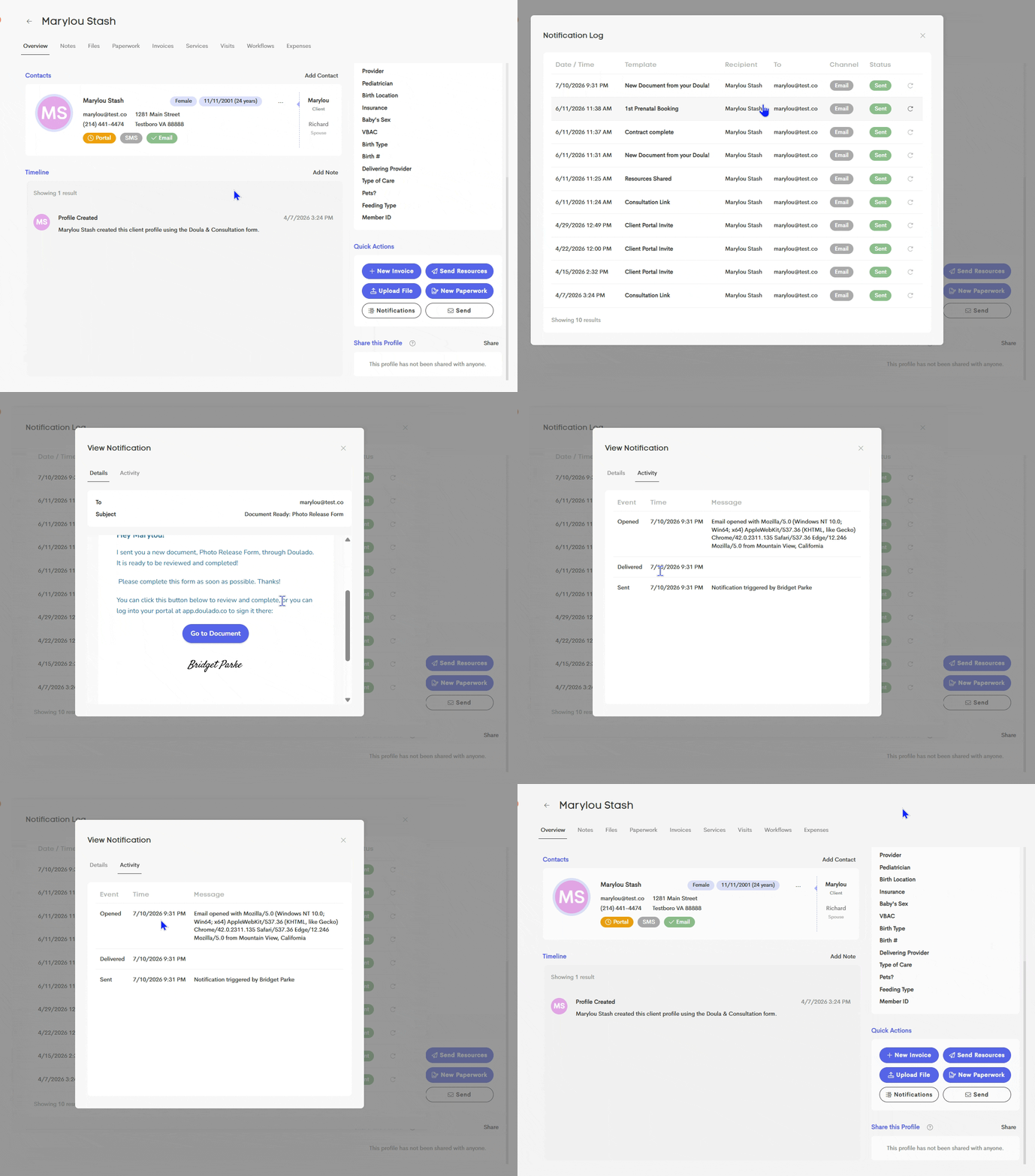
Notification history is now more informative: Notification history now shows what triggered an email to be sent and, where applicable, which team member initiated the action.
For example, custom notifications now include the sender in the Activity tab, making it easier to review notification history and troubleshoot unexpected emails.
-
Expired links accessible via code verification: Link expiration is an important security feature that helps protect your clients' personal information by ensuring notification links do not remain accessible indefinitely.
Now, if a client without portal access clicks an expired notification link, they no longer need to request a new email. Instead, Doulado will send a verification code to the client's email address. After entering the code, the client can securely verify their identity and regain access to the link.
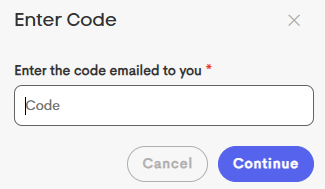
Once verified, the link's expiration is reset using its original timeframe (such as 3, 14, or 30 days), allowing the client to continue accessing their messages while preserving the security benefits of expiring links.
Client link expiration timeframes can be set from (none) to 30 days in your client settings, at the bottom right of your client list!
-
More control over paperwork link expiration: You can now set a separate expiration period for client paperwork links, giving you control over how long clients have to complete and submit documents before they are no longer accessible.
A new Client Paperwork Link Expiration (Days) setting has been added to Client Settings. Unlike all other client notification links (controlled by "Client Link Expiration (Days)"), paperwork links that reach their expiration date cannot be re-accessed through email verification. Once a paperwork link expires, the client will no longer be able to open it, and you'll need to send a new copy if you still want them to complete it. The paperwork will also expire from a new paperwork notification, as well as within their client portal.
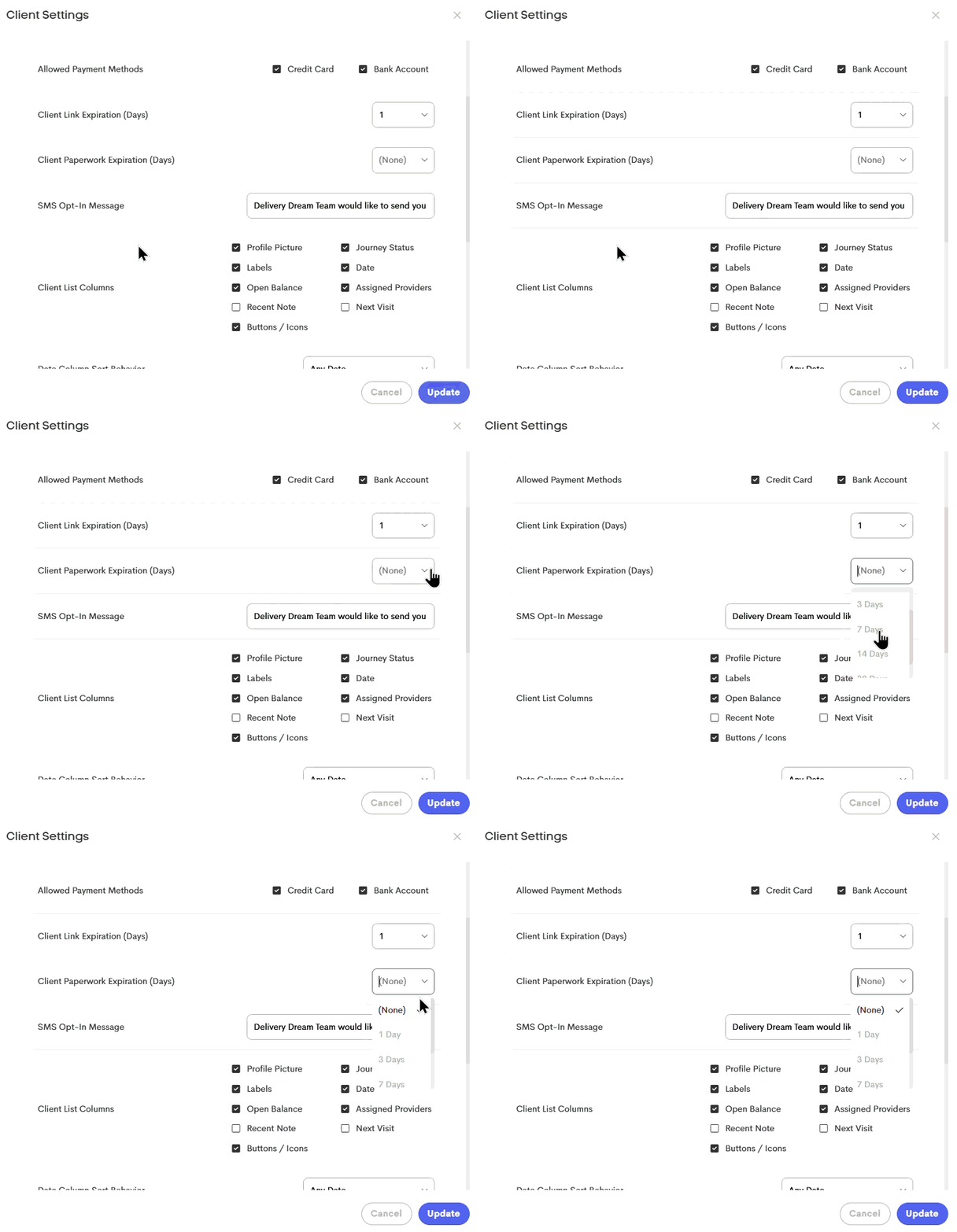
This is especially useful for time-sensitive documents like contracts or consent forms. For example, if you only want paperwork available for 7 days, you can have it automatically expire if it isn't completed in time.
By default, paperwork links will continue to use your existing Client Link Expiration (Days) setting. If needed, you can choose a different expiration period specifically for paperwork links without affecting other client notification links.
Tasks in the works:
- Public release of Workflows!
- Updated client device verification for links
- Payout processing
- and more!!