
April 2026
We’re introducing a new set of updates focused on improving how you manage clients, forms, and team workflows in Doulado.
From more flexible lead forms to better control over messaging, these updates are designed to make your daily tasks smoother and more efficient. We’ve also updated wording in various places to improve clarity and make the platform easier to navigate.
See what’s new below:
#1 Clients Journey Adjustments
-
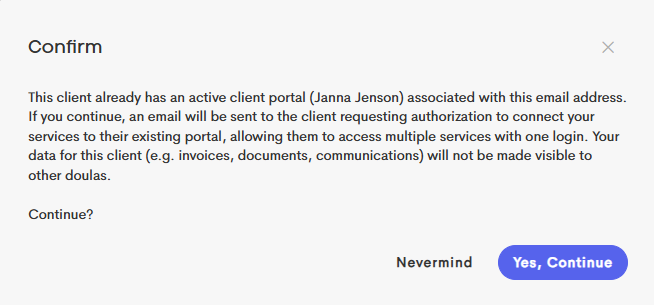
Clearer Profile Merge Prompt Messaging: We’ve improved the prompt shown when enabling the client portal for someone who already has an active client portal account, making the process more straightforward.
The updated message explains that the client will receive an email to authorize connecting your services to their existing login. Clients use a single portal to access information across providers, but only basic profile details are shared between each journey (Name, email, address, phone number, birthday, sex, etc). All other information remains private to each doula-client relationship.
This update helps clarify the process while reinforcing security and ease of use.
-
"Conditional" Fields on Lead Forms: When adding a new section to a lead form, you can now choose whether it is always visible or only appears based on a client’s answer to a previous question. This allows you to tailor the form experience and show only what’s relevant.
To set this up, simply place the conditional section after the question it depends on. Any question in your form can be selected as the trigger, and each conditional section can include multiple follow-up questions.
Required fields are only enforced when the section is visible, keeping forms streamlined and easy for clients to complete while giving you more flexibility to collect the right information. This allows you to create more dynamic and personalized forms by only displaying relevant questions.
If you select “always visible” when adding a new section, it will work the same way it always has and will not display conditionally.

Example: A conditional section is added stating that if the insurance block is not blank (filled out at all), a section shows requiring the client to upload images of their insurance card.
|
|
|


This conditional logic is available in "Lead Forms" only at this time. Learn more here!
#2 Paperwork & Documents
-
Expanded Invoice and Paperwork Resend Access: You can now resend invoices and paperwork more easily based on your access to a client.

Previously, only certain users (like team owners or the original sender) could resend invoices and paperwork. Now, any team member with edit access to a client journey can resend visible invoices and paperwork for that client.
Any of the following give you edit access to a client journey
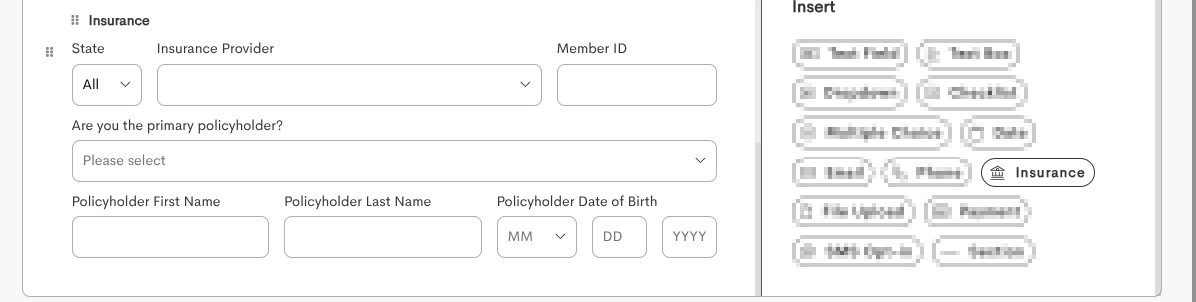
- Added Insurance and Contact Fields in Forms: You can now collect insurance details and additional non-primary contact information directly through Paperwork Forms, similar to how you can map that information from a lead form currently.
-
Use the Insurance Field to get coverage details, which will be saved to the client journey's insurance coverage.
-
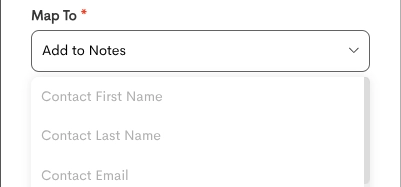
Capture details for additional contacts using text field questions that can be linked to a non-primary contact's information in the Client Journey.
-
#3 Messaging & Notifications
-
Manage Message Notifications: You now have more control over message notifications with two new options: stop or freeze. These settings are individual to each message thread, and now show for both doulas and clients to customize their conversation settings.
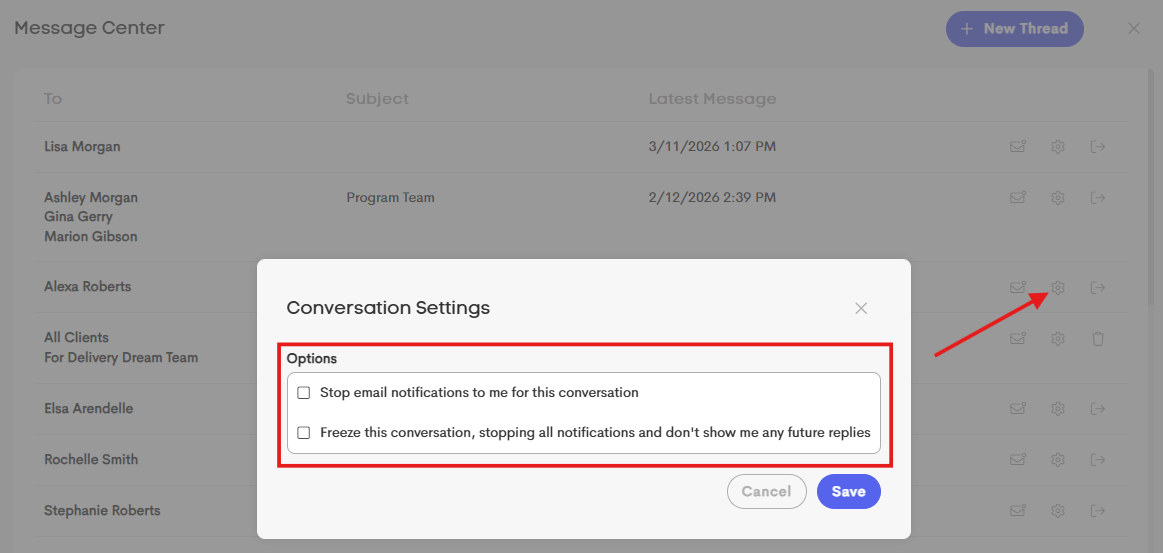
- Stop email notifications to me for this conversation: Turn off email notifications for a conversation while still being able to view and reply to messages. This may be useful for a client who is in frequent back-and-forth communication and prefers to log in to view messages instead of getting constant email alerts.
- Freeze this conversation: Temporarily stop all notifications and updates for a conversation. While paused, you won’t receive new messages or be able to reply until you resume the thread. This may be useful for a doula who wants to freeze a conversation after a client’s journey has ended or if communication is temporarily on hold, like during a break in services.
These options make it easier to manage your inbox and focus on the conversations that matter most.
By default, these options are off. If one or more are selected, the icon fills in gray so that you know that conversation thread's setting have been adjusted.
#4 Team & Claim Changes
-
Expanded Visit Visibility for Participants: Participant team members can now see more relevant visits in their schedule.
Previously, participants could only view visits on which they were assigned as the provider. Now, they can also view the visits of any clients they are assigned to.
This makes it easier to stay informed and manage care for assigned clients, especially when working with multiple providers!

- Manage Note Labels: We’ve updated how note labels are managed within teams to improve consistency. Now, only team owners can create, edit, or delete note labels. Other team members can still apply existing labels to their notes but won’t be able to modify the list of available labels.

|

|
-
Clearer payer enrollment requirements: Within your Claims dashboard, we’ve updated the services list when managing payers to make support and enrollment requirements easier to understand at a glance.
Each service now includes a clear status indicator: supported services that do not require enrollment are shown in green (✓), services that require enrollment are shown in orange (!), and services that are not supported are shown in gray (×) (rare).
This update helps you quickly determine what’s available for each payer and whether any additional setup is needed before using a specific service.

If a service like ERA or eligibility is not supported, you will see an error message when you submit an enrollment request for it.

Reminder: An enrollment is simply a one-time setup that gives you permission to use a specific service, like receiving electronic remittances (ERAs) or checking eligibility, with a payer. Some payers require this extra step to securely connect your account before those features can be used.
Tasks in the works:
- Claim auto fill updates
- Automations!!
- and more...