
Managing Team Members
You can manage your team, including members, roles, and access by navigating to your User Menu > Switch Team section and choosing a team.
Click on the Manage Team button.

Table of Contents
- Member Roles
- Editing Members
- Member Actions
- All Members
- Leave the Team
- Create/View Profile
- Owner Actions
- Delete a Team
- Create a Profile
- Assign a Client
- Delete a Team Member
- All Members
Member Roles
| Role | Permissions |
|---|---|
| Owner | Full Access. Can view all clients, edit members, manage settings, and handle billing. |
| Contributor | Collaborative Access. Can see all team clients and assign themselves to journeys, but cannot manage team settings or other members. |
| Participant | Limited Access. Can only view and access clients they have been explicitly assigned to. No team-wide visibility. |
Only Owners can be designated as the "Paying Owner" responsible for the team subscription (meaning they have an active Plan with the Team Feature in order for the team to remain active).
Hence, at least one owner must remain on the team at all times.
Editing a Team Member's Permissions or Role
-
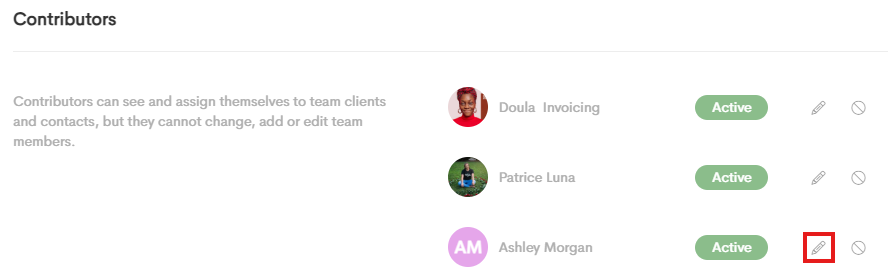
In the Settings tab of the Manage Team modal, click on the Pencil icon next to a team member.
-
Choose a new role you want to assign this team member to.
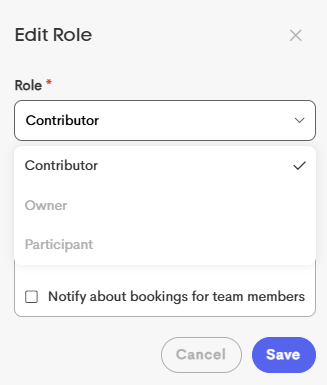
- Click Save. The team member will be moved to the selected role group.
In the same modal, you can also change a member's color, active status and notification settings.
The paying owner can't be set to inactive or removed.
Inactive Members
- Lose access to the team dashboard and clients immediately
- Do not count on the team plan's seat Limit

Member Actions
Specific actions are available to members, depending on their assigned role within the team.
All Members
Every member of the team can:
-
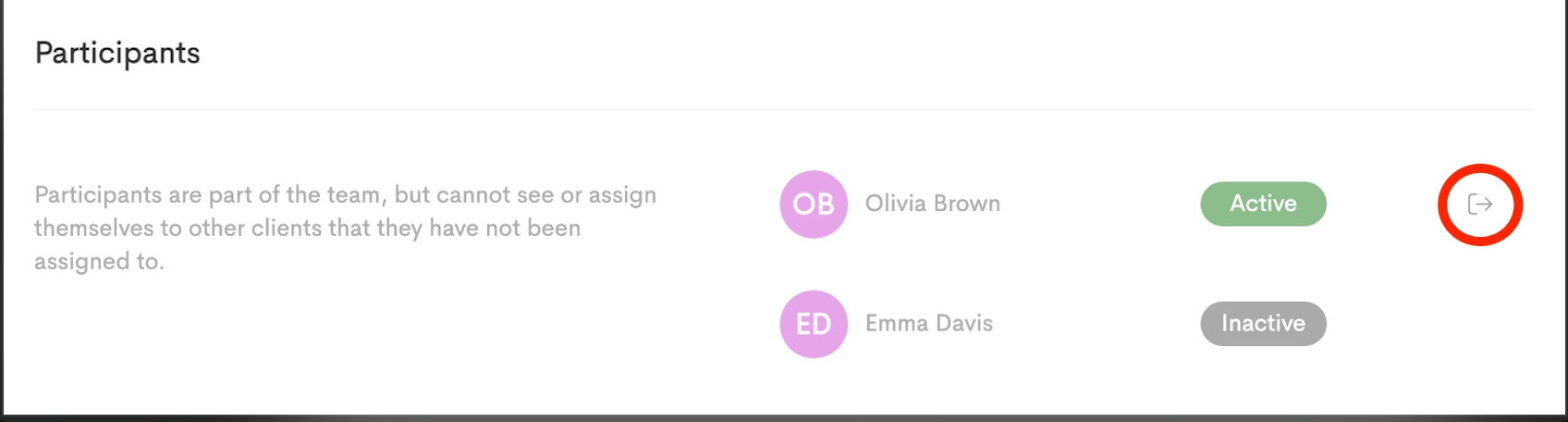
Leave the Team: Voluntarily exit the workspace.
-
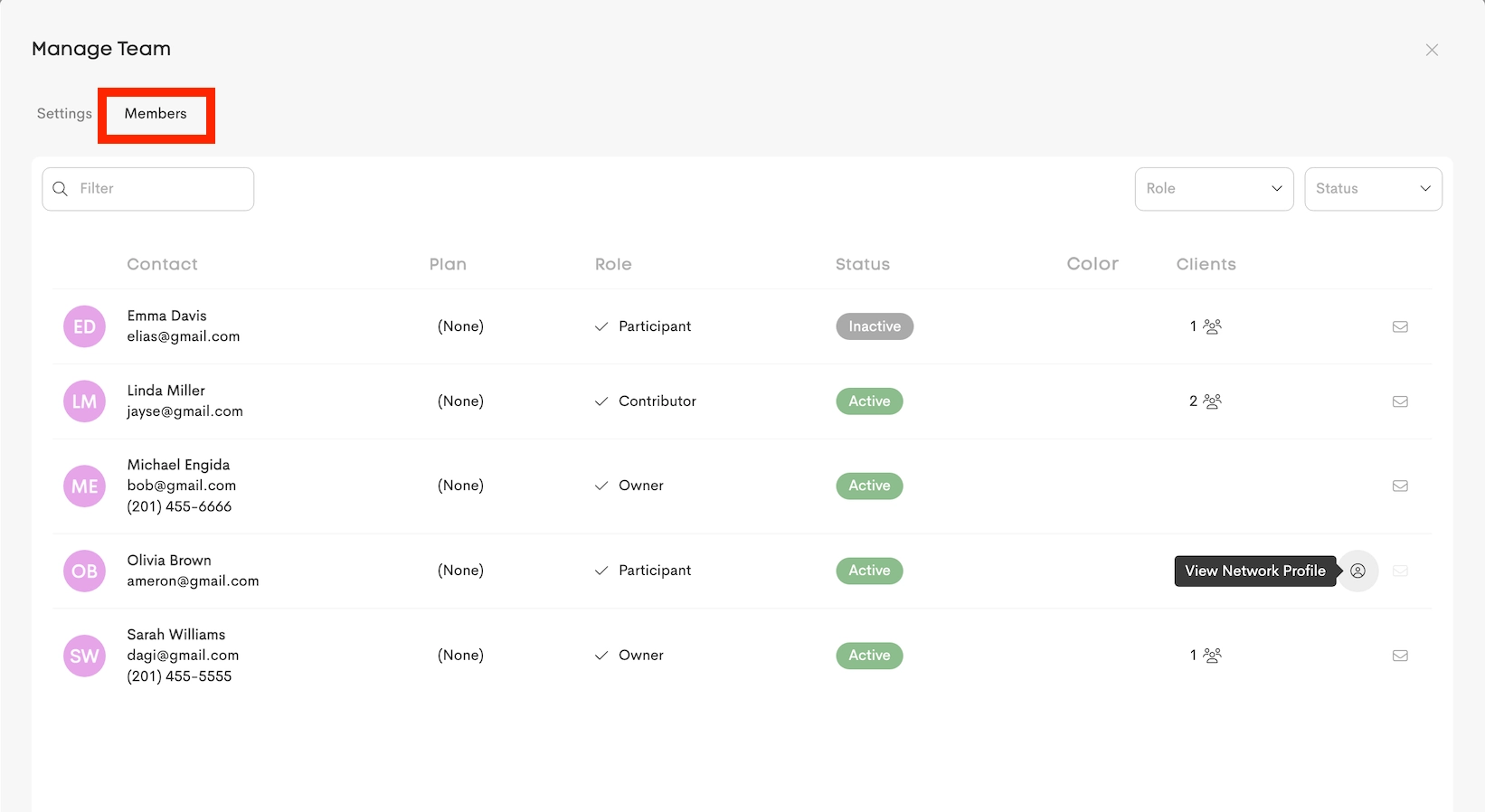
Create/View Profile: Access their personal network profile as it appears to others.
Owner Actions
As a team owner, you have access to additional tools to manage your team and workspace.
- Managing the Team Workspace
-
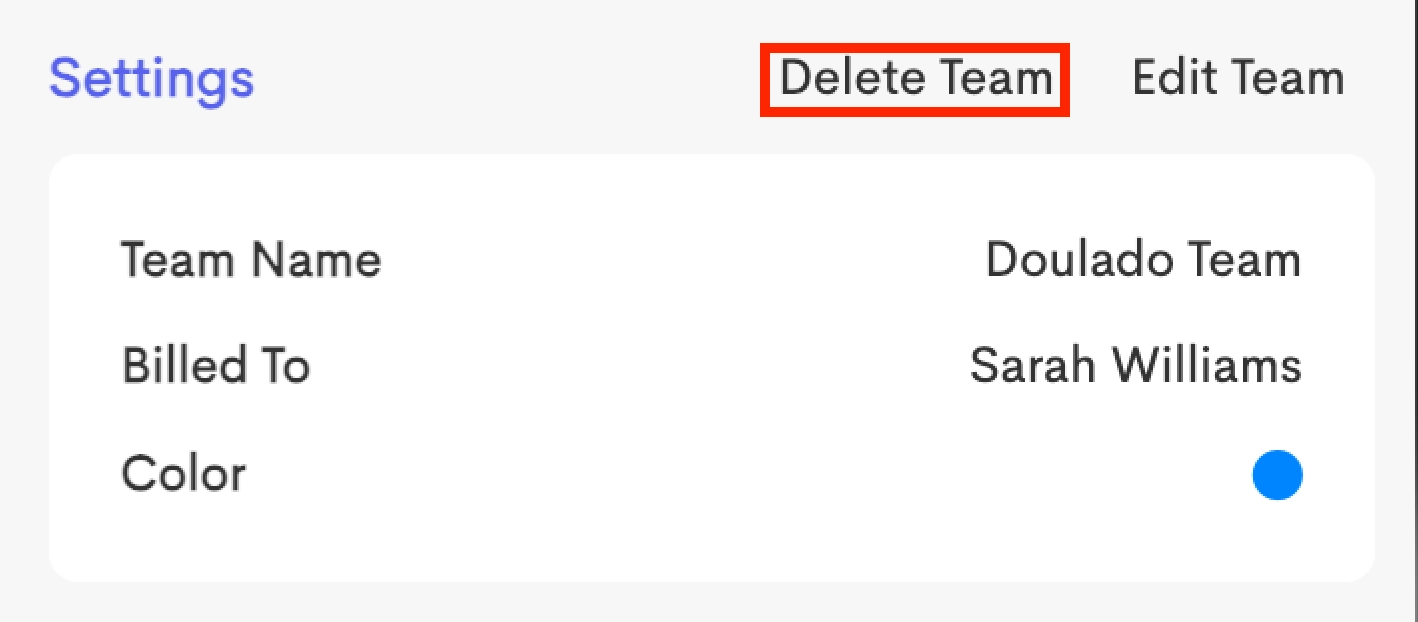
Delete Team: Remove the team workspace permanently in the Settings section of the Manage Team window.
-
Once deleted, all members will lose access to the team and its client data.
- Managing Members & Clients
-
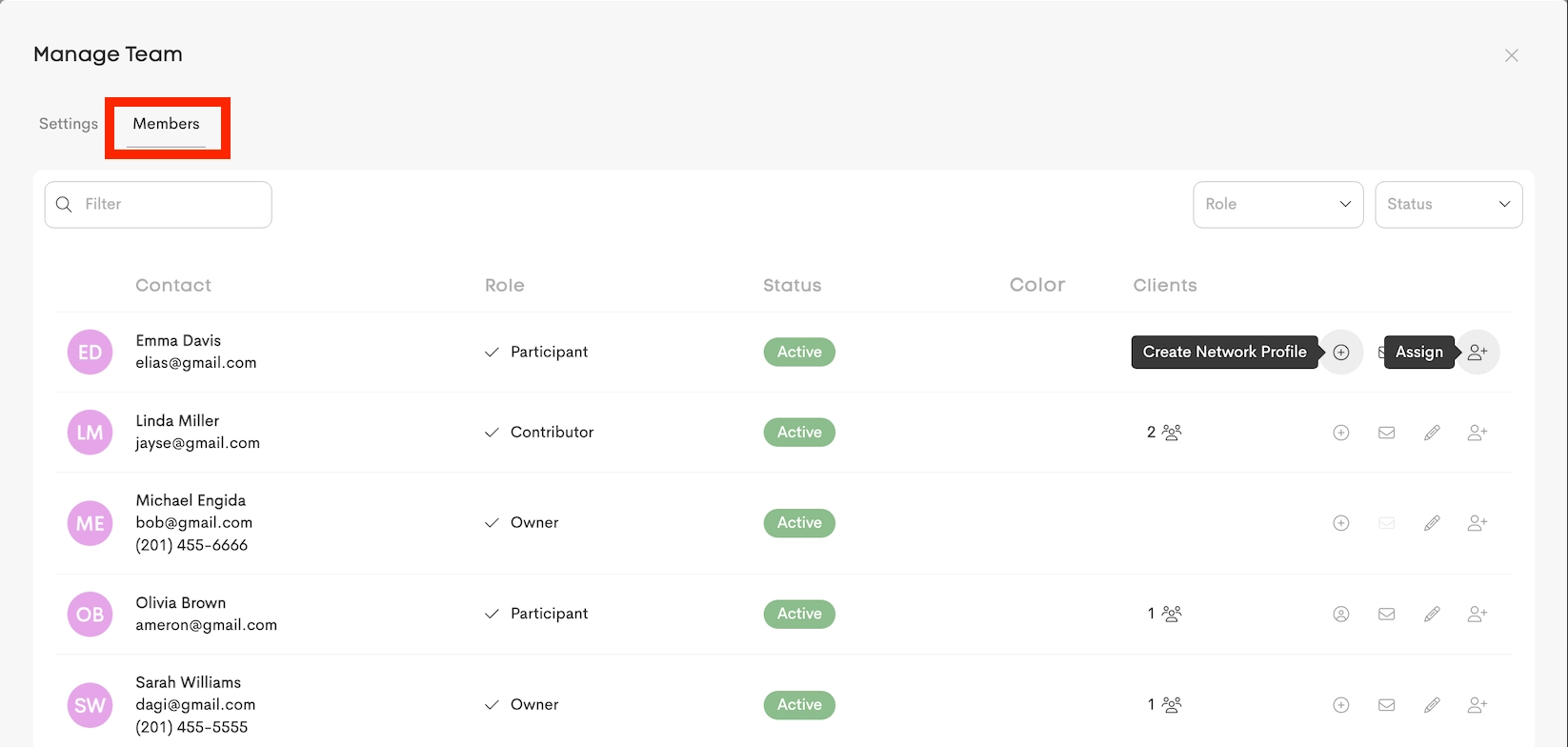
Create Profile: Create a profile for team members to highlight their skills and information.
-
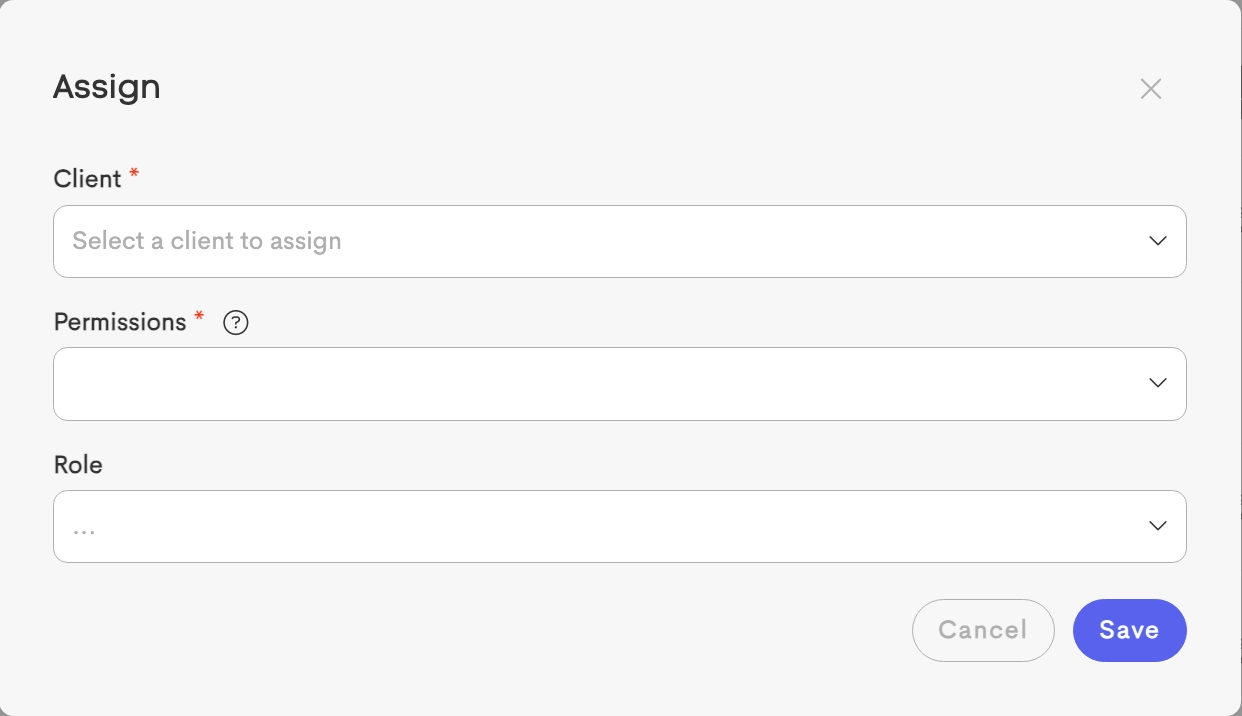
Assign Clients: Easily assign clients to team members using the Assign option.
-
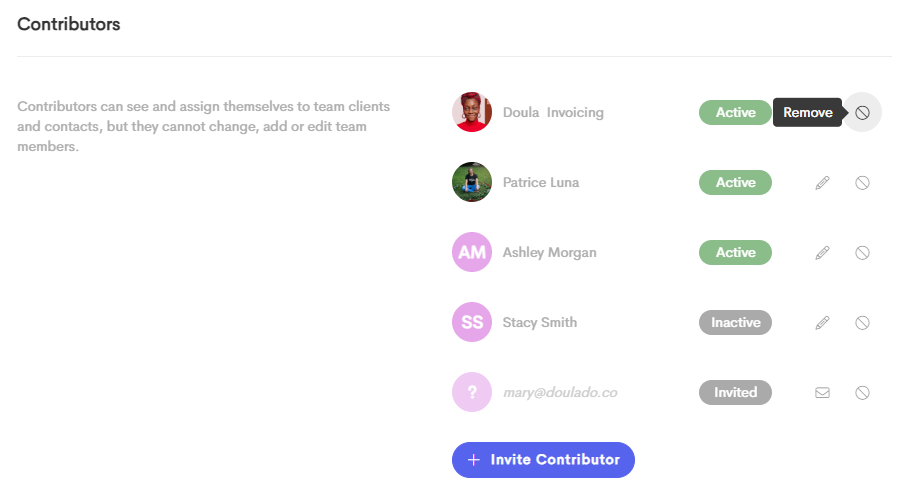
Remove a Team Member from the Team: The member will be removed immediately and will lose access to the team and its content. They will also be unassigned from all team clients, but can be re-added later if needed.
-
