
Customizing Booking Pages
You can customize a booking page to define things like its available appointment types and timeslot availability.
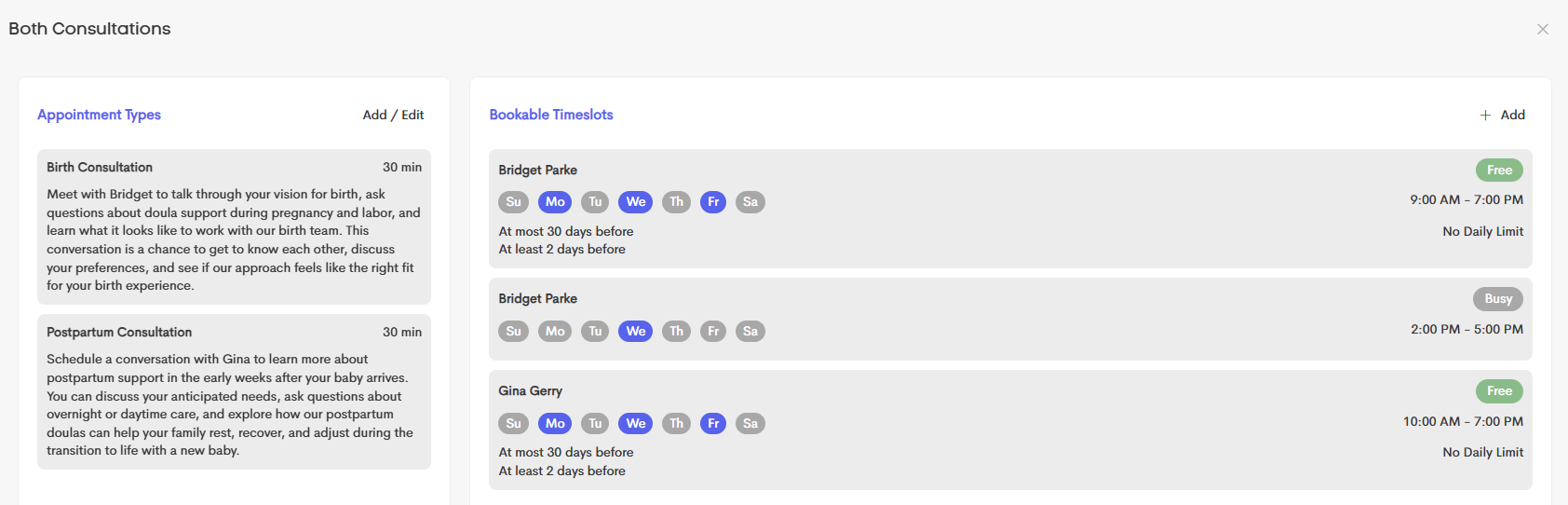
To set a booking page's properties, such as changing its name or title, linking it to a lead form, or customizing its description, you can instead Edit it.
Table of Contents
Where to Find It
While previewing a booking page, press the Customize button in the bottom-right.
Appointment Types
The Appointment types panel lists the page's available appointment types for booking.
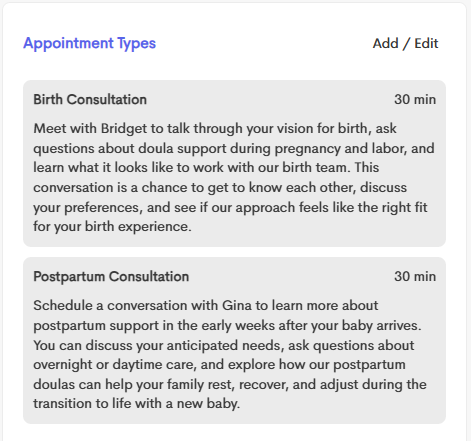
Each booking page has its own set of appointment types for clients to choose from.
Edit an Appointment Type
Press on an appointment type to edit its properties.
- Preset: You can link the service to an existing Appointment Preset from the dropdown choices. This way, you can automatically apply settings like colors and scheduling rules based on the preset.
- Duration: Set how long the appointment will last in minutes.
- Description: Add details or instructions that clients will see when selecting this service.
- Location Options: Choose where the appointment will take place:
- Physical Address: Add one or more locations for clients to choose from
- Client Provided: Leave a field blank to allow clients to enter their own address or meeting link
Manage Appointment Types
Press the Add/Edit button to access the Manage Appointment Types modal window.

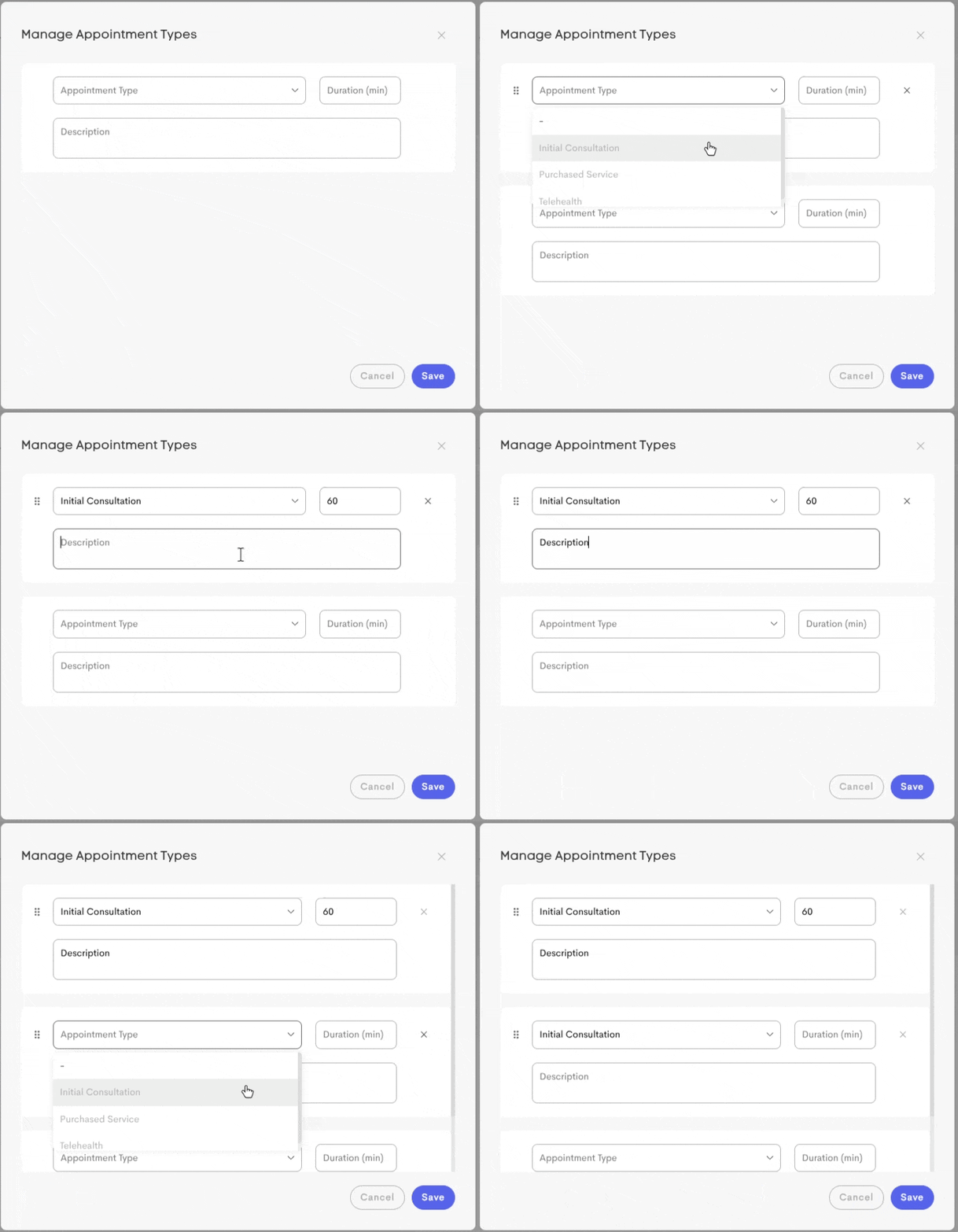
From here, you can drag an appointment type's ⠿ icon to change where it sits in your list of available appointments, or easily change an appointment type's Preset, Duration or Description.
The sequence you define in this section is exactly how they'll appear to the client on the live booking page.
Add an Appointment Type
While managing appointment types, the last appointment type in your list is a blank entry that represents a potential appointment type that can be created. Interact with it in order to create it and fill in details, which will also result in a new potential appointment type appearing below.
Bookable Timeslots
The Bookable Timeslots panel shows allotted periods that control when clients can book appointments.
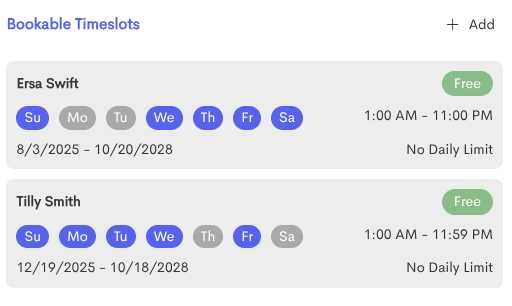
Add or Edit a Timeslot
To define a new timeslot, you can use the + Add button in the top-right.
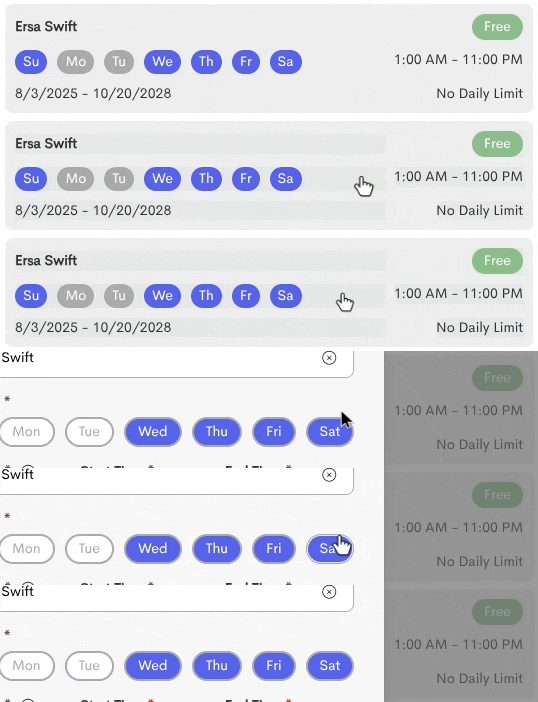
To edit an existing timeslot, press on it in your list.
Timeslot Configuration
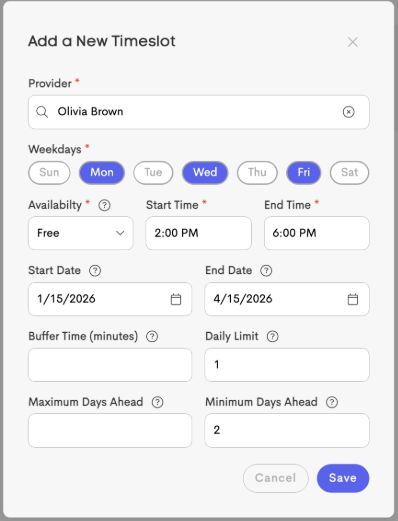
When adding or editing a timelsot, you'll determine things like the Provider it relates to, whether it represents a Free or Busy period, and the date and time range it covers.
-
Provider (team only)
Choose which team member this availability applies to. This will make them an available option during booking, and determine the bookable times shown to the client if they choose that provider.
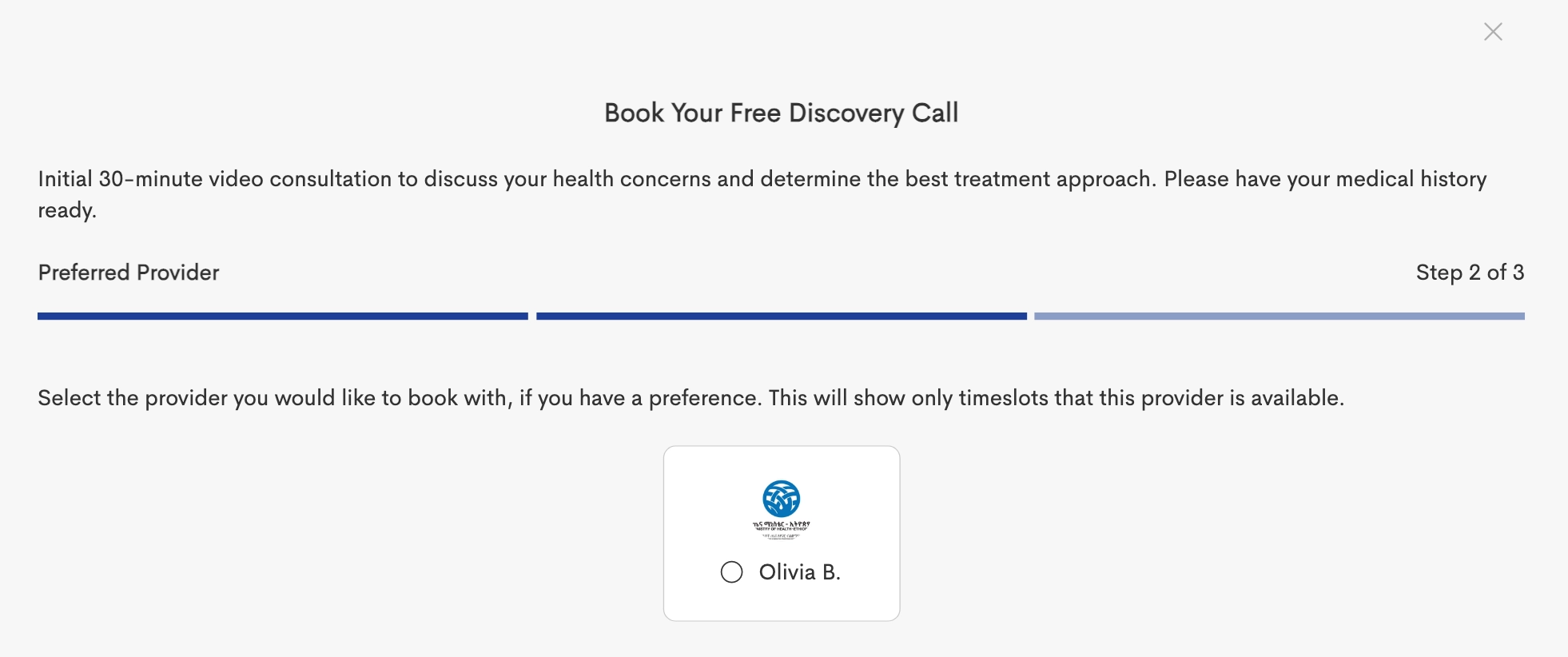
Selected Provider is shown to clients - Availability
- Free: Allows clients to book during this time
- Busy: Blocks off time and prevents bookings
- Buffer Time - Set a gap between appointments to give yourself time before the next booking
- Daily Limit - Limit how many appointments can be booked per day for this booking page
- Maximum Days Ahead - Control how far in advance clients can schedule appointments
- Minimum Days Ahead - Set how much notice is required before a client can book
Booking Scenarios
The following scenarios demonstrate how attribute values interact to determine the final availability presented to the client.
Example 1: Basic Recurring Availability

| Availability | Free |
| Weekdays | Monday, Wednesday, Friday |
| Time Range | 09:00 AM - 5:00 PM |
Result: The provider is available for any bookable duration within these hours on the selected days, provided no internal or external conflicts exist.
Example 2: Enforcing Buffer Constraints

| Availability | Free |
| Weekdays | Tuesday, Thursday |
| Time Range | 01:00 PM - 04:00 PM |
| Buffer Time | 30 |
| Scenario | A 60-minute appointment is booked at 01:00 PM (ending at 02:00 PM). |
Result: The 02:00 PM - 02:30 PM window is reserved as a "cool-down." The next available start time offered to clients will be 02:30 PM.
Example 3: Daily Appointment Cap

| Availability | Free |
| Weekdays | Saturday |
| Time Range | 08:00 AM - 06:00 PM |
| Daily Limit | 4 |
| Scenario | Four 60-minute appointments are booked for Saturday: 9:00 AM, 11:00 AM, 1:00 PM, and 3:00 PM |
Result: Even though
- 08:00 AM - 09:00 AM
- 10:00 AM - 11:00 AM
- 12:00 PM - 01:00 PM
- 02:00 PM - 03:00 PM
- 04:00 PM - 06:00 PM
remain technically open, Saturday becomes completely unavailable to new bookings. The daily limit of 4 has been reached regardless of remaining time blocks.
Example 4: Recurring Time Block (Lunch Break)

| Availability | Busy |
| Weekdays | Monday, Tuesday, Wednesday, Thursday, Friday |
| Time Range | 12:00 PM - 1:00 PM |
Result: Every weekday from noon to 1:00 PM is blocked from client bookings, even if other "Free" rules cover this period.
Example 5: Advance Booking Window

| Availability | Free |
| Weekdays | Monday, Tuesday, Wednesday, Thursday, Friday |
| Time Range | 09:00 AM - 05:00 PM |
| Minimum Days Ahead | 2 |
| Maximum Days Ahead | 21 |
| Scenario | A client accesses the booking page on a Monday at 2:00 PM. |
Result:
- Monday and Tuesday are hidden (less than 2-day minimum). Wednesday is the first bookable day (exactly 2 days ahead)
- The last bookable day is 21 days from Monday
- Clients can view and book appointments Wednesday through the 21-day limit, weekdays only
Example 6: Seasonal Schedule Adjustment

| Availability | Free |
| Weekdays | Monday, Tuesday, Wednesday, Thursday, Friday |
| Time Range | 07:00 AM - 03:00 PM |
| Minimum Days Ahead | 2 |
| Maximum Days Ahead | 21 |
| Scenario | A client accesses the booking page on a Monday at 2:00 PM. |
Result:
- During summer months (June through August), morning/early afternoon hours are available with a maximum of 6 appointments per day.
- Outside this date range (September onwards), this timeslot rule is completely inactive.