
Sending and Managing Invoices
Once you've created an invoice, and the item line and installments are set on to the New Invoice page, you may now send it to a client.
Table of Contents
Selecting Invoice Recipient
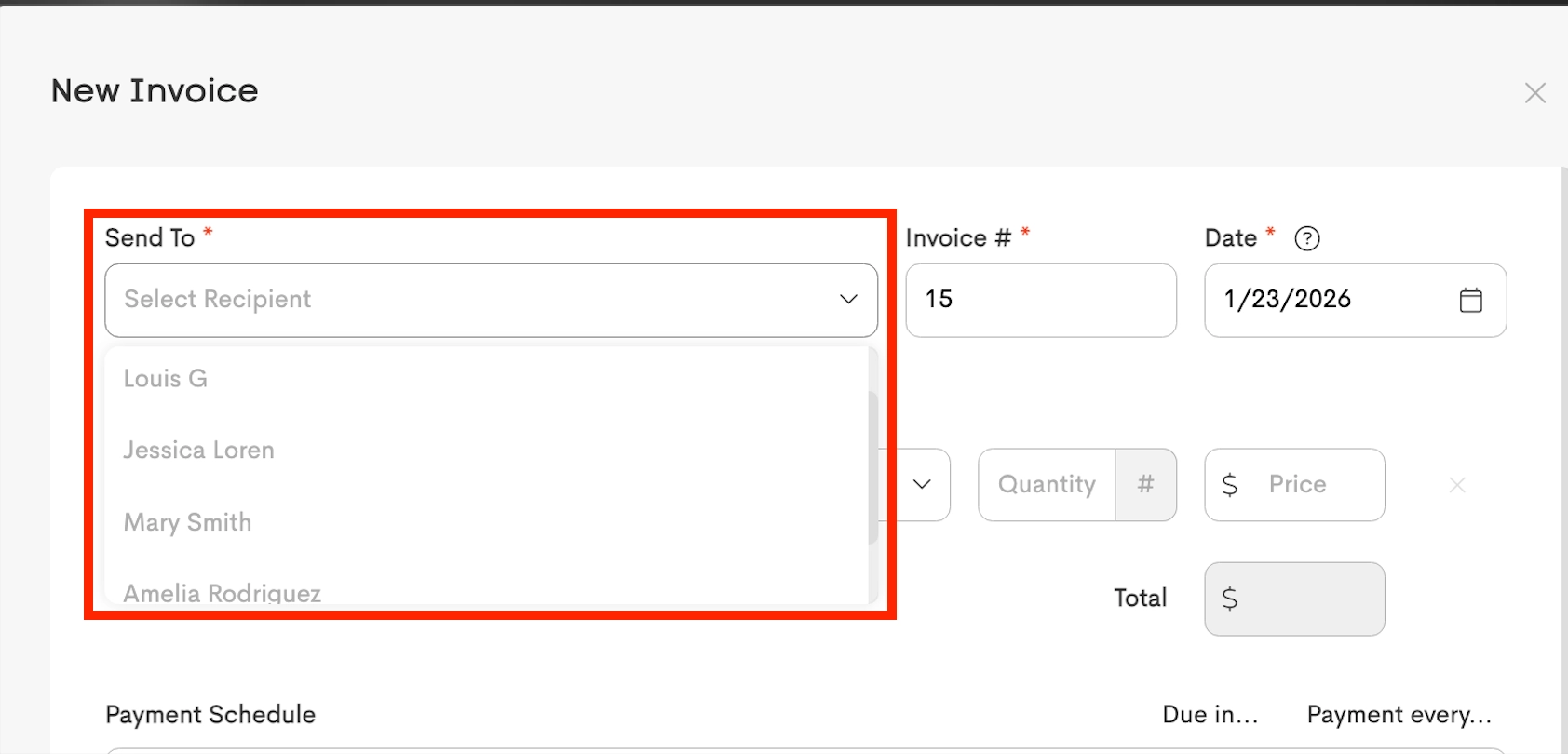
Send To: This field defines the Client Journey this invoice will belong to.
- If you're creating an invoice from Billing, you can select from all your active client journeys.
- If you're creating an invoice from a specific Client Journey, that client will already be selected.
Once an invoice is created (saved), this field can not be changed.
Send Options
Send: The dropdown lets you choose how you'd like to send the invoice after it's created:
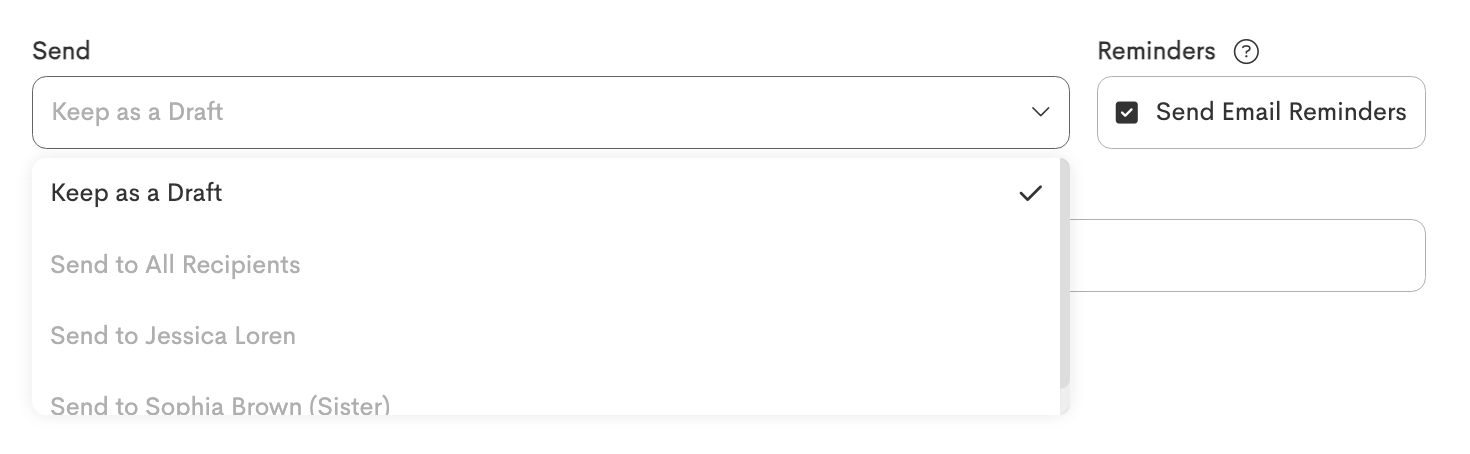
- You can save the invoice without sending via Keep as a Draft.
- You can notify everyone on the journey with Send to All Recipients.
- You can directly send it to the Client.
- You can send the invoice to the client's added Contact.
Reminders: Enabling this option will send an invoice reminder via email.
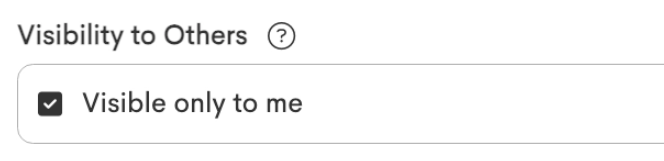
Visibility to Others: You can control which providers and team members can see the invoice.
- If Enabled (Restricted), you're setting the invoice in private.
-
In a Team: The invoice is visible only to the Sender and Team Owners.

-
In a Personal Business: The invoice is visible only to the Sender.
-
- If you leave this option Unchecked (Shared), this invoice will be visible to others.
- In a Team: The invoice is visible to the assigned providers and all the team members that are Participant +.
- Participants can only see the invoice if they are explicitly assigned to the Client Journey.
- In a Personal Business: The invoice would be visible to the other providers assigned to the Client Journey.
- In a Team: The invoice is visible to the assigned providers and all the team members that are Participant +.
Assigned providers, that are not members of a team, can only see shared invoices from Client Profile → Invoices.
Options
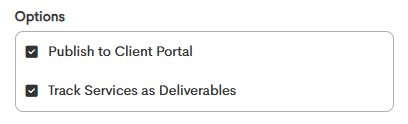
- Publish to Client Portal: If you enable this, the invoice will be visible to your client through their Client Portal. You can leave this disabled if you want to keep the invoice hidden from your client.
- Track Services as Deliverables: If you enable this, the invoice will be added to the client's Service tab in their Client Journey once it's approved. This lets you and your client track purchased services throughout their care journey.
Invoice Actions
These are the action buttons you can use to manage or update your invoices from the Invoices page.
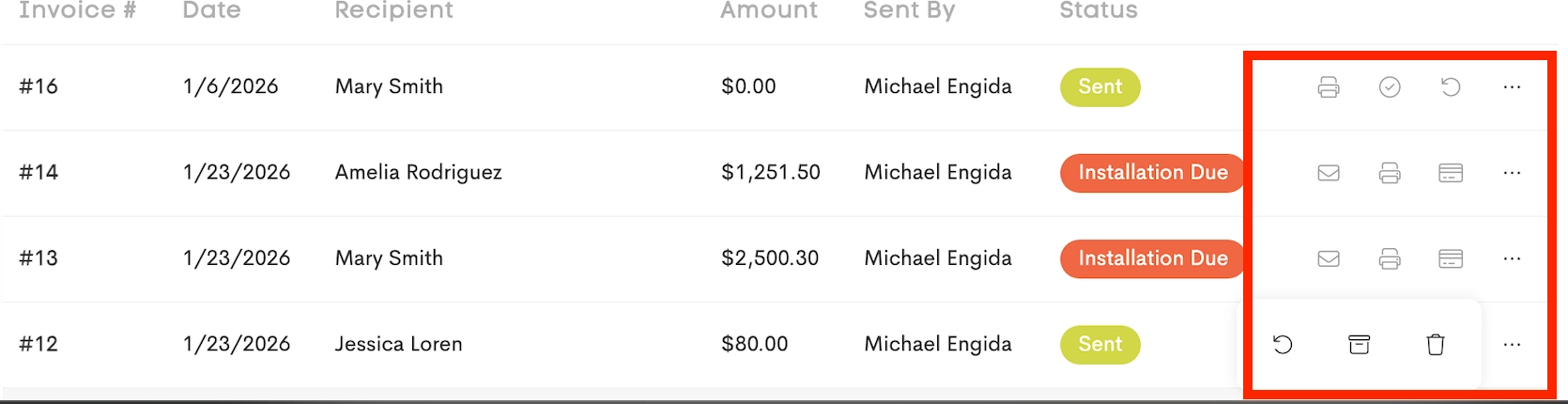
Invoice Lifecyle and Status
The status of an invoice updates automatically based on actions taken by you or the client.
| Action | When is it available | What it does |
| Re-send | Invoice has been Sent (or is Open/ Overdue) but is not fully paid. | Emails the invoice link to the client (if the user has Edit permission over the recipient’s journey). |
| Revise | Invoice is Sent or Approved,, but NO payments have been made. | Reverts the invoice to Draft, so its editable again. |
| View PDF | Always available. | Opens the print-ready version of the invoice. |
| Make Payment | Invoice has a remaining balance greater than 0 | Allows to record cash/check or charge a card manually. |
| Finalize | Invoice total is 0 and it is not yet Approved. | Skips sending; marks as complete immediately. |
| Status | Description | How It Gets Here | Client Can See? | What's Next |
| Draft | Created but not shared. | New invoice created with "Keep as Draft". | ❌ No | Send to client when ready. |
| Sent | Awaiting client approval. | Invoice emailed to client. | ✅ Yes | Client approves or pays. |
| Retainer Due | Approved, deposit unpaid. | Client clicked "Approve" but the required Retainer amount (> $0) is not paid. | ✅ Yes | Client pays retainer. |
| Installment Due | Mid-schedule payment due. | Previous payments made, but the next scheduled installment date has arrived. | ✅ Yes | Client pays installment. |
| Open Balance | Approved, balance not yet due. | Partial payments made, but future payments are not yet overdue. | ✅ Yes | Wait for next due date. |
| Overdue | Past due balance owed. | Final due date has passed with a remaining balance. | ✅ Yes | Client pays overdue amount. |
| Paid | Fully paid. | All payments received. Balance is $0.00. | ✅ Yes | Archive for records. |