
Editing Team Settings
Use Team Settings to keep your workspace up to date, including branding, services, and business details.
Table of Contents
Editing the Team
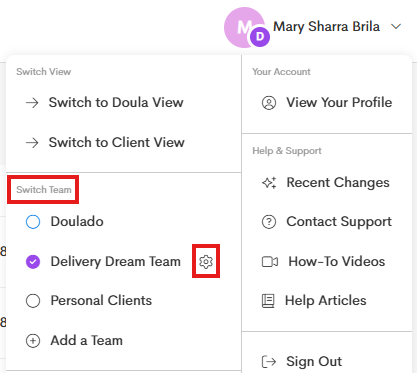
- Go to your User Profile on the upper-right corner.
-
On the Switch Team section, choose a team you want to manage and click on the Gear icon.
-
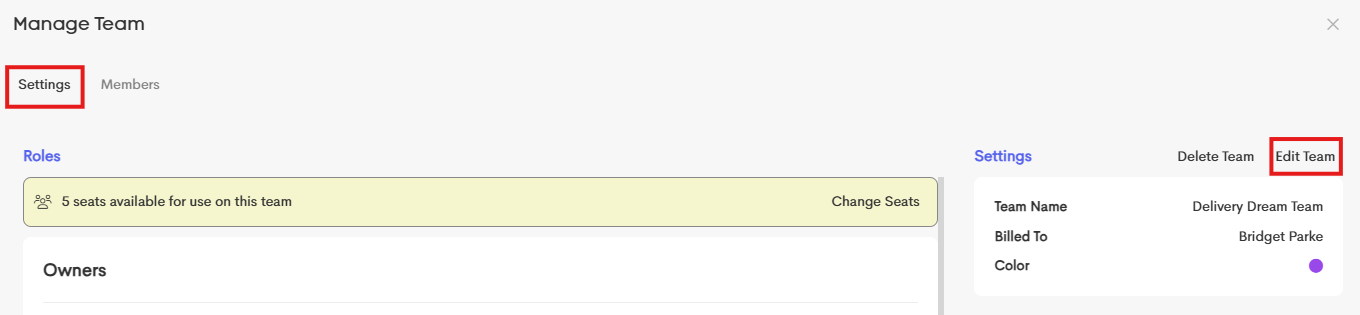
In the Settings tab, click on Edit Team.
-
You can change your Team Name and Color.
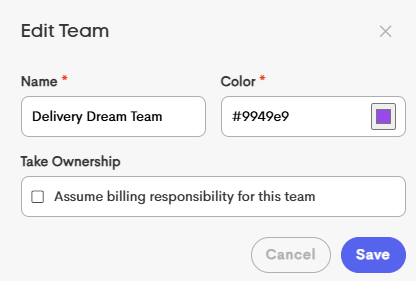
- Under Take Ownership, enable the option to assume the billing responsibility for the team you're editing.
If that account's subscription isn't renewed, you will need to do this step for each team you want to reactivate.
- For more information on Billing, check this article: Seat Management and Billing
- Click on Save once you're done.
Editing Business Details
If you're enabling Payments Processing in Doulado for your team or you simply want to enter your complete team business details, follow these steps:
-
From the Settings tab in the Manage Team modal, refer to the Business section.
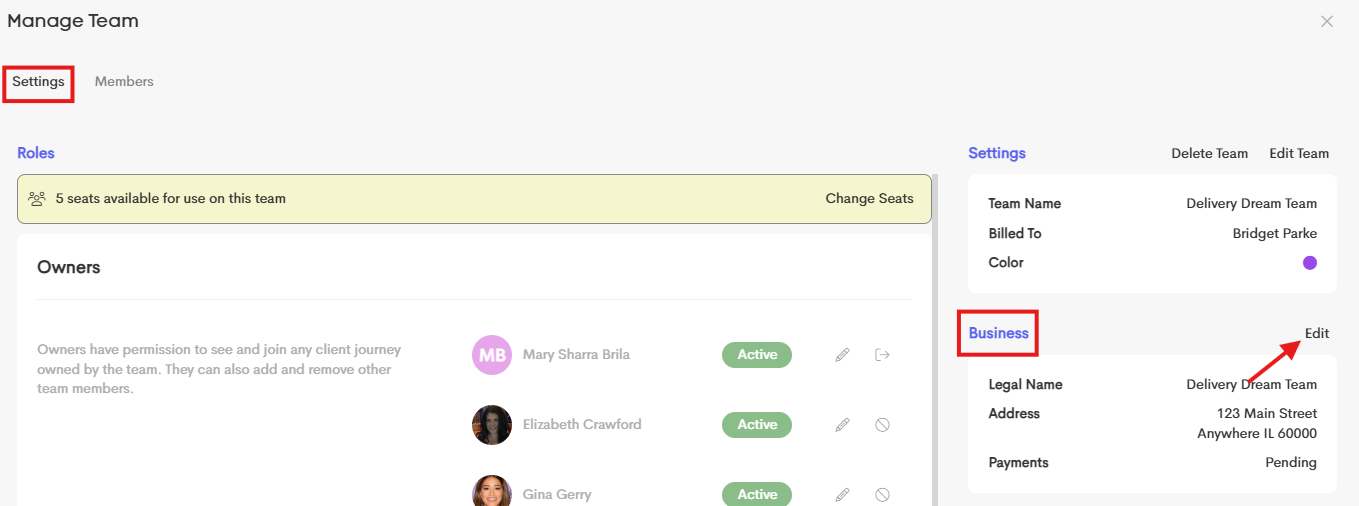
- Click on the Edit button.
-
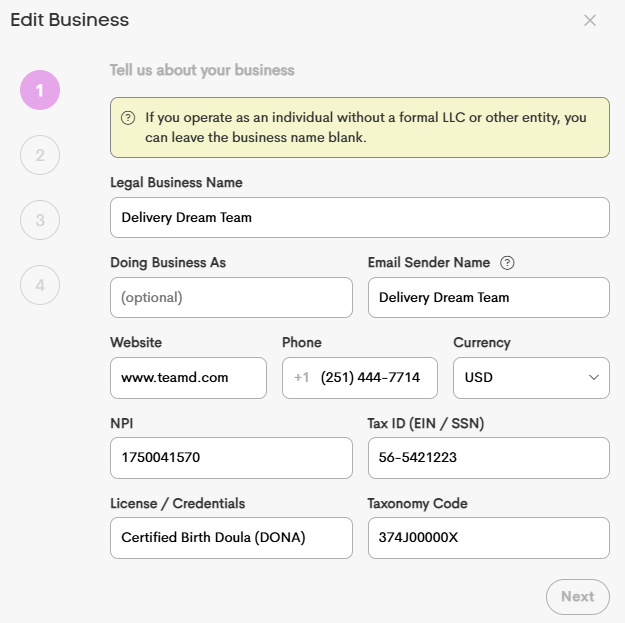
On the first Page 1, enter or modify details including your business name, DBA (if applicable), website, and phone number.
-
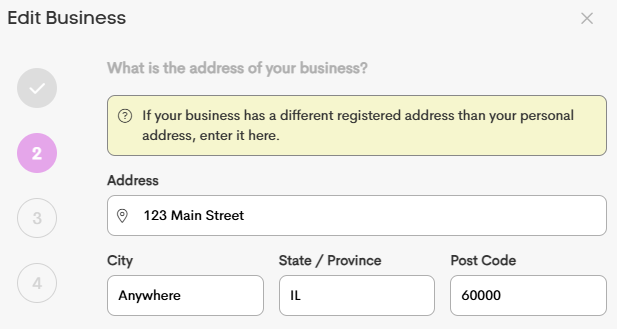
On Page 2, fill in the address information of your business.
-
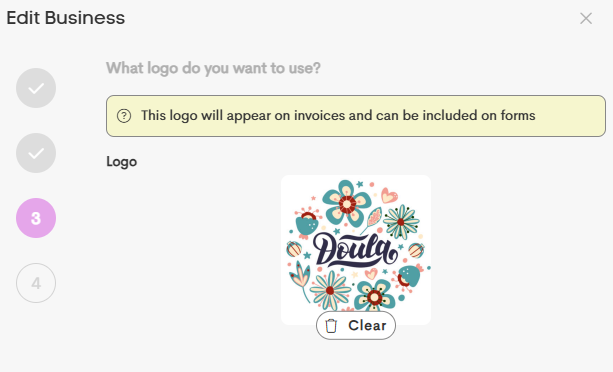
On Page 3, add your business logo, which may appear on invoices and forms.
- Click on Save once you're done modifying or adding your business details.
