
Visit Notes
Visit Notes allow you to document important details from client visits, helping you keep accurate records and track care over time.
You can write notes directly after a visit or use templates to save time and maintain consistency across your documentation.
Visit Notes Vs Client Notes
Both Client Notes and Visit Notes help you document information, but they serve different purposes:
- Client Notes: These are used for ongoing documentation and progress tracking across a client’s journey. These notes are more comprehensive and can be downloaded for record-keeping or reporting.
For more information on Client Notes, check out this article!
- Visit Notes: These are used to capture details specific to a single appointment or visit, such as what happened during the visit or if it was canceled and why. Visit notes cannot be downloaded individually or timestamped, but are included when exporting your visit log, and can also be included when you choose "export all" in the client's notes section.
Where to Find It
Visit Notes can be accessed using the Visit Notes button on a visit record in any of the following locations


Add Note
You can add a new visit note using the + Add Note button.

Writing a Visit Note

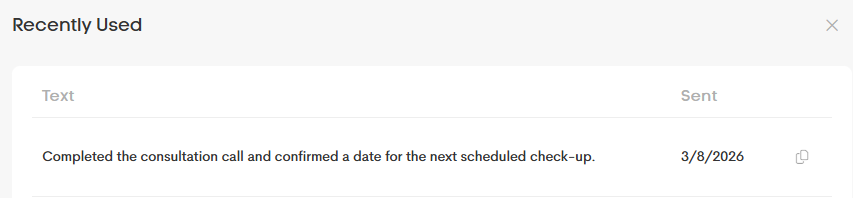
Recently Used Notes

Here you can:
- View previously used notes
- Copy and reuse them for similar visits
Visit Note Templates

Visit Note Templates can be used to quickly insert text templates that have been pre-defined for use on visit notes.

See Managing Templates if you need to make changes to those templates