
Home Dashboard
The Dashboard, Calendar, and Reports in the Home navigation work together to help you stay organized and keep everything running smoothly.
Use the dashboard for a snapshot of your work, the calendar to manage appointments, and reports to better understand your progress and performance.
Table of Contents
Dashboard
The Dashboard is your home base in Doulado. It gives you a quick overview of your clients, activity, and business performance, all in one place.
You can use this dashboard to quickly check what needs your attention each day.

-
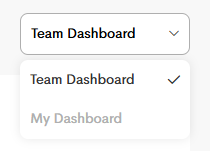
Dashboard Dropdown
You can choose to view your Team's dashboard (if your account belongs to a Team) or look at your own Dashboard.
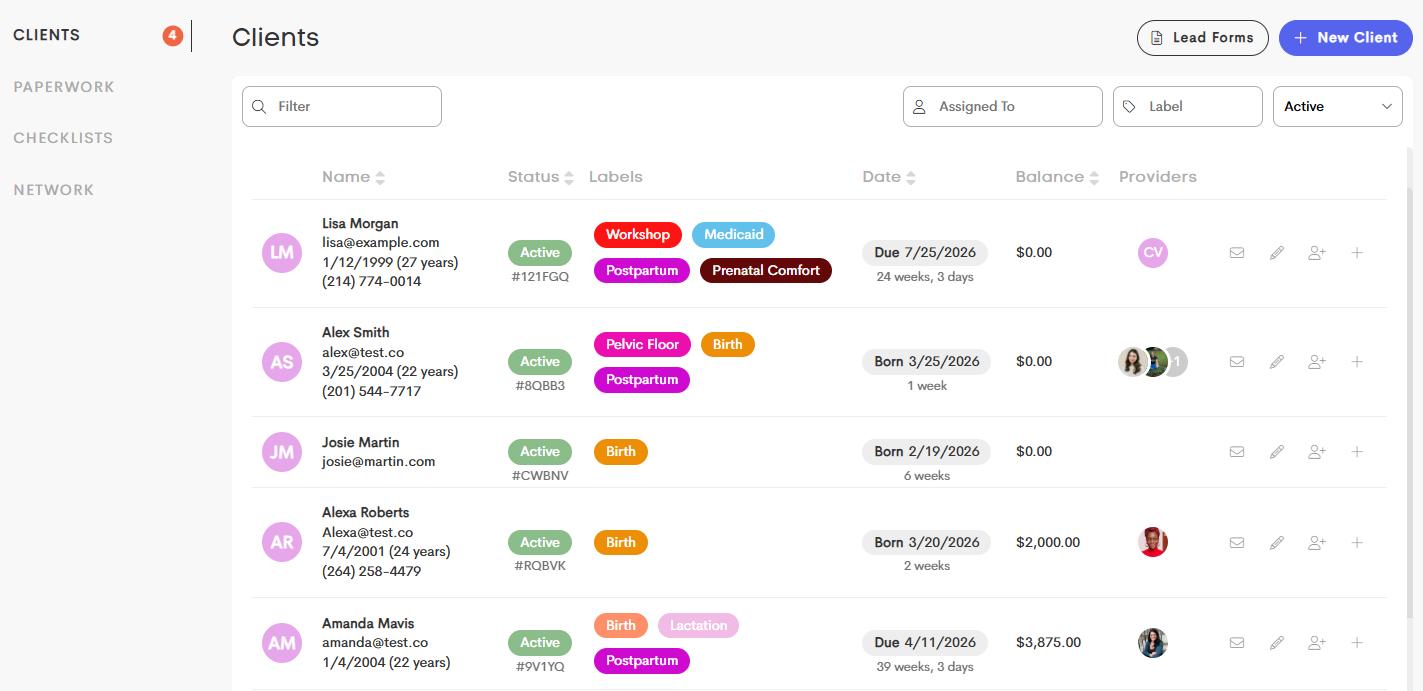
Active Clients
These are your clients who you're currently working with. You can view the entire list of your clients and their statuses when you click on View All.
-
This will lead you to the Client List page. For more information, check out this article: Clients List.
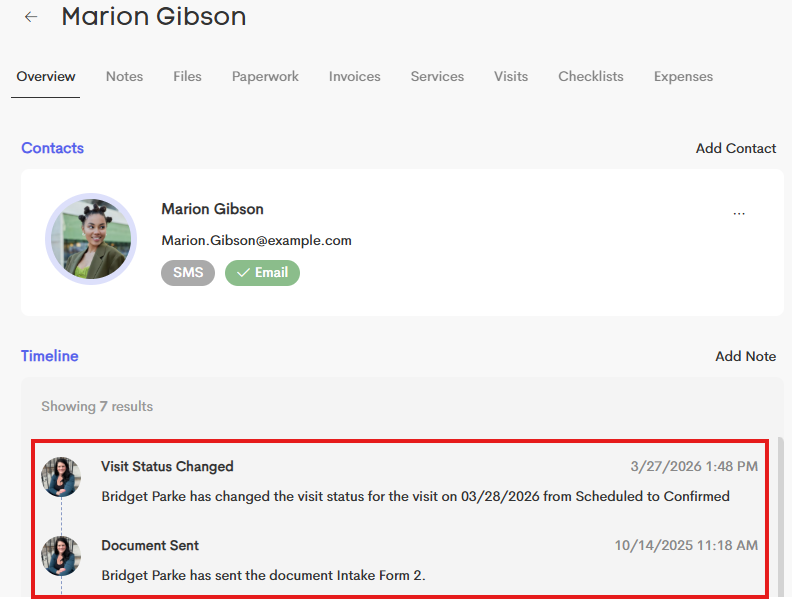
New Activity
Stay updated on recent activity on Client Journeys. The information here are also logged on the timeline of each Journey.
-
Check out Client Journeys for more information.
-
-
Leads
This is the current total of Client Leads you have in the Client List.
-
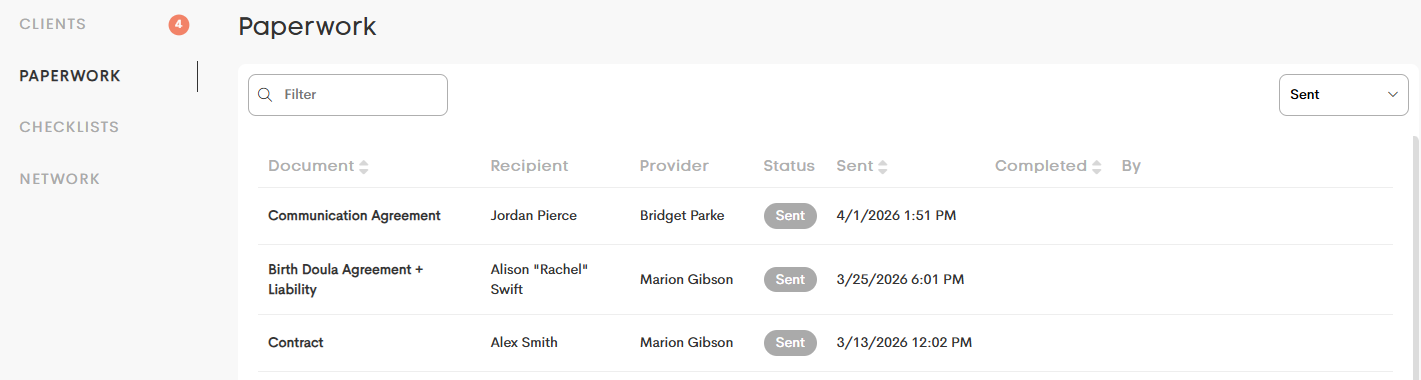
Paperwork
This displays the total number of documents you've sent out to your clients for completion. You can click on the Paperwork tile to view the entire list of all the paperwork.
Financial Overview
These sections give you a snapshot of your earnings and outstanding payments, helping you stay on top of your business finances.
-
Upcoming Payouts
Shows the amount of your recent earnings scheduled to be paid deposited to your linked bank account.
-
Invoice Balances
Displays the total balance still owed from unpaid invoices.
Invoice Earnings
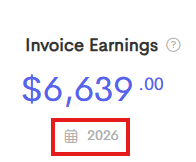
Shows your total earnings from invoices for the selected date range, including amounts that are scheduled for payout.
-
To set a date range, click on the Calendar icon below the amount in the Invoice Earnings tile.
-
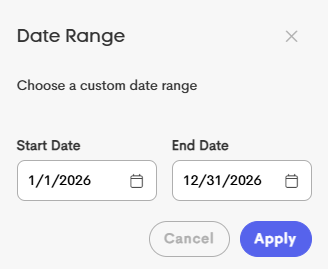
Enter the Start Date and End Date you want to check, and click on Apply.
-
-
Calendar
The Calendar helps you manage your schedule and stay organized.

-
Monthly, Weekly, or Daily View
Switch between views to see your schedule in the way that works best for you.
-
On-Call Windows
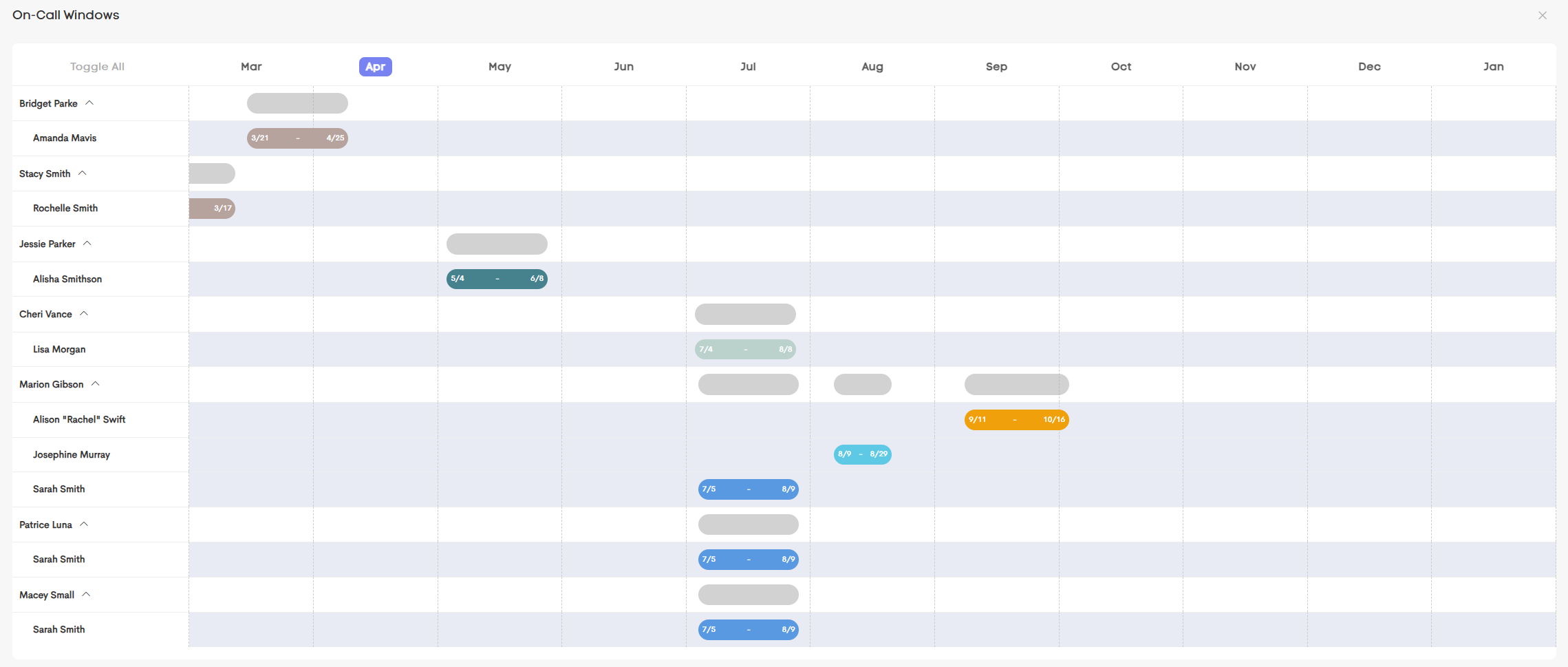
This window allows you to easily view and manage availability across your team. Each row represents a team member, and each bar shows when they are scheduled to be on-call.
This makes it easy to understand coverage at a glance and ensure availability is properly distributed.
-
Create New Events
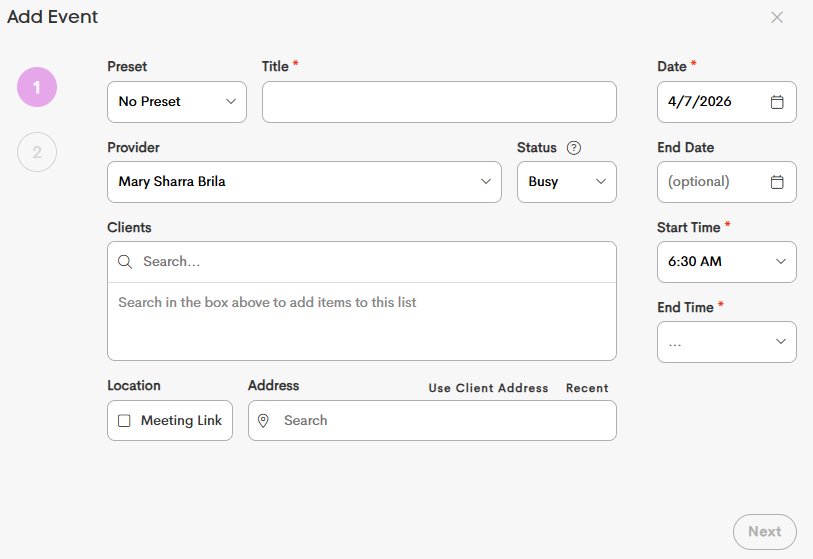
Click “New Event” to schedule appointments or visits.
-
Navigate Dates
Use the arrows or “Today” button to move through your calendar.
Bottom Actions Panel

-
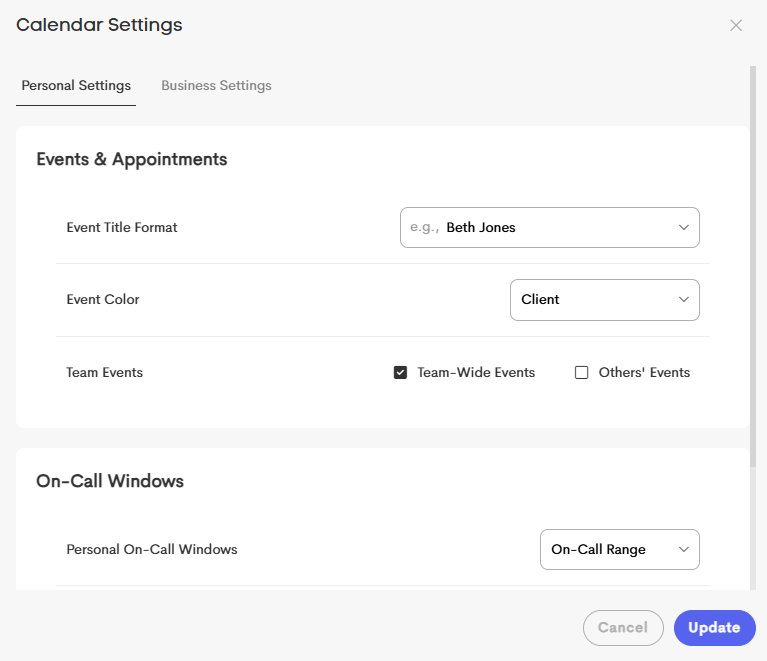
Calendar Settings
Helps you organize your schedule and control how events behave. You can choose settings for just yourself or for your whole team.
-
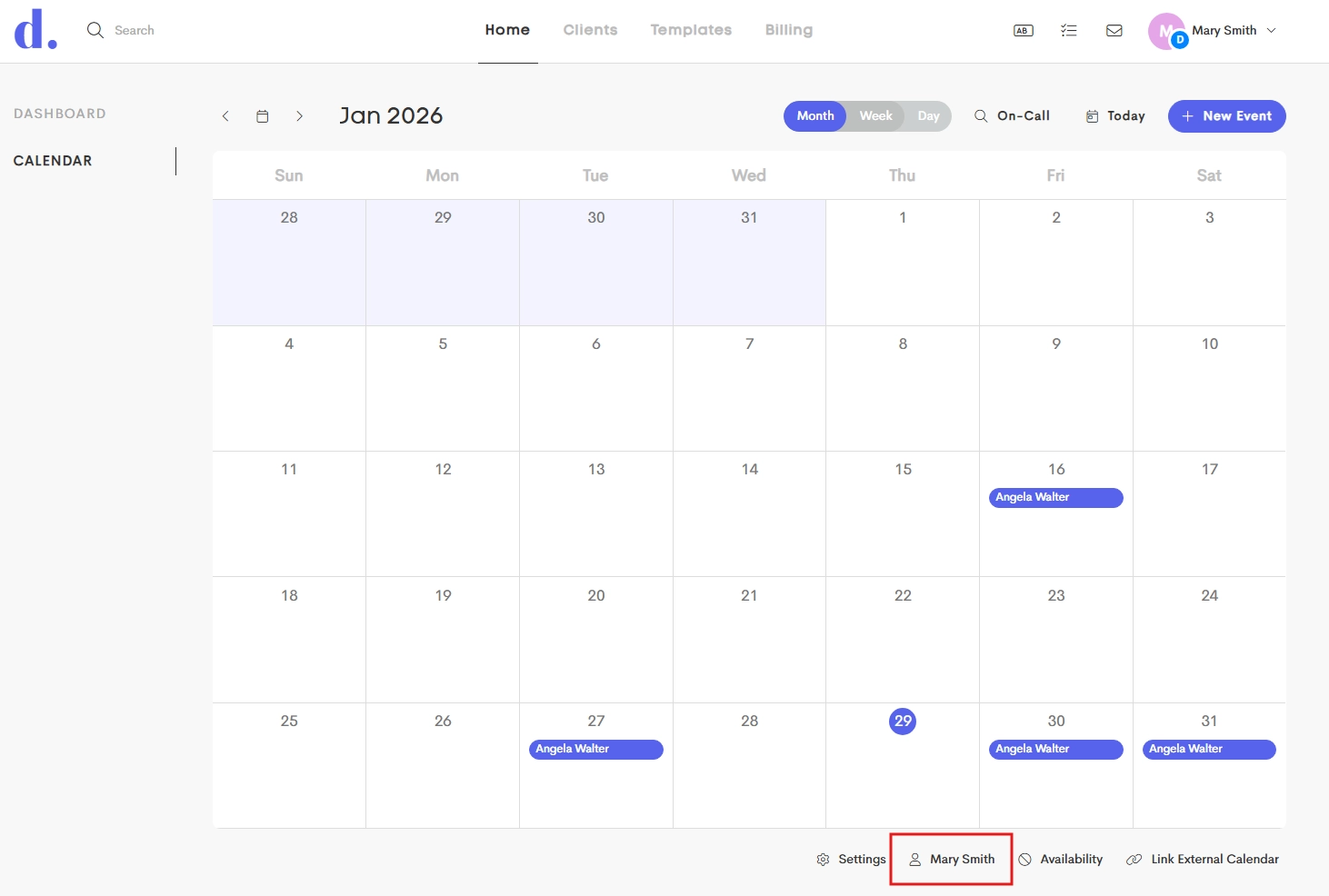
Switching People
If you're part of a team, the team owner can view and manage appointments for all the team members.
-
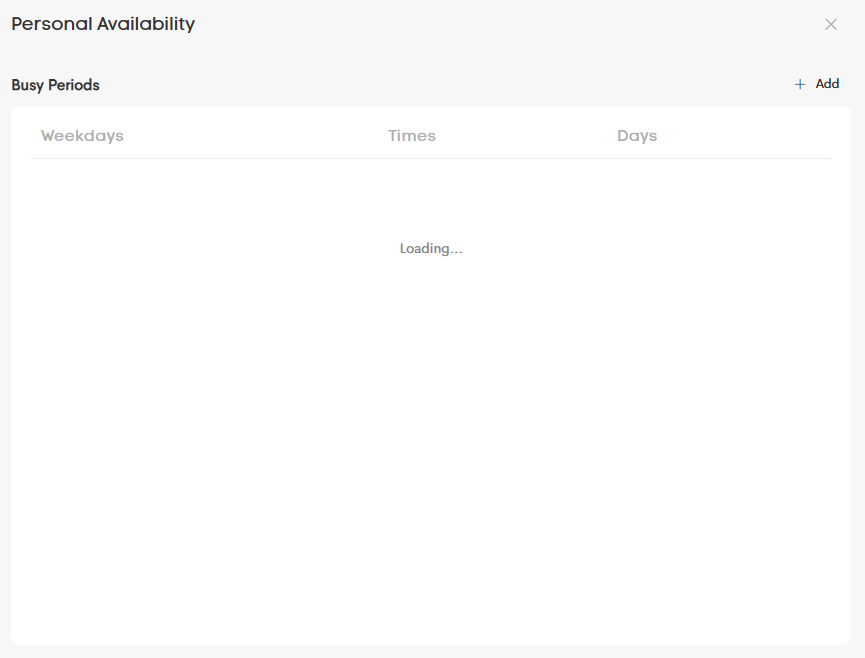
Availability
Busy Periods allow you to set unavailable times for things like personal events, holidays, or recurring schedules.
-
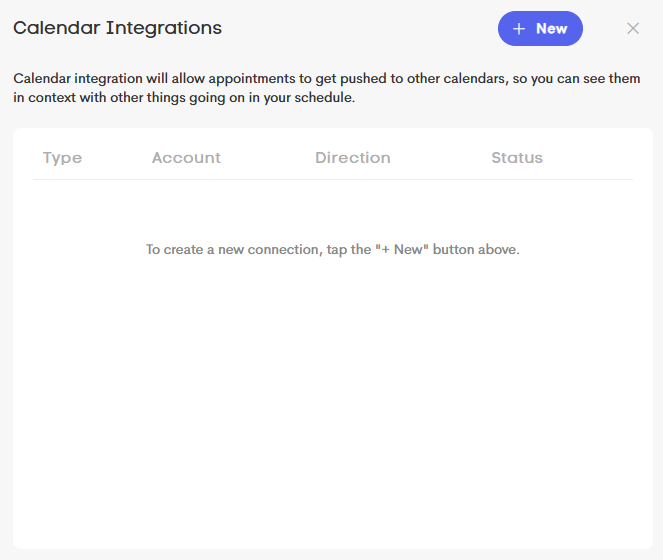
Link External Calendar
Connect your calendar with external services (like Google or Outlook) to keep your schedule synced across platforms. This allows you to view and manage all your events in one place.
Reports
Reports help you view insights and track activity across your business, from visual summaries to client-submitted information. Internal teams can manage and share reports to support your account.
