
November 2025
We’ve been busy behind the scenes, and we’re thrilled to bring you one of our biggest waves of improvements yet! From powerful new claim-billing tools to smarter calendar management, upgraded paperwork features, and smoother team collaboration, this month’s updates are packed with highly requested enhancements designed to make your day run more easily.
You’ll find brand-new ways to organize and bill for visits, track mileage, customize communication, and keep your paperwork clean and consistent, all while saving time and reducing manual work. Whether you're managing admin tasks, coordinating a team, juggling a busy schedule, or supporting clients through all the moments you’re called to serve, these updates were designed with your workflow in mind. Dive in below to explore everything new in Doulado and see how these upgrades can help simplify, strengthen, and support every part of your practice.
#1 So Many Claims Enhancements!!
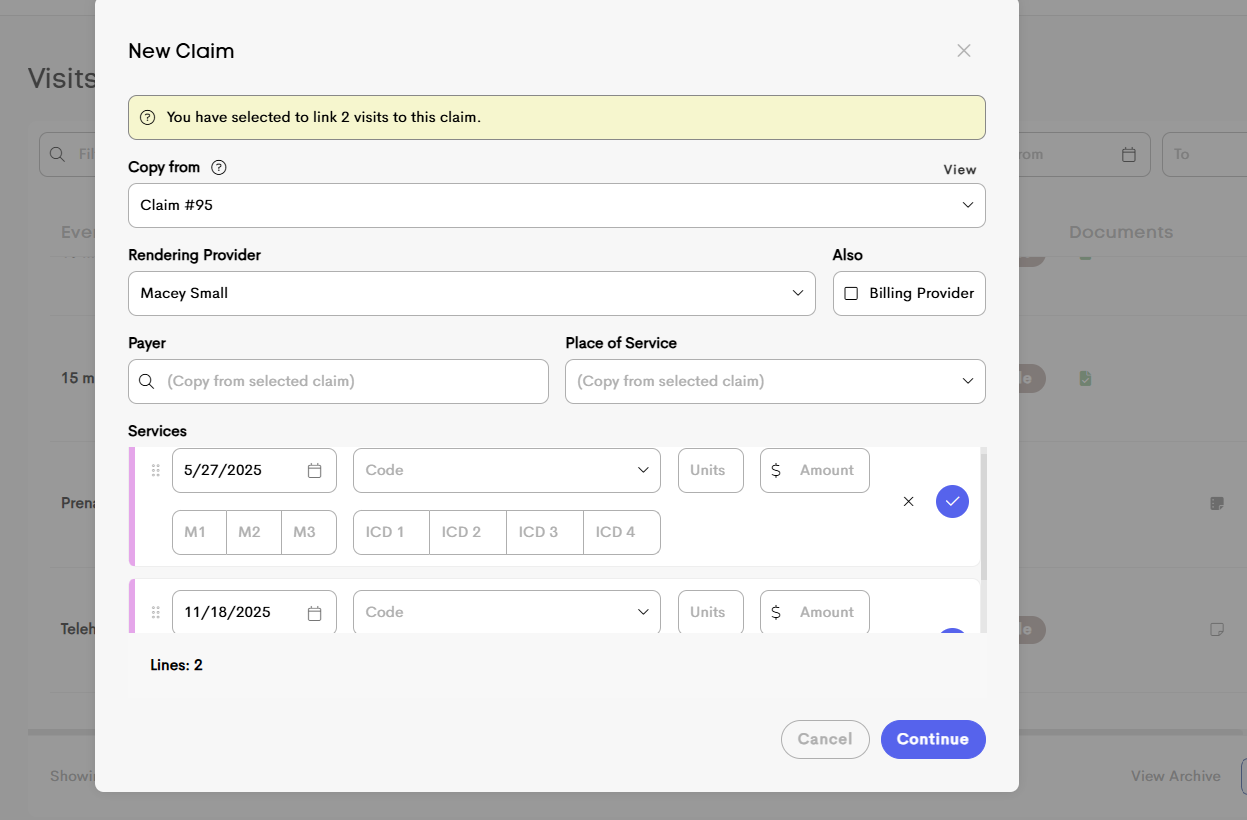
- Service Dates for Claim Created from Visit: Service dates now appear in the Services section of the New Claim menu. This enhancement makes it easy to view the visit date associated with each service when billing multiple visits, helping you choose the correct codes based on the date of service.
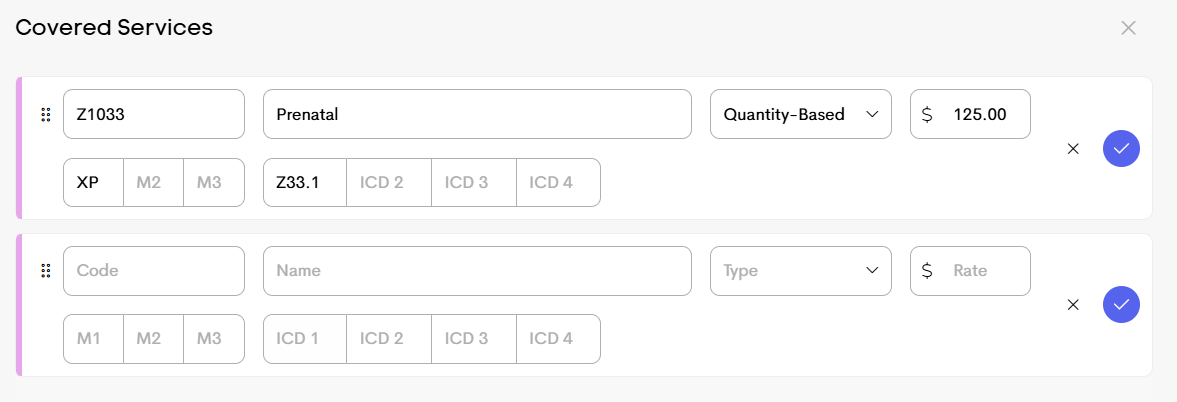
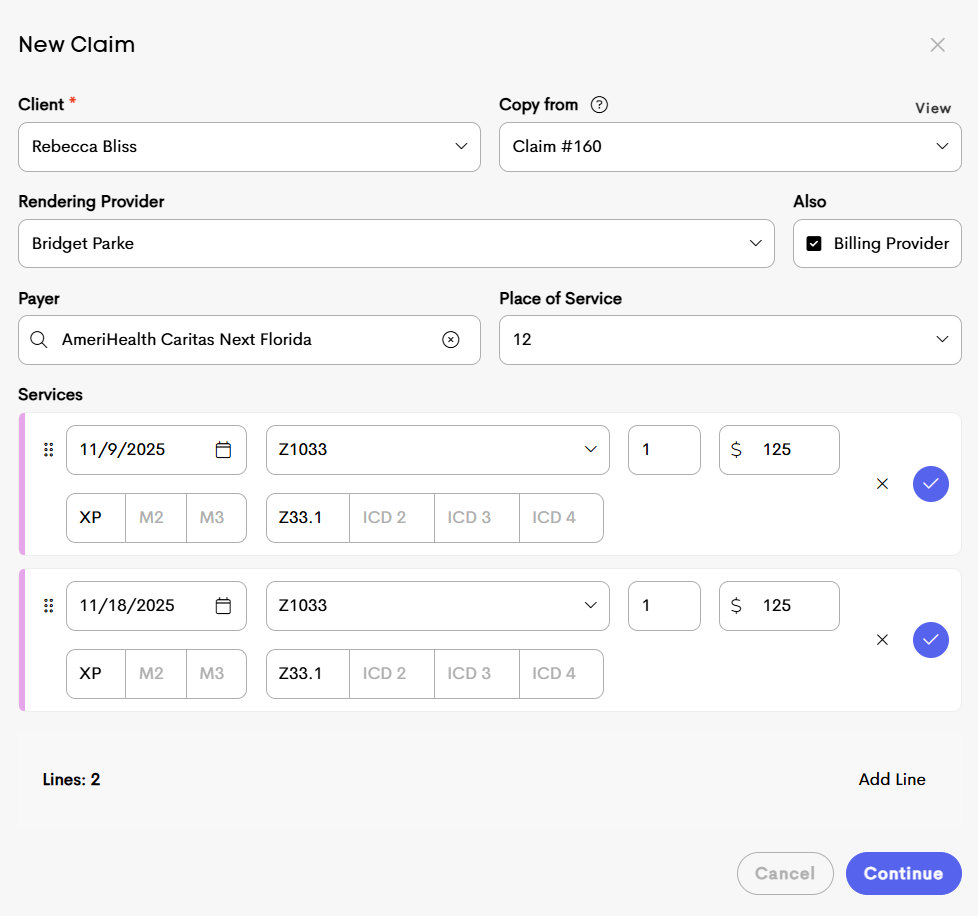
- Claim Placeholder ➡️Prefill: Previously, saved “covered services” acted only as placeholders when creating a claim, requiring you to manually enter the rates and codes over the placeholder text. These saved services now automatically prefill with the actual information stored in your Covered Services settings, streamlining the claim creation process and ensuring greater efficiency and consistency.
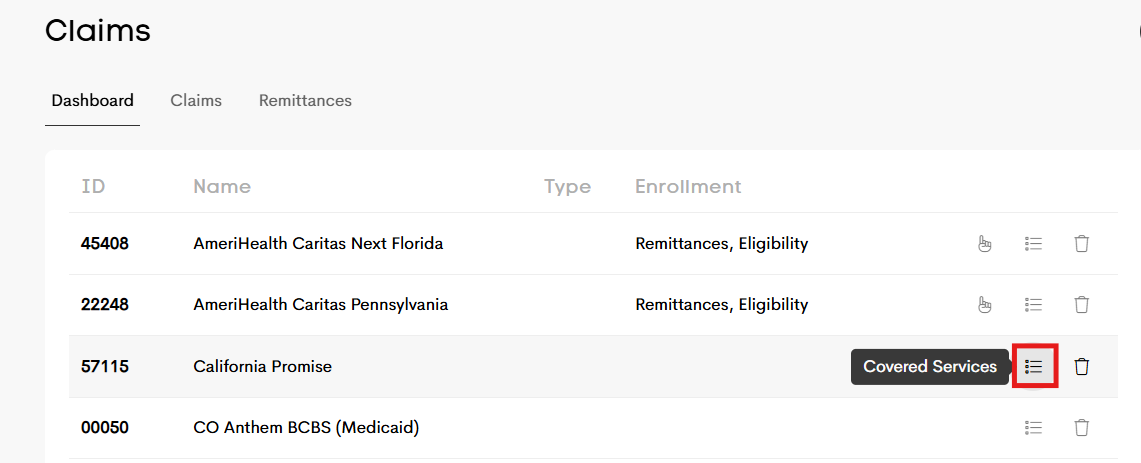
These "Covered Services" can be saved per payer in your Claims Dashboard by clicking this icon in that payer row.
-
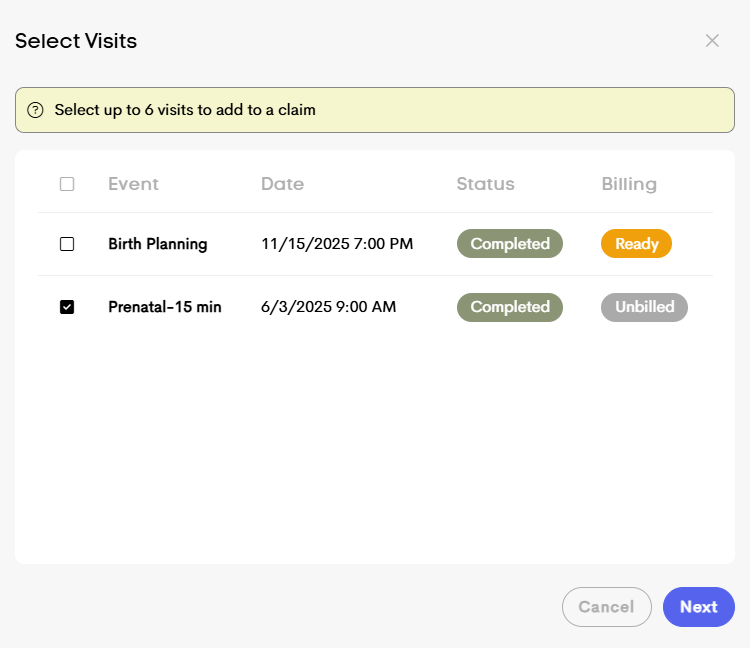
Claim Billing Status Column: To provide you with a better insight when selecting client visits to bill, we’ve added a new Billing Status column when creating a claim or invoice from the visit log. This column indicates whether a visit is Unbilled or Ready. By default, visits marked as Not Billable, Billed, or Paid are hidden when creating a claim or invoice from the visit log. Visits are also excluded if a claim or invoice has already been created for them, helping keep your workflow clean and focused.
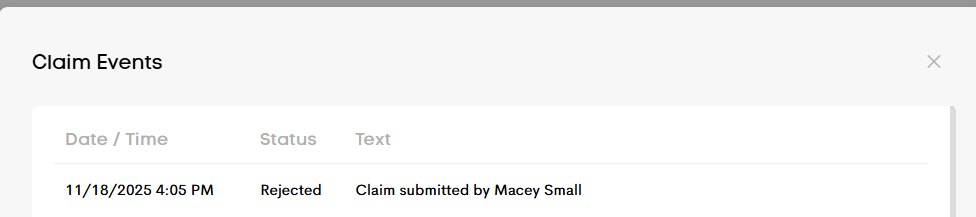
- Submitter Log for Claim Changes: The submitter of a claim request is now tracked in the claim’s Event History. Whenever a claim’s status is changed, processed, or revised, the system logs both the user who made the update and the exact timestamp, providing clearer tracking, transparency, and accountability.
- Add Diagnosis Code per Service: Previously, there was no space to add the diagnosis codes when in the 'new claim' dialogue box. This functionality has now been added to the New Claim menu, allowing you to specify diagnosis codes for each service. These codes can also be saved within the Covered Services section for each payer in your Claims dashboard, ensuring smoother and more consistent claim creation.
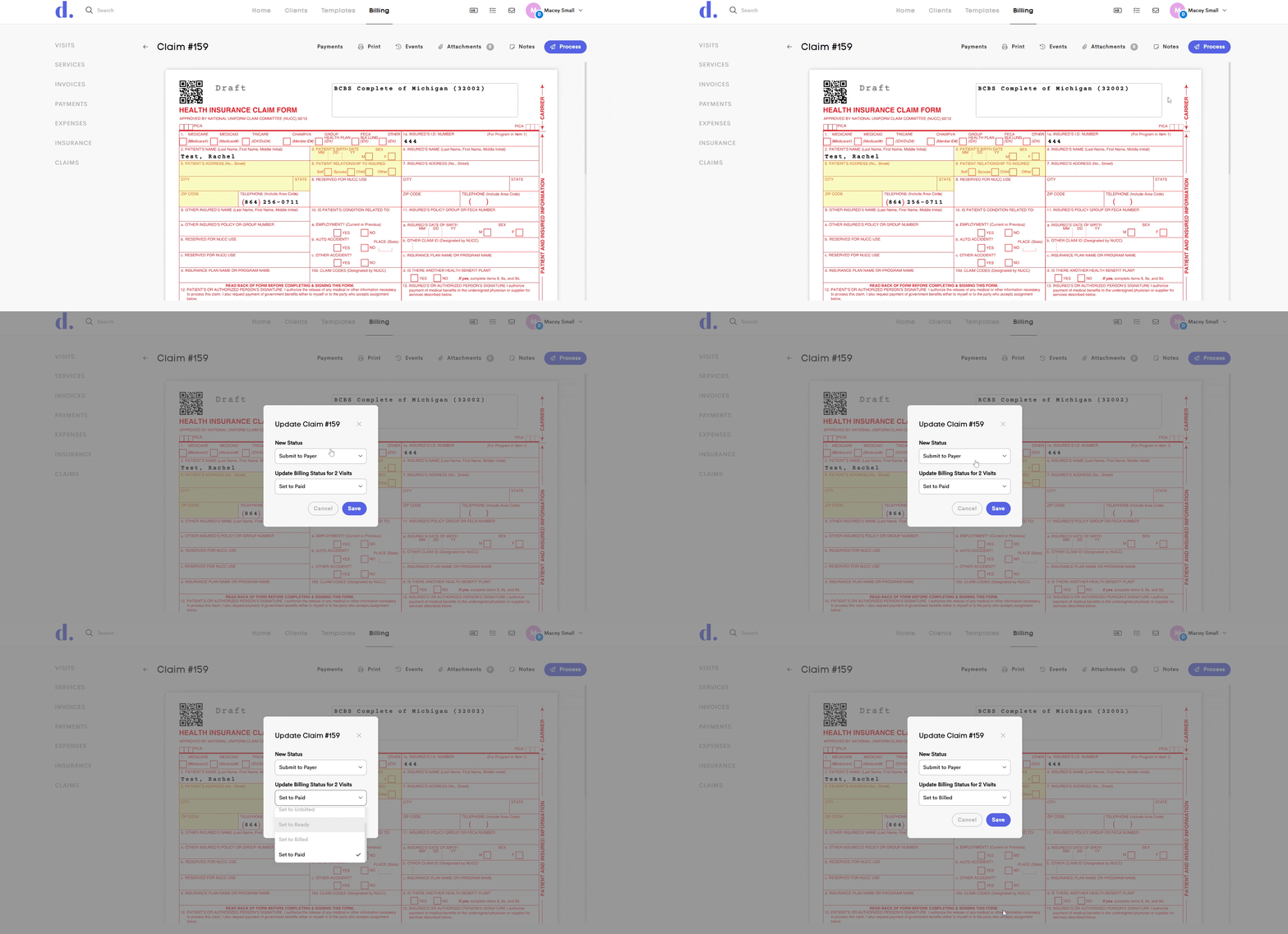
- Update Visit Billing Status on Claim Submit: When processing a claim, you can now update the billing status of all visits linked to that claim. Simply, use the 'update billing status' dropdown to set the new billing status, which will be applied to all selected visits, streamlining your workflow and keeping your records up to date.
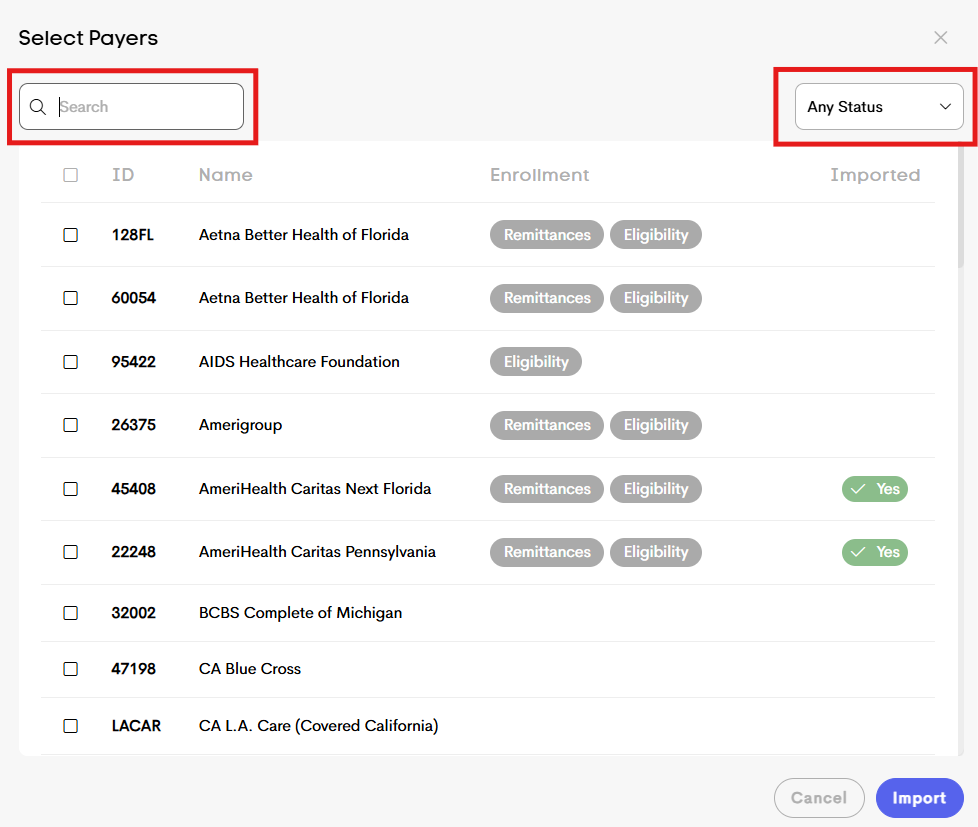
- Filter for Adding Payers: To make finding payers easier in the Add Payers menu, you can now search by Payer ID or Payer Name using the search box. This allows you to quickly filter results and locate the payer you want to import into your Claims Dashboard. Additionally, a filter on the right-hand side lets you display only payers that have or have not yet been imported to your dashboard, simplifying the selection process.
#2 Calendar and Booking Upgrades
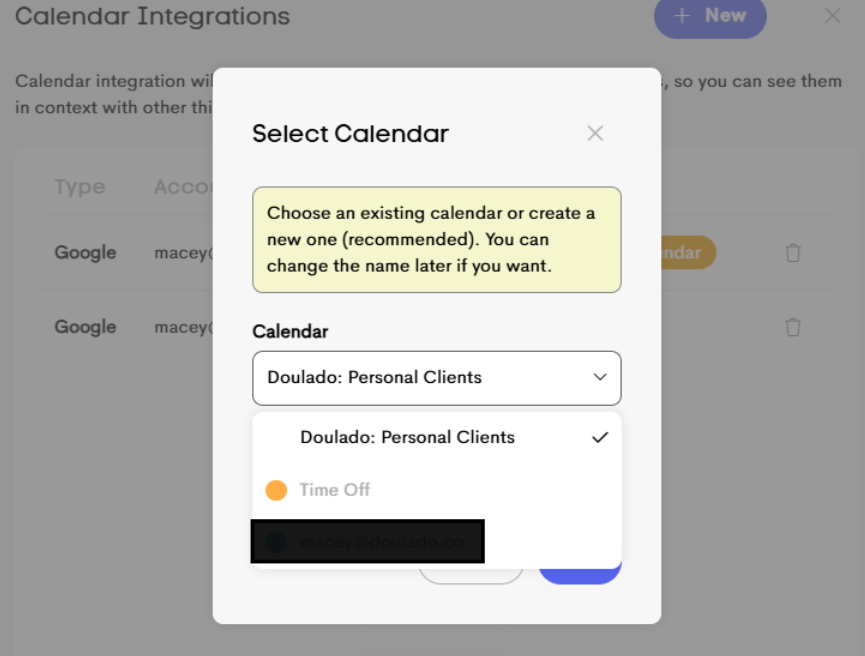
- Export to Existing Calendar: You can now choose which Google Calendar to use when exporting from Doulado to your personal calendar. This feature provides added flexibility for users with multiple calendars, allowing you to specify exactly where your Doulado calendar events will show.
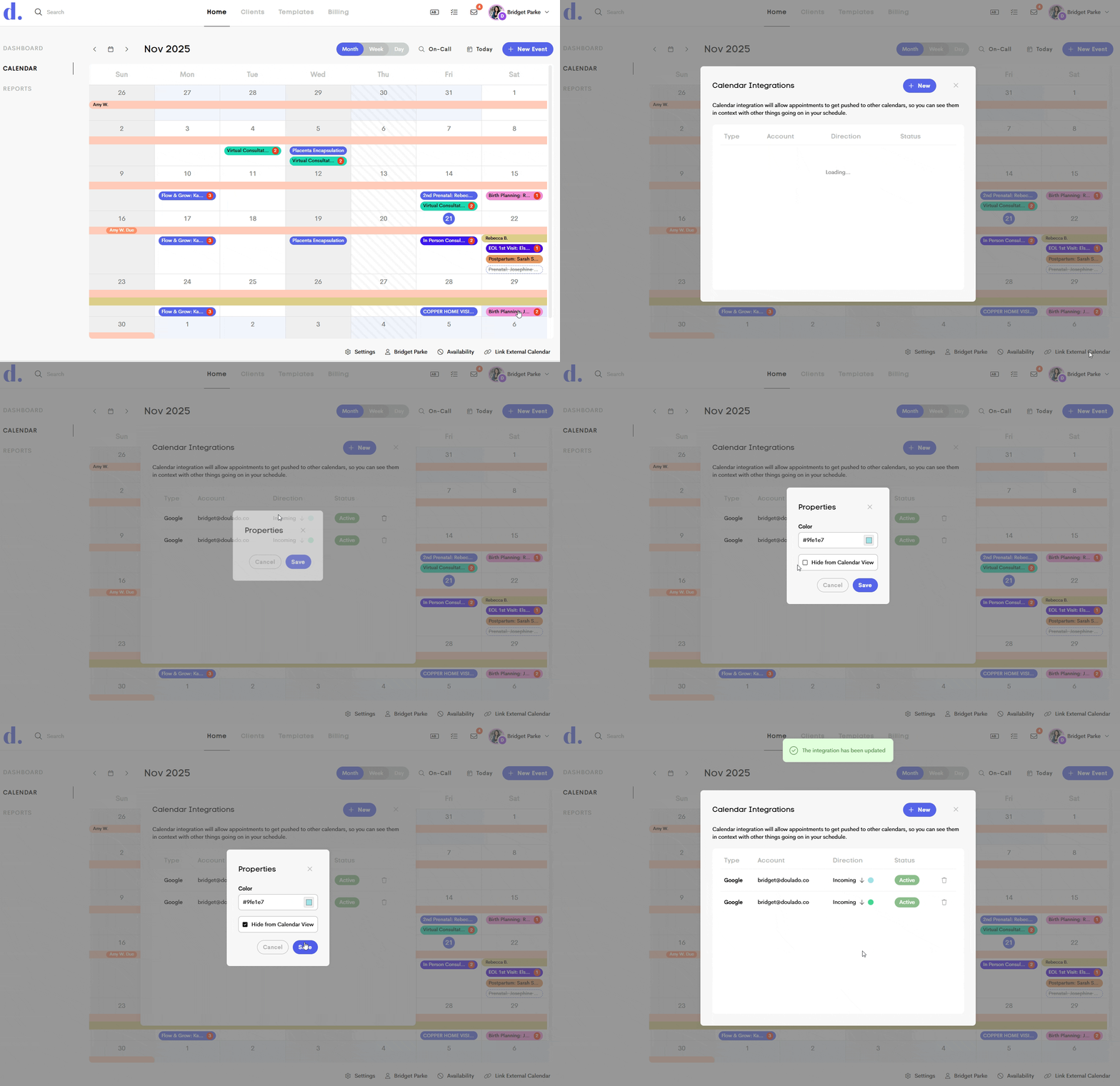
- Hide Linked Calendar(s): This update introduces the ability to hide imported Google calendar events from your Doulado calendar. Many doulas prefer these events to affect their booking page availability, but don’t want them visible in their main calendar view. With this enhancement, you can now keep your scheduling accurate while maintaining a cleaner, more focused calendar display. You can turn this on and off from the synced calendar details!
-
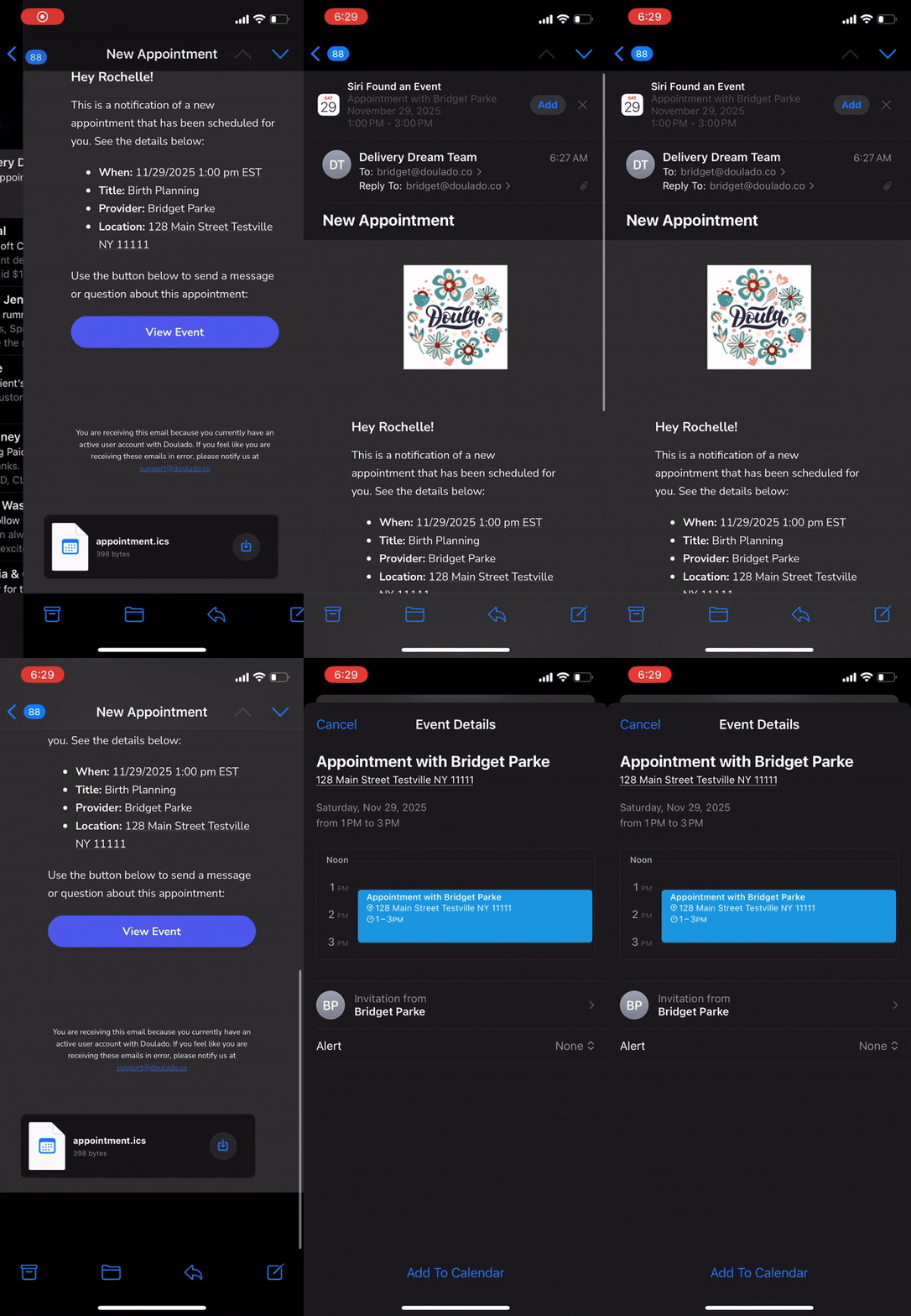
Client Appointment Download: Appointment notification emails now have an .ics file attached representing the event. Often email clients will detect this file and show an 'Add to Calendar' option, giving clients the ability to seamlessly add appointments to their default calendar.
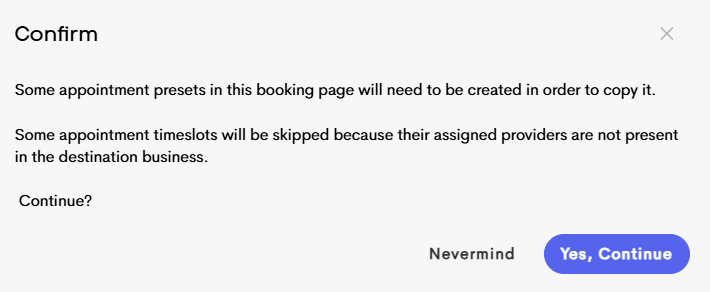
- Duplicate Booking Page: We’ve added a duplication feature to our Booking Pages. You can now duplicate a booking page within your current business or copy it to another team. This allows you to use an existing page as a starting point, saving time and avoiding the need to build from scratch each time.
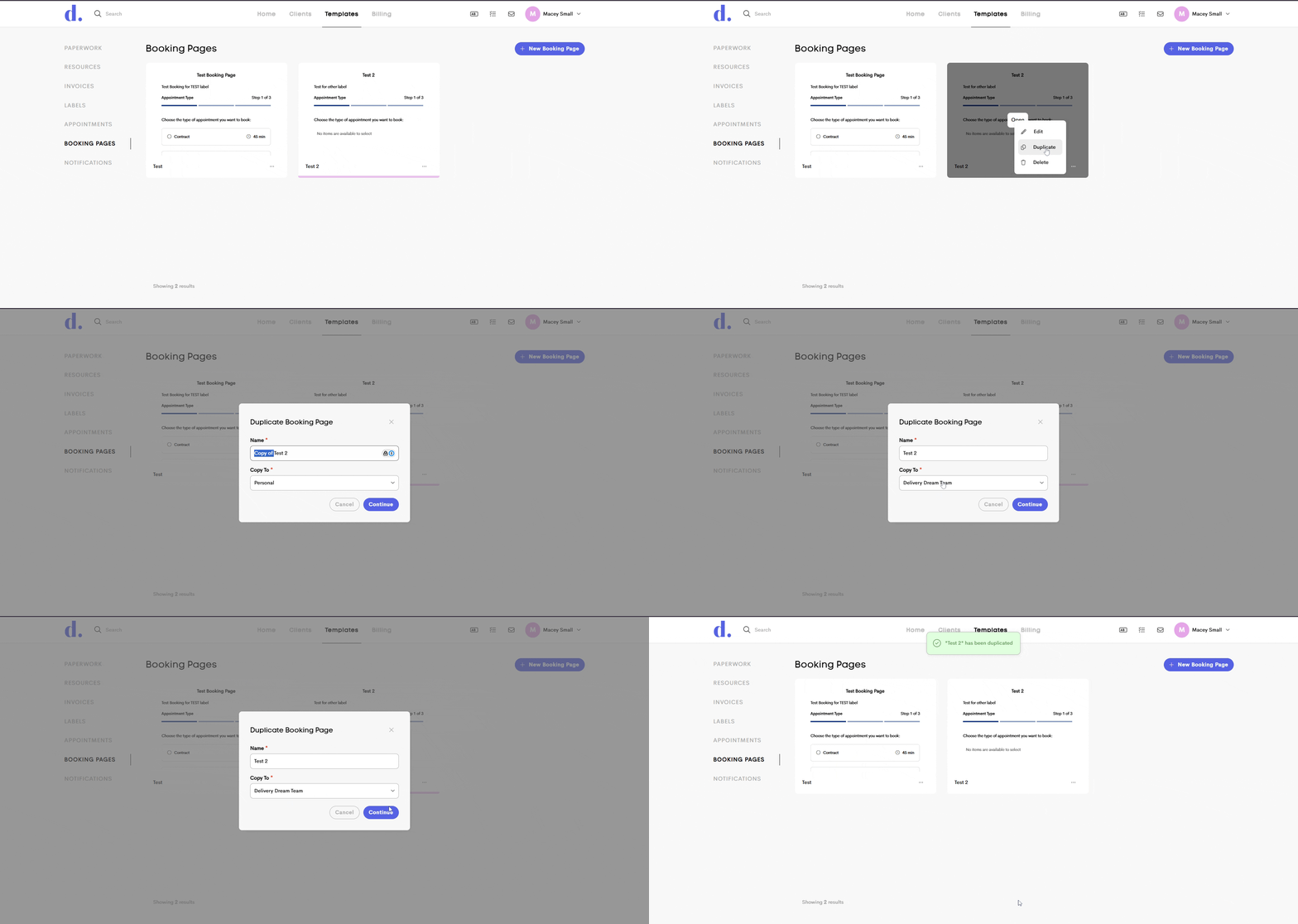
When copying to another team or business, the process may also create the appointment presets linked to those appointments within that team. However, available timeslots for providers who are not part of the other business will not be copied, and linked services and documentation may need to be adjusted in the new team.
#3 Paperwork and Forms
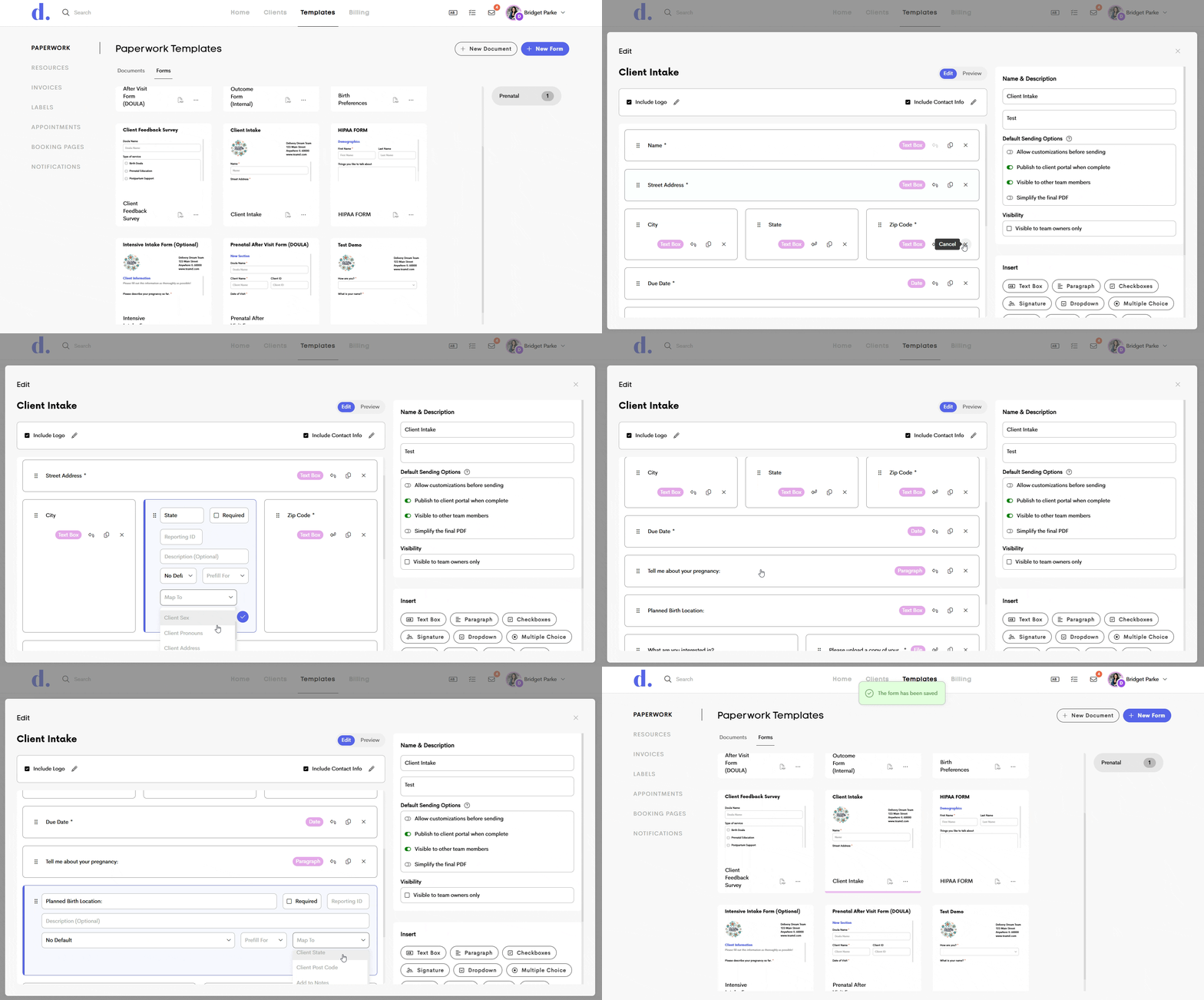
- New ‘Map To’ Options Available in Form Templates: When creating a form template, you are now able to use the "Map To" function to map responses to more areas of the client profile. Previously, answers from form templates could only be mapped to a custom field, but we have introduced more options (similar to a lead form) to map to places in the client's contact information (client address, phone number, etc.), as well as to a note!
- Pre-fill Audience: In addition to mapping improvements, we’ve expanded the functionality of form pre-filling. Previously, fields saved with a “pre-filled entry” would only auto-fill for clients. Now, you can specify whether each field should pre-fill for the provider or for the recipient. The template itself determines the intended audience, giving you greater control and accuracy when creating and completing forms, especially internal documents meant for doulas only.
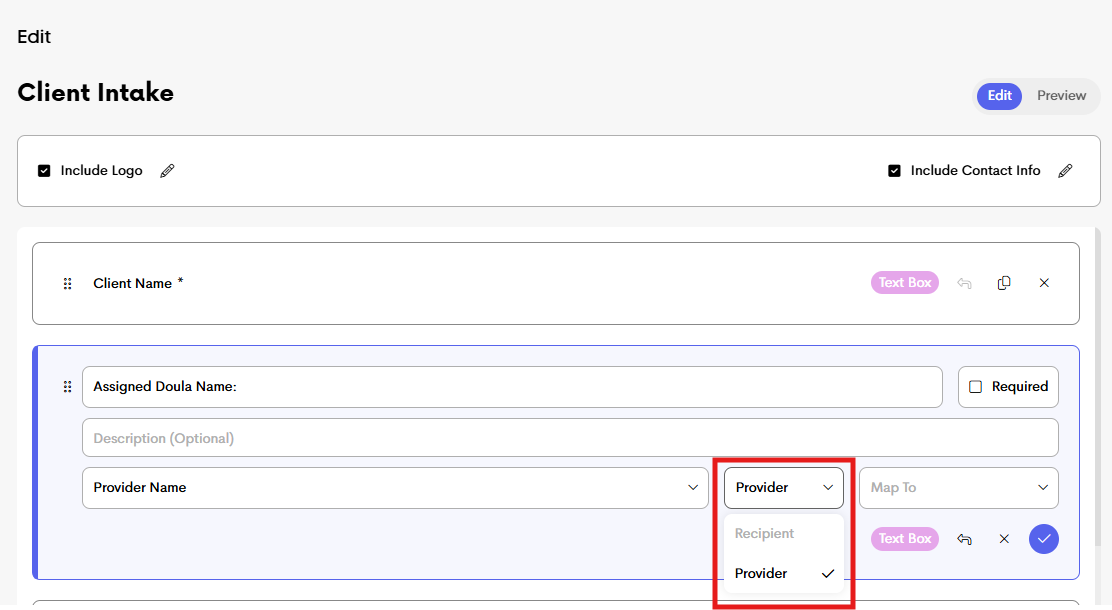
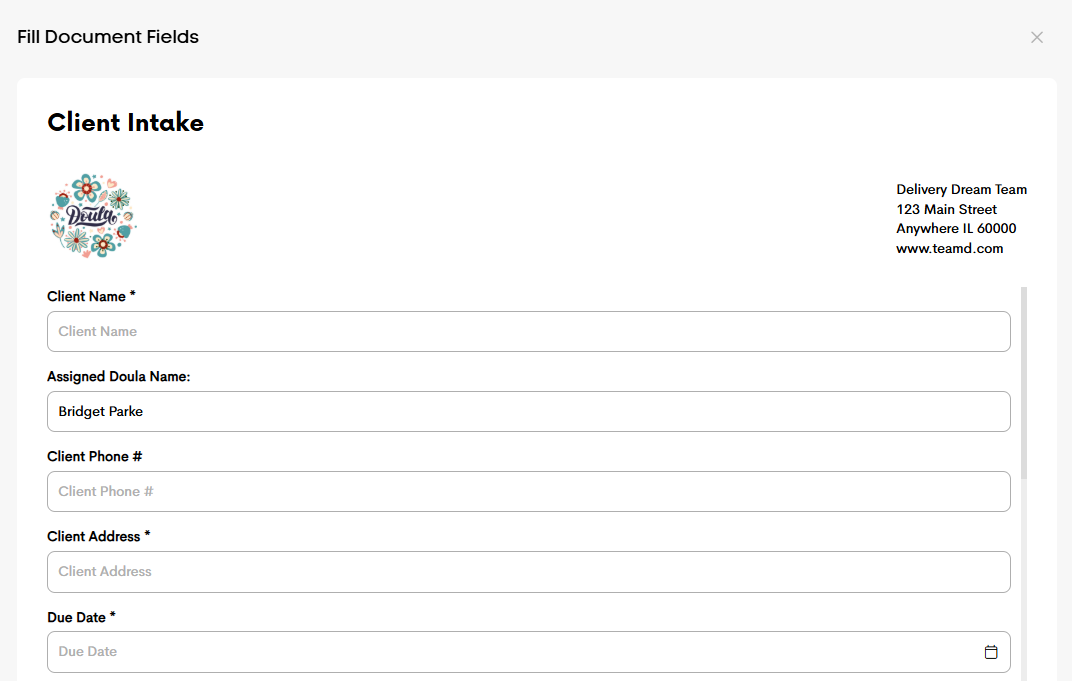
When completing or sending paperwork, fields pre-filled for the provider will appear in solid black text and show as complete. Fields pre-filled for the recipient (client) will display as grayed-out placeholder text indicating the field name.
In the example above, the doula is entering information into the Client Intake Form before sending it to the client. Because the doula’s name is set to pre-fill for the provider, the “Assigned Doula Name” field appears filled in. The remaining fields show grayed-out placeholder text because they are set to pre-fill for the recipient, indicating the type of information that will populate once the client completes them.
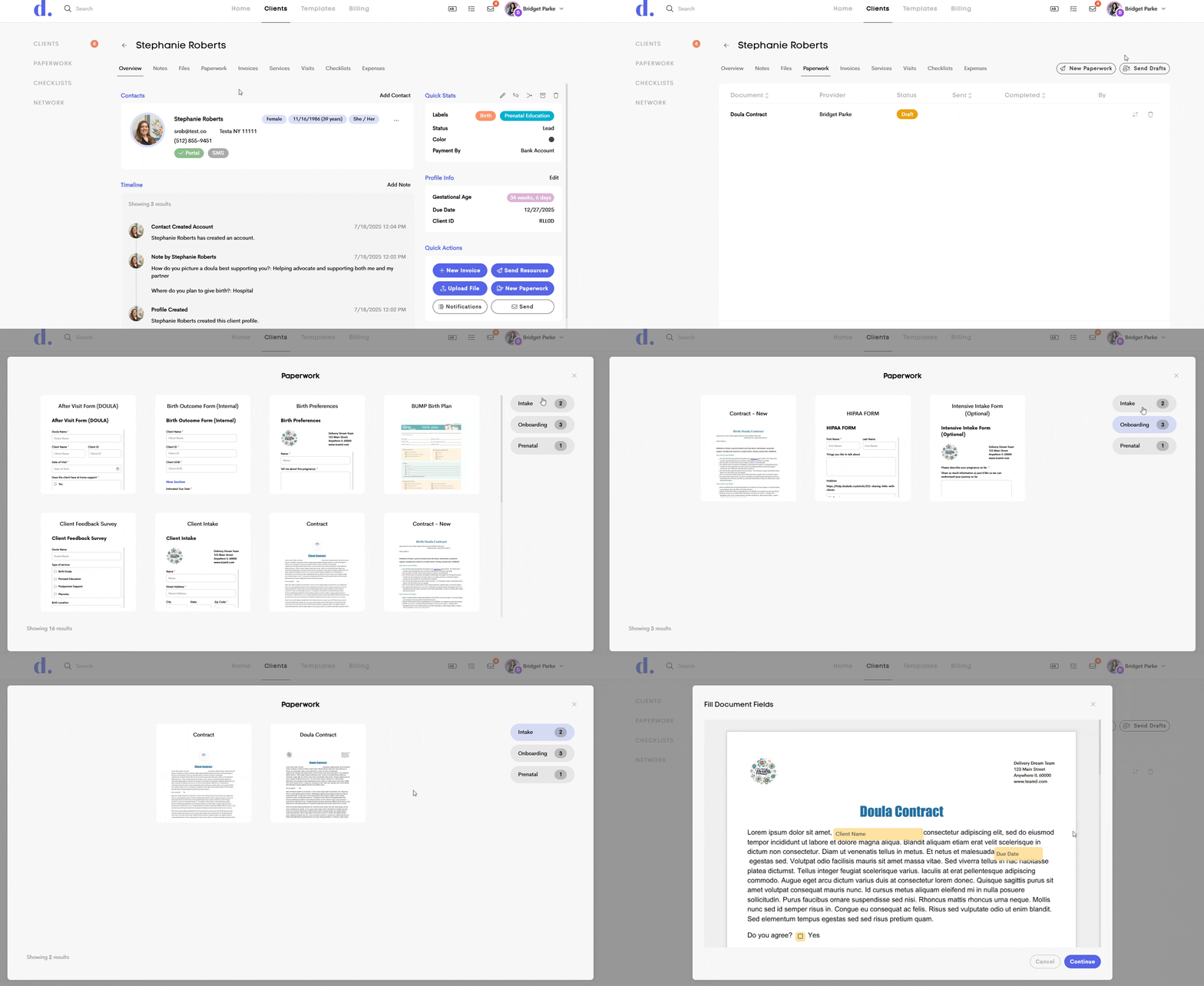
- ‘Send Paperwork’ Label Filtering: In September, we introduced the ability to add labels to paperwork templates for better organization. With this update, those labels can now be used to filter templates when sending paperwork from a client’s profile. This enhancement allows you to quickly narrow down the New Paperwork view to show only the templates associated with a specific label.
- You can check out this improvement by navigating to Client Profile > Paperwork > New Paperwork. Labels can be added to the paperwork templates from the 'edit' menu on each template.
-
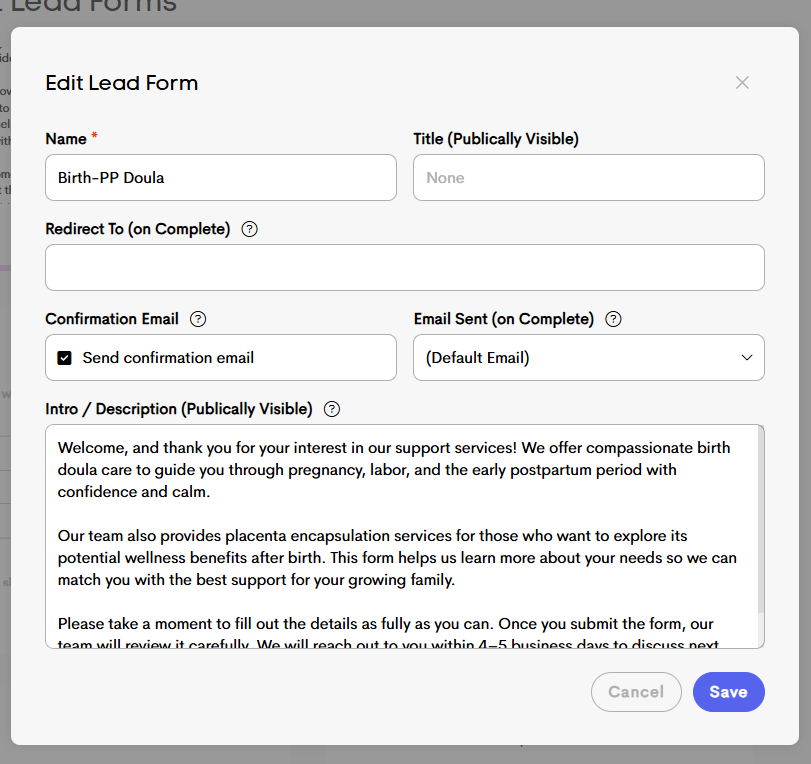
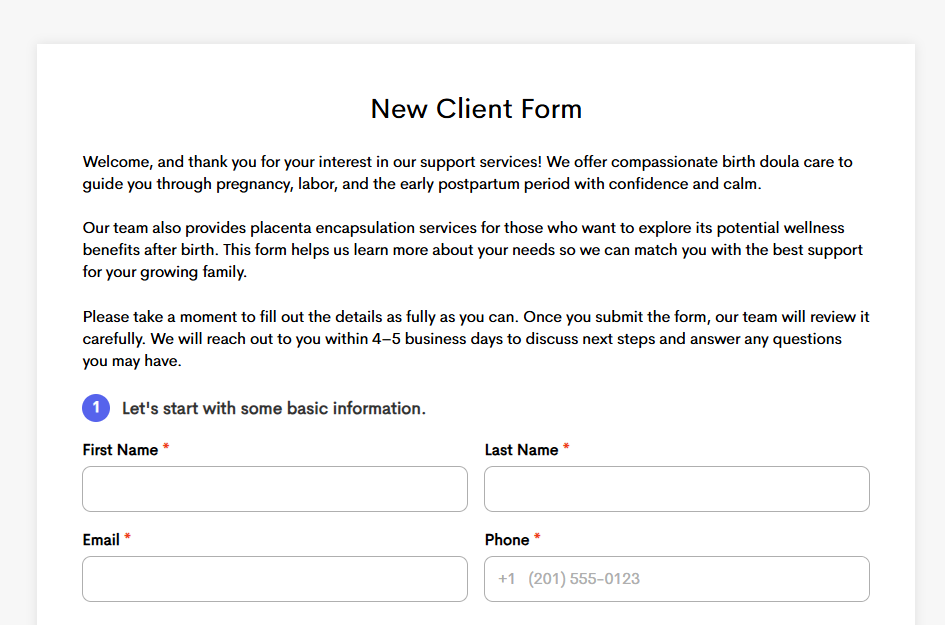
Consistent Paragraph Spacing: Previously, some areas of the platform—like lead forms and booking page descriptions—wouldn’t keep the spacing you added between paragraphs. Hitting “enter” often caused everything to appear jumbled together.
With this update, your formatting will now save correctly, so all your line breaks and paragraph spacing show up just the way you intended.
#4 Teams Changes
- Prevent Editing of Provider Details: To enhance security and continuity, we have updated team member editing permissions. Within a Network journey, only team owners will be able to edit that person’s profile information moving forward. Individual team members may still edit the profile information associated with their own Network journey, but not for others. Because details such as email addresses are essential for login access, this change is designed to prevent accidental or unauthorized modifications.
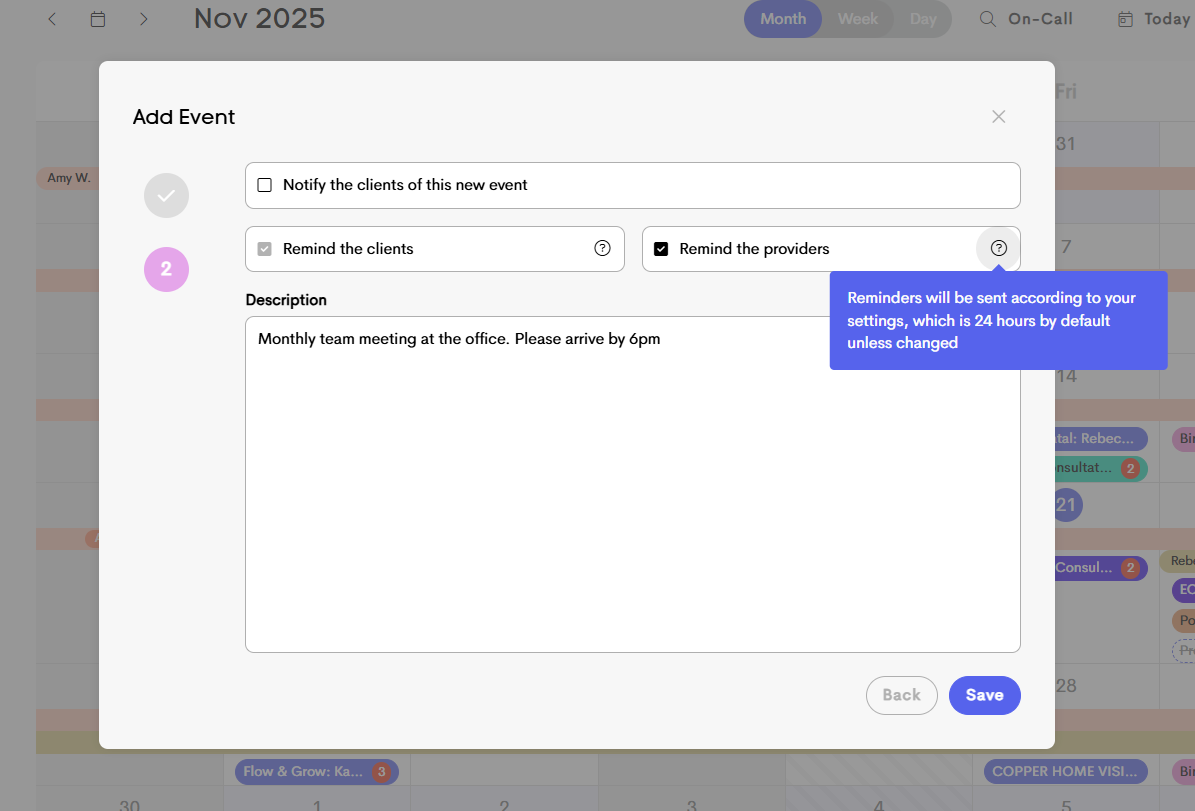
- Reminders for Team Events: Reminders for team-wide events are now available! A next-day reminder is automatically created for all team events, with the option to disable “provider reminders” when setting up the event. By default, reminders are sent 24 hours before the event, but this timing can be customized in your business’s calendar settings.
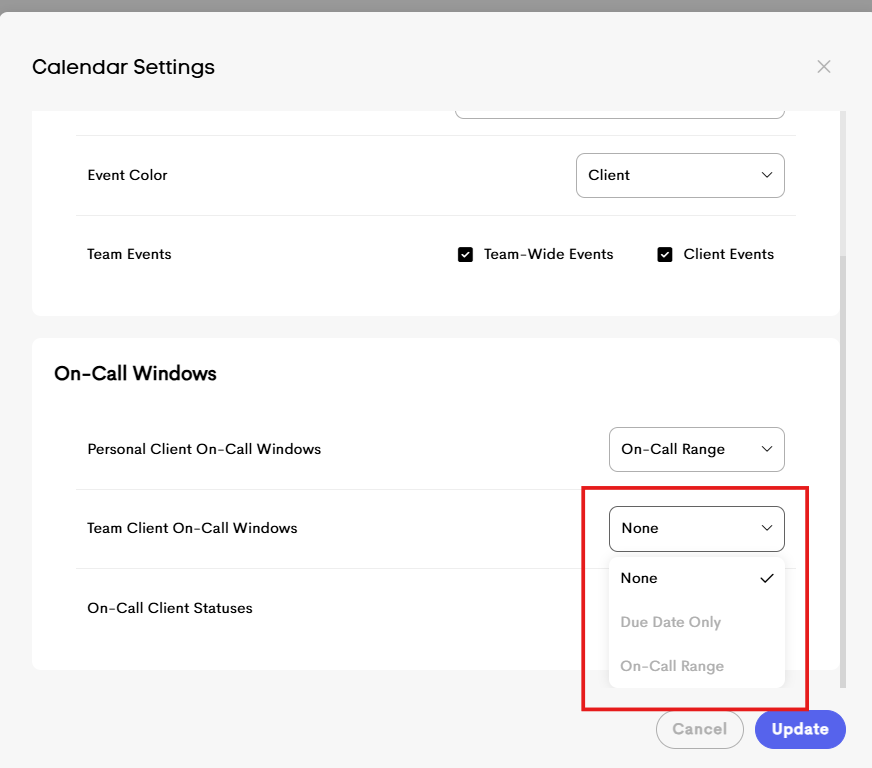
- View Team Clients in Personal On-Call: You will now see an option to show "team client" on-call windows in your Calendar Settings menu on your personal clients tab. This will allow you to see on-call windows for your team clients within your personal calendar without having to switch calendars.
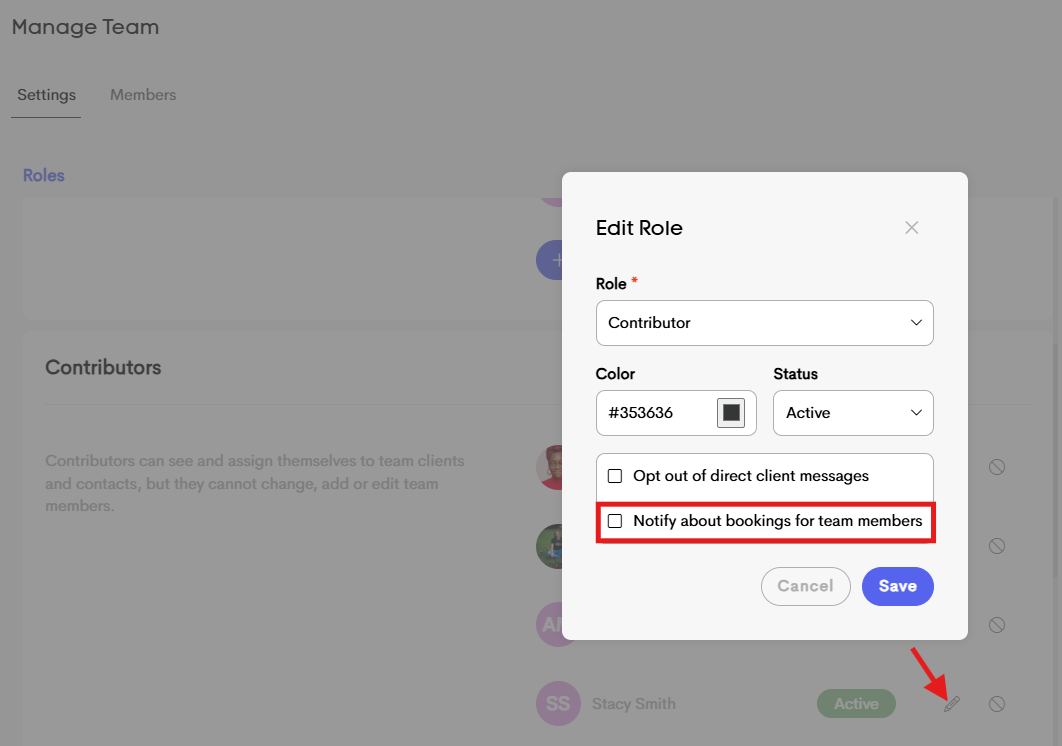
- Define Members to be Alerted on Booking: Previously, in the team environment, when a client booked an appointment, only the assigned doula and the client were notified. Now, you can specify a small group of team members who will receive all booking notifications. Any member with the box below selected in their team member settings will be alerted whenever a client books an appointment, regardless of which doula is assigned. You can "edit" each owner and contributor team member and check this box so they will receive new booking notifications.
#5 Invoice and Billing
- Invoice Reminder Update: Invoice reminder behavior has been improved so that reminders will be sent even if the invoice itself hasn't been sent yet. As long as the invoice reminders box is checked when creating the invoice, reminder notifications will still go out; even if the initial invoice is in draft mode. This is especially helpful if you start an invoice in draft form, apply a deposit as an outside payment, and want the remaining installment reminders to send automatically.
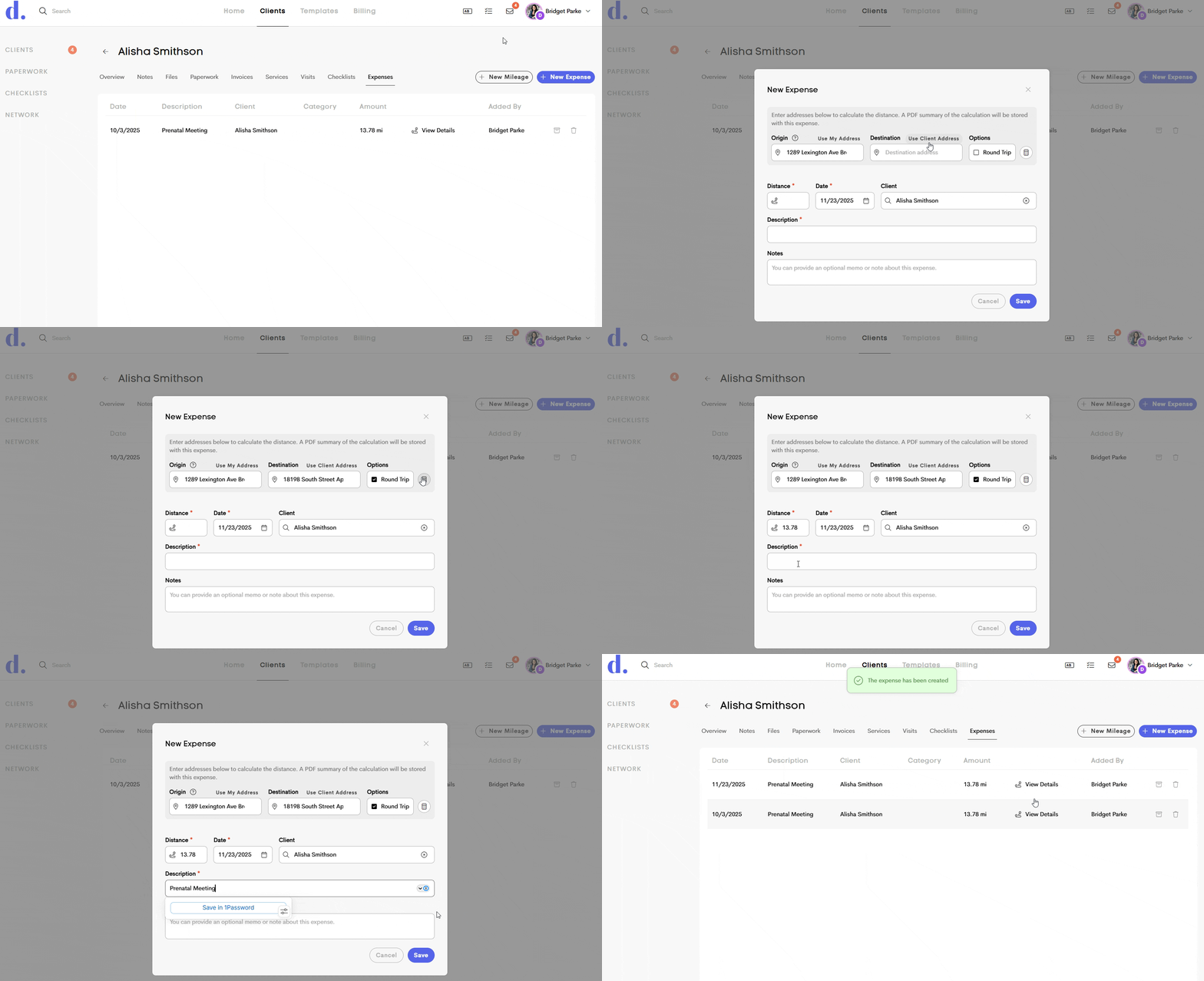
- Calculate Mileage (Highly Requested!): The Client Expenses page just got a major upgrade — mileage tracking is now built right in! 🎉 You can now log mileage separately from other expenses using the new “New Mileage” button. Enter the distance manually or let the app do the work for you by simply choosing your origin and destination. The mileage is automatically calculated using Google Maps for quick, accurate results. This update makes tracking reimbursement-ready mileage easier, faster, and way more accurate! Just like other expenses, that data can be exported for tax and accounting purposes.
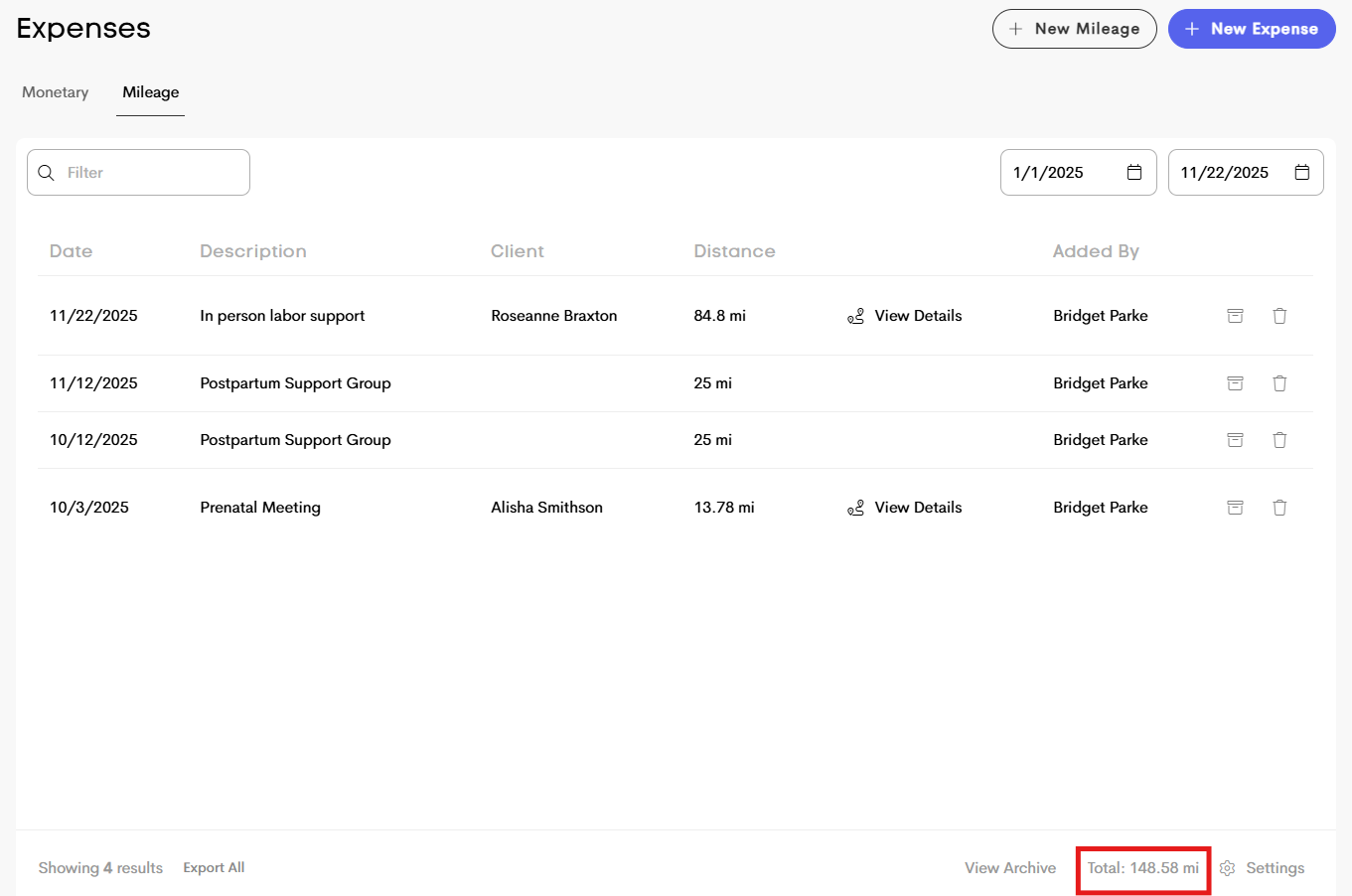
It will even calculate the total miles at the bottom from all of your saved mileage events!
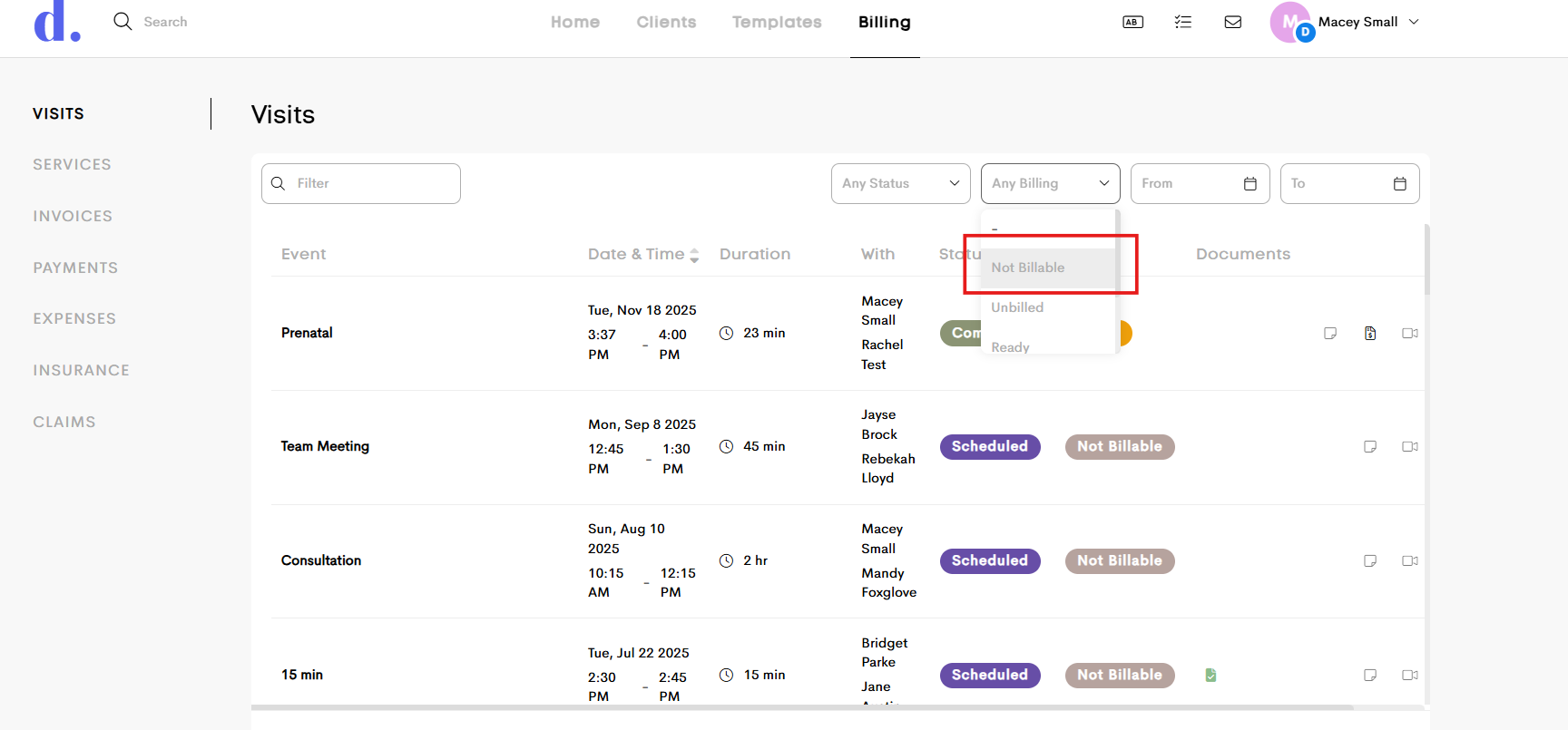
- Non-Billable Visits: To make sorting visits for billing easier, you can now specify whether a visit is billable or non-billable. You can now designate visits as “Not Billable,” with all newly scheduled visits automatically starting in that status. This status can be easily adjusted as needed by clicking on the billing status button in the visit log.
-
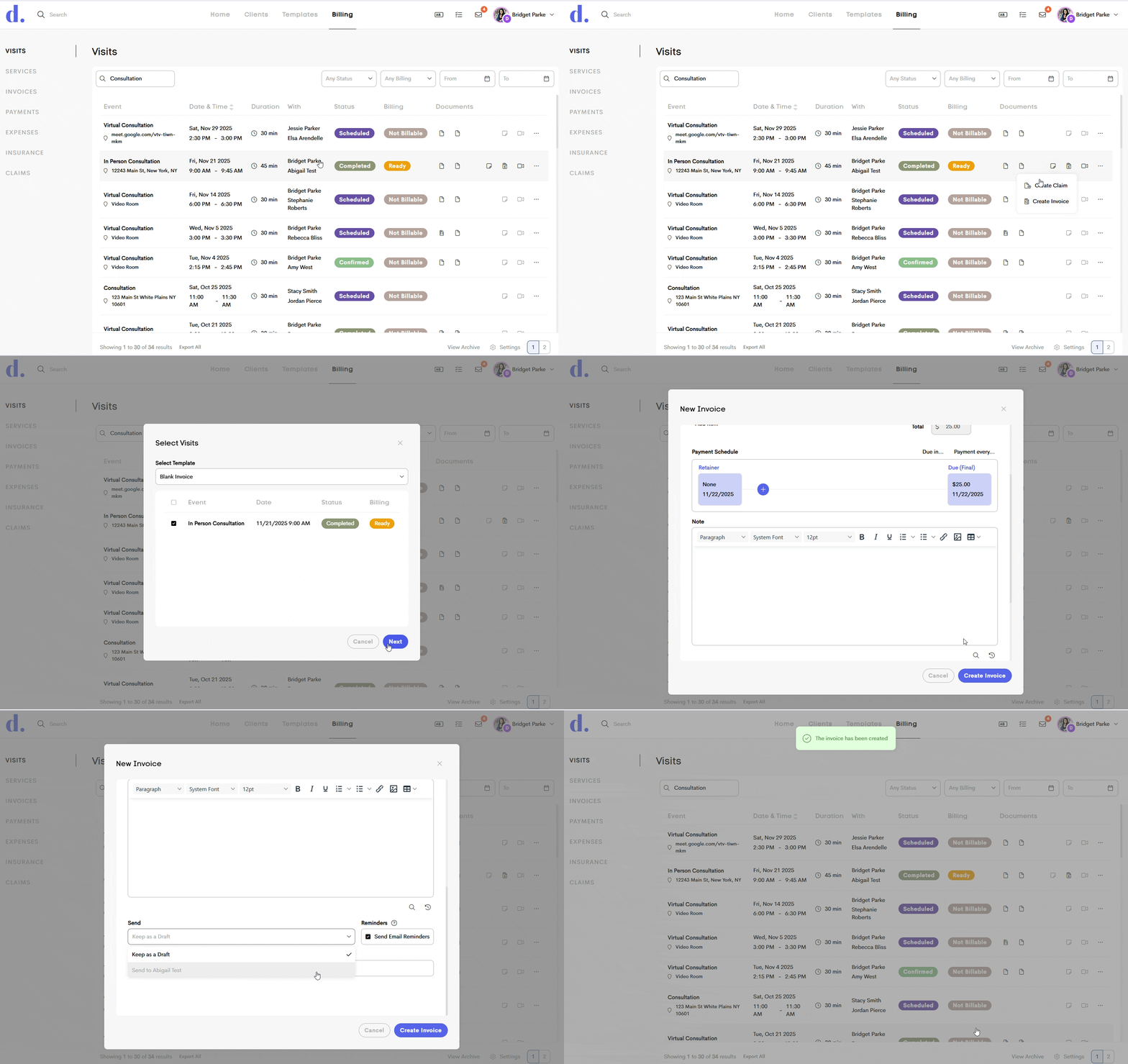
Create Invoice From an Appointment(s): Billing just got a whole lot easier! Similar to starting a claim for an appointment(s), you can now create a new invoice directly from the Visits log.
Click the billing icon at the end of a row, and decide whether you'd like to start a new claim or a new invoice. From there, you can select multiple visits related to the same client, select an invoice template if you'd like, or move forward with a blank invoice. You can generate an invoice in just a few clicks. This feature will pull in the dates for a visit, as well as the tied service, quantity, and charge (if linked) and is designed to streamline billing for specific appointments to save you time!
When creating a batch invoice, the list will display visits with the following visit status: scheduled, confirmed or completed, and any billing status except not billable.
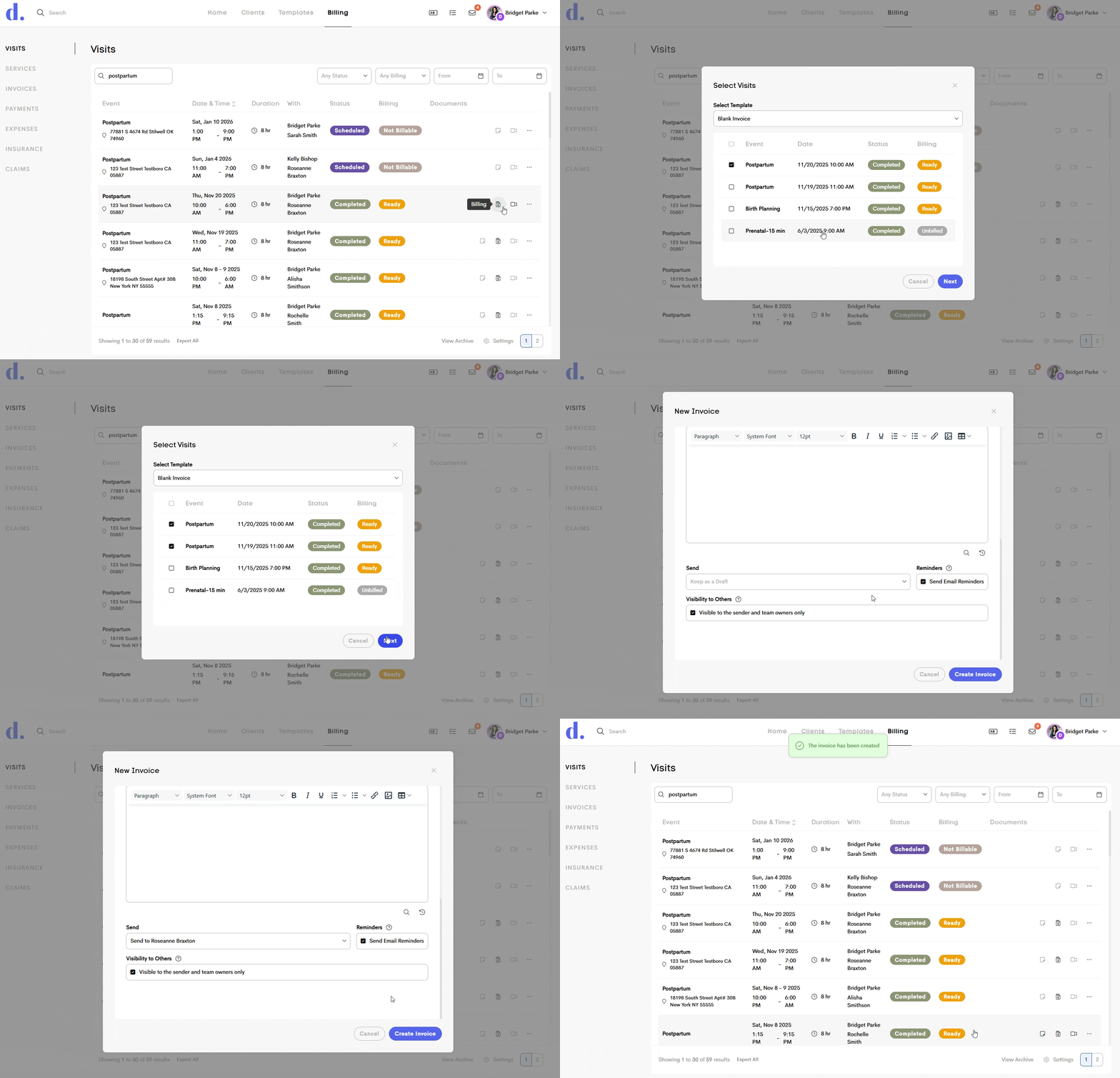
If you are using appointment presets to log visits, and those appointment presets are linked to an invoice service, it will fill in the charged service name and update the quantity in the invoice!
- 'Services' Cleanup: We’ve done a little housekeeping on the Client Services page! Now, invoice services are displayed more clearly: items correspond directly to actual services with positive prices, rather than showing confusing percentages or negative numbers to represent discounts or fees. This update makes it easier to see exactly what "services" they have purchased at a glance.
#6 Messages, Notes, and Notifications
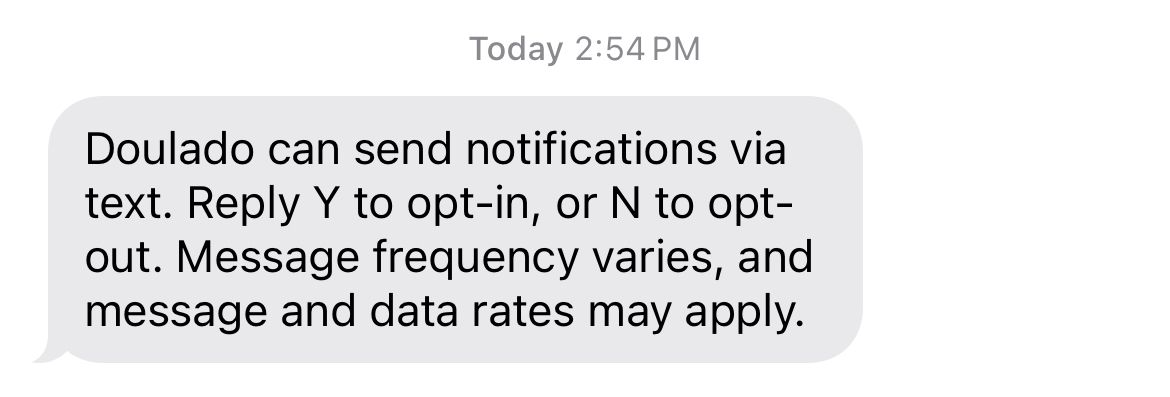
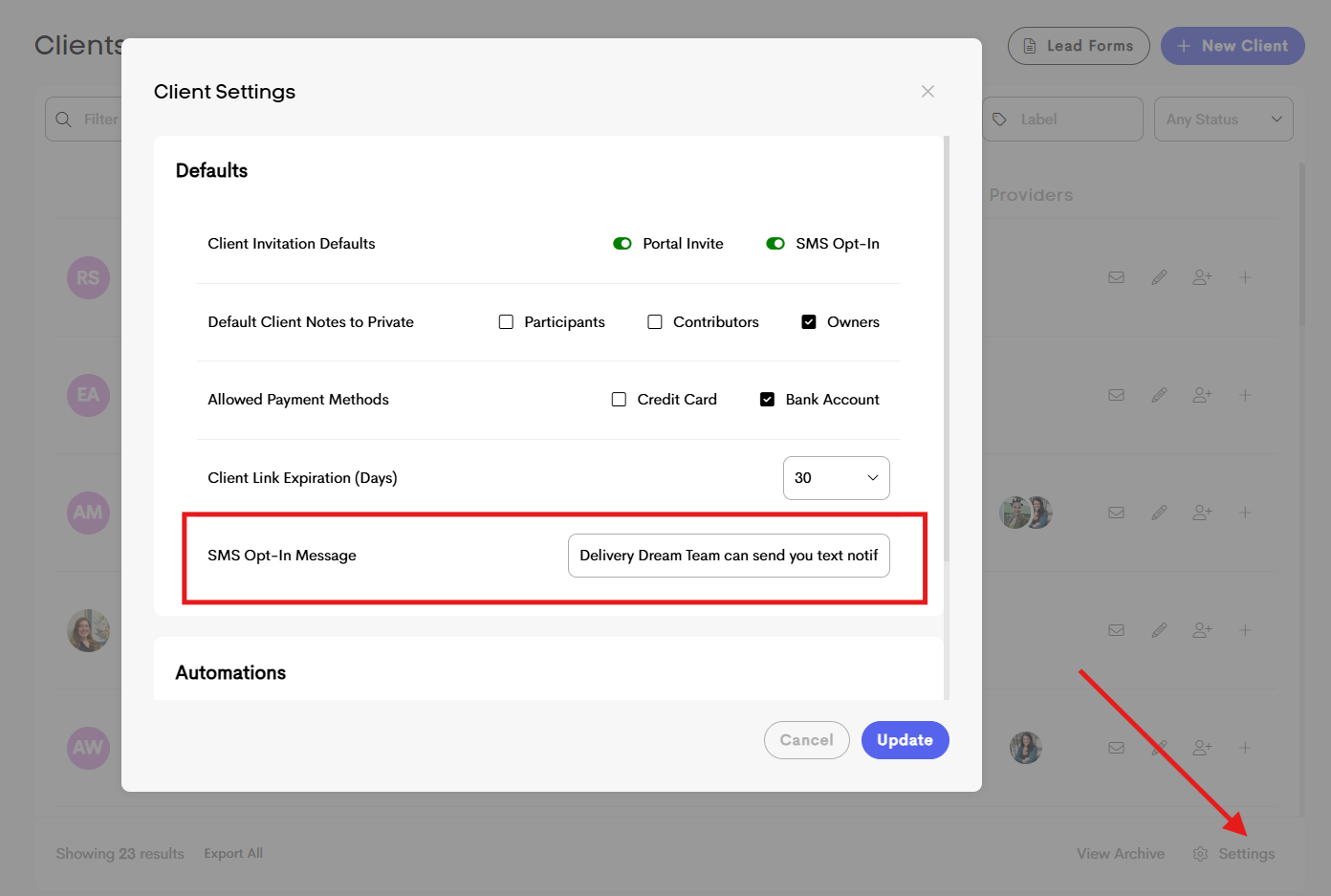
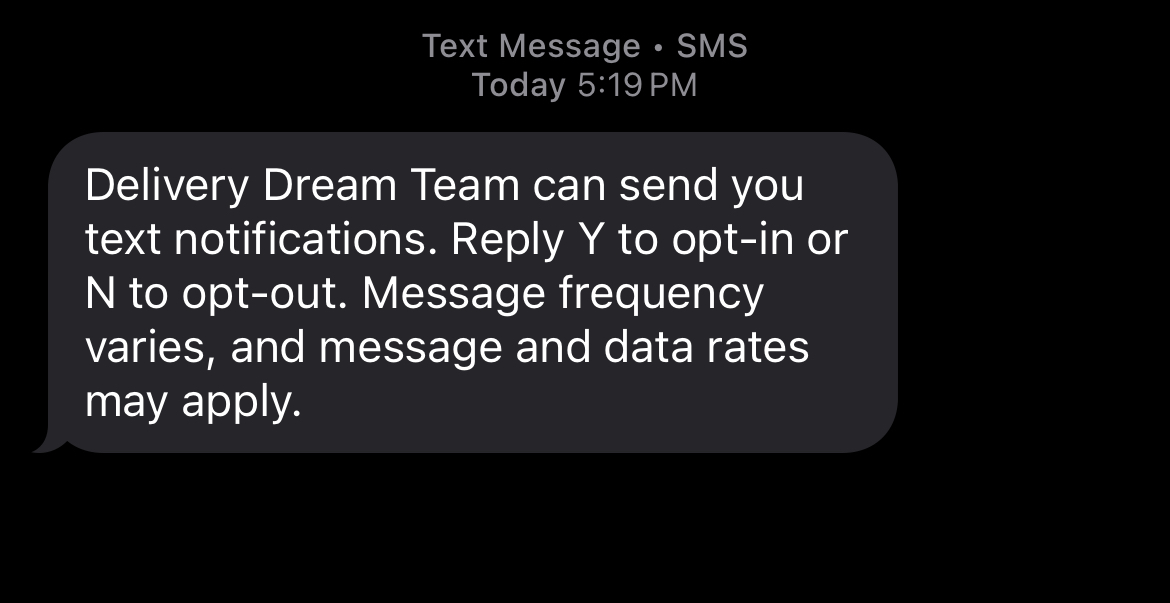
- Customize SMS Opt-In message: You are now able to customize the SMS message opt-in text that your client receives when opting into that notification option. Rather than the default Doulado message, you can create your own custom text to ask clients to opt-in to receiving text message notifications. The first sentence of the default message can be edited in your client settings; "Doulado can send notifications via text", and has a limit of 60 characters. The "Reply Y to opt-in, or N to opt-out. Message frequency varies, and message and data rates may apply." is not customizable and will remain the same.
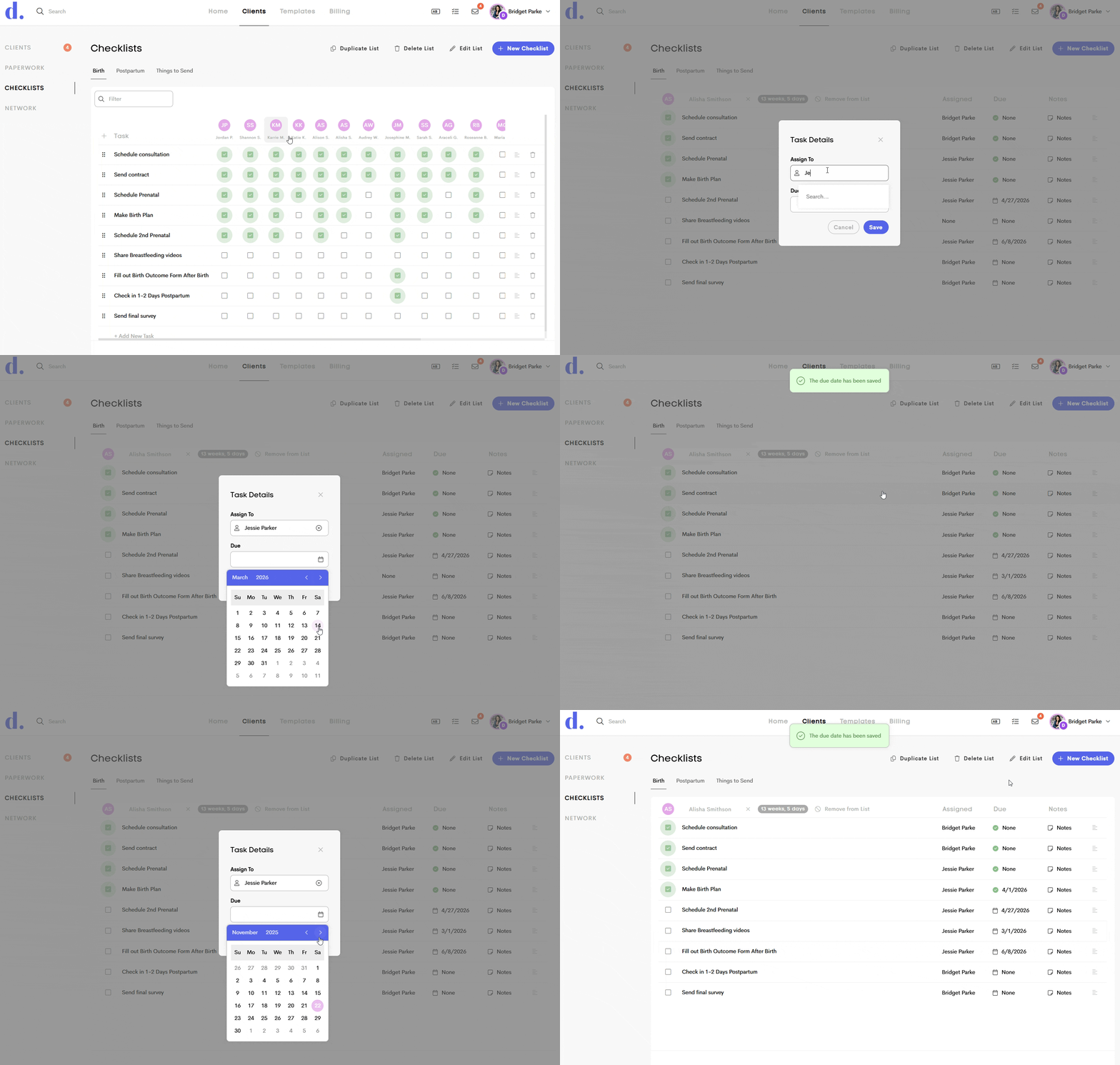
- Checklist Notifications: Checklist tasks can now be assigned individually to send automatic notifications to doulas, providing convenient reminders for assigned responsibilities. When a task has a due date, is assigned to a team member, and hasn’t been marked as complete, Doulado will send timely alerts. If a task does not have a due date, it will not notify the doula, but they can view who the task is assigned to in the actual checklists and their reminder/tasks section.
-
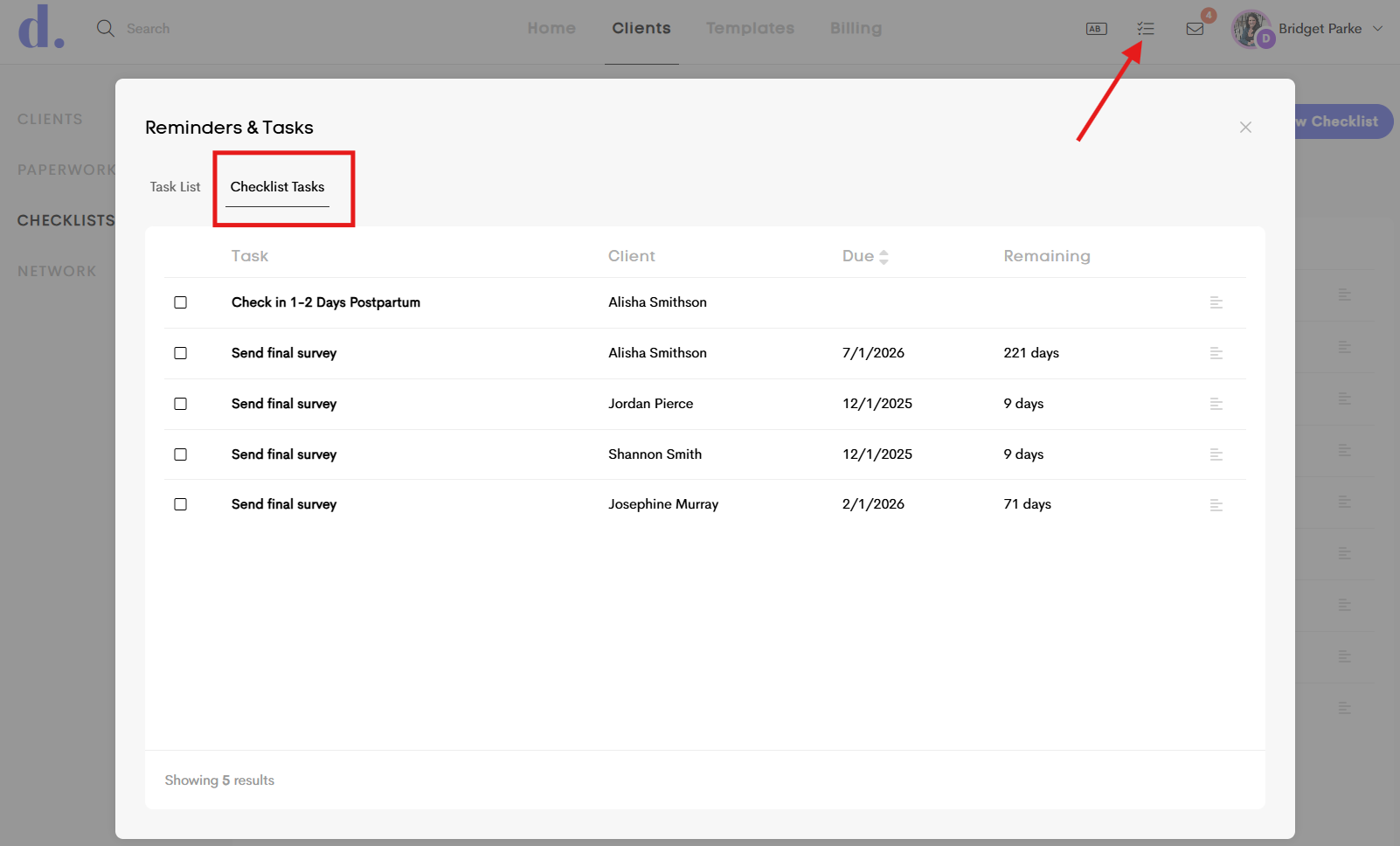
Reminders for Checklist Tasks: Checklist tasks assigned to you will now appear in your Reminders & Tasks section. The first tab still shows the task lists you create (and assign to others), while the new second tab displays all checklist tasks assigned to you, including the client they belong to and any due dates.
If a task has a due date, the person assigned automatically receives a reminder 3 days before it’s due and 1 day after it becomes overdue (if it’s not yet completed and your notification preferences are enabled). This update helps you stay organized and on top of every task!
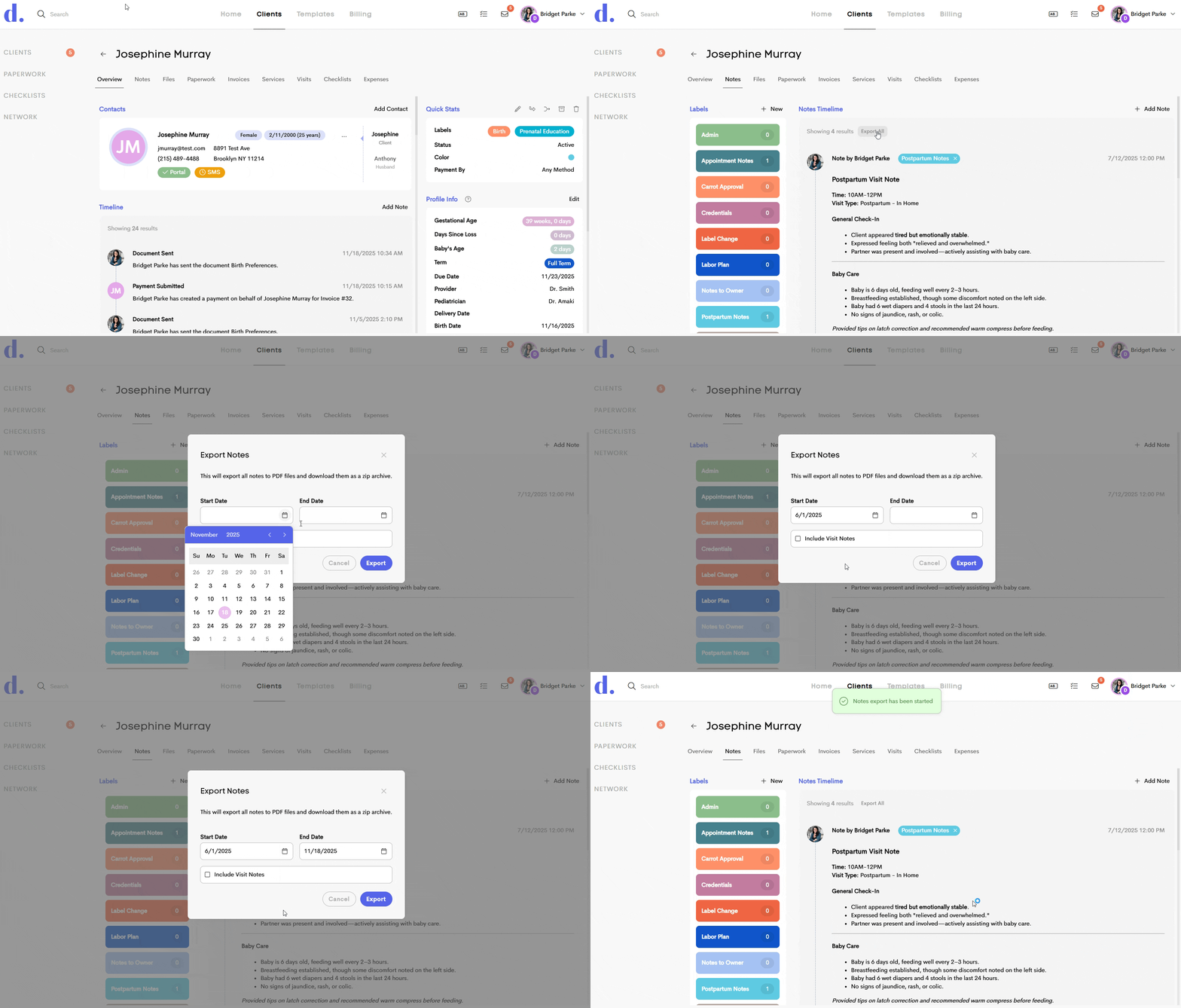
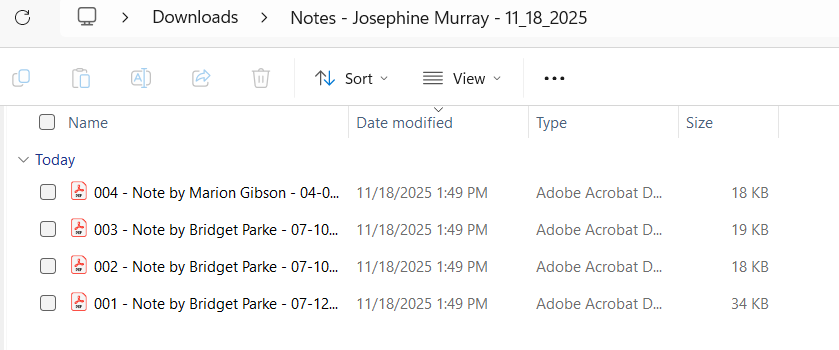
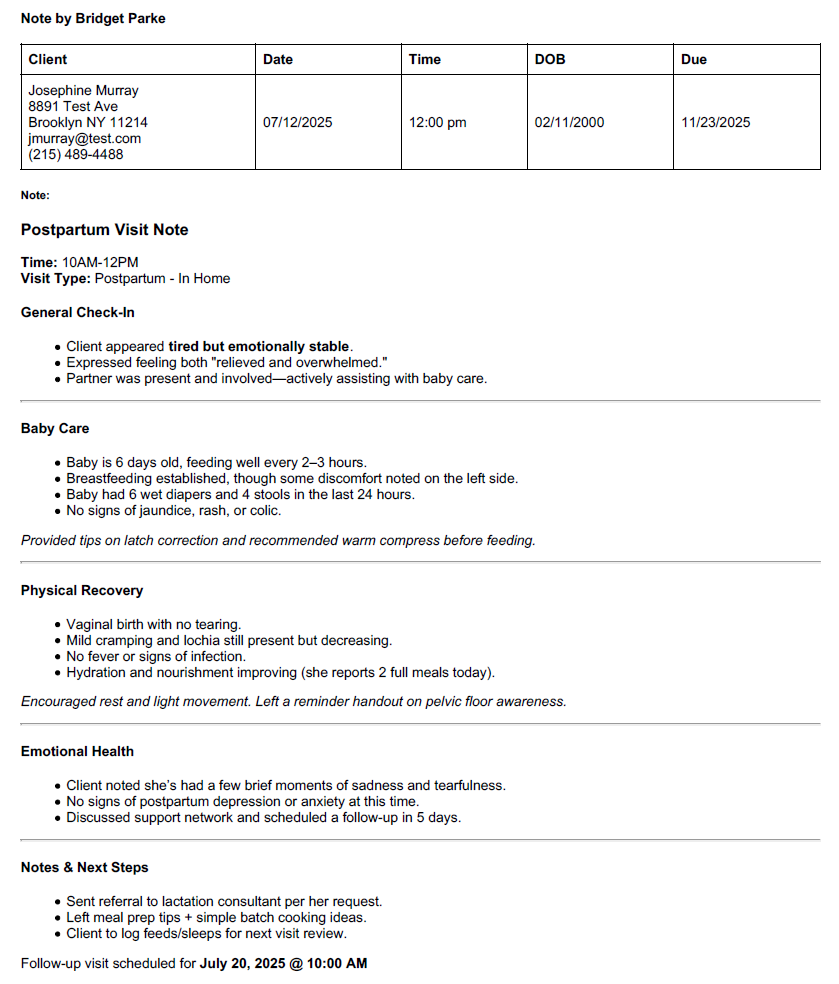
- Save all notes: You can now export all client notes with just one click! Simply use the Export All button at the top of the Notes section to quickly download every note within a custom date range saved under a client’s profile, including the option to include Visit Notes. If multiple notes are present, they will download as individual PDFs in a folder. Each note has the client's contact information, date and time of note, and other details as a header.
Tasks in the works:
- Lead form insurance changes
- Automatic change of visit status
- Automatically Assess Allowed Surcharges
- and more!