
Refunding a Payment
Refunding a payment in Doulado is quick and straightforward. You can process refunds directly from the payment interface for both electronic funds transfers and payment card charges.
How refunds work:
-
Payments made through Doulado (Stripe-connected accounts):
When you issue a refund, the funds are automatically returned to the payer’s original payment method.
-
Payments recorded from an outside source:
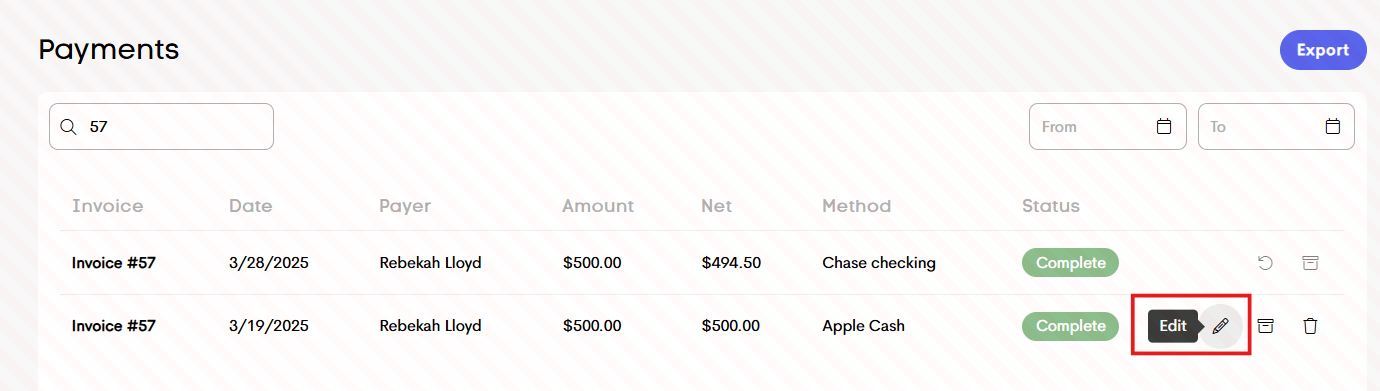
If the invoice was paid externally, you can edit the payment to note the adjustment instead of processing a refund through Stripe.
-
Invoice adjustments:
If the refunded amount reduces the total due, you’ll also need to edit the original invoice so the balance reflects the refunded amount.
Processing a Refund for an Internal Payment
-
Navigate to the main Billing tab > Payments.
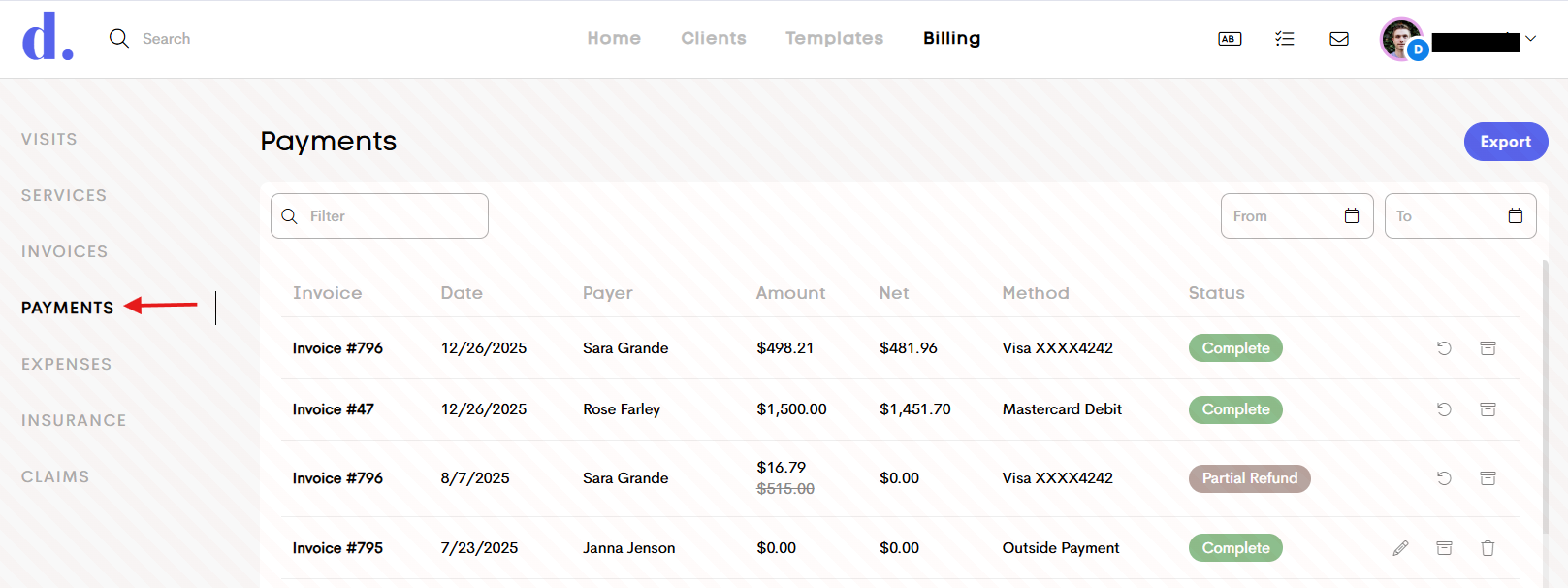
- Use the filter field to find the payment. You can search by invoice number or payer (client) name.
-
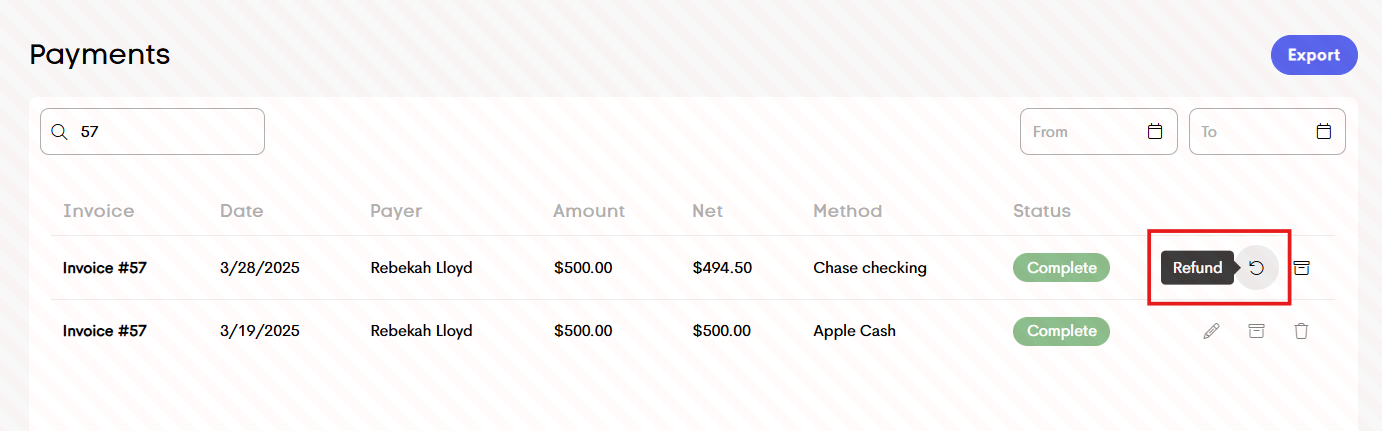
From the right action menu of the payment row, click the Refund icon.
-
Enter the amount you’d like to refund.
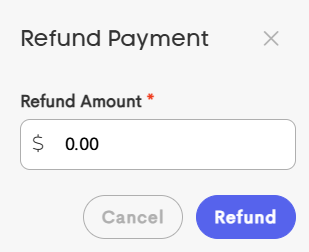
- You are responsible for any processing fees associated with the original payment.
- If you want to refund the client the full amount they paid, enter that full amount and absorb the processing fees.
- If you want the client to cover the processing fees, enter the net amount you received.
- Click Refund to finalize.
Important Notes
- If you refund the full amount, your Stripe payout balance may become negative. Any processing fees will be deducted from your next payout.
- Refunds typically take 7–10 business days to appear back on the original payment method.