
Workflows: Using Templates
Getting started with Workflows doesn't mean you have to build everything from scratch. Doulado provides example workflow templates that you can import into your account and customize to fit your care plans and client processes.
Browse Workflow Templates
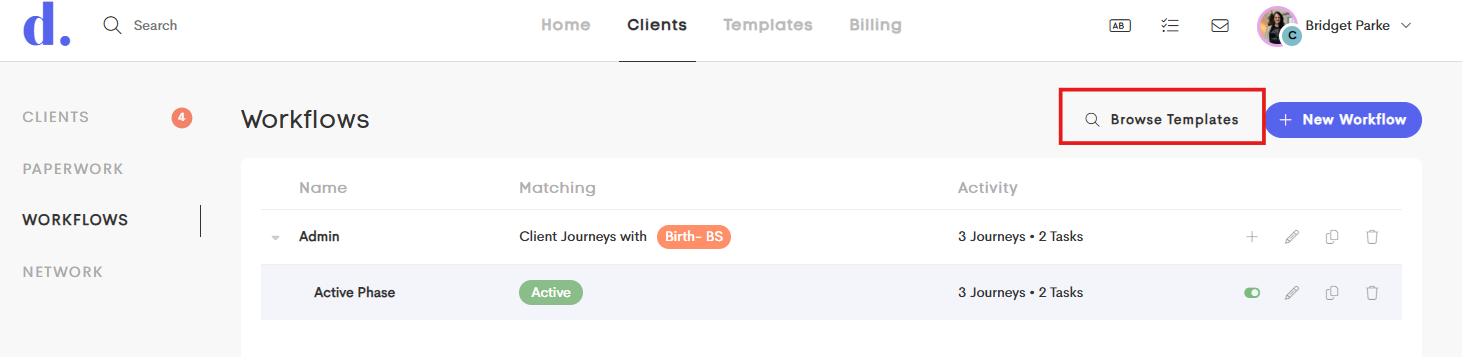
To view the available templates, click Browse Templates next to + New Workflow in the top right corner of the Workflows page.
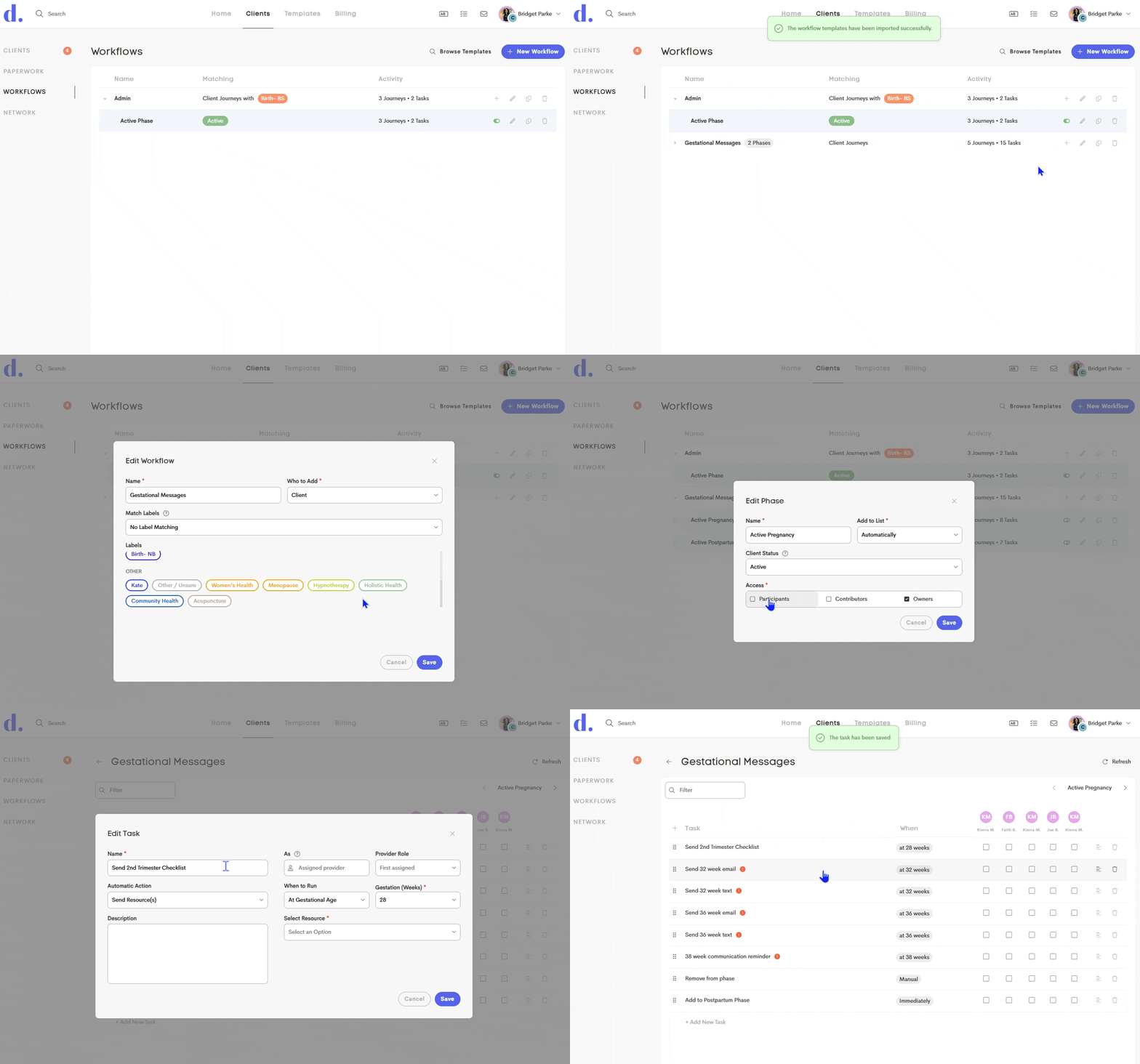
Select a template that is closest to your process, then import it into your account to begin customizing it.
Customize Your Workflow
Once you've imported a template, you can adjust it to match the way your practice manages clients. You can:
- Update the status and label settings that determine which client journeys are added to the workflow.
- Add, remove, or rename phases and tasks.
- Customize the actions each task performs.
- Assign triggers, such as manual completion, delays, gestational age, or baby's age.
- Select the email, SMS, resource, paperwork, invoice, or other templates you want each automated task to use.
- Adjust the workflow to match your specific care schedule and client experience.
Templates Are a Starting Point
Just like the document and form templates provided by Doulado, workflow templates are designed to give you a starting point. You can use the structure provided and then make changes to reflect your own services, timing, communication style, and care plans.
We recommend reviewing each phase and task after importing a template to make sure the triggers, actions, and content match the way you want your workflow to operate before adding clients.