
Expense Types
Monetary Expenses

Use Monetary Expenses to record general business costs in currency. You can find these expenses under the Monetary tab.
Recording a Monetary Expense
Click on the + New Expense button to record an expense.
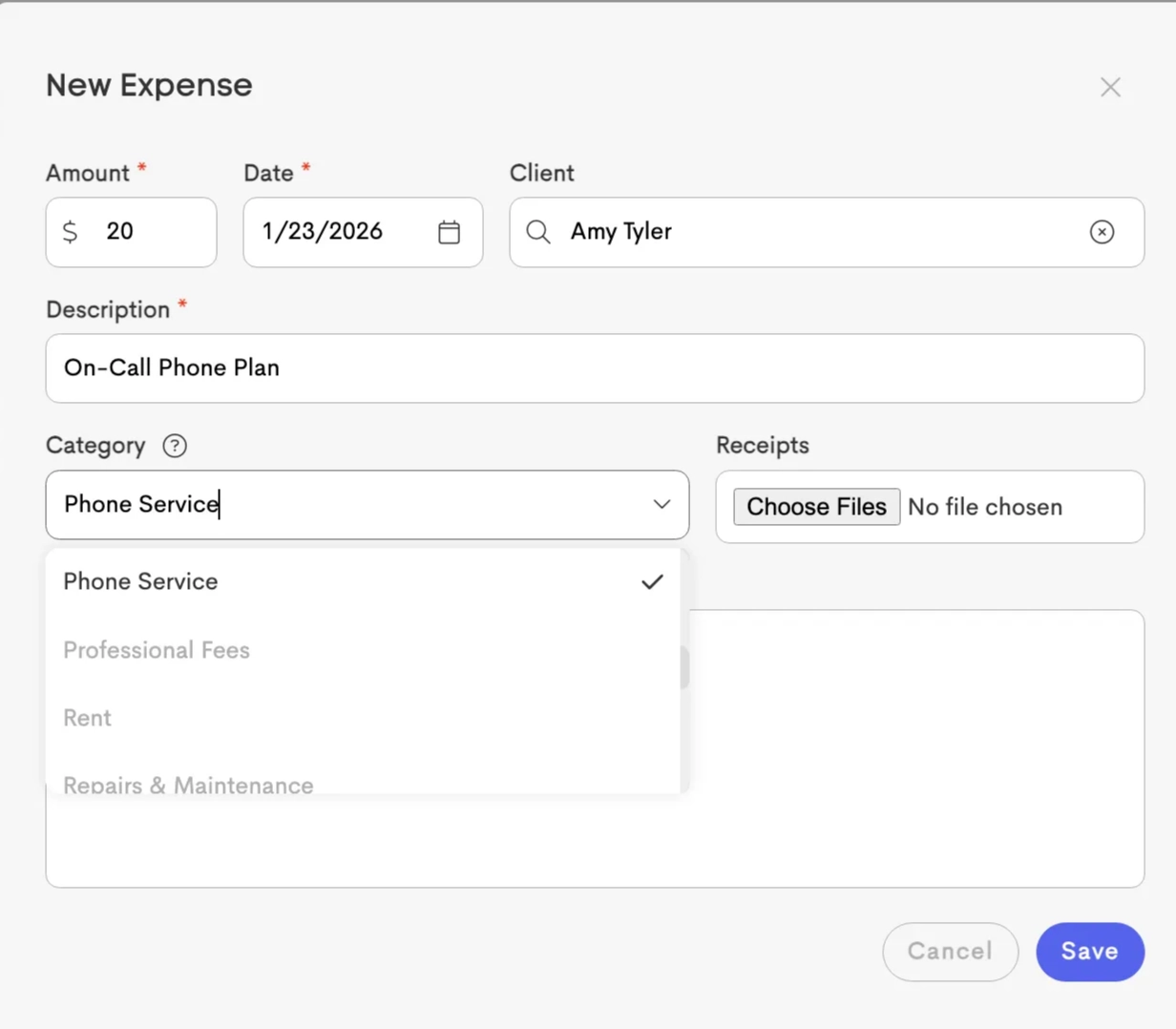
When adding an expense, you can include:
- Amount & Date – Enter the cost of the expense and the date it occurred.
- Client (Optional) – Link the expense to a specific Client Journey when the cost is related to that client or their care.
- Category – Select a standard or custom expense category configured for your business.
- Receipts – Upload one or more files as supporting documentation or proof of purchase.
Note: The combined size of all files selected for upload cannot exceed 50 MB.
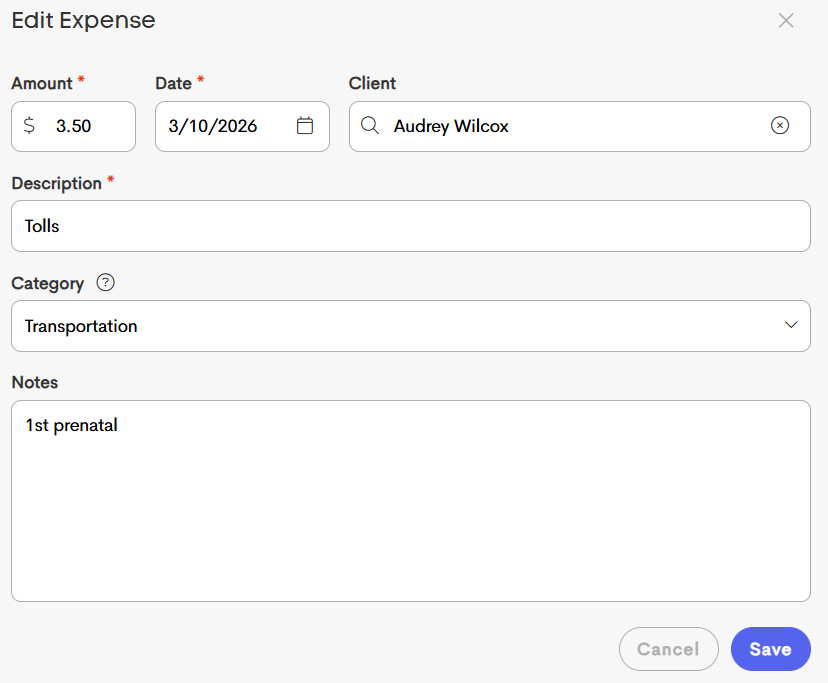
You can also edit an existing expense by clicking on it. Modify the fields you want to change, and click Save once you're done.
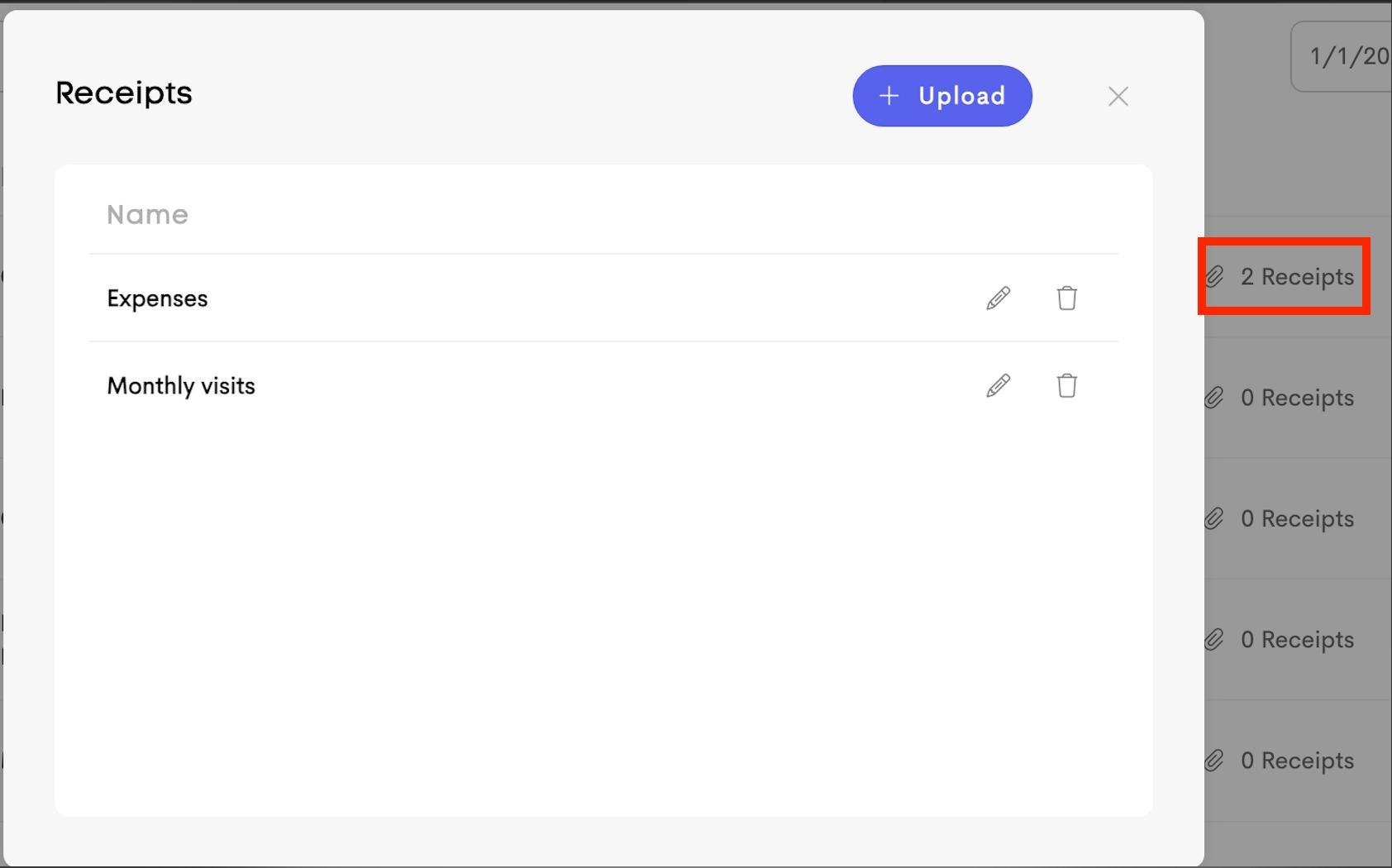
The Receipts button also allows you to view, add, or update attached receipts for that corresponding expense.
Mileage Tracking
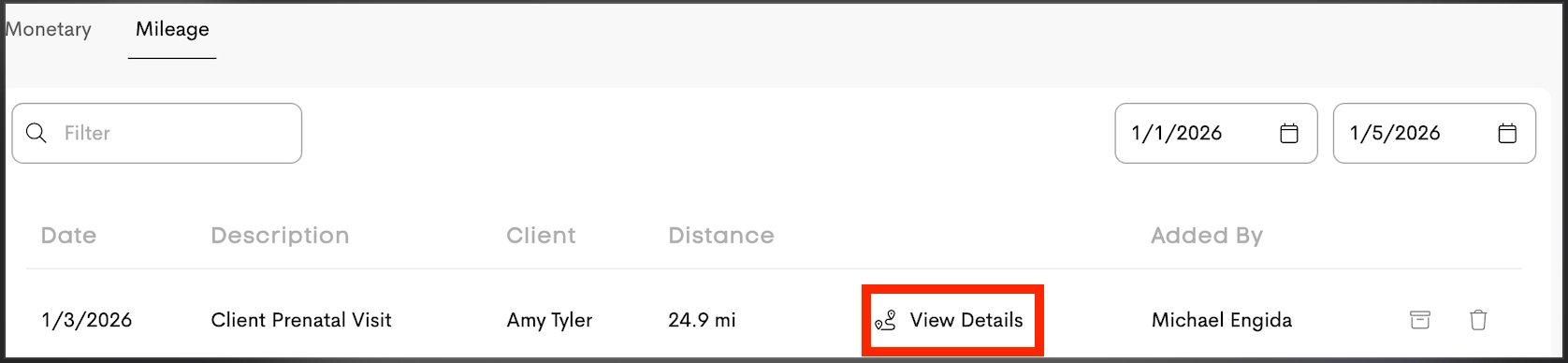
Use Mileage to track travel distance for client visits or other business-related trips. You can find these records under the Mileage tab.
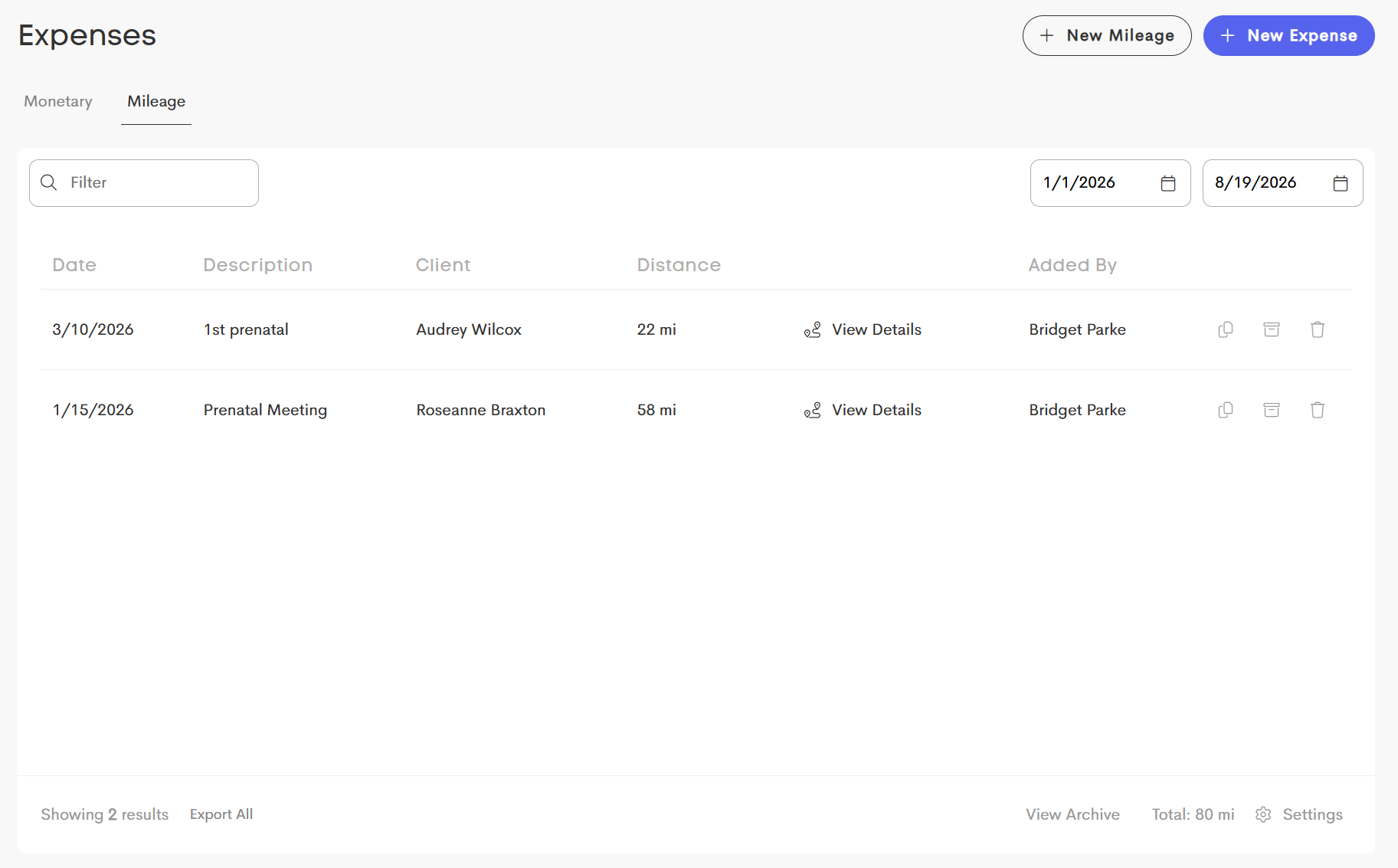
You can view all the distance calculation history made for a specific mileage record by clicking on View Details.
Mileage PDF
When you save a mileage expense, a PDF receipt is automatically generated with the route and calculated distance. The receipt is attached to the expense record for reference and recordkeeping.
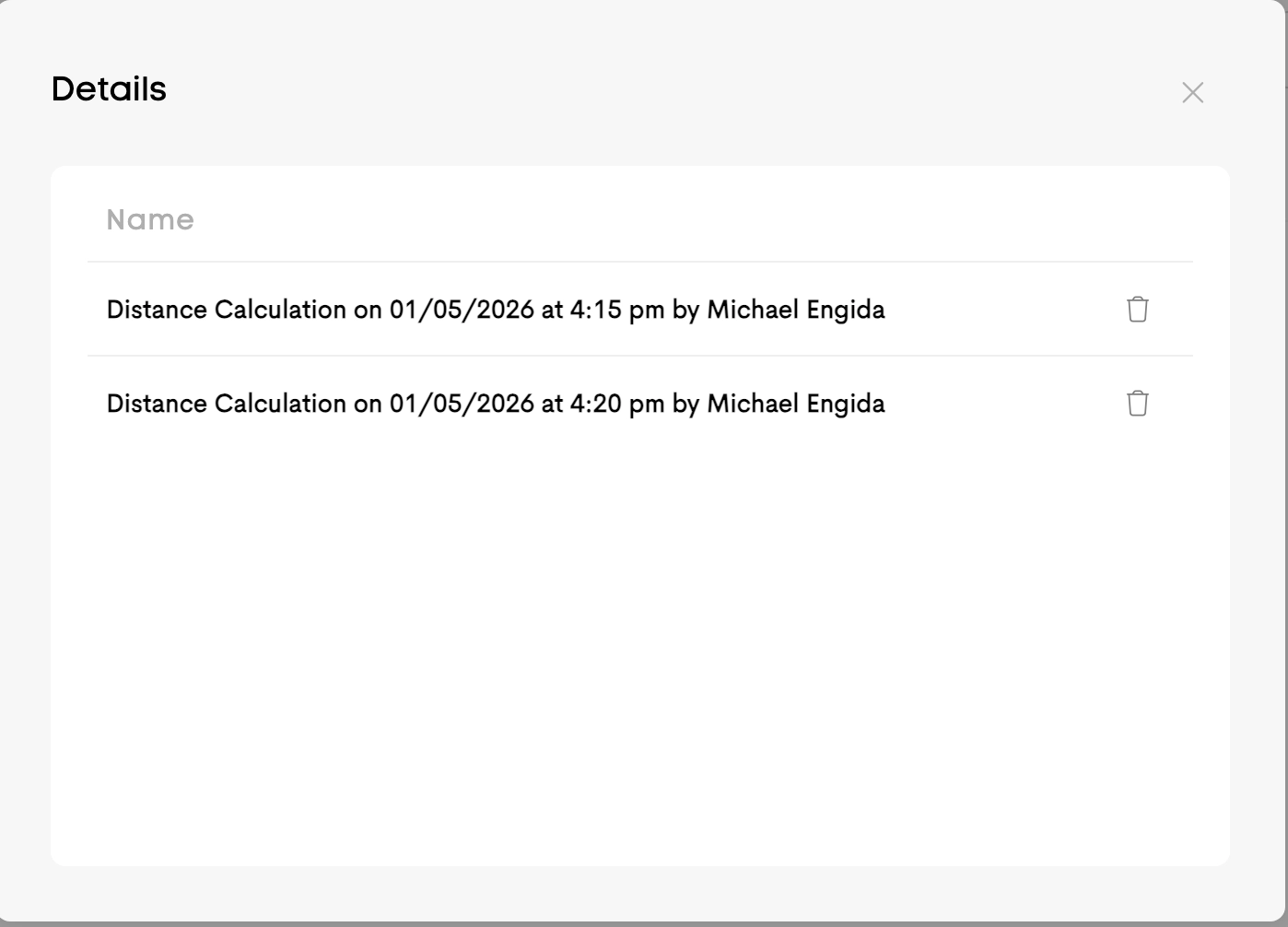
Each mileage detail record includes the PDF showing the calculation used.
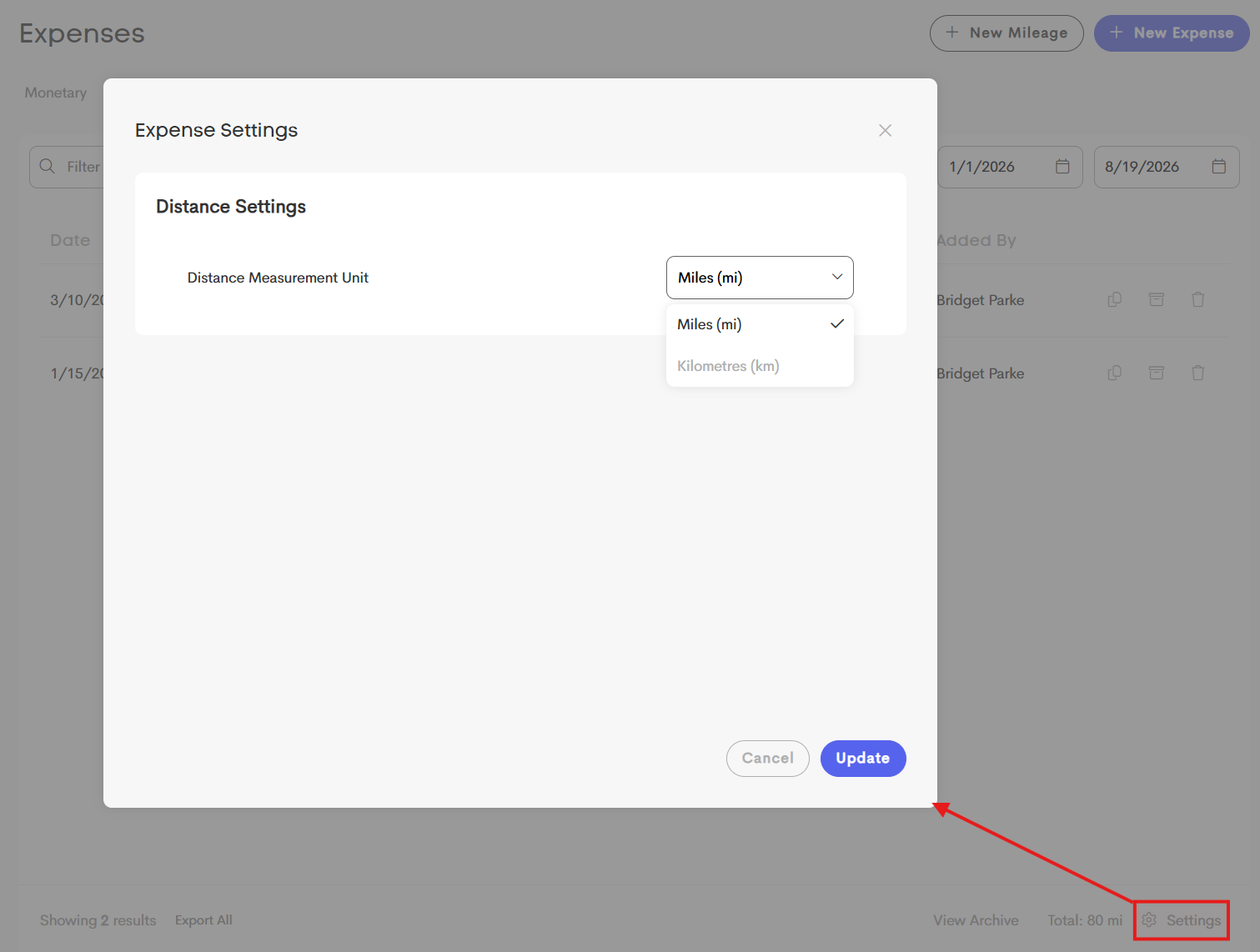
Mileage tracking supports both Miles (mi) and Kilometers (km). The desired unit of measurement is set in Expenses settings for a business.
Click on the Settings icon at the bottom of the Expenses page.
Recording Mileage Expenses
Click on the + New Mileage button to record a mileage.

Fill out the necessary fields pertinent to the mileage you're recording.
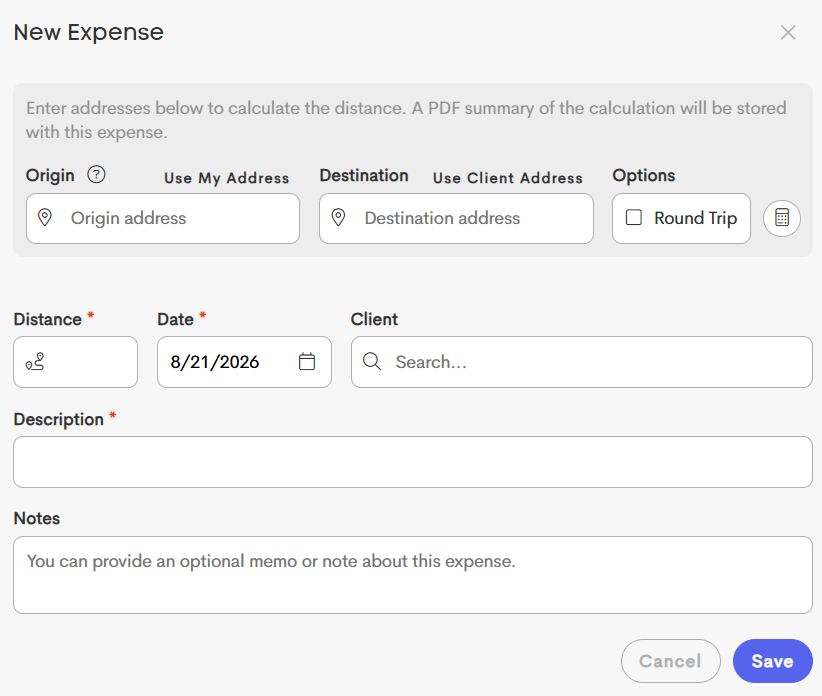
- Origin & Destination – Enter the starting and ending addresses for your trip. Use My Address to quickly add the address from your provider profile, or Client Address to add the selected client’s address.
- Round Trip – Enable this option to automatically double the calculated distance for a return trip.
- Calculate – Calculates the distance between the origin and destination based on the addresses entered.
To edit an existing expense, click on an item from the list to open the modal.
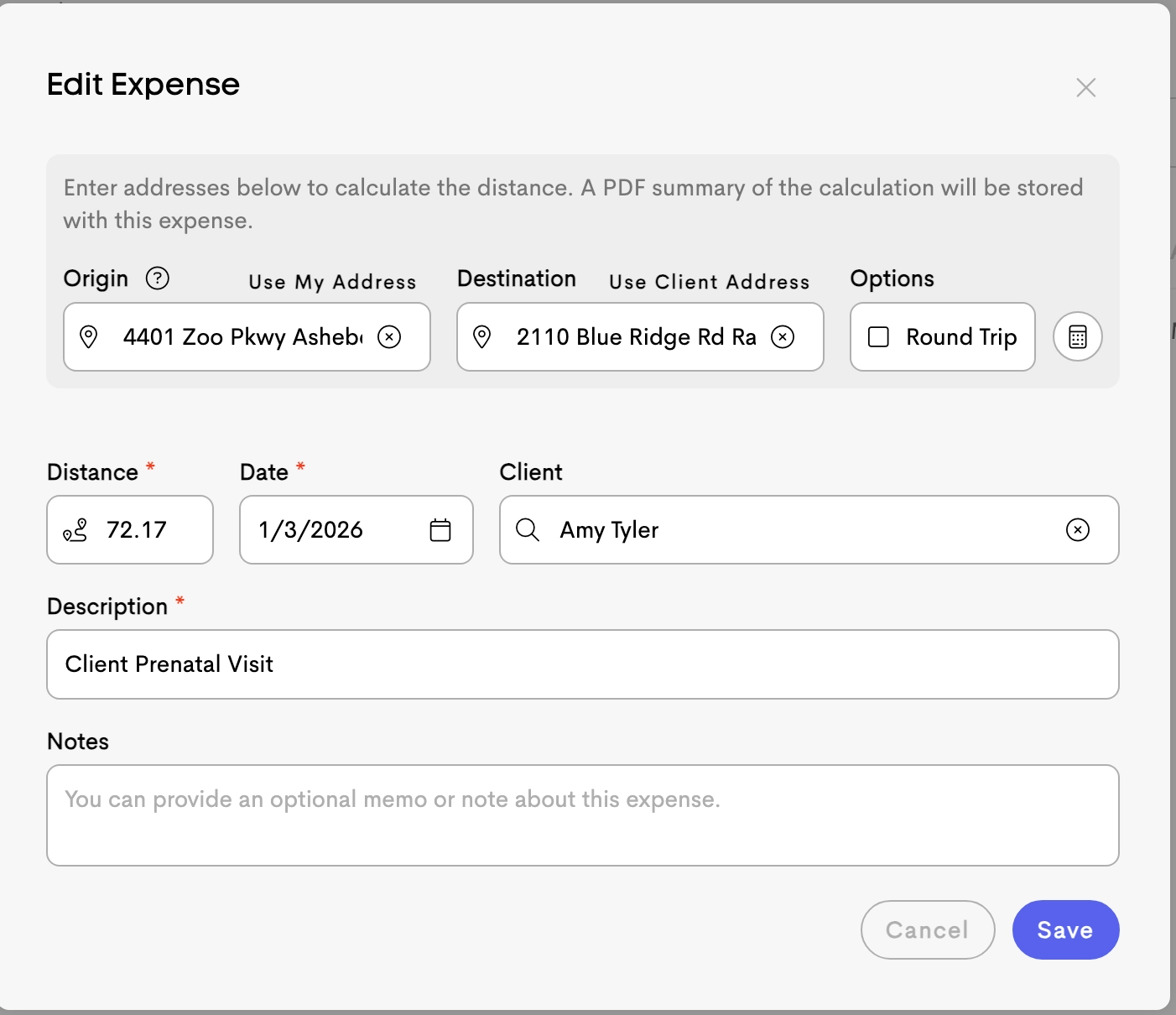
When you're done editing, click Save to apply the changes.