
Stripe Setup & Settings
Before accepting payments, complete your payment setup by connecting your Stripe account and configuring your preferred payment methods. You can also manage verification requirements, set primary payment methods, and control which payment options are available for your clients.
Connecting to Stripe
To start accepting online payments, you must link a Stripe account to your business.
-
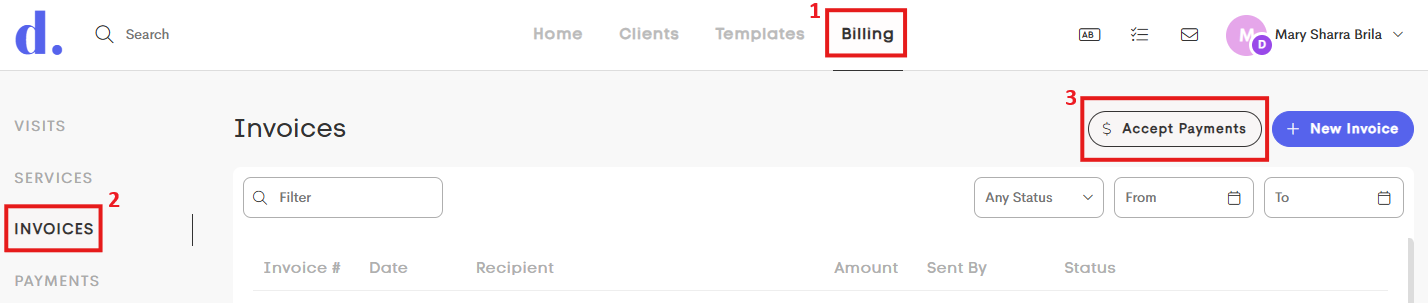
Go to the main Billing tab > Invoices, and click on the Accept Payments button.
-
The Accept Payments window will open, showing you a walkthrough on filling out the onboarding form. Click Begin to continue.
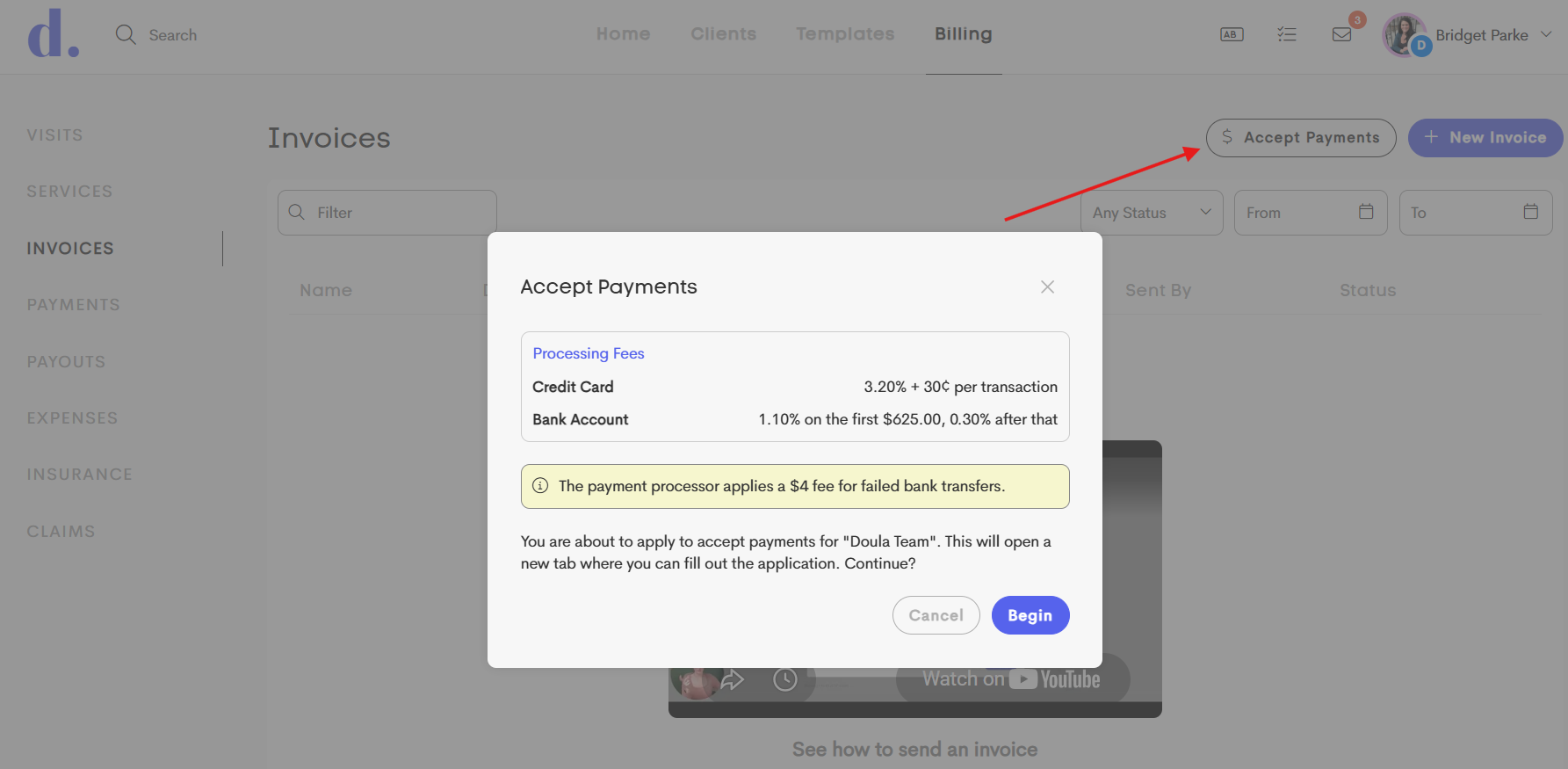
- In the next page, enter your business details and verify your identity to complete the onboarding process.
- Once complete, you should be ready to process online payments.
Managing Payment Methods
Both you and your clients can add a payment method in the Personal Profile modal or when making payments.
| Method | Verification | Processing Time | Surcharge Eligible |
|
Credit & Debit Card (Visa, Mastercard, Amex, Discover) |
Instant | Immediate |
✅ Yes (2.9% + $0.30) |
|
Bank Account (ACH) (Direct bank transfers) |
Required (2 micro-deposits) |
3-5 Business Days |
✅ Yes (0.8%, max $5) |
|
Outside Payment (Cash, check, external) |
None | Manual Entry | ❌ No |
Verification Process (ACH Only)
Within 1–2 business days, one of the following will appear in your bank account:
- Two small deposits, or
- A single $0.01 deposit with a 6-character code in the description (starting with SM).

When verifying your bank account, choose the verification method that matches the deposit you received.

Primary Payment Methods
- The first payment method you add is automatically set as your primary payment method.
- Your primary payment method is selected by default whenever you make a payment.
- You cannot delete your primary payment method or a payment method currently used for a subscription plan.
Restricting Payment Methods
You can control which payment methods clients can use on your business via two different ways:
Business Preference (Default for New Clients)
This sets the default restrictions for new clients added to your business.

To configure this, go to your Client List and click on Settings at the bottom-right corner of the page.

Changes to these settings only apply to new clients. Existing clients will keep their current payment method restrictions.
Client Journey Settings (Override)
Customize payment methods for an individual client.
- Enable or disable payment methods for a specific client.
- Any payment method you disable will no longer appear as a payment option when the client selects Make Payment.
You can modify this setting by going to a Client Journey.

Stay in the Overview tab and click on the pencil icon in the Quick Stats section.
