
Document Fields & Form Questions
All document types support fields and questions that allow you to collect information, signatures, acknowledgements, and other responses from clients.
Jump to
Document Fields
By adding a fillable field, you can insert information that needs to be automatically populated with specific information based on the recipient or provider and/or or be filled by the recipient or provider.
Some examples are client name, due date, fees, dates, and signatures.
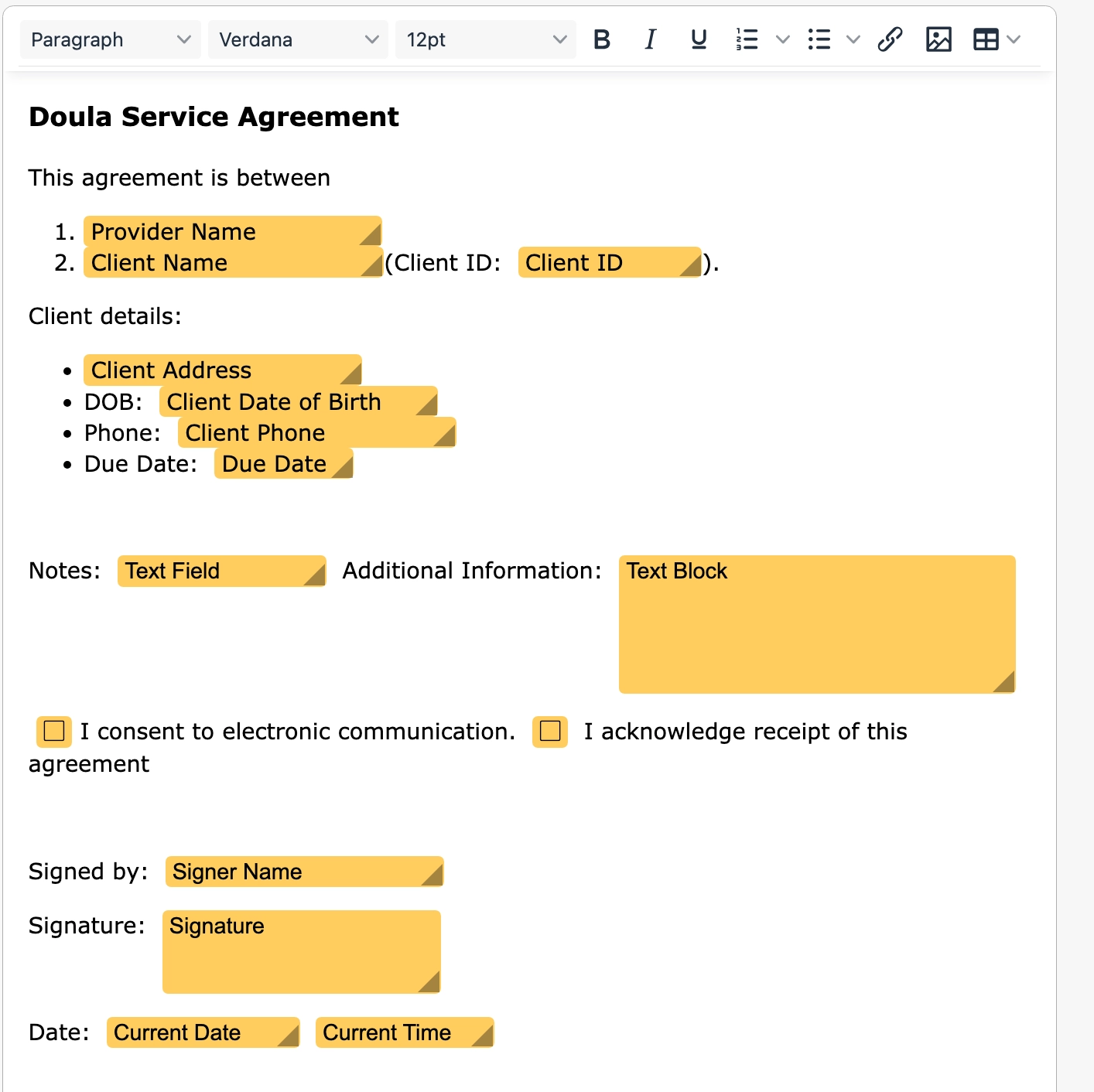
For an uploaded or created document, fields are placed directly onto the canvas.
-
Add a field by selecting a field type from the available options
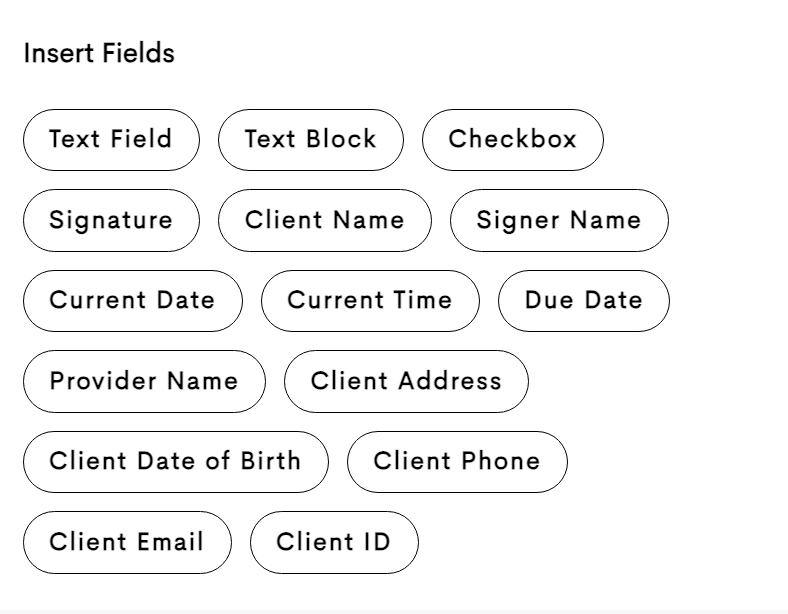
Types of fields allowed on a document -
Drag and resize the field to position it where you want it on the document
Example field placement on a created document - Uploaded PDFs allow fields to be freely placed anywhere on the page
Each field includes configurable properties, such as field name, required settings, and pre-fill options.

Forms
Forms use a flexible drag-and-drop layout designed for collecting information in a structured, web-based format.
Add a Question
To add a new question:
-
Select a question type from the Insert panel on the right side of the screen.
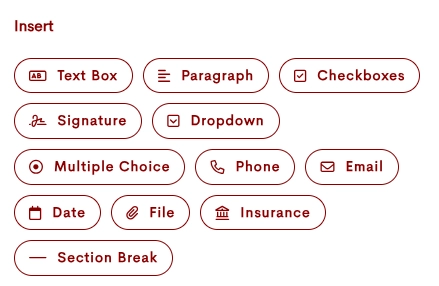
-
Available insertion points will appear throughout the form, marked with + icons.
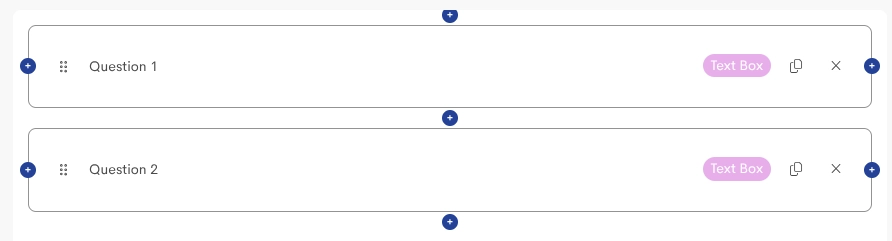
-
Click the desired location to add the question.
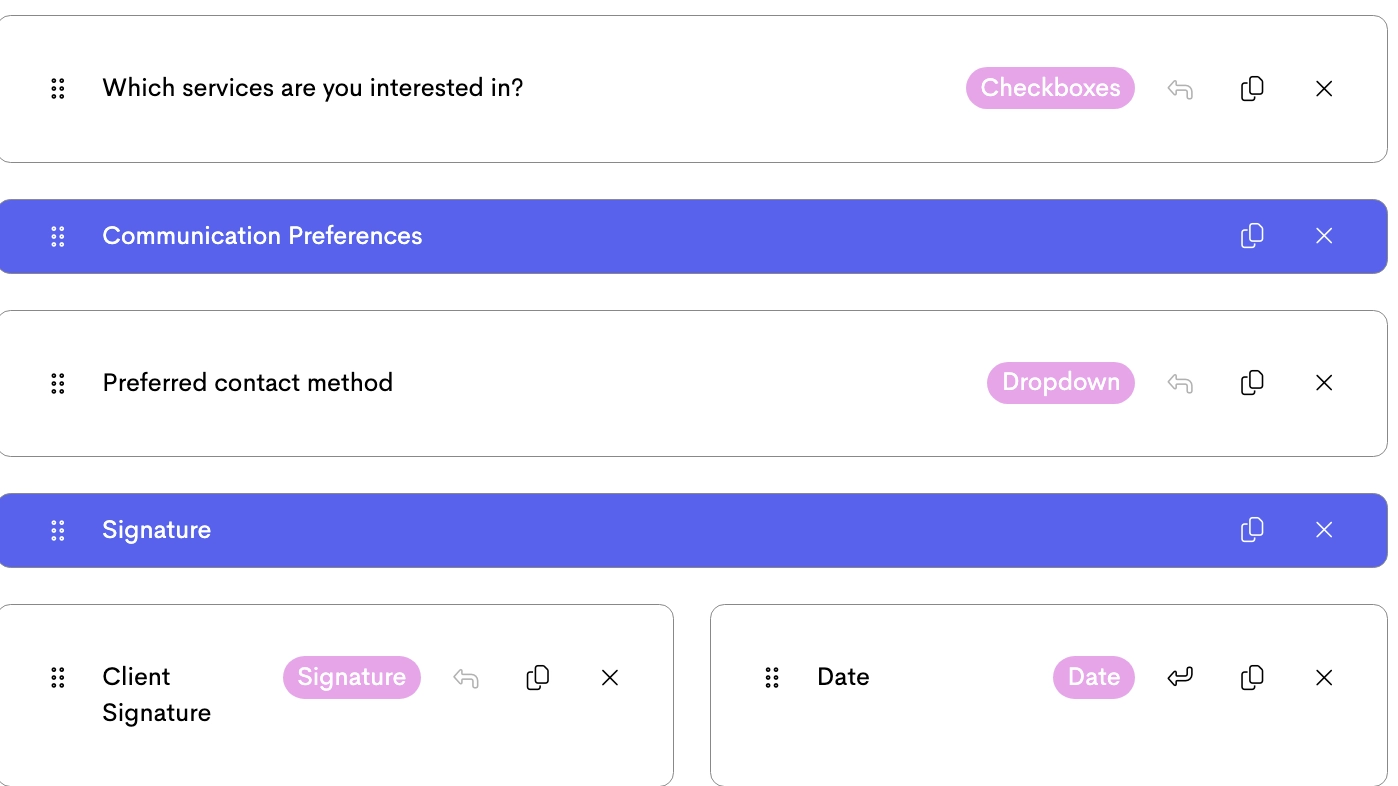
Example questions placed on a form -
You can modify the properties in the questions once you insert them in the form.
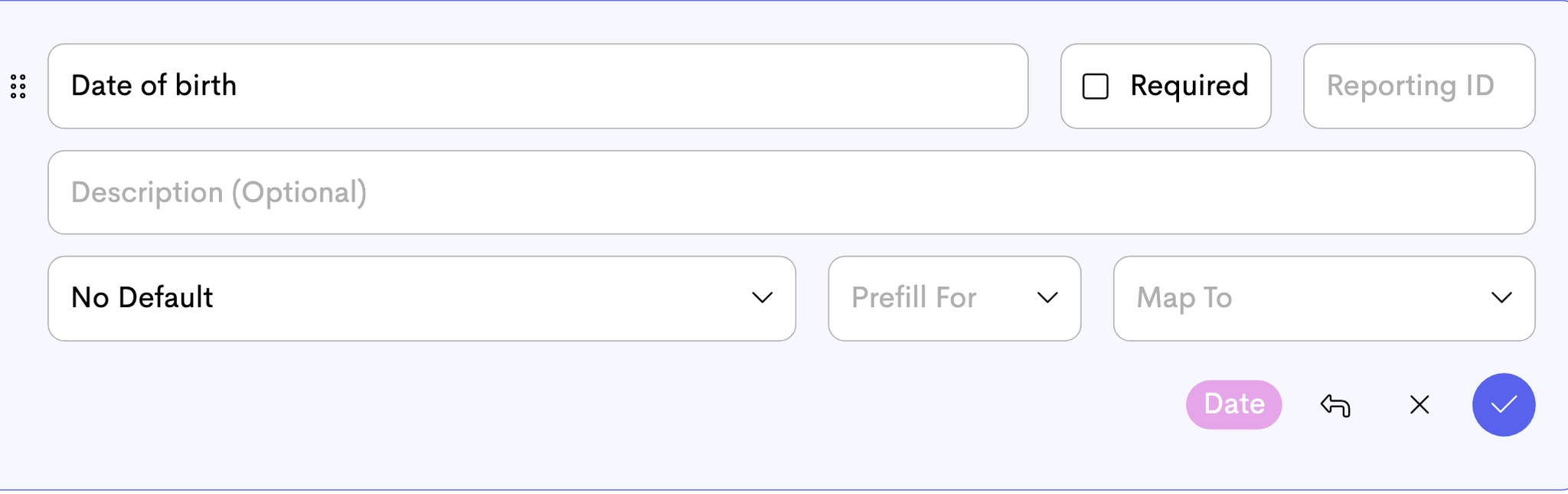
Properties available for the questions on a form - Once you're done, you can click on either Save Draft or Save & Close.
Move a Question
To move an existing question:
-
Press the Grip button on an existing question.
- Available placement zones will appear throughout the form
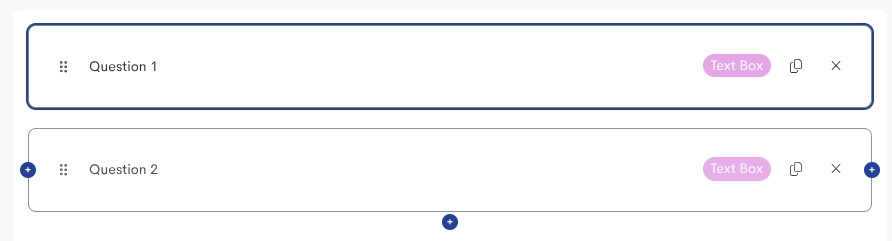
- Select the desired location to move the question.
Parts of a Field/Question
| Name | Applies To | Description |
|---|---|---|
| Name / Question | Both | Text displayed on the field |
| Required | Both | Submission of document not allowed until this field is completed |
| Prefilled Entry | Both | What the text field is going to be prefilled with |
| Prefill For | Both | Prefills the field only for person filling out the form (Recipient) or the person sending the form (Provider) |
| Reporting ID | Forms | Used in reporting to to identify this particular answer in reports |
| Map To | Forms | Can be used to save this answer somewhere else in the client profile |
| Description | Forms | Optional text displayed below the question to provide instructions |
Form Question Mapping Options
| Field Name | Text Box | Paragraph | Phone | Date | Checkboxes | Multiple Choice | Dropdown | Section Break | |
|---|---|---|---|---|---|---|---|---|---|
| Client First Name | ✅ |
|
|
|
|
|
|
|
|
| Client Last Name | ✅ |
|
|
|
|
|
|
|
|
| Client Email |
|
|
|
|
✅ |
|
|
|
|
| Client Phone |
|
|
✅ |
|
|
|
|
|
|
| Client Sex | ✅ |
|
|
|
|
|
✅ | ✅ |
|
| Client Pronouns | ✅ |
|
|
|
|
|
|
|
|
| Client Address | ✅ |
|
|
|
|
|
|
|
|
| Client City | ✅ |
|
|
|
|
|
|
|
|
| Client State | ✅ |
|
|
|
|
|
✅ | ✅ |
|
| Client Postcode | ✅ |
|
|
|
|
|
|
|
|
| Contact First Name | ✅ |
|
|
|
|
|
|
|
|
| Contact Last Name | ✅ |
|
|
|
|
|
|
|
|
| Contact Email |
|
|
|
|
✅ |
|
|
|
|
| Contact Phone |
|
|
✅ |
|
|
|
|
|
|
| Contact Relationship | ✅ |
|
|
|
|
|
✅ | ✅ |
|
| Add to Notes | ✅ | ✅ | ✅ |
|
✅ | ✅ | ✅ | ✅ | ✅ |
| Save as Custom Field | ✅ | ✅ | ✅ |
|
✅ | ✅ | ✅ | ✅ | ✅ |
| Current Date |
|
|
|
✅ |
|
|
|
|
|
| Due Date |
|
|
|
✅ |
|
|
|
|
|
If one or more questions have been mapped to a Contact related source (e.g. Contact Email, Contact Last Name), then both Contact First Name and Contact Last Name must be mapped somewhere on the form in order to save changes.
List Questions
Some question types require a list of predefined answer choices. This applies to:
- Multiple Choice
- Checkbox
- Dropdown
When configuring these questions, you can define the available options that respondents can select from.
You can also enable a Blank or Other option, allowing respondents to enter their own custom response if none of the predefined choices apply.
This is useful when you want to provide standard options while still allowing flexibility for unique answers.