Paying an Invoice
When your provider sends you an invoice, you can access and pay it in a few different ways:
- Through the invoice notification email or text message
- Directly within your client portal
Paying an Invoice from an Email or Text Notification
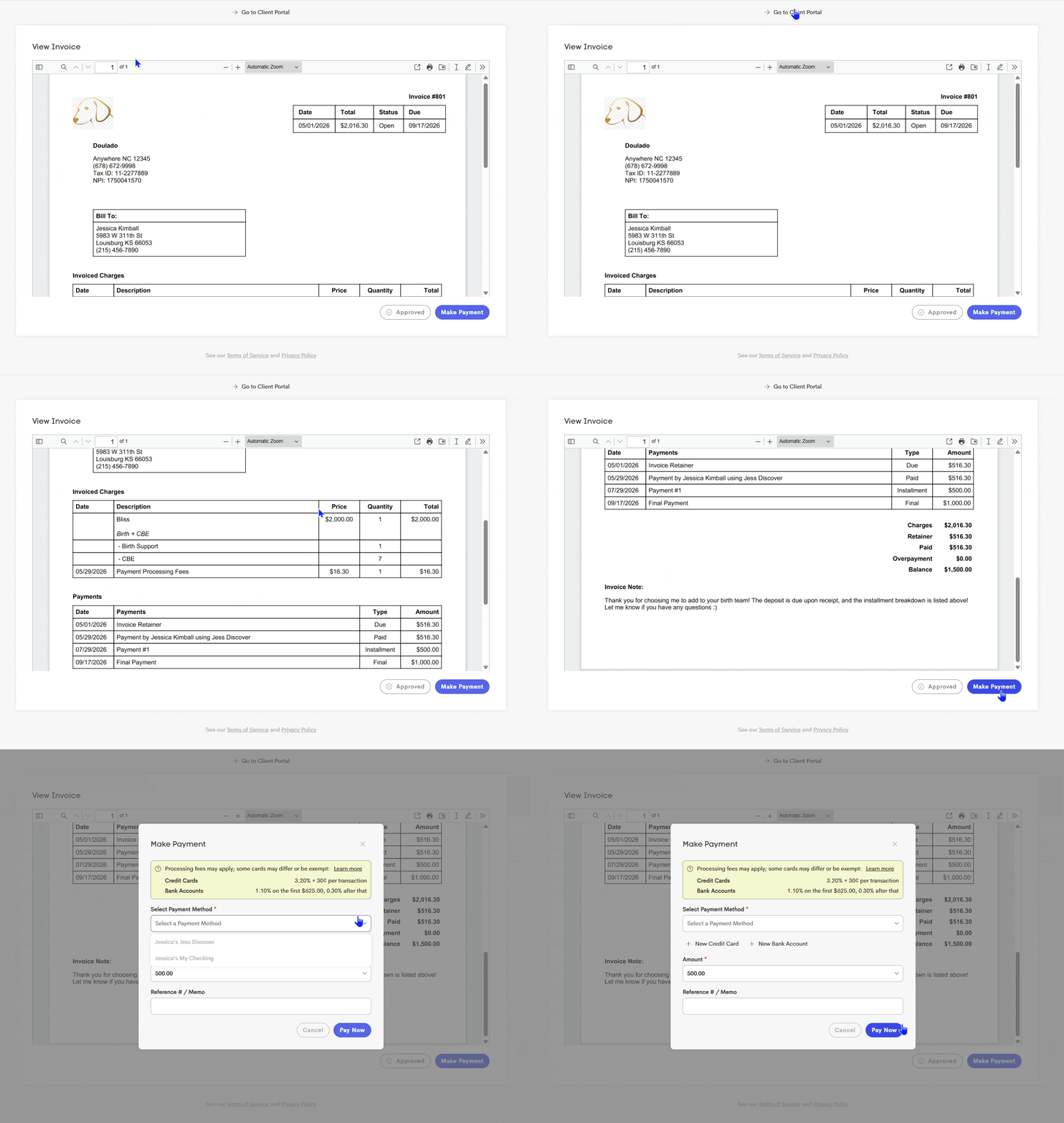
When an invoice is sent, you will receive a notification by email or text message. The email notification may look similar to the example below.

To view your invoice, click the View Invoice button in the notification. This will open the invoice in a new browser window, where you can:
- Review invoice details
- Make a payment
- Log into your client portal using the link at the top of the page
Paying an Invoice in the Client Portal
If you have been invited to the client portal, you can also access your invoices there at any time.
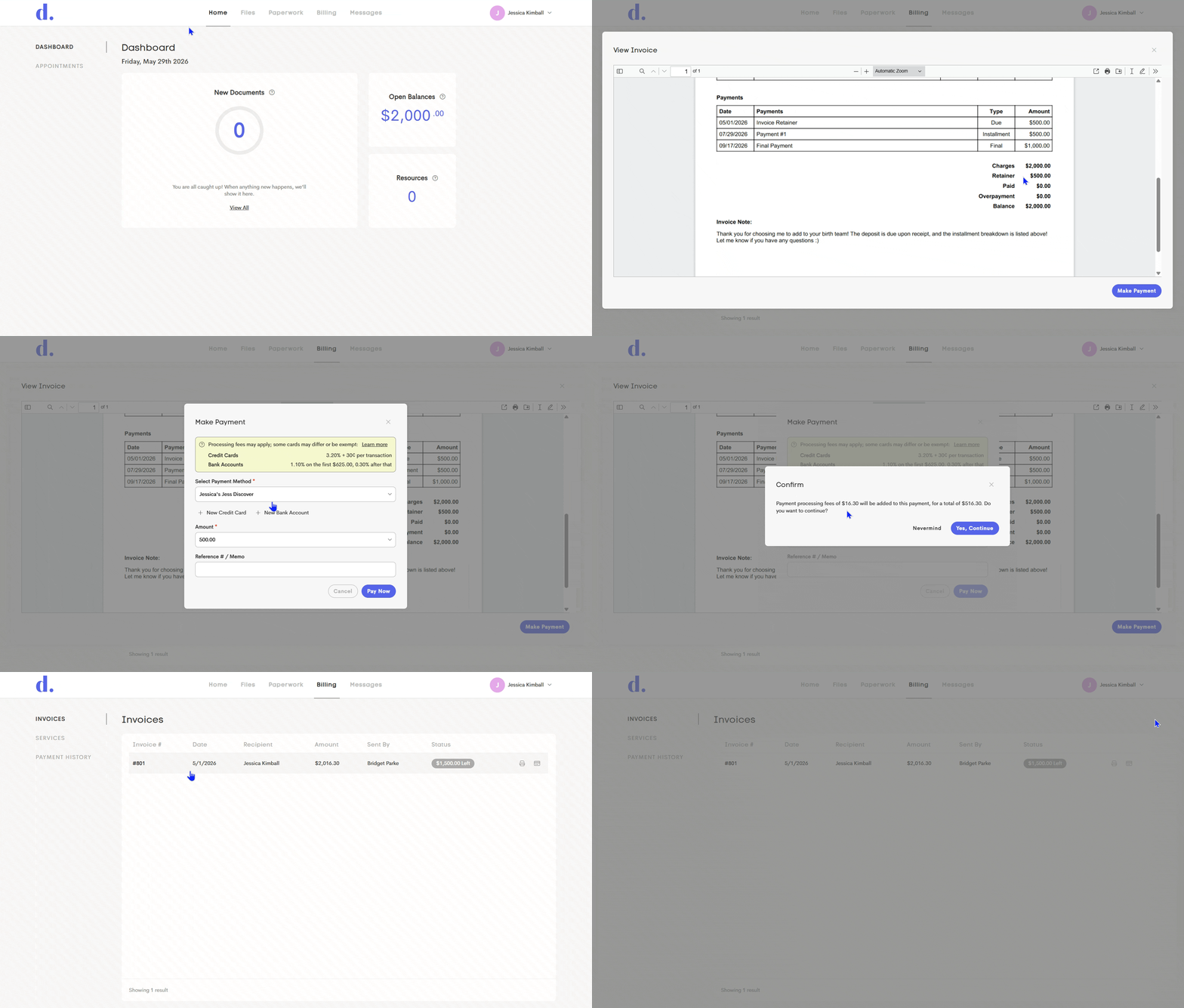
- Log into your Client Portal.
-
Navigate to the Billing tab and stay in Invoices.
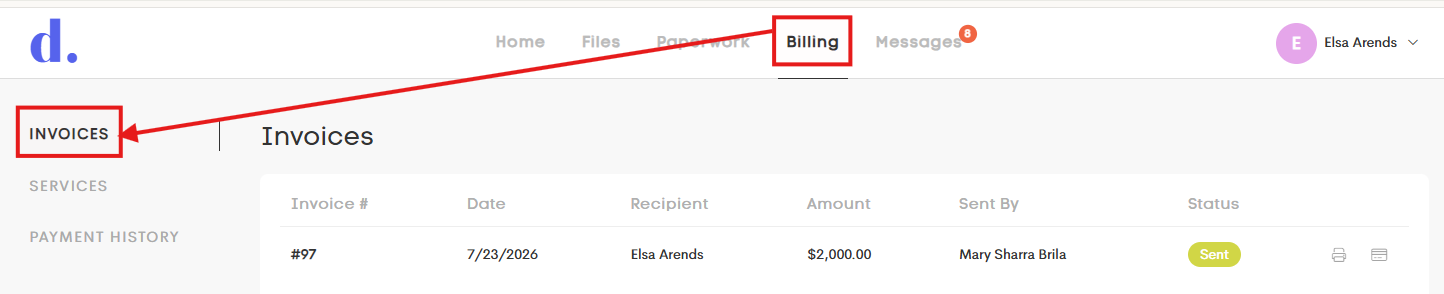
- Click on the invoice you'd like to review or pay to open the View Invoice modal.
- At the bottom-right corner, click on Make Payment to proceed.
- If you already have a saved payment method, you can select it from the payment method dropdown menu. You may also choose to add a new payment method during checkout.
- Upon completion, this invoice will now be displayed in Payment History.
Leaving a Tip
If you'd like to leave a tip for your provider, you can choose to pay more than the invoice total when making a payment.
- You can overpay an invoice by up to 15% of the invoice total.
-
When you enter an amount above the invoice total, you'll be asked to confirm that you'd like to pay the additional amount as a tip.
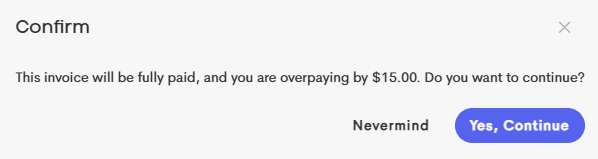
-
If you enter an amount that exceeds 15%, you'll receive a message letting you know the maximum allowable tip has been exceeded.

Adding a Bank Account
If you choose to pay using a bank account, there is a one-time verification step required before the account can be used for payments. Once verification is complete, the bank account will be available for future invoice payments.
Read more about saving payment methods here: Adding a New Payment Method
Approve-Only Invoices
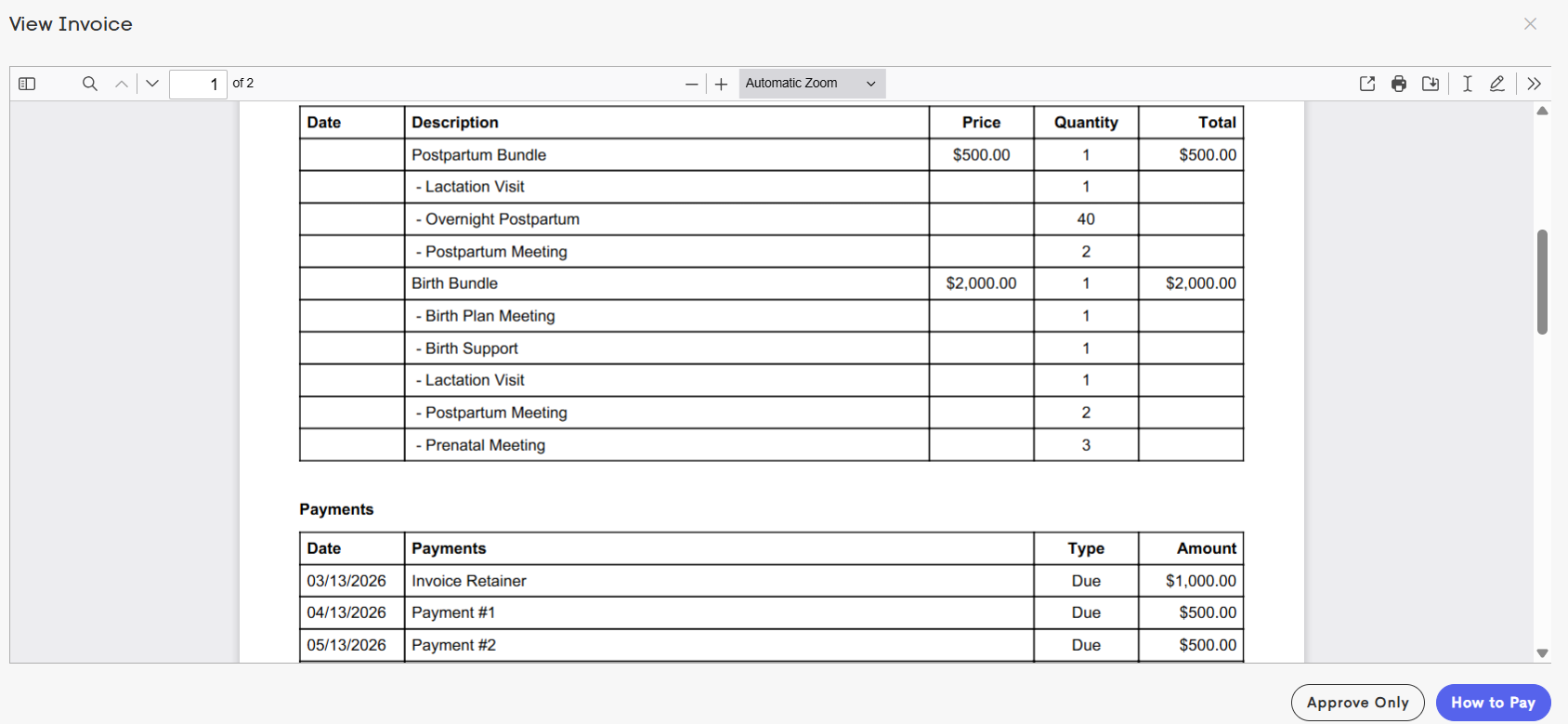
In some cases, your provider may not be connected to Stripe through the platform for online payments. When this happens, you may see an "Approve Only" button at the bottom of the invoice instead of an online payment option.
Invoices can still be sent and managed through the platform, but your provider will typically include their preferred external payment instructions in the invoice notes section. This may include payment methods such as cash, check, Venmo, Zelle, or another external payment platform.
By clicking Approve Only, you are confirming that you have reviewed and approved the invoice amount.
Once you submit payment through your provider’s preferred method, your provider can manually record the payment on their end to keep invoicing records accurate and up to date.