
Managing Templates
Business owners can customize templates for their business to better match their branding, communication style, and workflow needs.
Follow these steps to manage and customize templates.
The steps are the same for editing either the email or text message notification templates.
Editing a Template
-
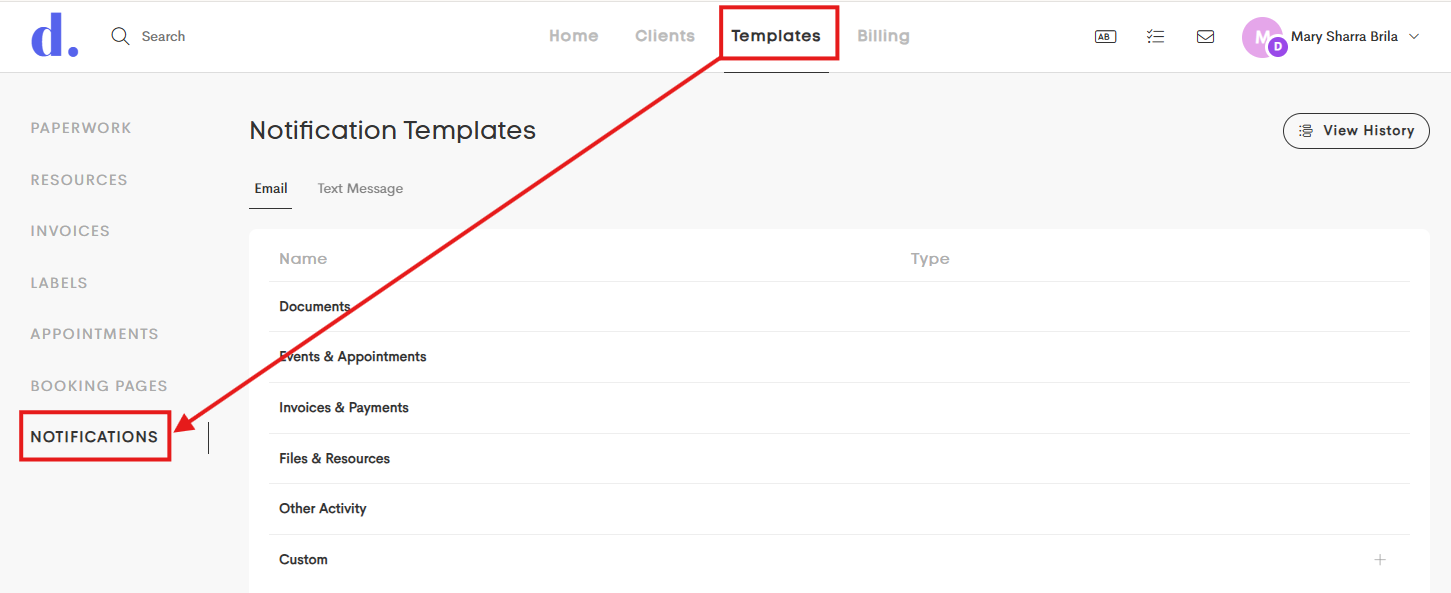
Go to the Templates tab and click on Notifications from the side menu.
-
Click on any template row you want to modify to open it in Edit Mode.
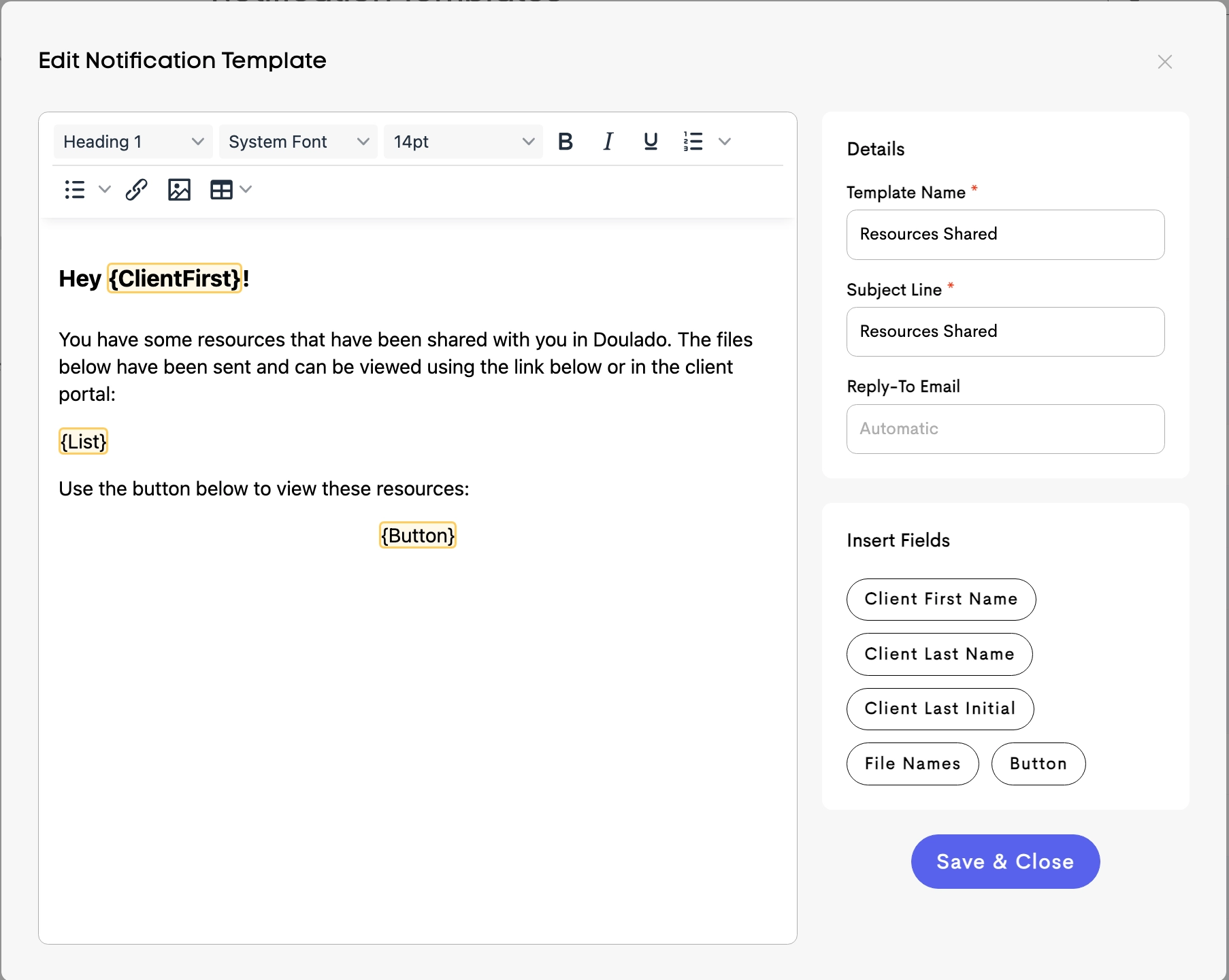
- Edit the fields with the necessary information.
| Field | Description |
|---|---|
| Subject Line (Email only) | The subject line of the email seen by the recipient |
| Reply-To (Email only) |
Controls the email address used when a recipient replies. Automatic (Default): Dynamically sets the reply address to the person initiating the action. Specific Value: Can be set to a fixed email address to use consistently. |
| Body Editor | A rich text editor for defining the message content. |
| Variables |
Dynamic placeholders (e.g.,
|
- Click Save & Close once you're done.
Adding a Template
- To add a new template, refer to the Custom row and click on the + button on the right corner.

- Fill out the fields with the information you want in your custom template.

- Click Save & Close when you're all set.
Testing a Template

Before using the template for real notifications, you can preview it first with the Send Test feature found in each template's row actions.
This feature sends a sample message to your own email address or phone number so you can review how it will appear to your recipients.

You can also enter sample values for available variables and placeholders, allowing you to preview exactly how the notification will look once real client information is automatically inserted.
Reverting a Template

This feature restores the original default template content and removes any custom changes made by your business. This option is only available for global (non-custom) templates.