
Sending & Managing Messages
Message View & Composition
To send a message, follow these steps:
-
Navigate to the Message View by going either directly to the Envelope icon in the main sidebar menu or from the Client Profile, as mentioned in this article. << link the Message article
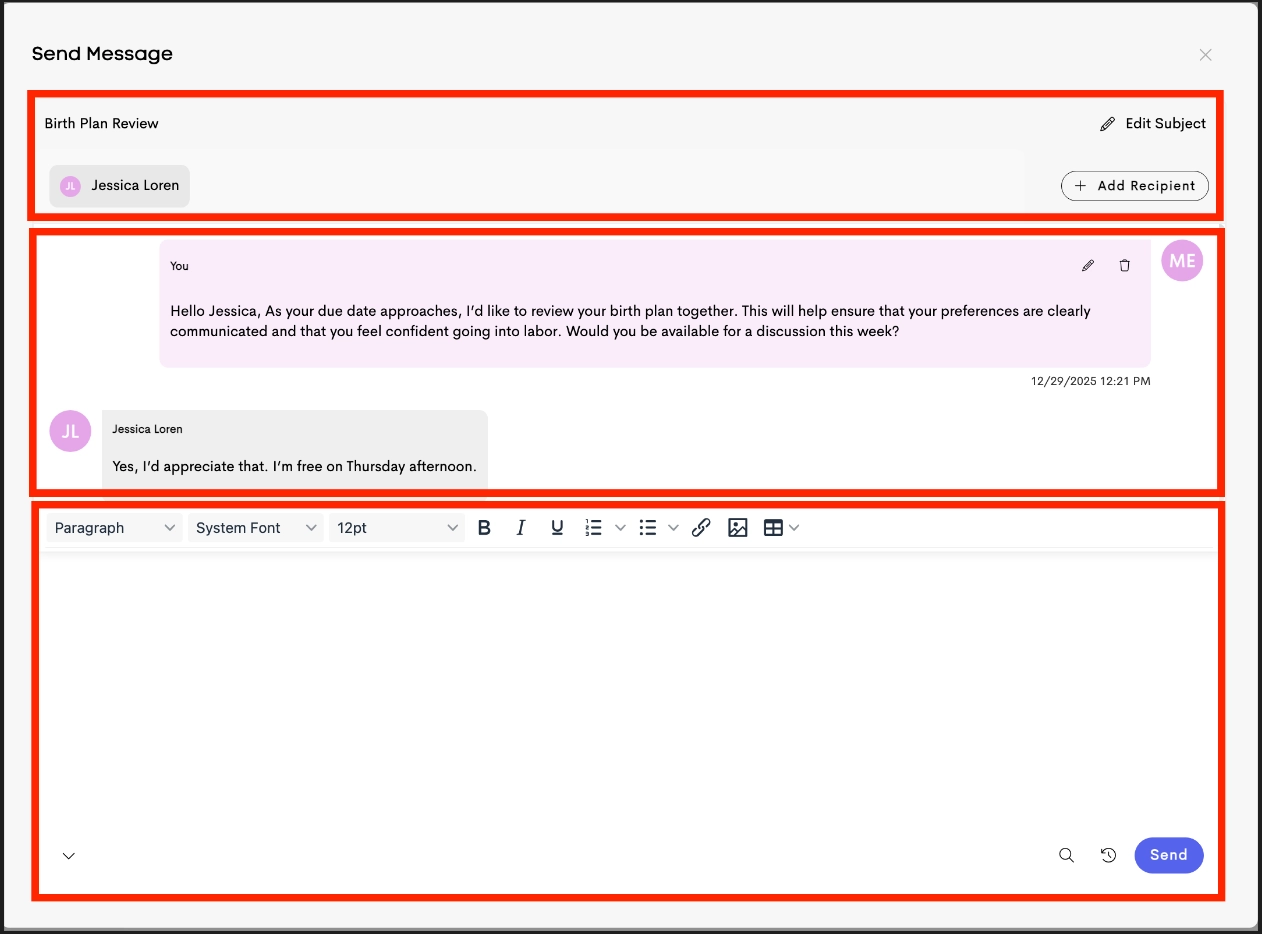
The Message View has three main sections:
- Message Header
- Displays the conversation subject and recipients
- If no subject is entered, the thread will display as (No Subject)
- Only the thread owner can edit the subject line
- Additional recipients can be added to the conversation
- Message Body
- Displays the full conversation thread and message history
- Message Footer
- Contains the message composer used to send replies
- Includes access to saved templates and recently sent messages for quicker responses
- Message Header
If a conversation is marked as Locked, replies are disabled and the reply composer will no longer appear.

- You can enter an optional Subject or add another recipient, if you're sending a message from a Client Profile.
-
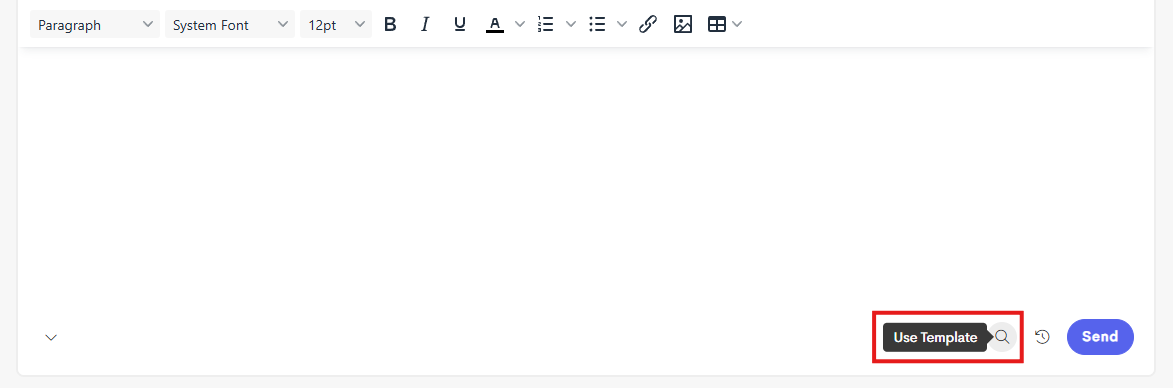
Enter a personal message or choose a message template by clicking on the magnifying glass icon in the message footer.
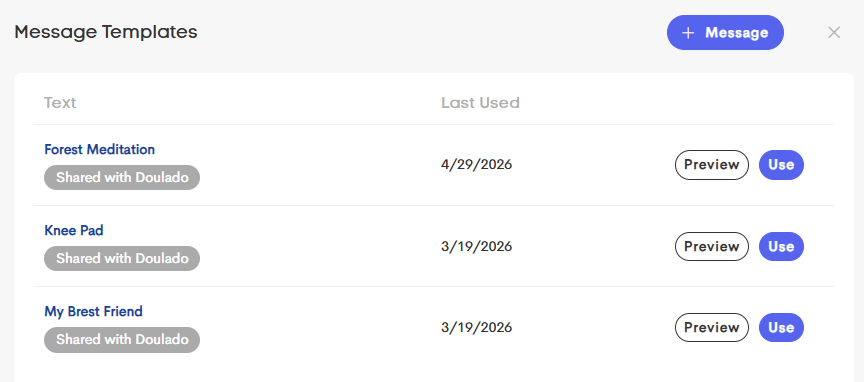
Check out this article for more information on using a text template for team messages: Text Templates
- Click Send once you're all set with your recipient(s) and message.
Thread Management
You have several options for managing your conversations and notifications within Messages.
Renaming a Thread

You can update the conversation subject line and control whether the thread is locked or unlocked.
Edit or Delete Messages

You can edit or delete your own messages after sending them.
Editing or deleting a message updates the conversation for everyone in the thread, not just your own view.
Expand or Collapse the Reply Box


The reply composer at the bottom of the conversation can be expanded or collapsed to make writing and reviewing messages easier.
Mark as Read or Unread

In addition to automatic tracking, conversations can also be manually marked as read or unread to help you keep track of messages you want to revisit later.
Mute or Pause a Conversation

From the thread settings, you can:
- Stop email notifications for the conversation
- Freeze the conversation to hide future replies and notifications
Leave a Conversation

Participants can leave a conversation at any time. Once removed, the thread disappears from their inbox and notifications will stop unless they are added back later.
Delete a Conversation
The creator of a broadcast conversation can permanently delete the thread for all participants.

- When a thread owner deletes a conversation, it is permanently removed for all participants.
- A conversation cannot be left if you are the only participant in the thread.