
Managing Integrations
This article walks you through how your calendar integrations work in Doulado, including how your events stay synced, how privacy settings affect shared calendars, and what happens if you disconnect an integration.
You’ll also learn how Doulado automatically keeps your calendars up to date, helps prevent duplicate events, and handles temporary syncing or connection issues behind the scenes.
Table of Contents
Integration Status
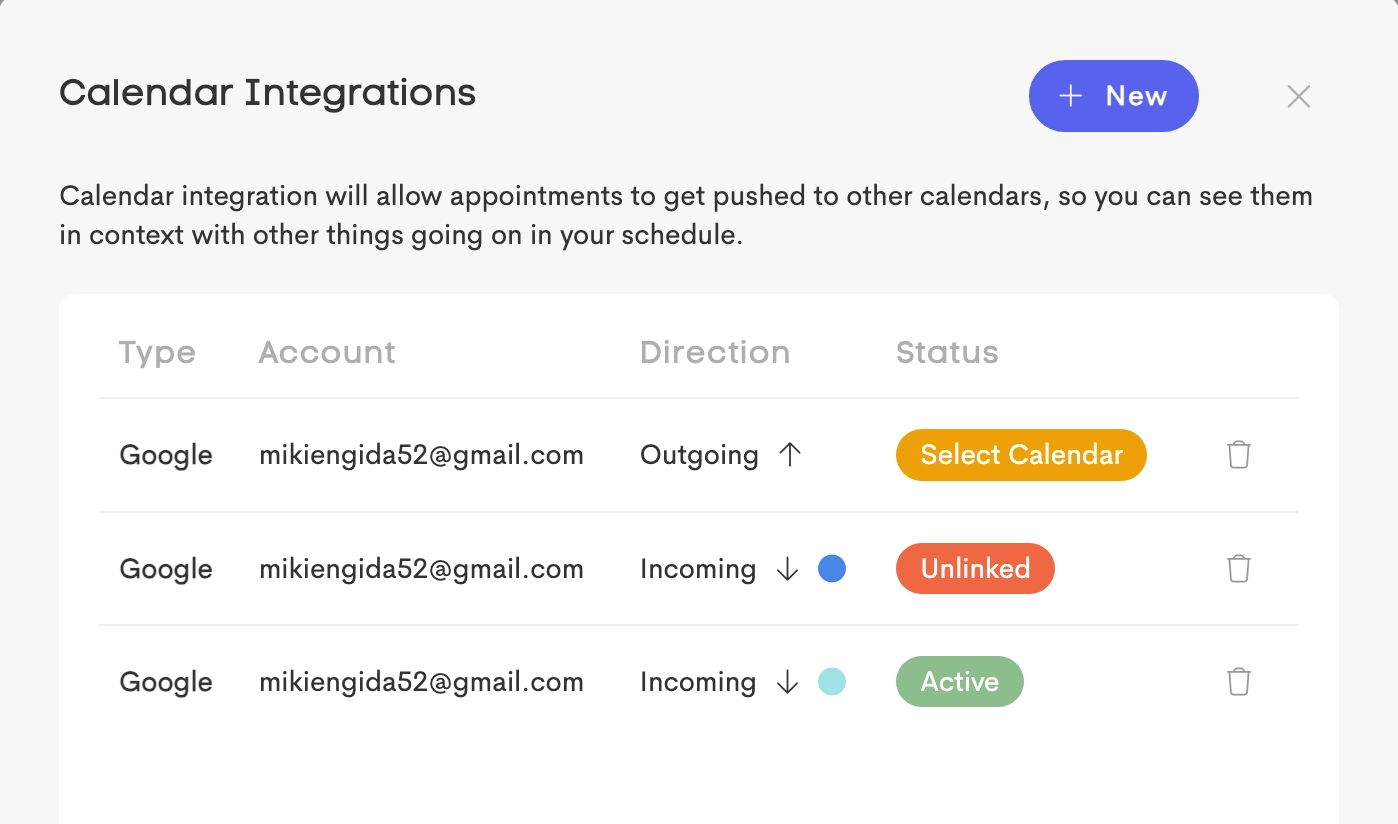
Each integration will display a status to show its current connection state:
- Active: Fully connected and syncing automatically
- Select Calendar: Google account is connected, but a calendar still needs to be selected
- Unlinked: The connection expired or failed and needs to be reconnected
Import Visibility (Hide from Calendar View)
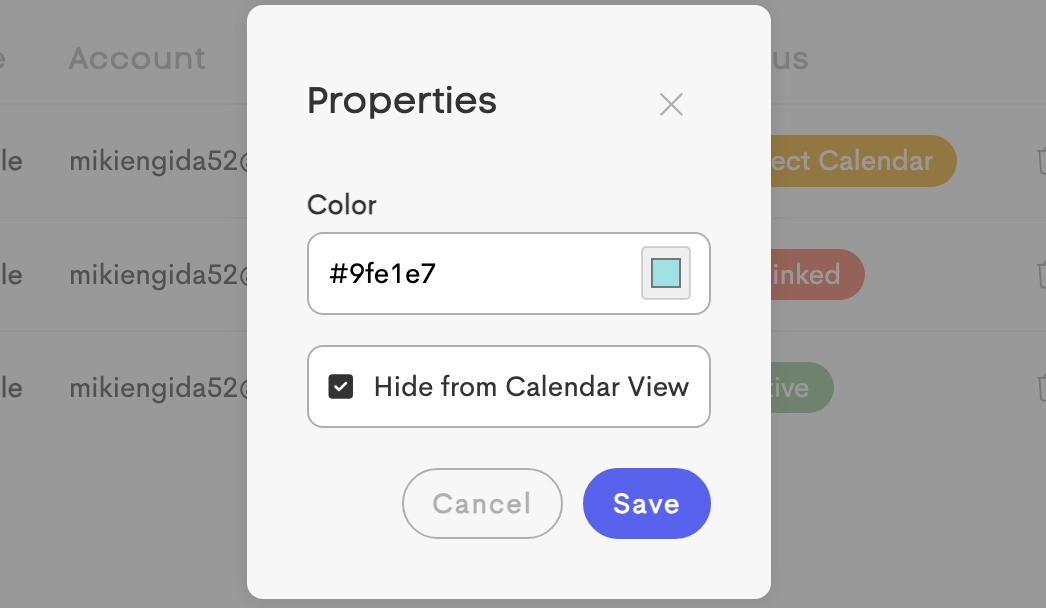
For Import integrations, you can enable Hide from Calendar View to keep imported events from appearing on your calendar grid. But they still remain active in the background so you can use them to calculate availability and scheduling conflicts.
Handling Deletions
Export Integrations
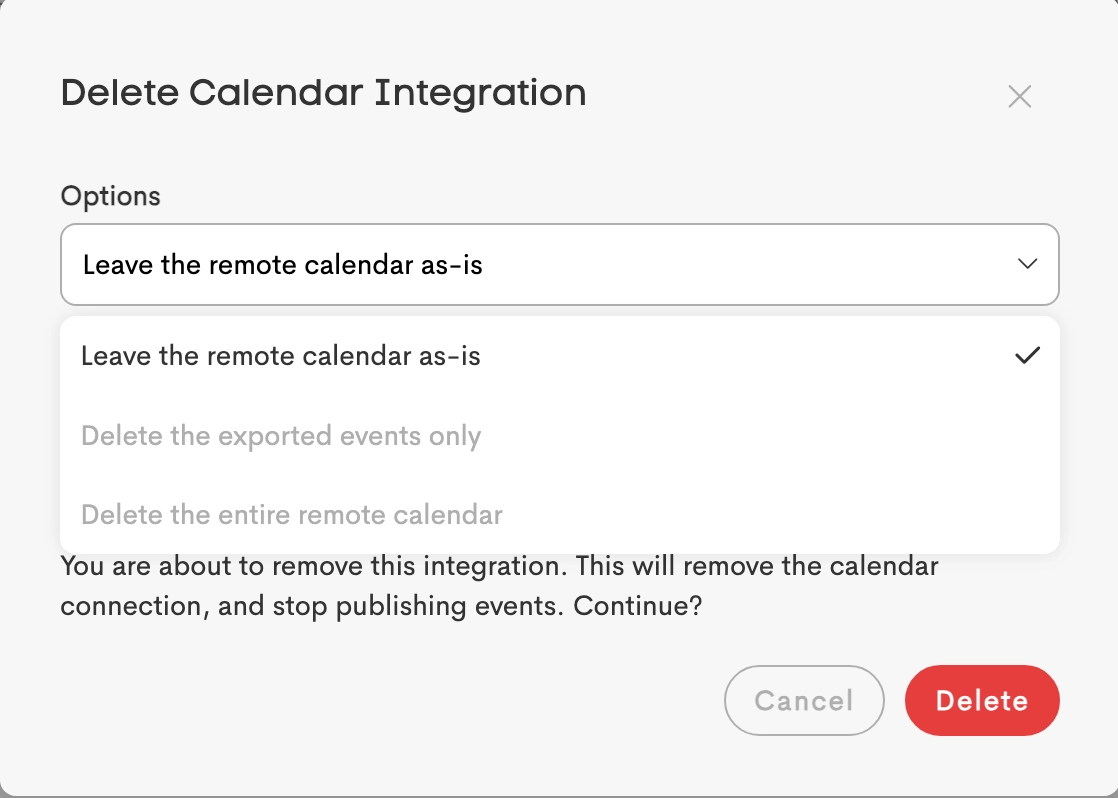
When removing an export integration, you can choose how existing synced events are handled:
- Leave the remote calendar as-is: Stops syncing but keeps the external calendar and events unchanged
- Delete exported events only: Removes events created by Doulado but keeps the external calendar
- Delete the entire remote calendar: Removes the external calendar and all its events
⚠️ Calendars that existed before the integration was created are protected and cannot be deleted through Doulado.
Import Integrations

When removing an import integration, you can choose:
- Leave the imported events as-is: Stops syncing but keeps imported busy blocks on your calendar
- Delete the imported events: Removes imported events from Doulado while leaving the external calendar unchanged
Synchronization Logic & Automation
Event Synchronization
Your connected calendars stay automatically updated as changes happen.
When you create, move, update, or delete an appointment in Doulado, those changes are reflected in your connected external calendars.
Likewise, updates made directly in Google Calendar are synced back into Doulado automatically.
Credential Management & Renewal
For security purposes, Google calendar permissions expire over time.
Doulado automatically refreshes eligible connections in the background whenever possible, helping keep your calendar connected without needing to manually reconnect often.
Conflict Resolution & Duplicate Protection
Doulado helps prevent duplicate events and syncing loops by tracking where events were originally created.
This keeps shared calendars cleaner and helps avoid repeated or duplicated appointments across connected calendars.
Error Handling & Retries
If syncing temporarily fails because of a connection issue or a Google outage, Doulado will automatically retry syncing up to 5 times.
If syncing continues to fail, the integration will be safely disconnected to help prevent ongoing sync issues.