
Integration Types & Configuration
Calendar integrations work by controlling how appointment data syncs between Doulado and external calendar services, such as Google Calendar.
Export (Outgoing)
Export integrations automatically send appointments from Doulado to your external calendar (currently Google Calendar) in real time.
How to Set Up an Export Integration
-
In the New Integration modal, select Export (Out) as the Sync Direction.
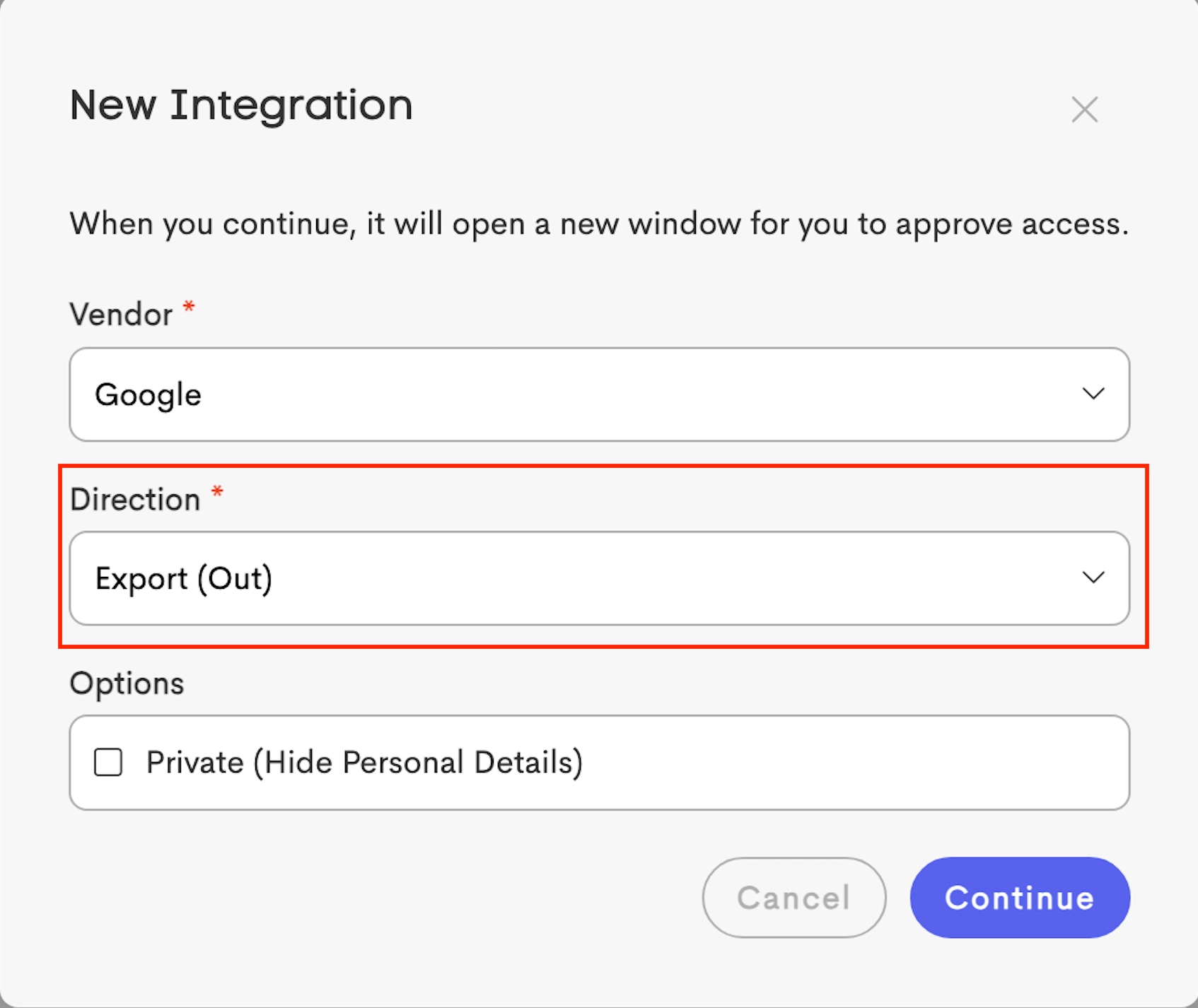
- Choose whether events should be marked as Private to hide client details in your external calendar
- Connect your Google account.
- Select where appointments should be exported:
- Create New Calendar: Creates a new calendar in Google Calendar (you can choose a color)
-
Select Existing Calendar: Exports to an existing writable calendar in your Google account
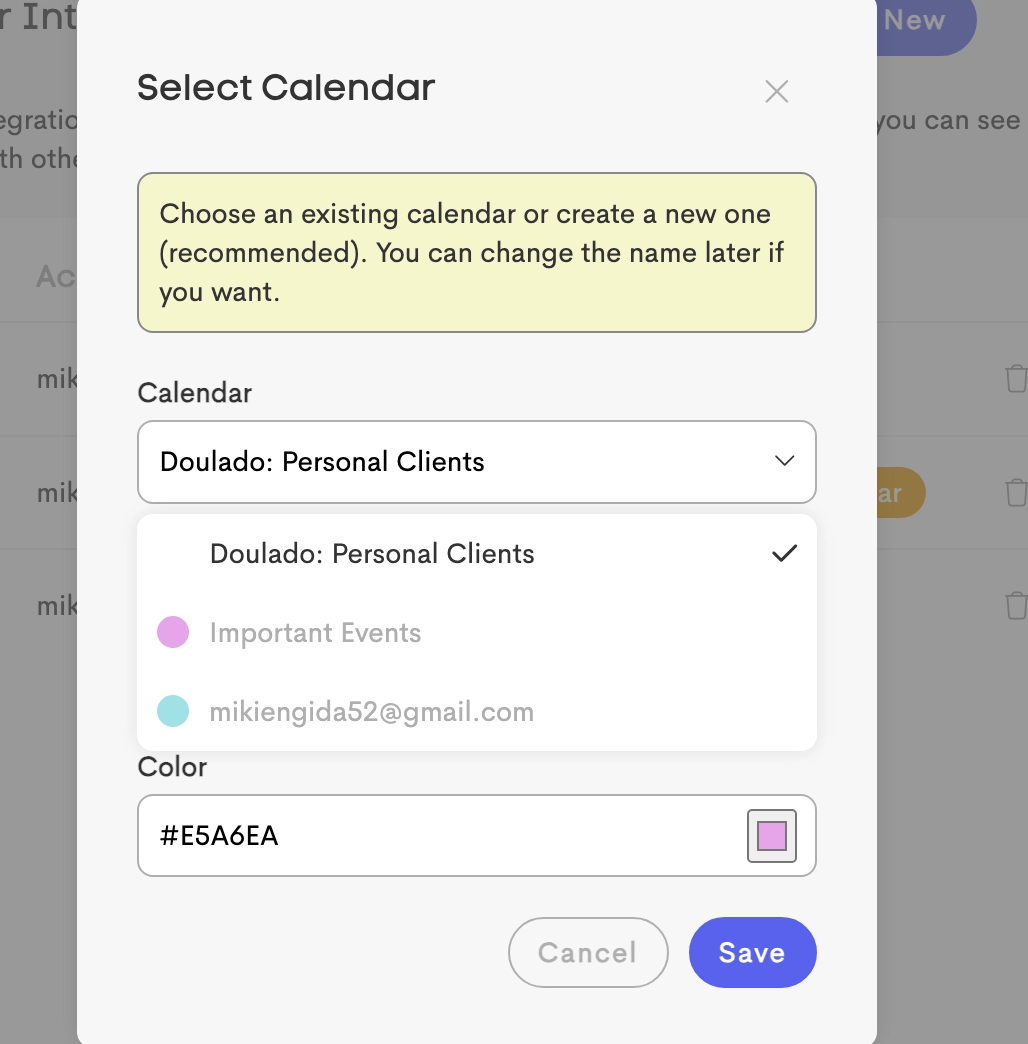
This helps you keep your Doulado appointments synced and visible alongside your other schedules.
Exported Events Behavior
- Changes made to appointments in Doulado automatically sync to the external calendar
- Newly created events are added to connected export calendars automatically
- Appointments must have both a start and end time to sync with Google Calendar
- Events display client details unless marked as Private
- Private events only show the provider’s availability status (Busy or Free) without client information


Import (Incoming)
Import integrations bring events from an external calendar (such as Google Calendar) into your Doulado calendar view.
How to Set Up an Import Integration
-
Select Import (In) as the sync direction.
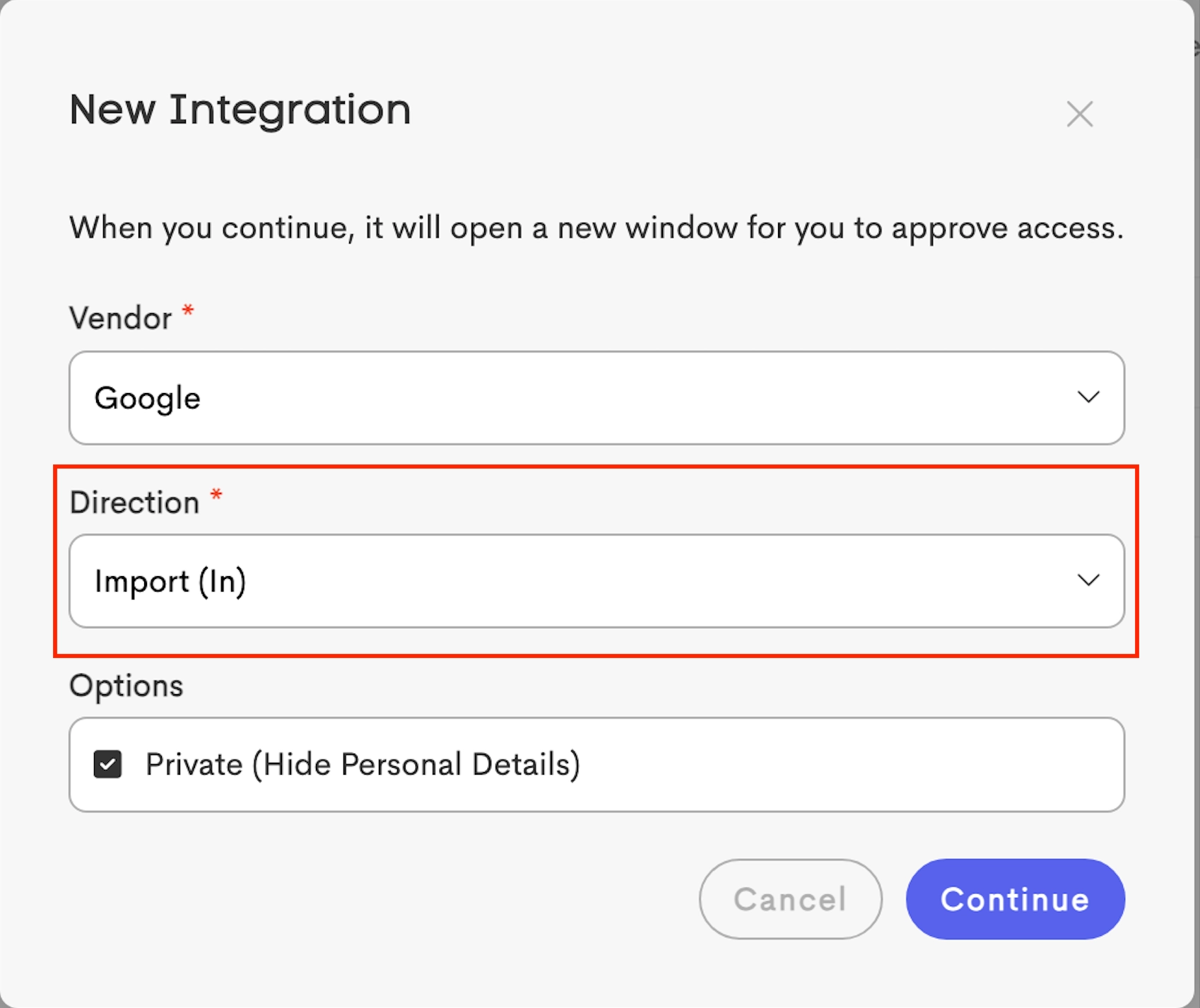
- Choose whether imported events should be marked as Private
- Connect your Google account.
-
Select the external calendar you want Doulado to monitor.
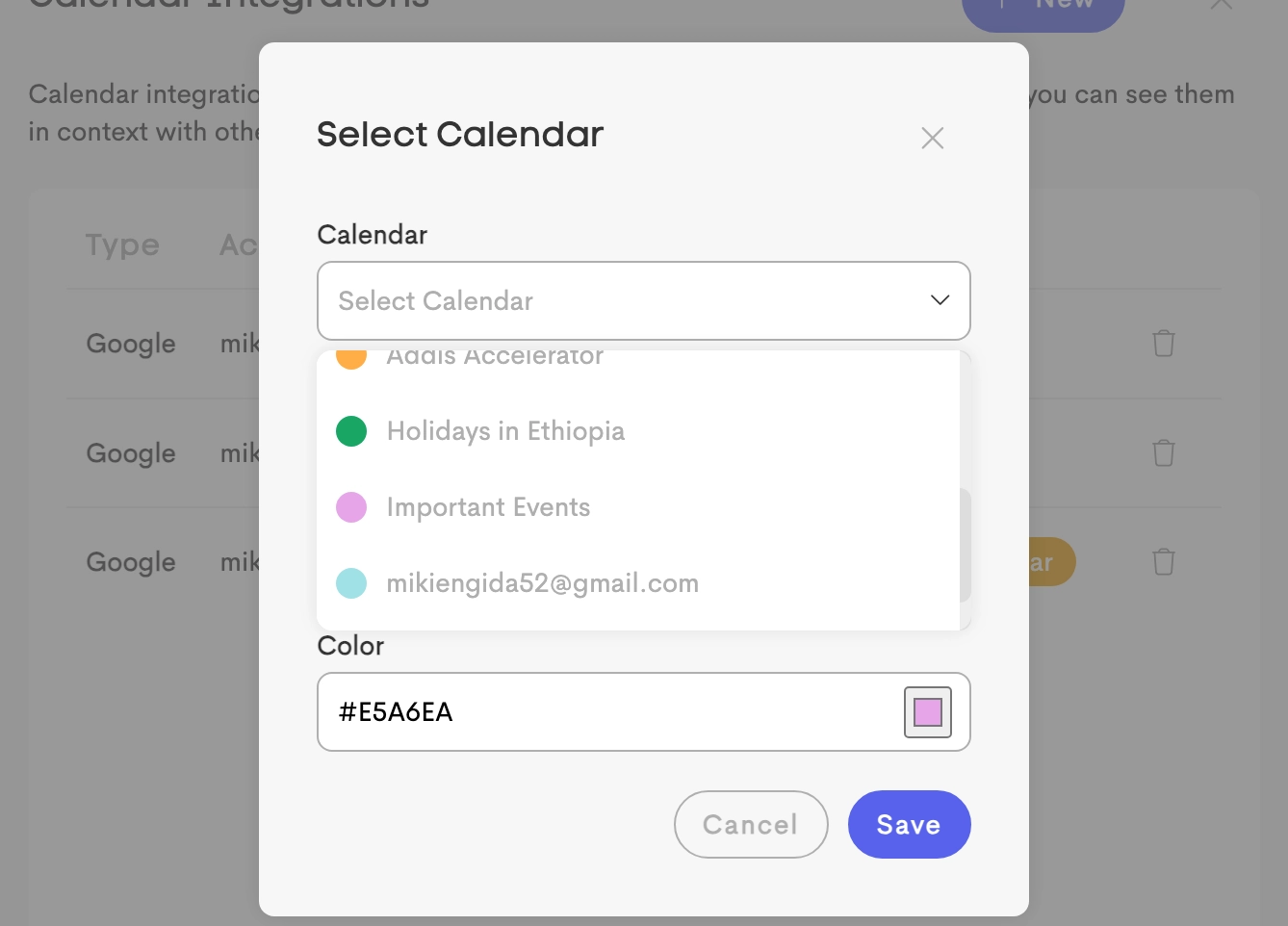
This helps you view outside appointments and commitments alongside your Doulado schedule.
Imported Events Behavior
- Events within the supported sync range or 11-month window (1 month in the past and up to 10 months in the future) will appear in your Doulado calendar.
- Tentative (non-confirmed) events are not imported, and canceled or deleted events are automatically removed from Doulado
- Calendar colors are Read-Only and follow the color assigned in Google Calendar.
- Changes made in the external calendar automatically sync to Doulado.
- Private imported events display only as Busy or Free without event details

