
Personal Calendar Settings
Personal settings control how your calendar looks and behaves. These changes only affect your view and do not impact other team members.

Events and Appointments
To edit settings for your personal calendar, follow these steps:
-
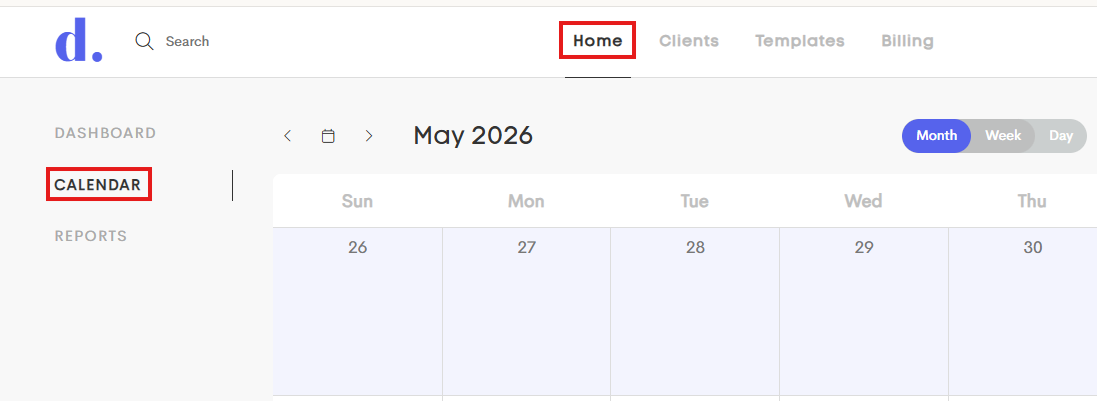
Go to your Calendar by clicking on your Home Dashboard and choosing the Calendar tab.
-
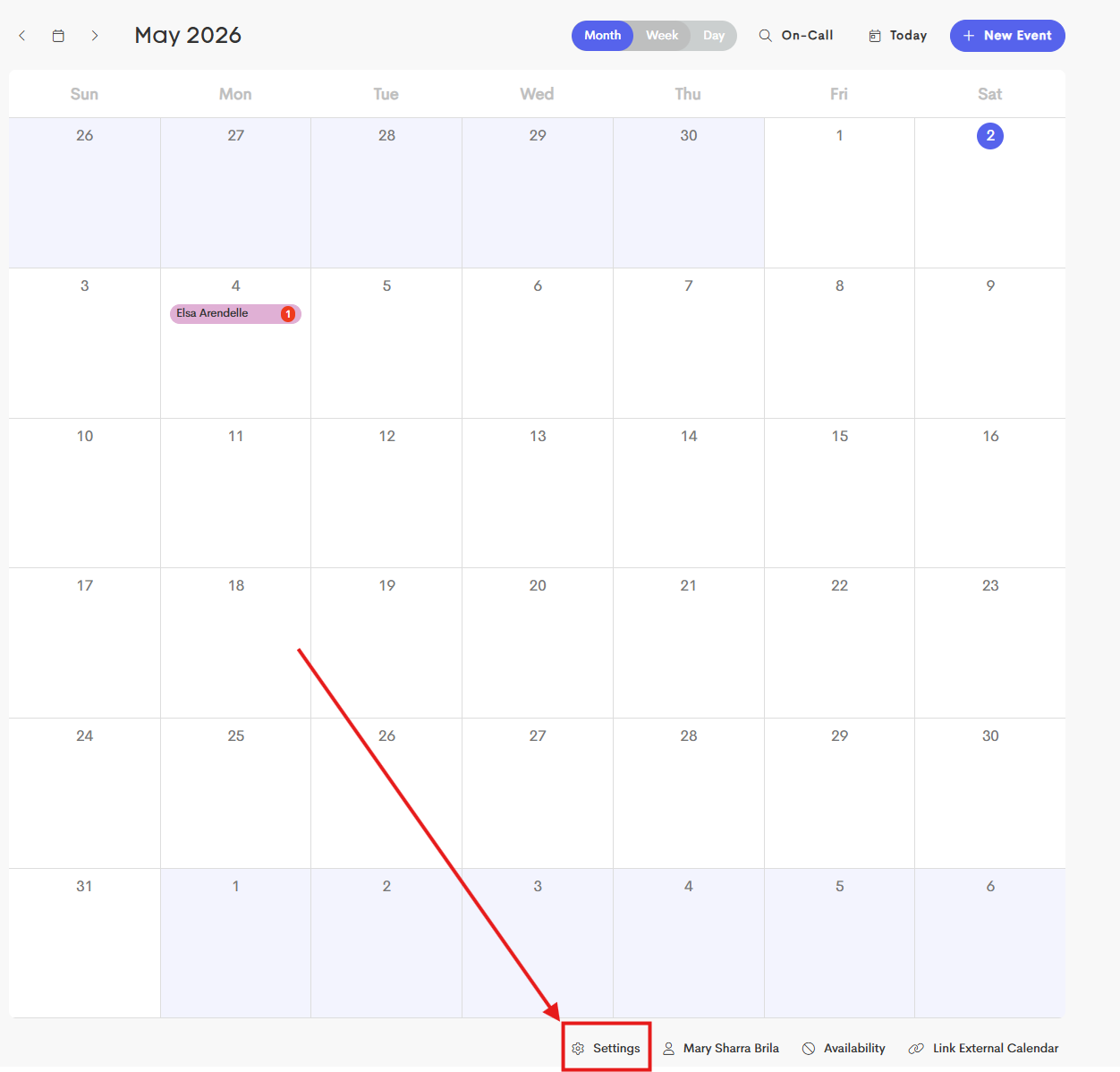
At the bottom of your calendar, click on Settings.
-
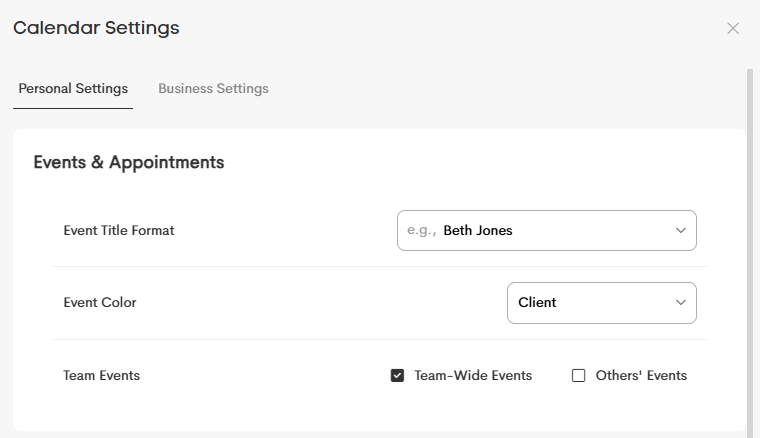
Under Personal Settings, you can modify the Events & Appointments section to fit your workflow.
-
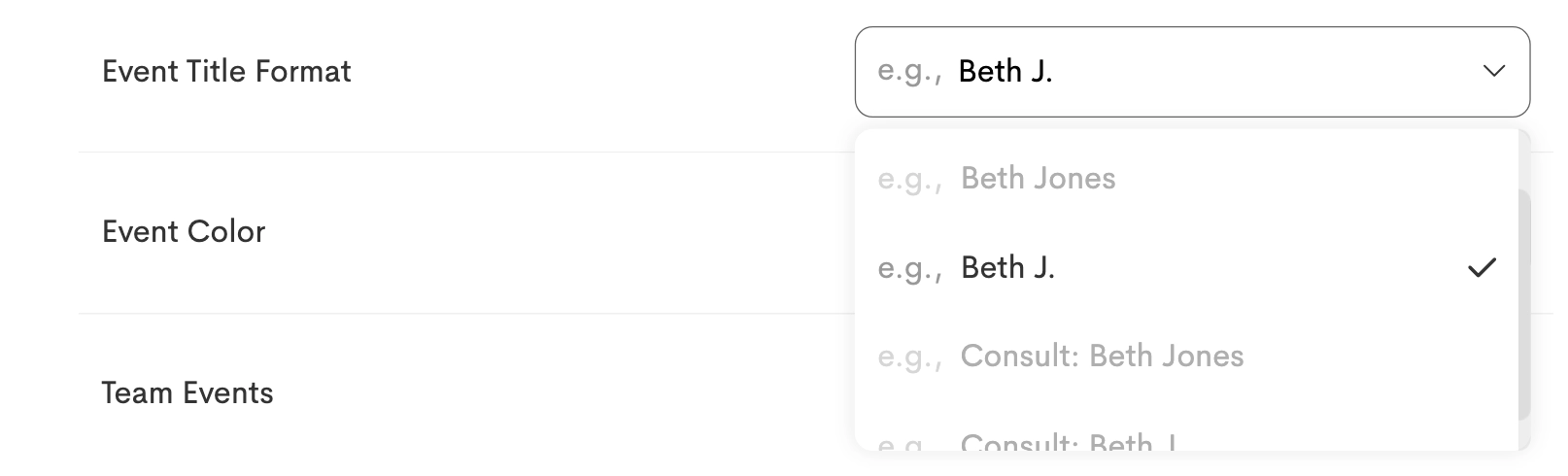
Event Title Format: Choose how event titles appear on your calendar
- Event Colors: Select how events are color-coded:
- None: No color applied
- Client: Uses the client’s assigned color
- Team Member: Uses each provider’s assigned color
-
Appointment Type: Uses colors from appointment presets
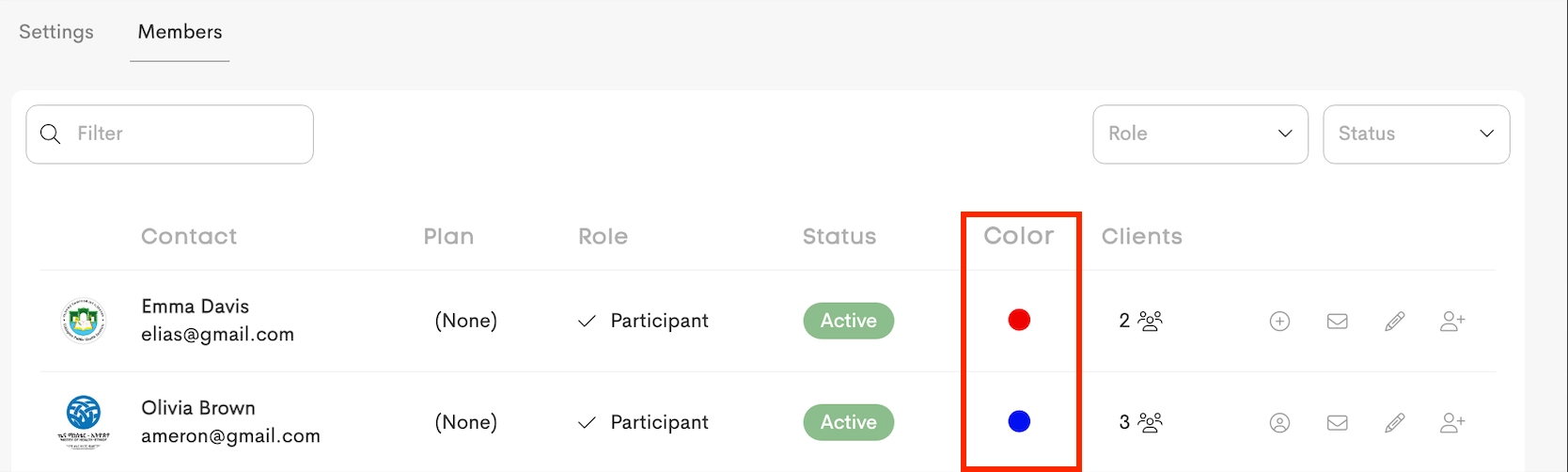
If Team Members is selected for Event Color, events will display the assigned team member’s color. 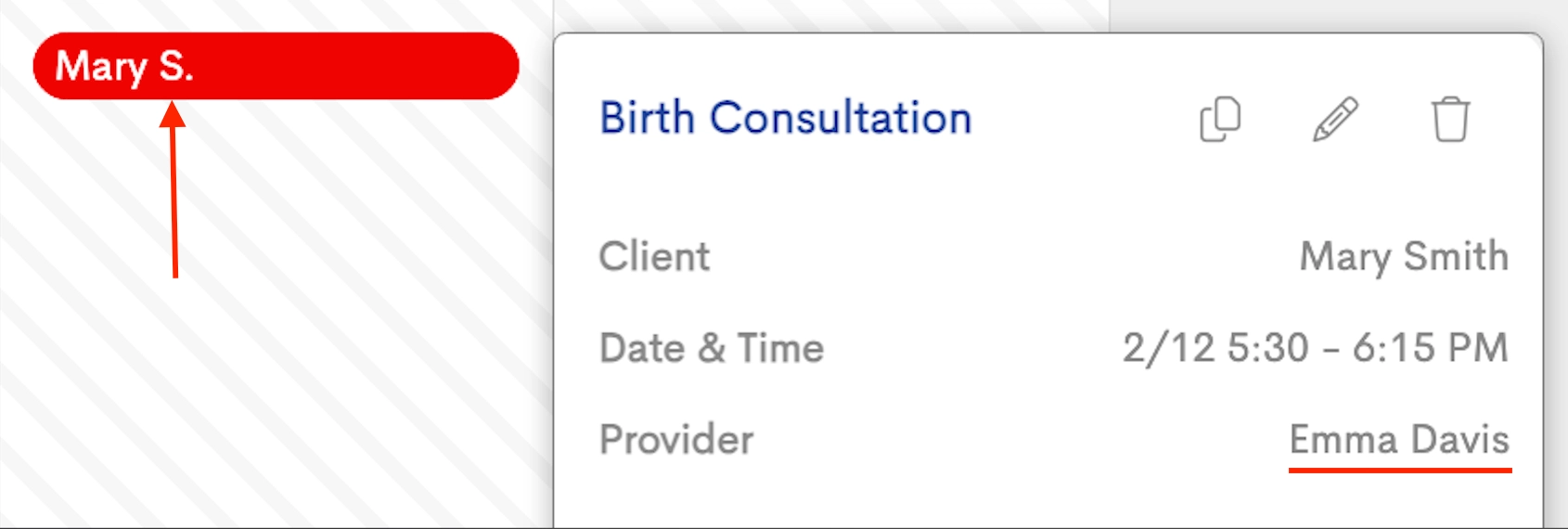

If Client is selected, their assigned colors will be used to color the event. Team Events
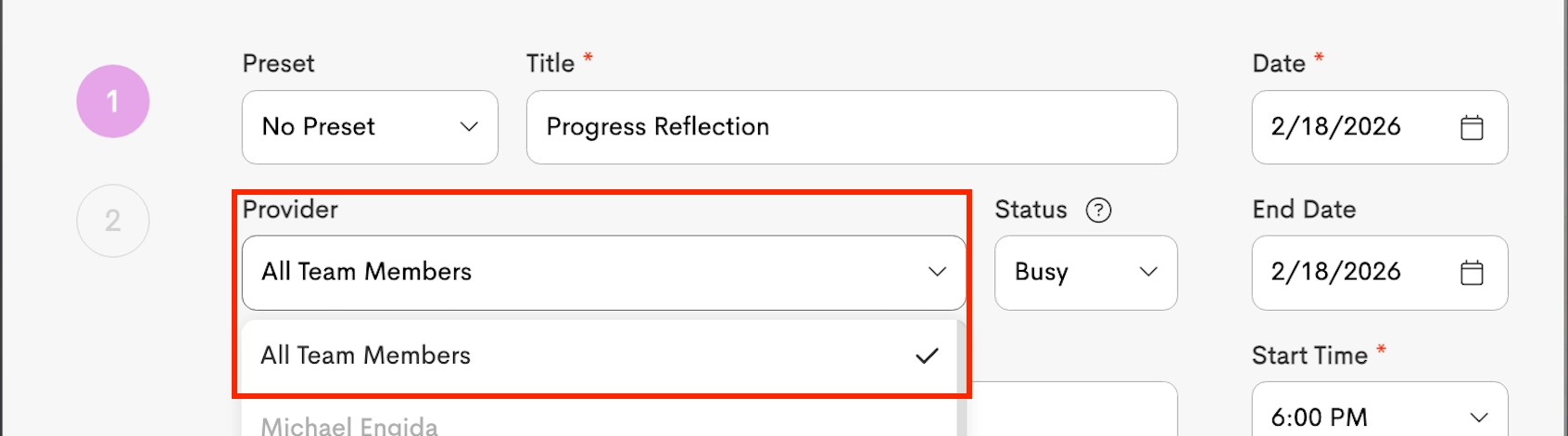
- Team-Wide Events: Show events shared with the entire team
- Others’ Events: Show appointments assigned to other team members
-
Only Participant+ members can view other team members’ events. Participants can only see events assigned to them or team-wide events.
- Click on Update to save your changes.
Check out this article for more information on On-Call Windows Personal Settings: On-Call Schedule