
On-Call Windows Management & Overrides
The On-Call page shows a timeline view organized by provider. Each row displays their clients, with color-coded bars indicating on-call windows across the calendar.

Participants can only view on-call window of clients they are assigned to, whereas Contributors and Owners can see all on-call window for all clients.
Global Vs Personal Windows
There are two types of on-call windows:
-
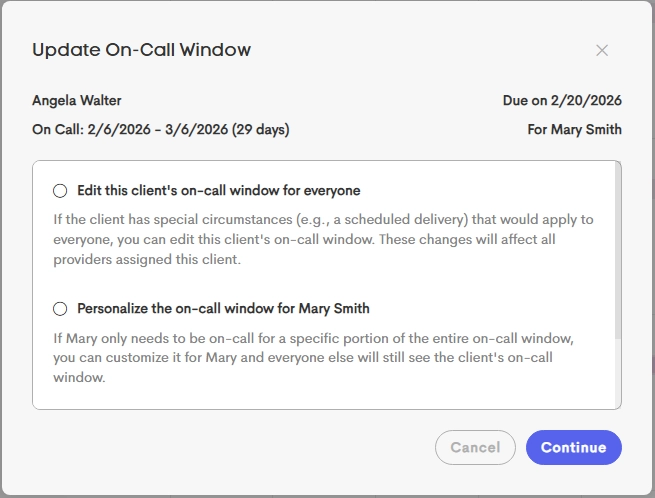
Global Windows (Client-wide Window): These are the primary windows for a journey.
Any modification to a Client Window applies to all providers assigned to that client.
-
Personal Windows (Overrides): These allow an individual provider to set a unique date range.
This override is visible only on that specific provider's calendar and does not alter the range seen by other team members.
Modification Actions
The available actions are dynamic and depend on whether the record is a Client-Wide (team default) or Personalized (individual override), as well as the provider's access level for that specific journey.
| Current On-call State | User Permission | Action Available | Effect |
| Personalized | Assigned Provider | Edit personalized on-call window for [Provider] | Updates the dates for that specific provider only. |
| Client-Wide | Contributor+ |
Edit client's on-call window for everyone | Updates the range for the entire team assigned to the client. |
| Personalized | Assigned Provider | Create a new personal on-call window for [Provider] | Adds an additional, separate on-call date range for that provider. |
| Client-Wide | Assigned Provider | Personalize the on-call window for [Provider] | Overrides the team window with a custom range for that provider only. |
| Personalized | Assigned Provider | Remove personal on-call window for [Provider] | Removes the block from that provider's calendar only. |
| Client-Wide | Contributor+ |
Remove on-call window for everyone | Deletes the window for all assigned providers. |
| Hidden | Contributor+ or Window Owner |
Restore this on-call window | Reinstates the previously hidden window to the calendar. |
Automatic Deletion vs. Hiding
- Hiding: If you only have one personalized window for a client, removing it flags the record as Hidden.
- This allows the record to be Restored later.
- Permanent Deletion: If you have multiple personalized windows (overlapping or separate) for the same client, the record is deleted.
Window Completion
On-call windows remain active as long as the client is in a Lead or Active status. The window is automatically removed from the calendar and the On-Call page once any of the following dates are recorded in the client’s profile:
- Delivery Date
- Birth Date
- Loss Date
How to Change On-Call Windows
You can modify how an On-Call Window is managed by following these steps:
-
Go to your Calendar and click on the On-Call button.

-
Toggle your name on the left-side list to show the clients assigned to you.
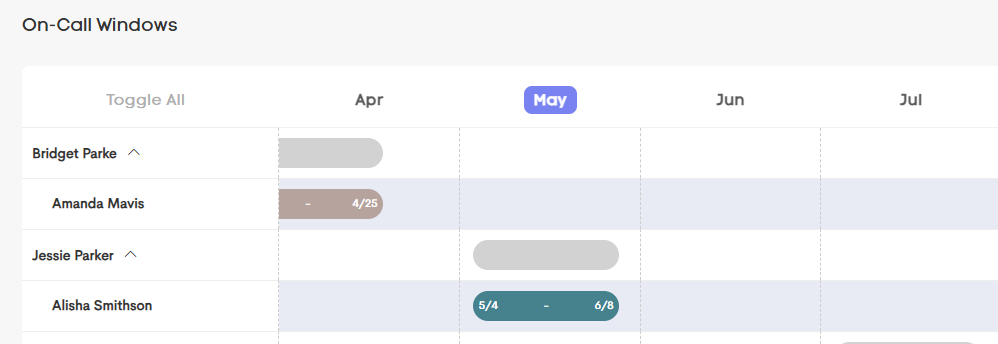
- Each client has their own colored line in the window, click on the one you want to edit.
-
Choose the whether to personalize this specific on-call window or keep it on a client-wide setup.
- Click Continue to proceed.
-
Complete the necessary details in the Edit On-Call Window modal.
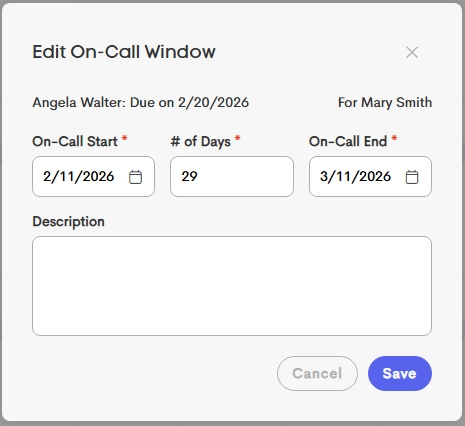
- Click on Save to apply these changes.
