Inviting Team Members
Only team owners can invite and manage team members. You can invite existing Doulado users or add new members who will create an account when they join.
Creating and managing teams is available on Premium and Impact plans.
If you don’t have enough available seats, you may need to update your plan before inviting more members.

- Click on your User Profile on the upper-right corner.
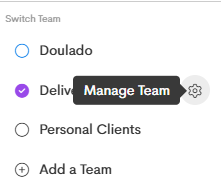
- Refer to the Switch Team section and choose a team you want to manage.
-
Click the Gear icon to open the Manage Team modal.
- In the Settings tab, click on the + Invite button in the role you want to assign the new member.
-
Enter one or more email addresses to invite and click Send Invite.
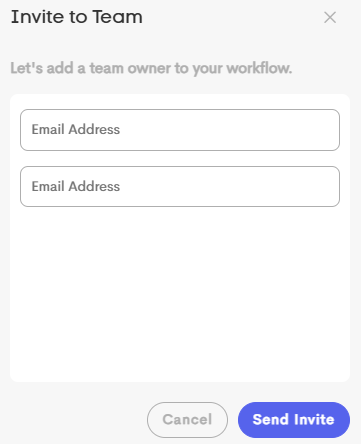
If the email matches an existing Doulado user, they will be added to the team right away. If not, they will receive an email with a link to create their account.
-
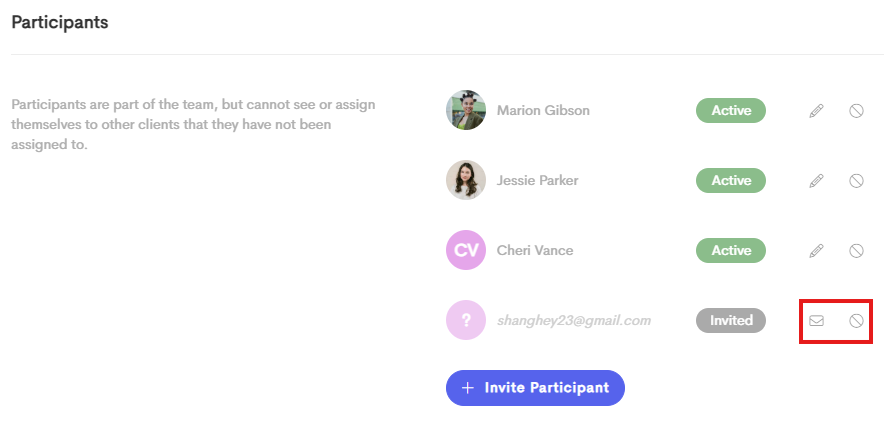
You can re-send the invitation using the Envelope icon, or delete the invitation with the Cancel icon.