
Automated Conflict Resolution
Even if a timeslot is marked as Free, Doulado checks your schedule in real-time before showing it as available. Time slots will be hidden if they conflict with existing events or other scheduling rules.
Schedule Conflicts
If you have both Free and Busy times set for the same period (like a full-day availability with a lunch break), the Busy time will block that portion and prevent your clients from booking that specific timeslot.
You can add and edit Busy Periods by going to Home > Calendar > Availability.

-
Platform Events
Any existing appointments in your Doulado calendar marked as Busy will block those times from being booked.
-
Global Absences
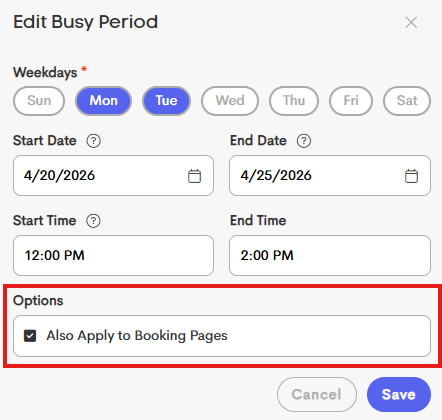
Any time you’ve marked as unavailable (with “Also Apply to Booking Pages” enabled) will be excluded from booking.
-
External Calendars
Events from connected calendars (like Google Calendar) will also block off those times automatically.
-
Buffer Constraints
Buffer time is applied before and after appointments to prevent back-to-back bookings.
For example, if an appointment ends at 2:00 PM and you have a 15-minute buffer, the next available time will be 2:15 PM or later.
Duplication/Copying
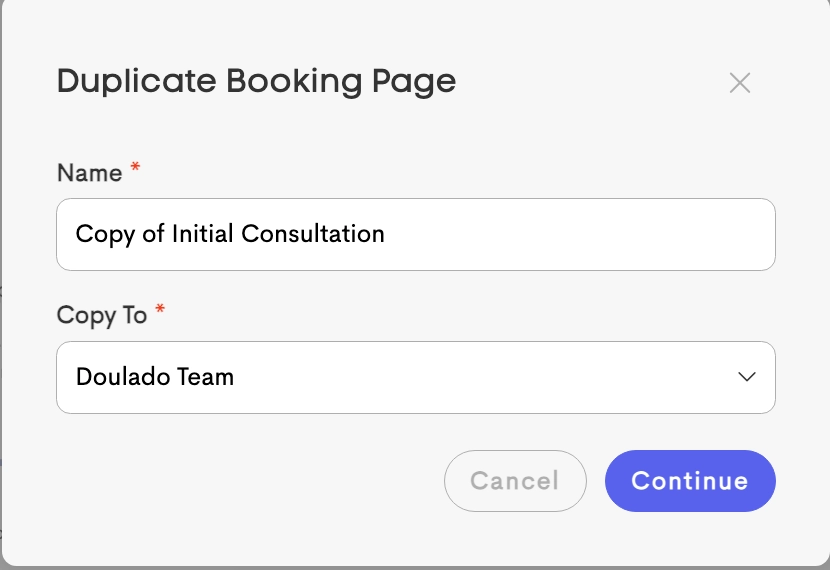
You can duplicate booking pages (along with their descriptions, settings, and linked appointment types) so you can save time during setup.

- Copying to Other Businesses: A "Copy To" option allows for duplicating the page within the same business or to other owning teams.
-
If a page is copied to a business that lacks the specific appointment types (Presets) used on the original, the application automatically creates those presets in the destination business to ensure the page remains functional.
-
Individual availability rules can be duplicated to quickly replicate complex hours for different team members or time blocks.
-
This opens a new timeslot window with all parameters (Buffer, Limits, Lead Times, and Time Ranges) pre-filled.

