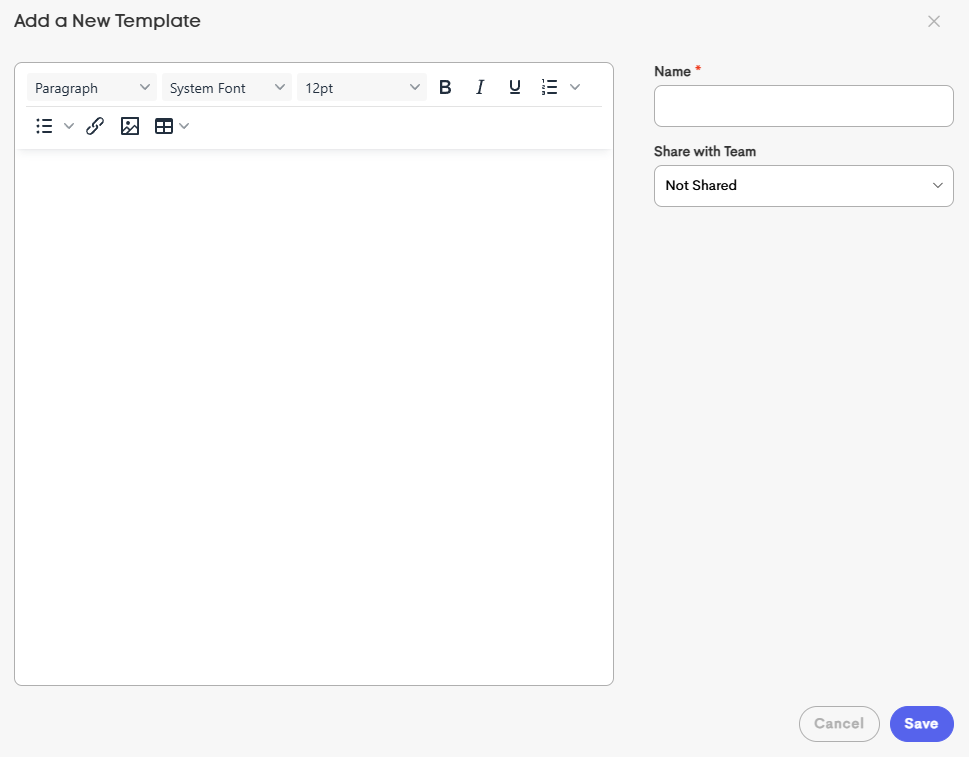
Creating a Template
On the right-corner of each Template tab, there's a button that lets you add a new template for that corresponding section.
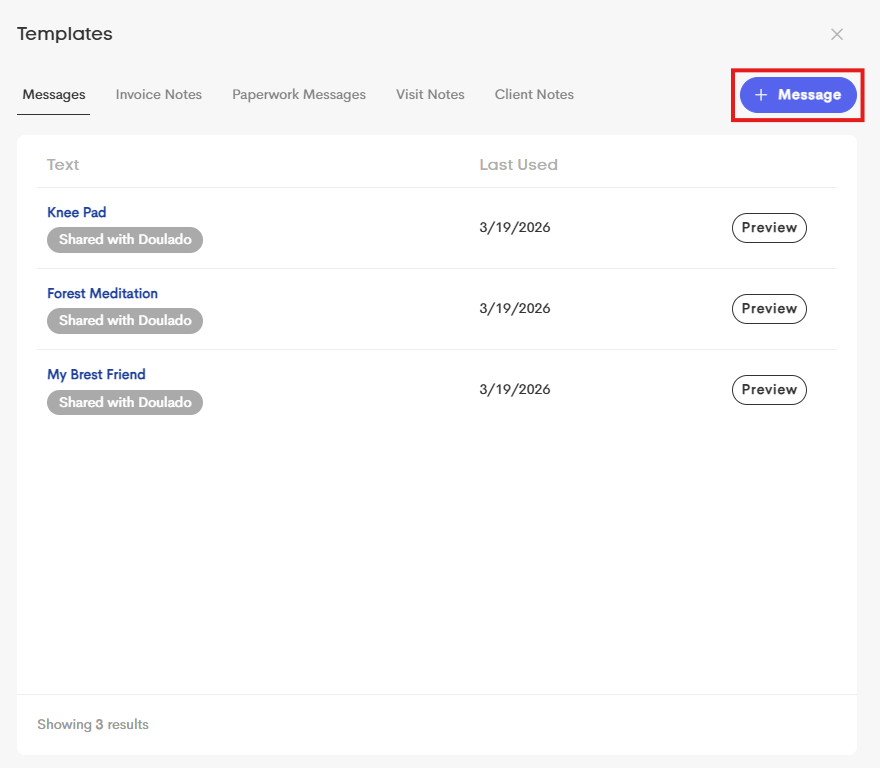
- Click on the Add New Template button in your chosen Template tab.
-
Use the empty field to customize a templated message or note you want to re-use.
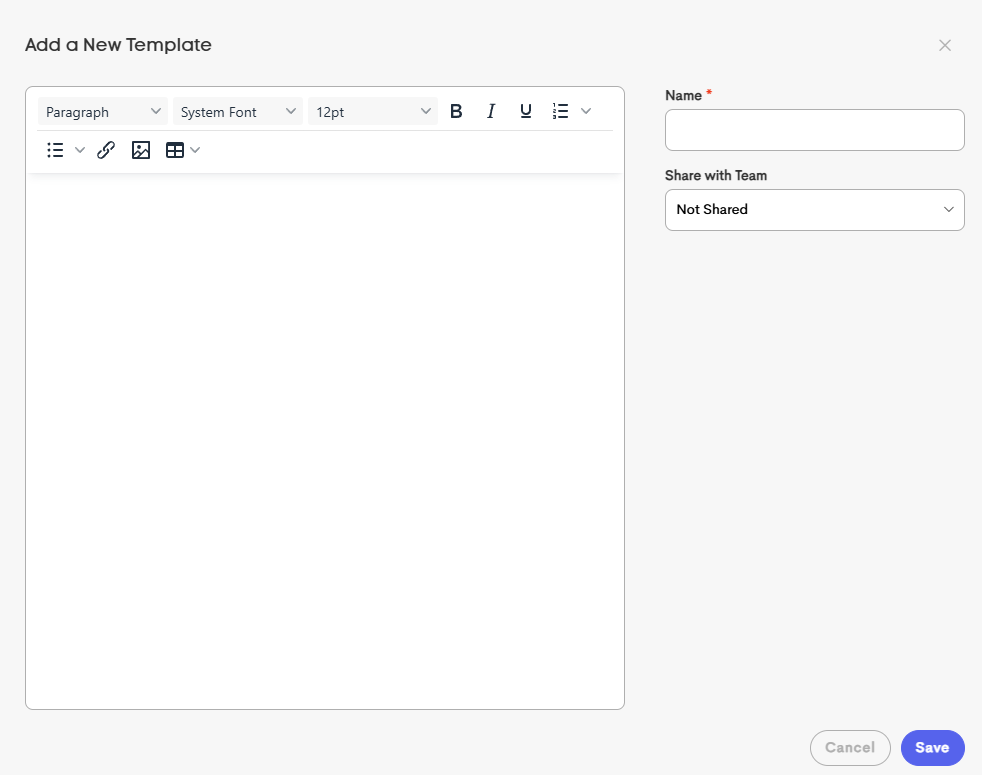
- Assign a name for the template.
- In the Share with Team field, you can either choose a team to share this template with or not.
- Once done, click on Save. This new template will be added to the existing list when you browse.
Alternatively, you can also create a new template when checking the existing list.
-
Click on the magnifying glass button.
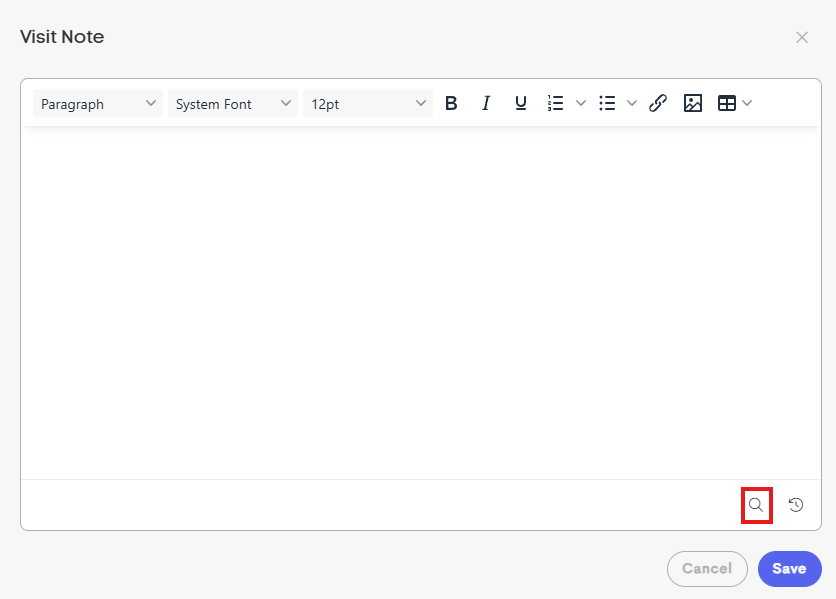
-
In the corresponding Template modal, click on the + Note button on the right corner. This button varies on the template modal you're checking.
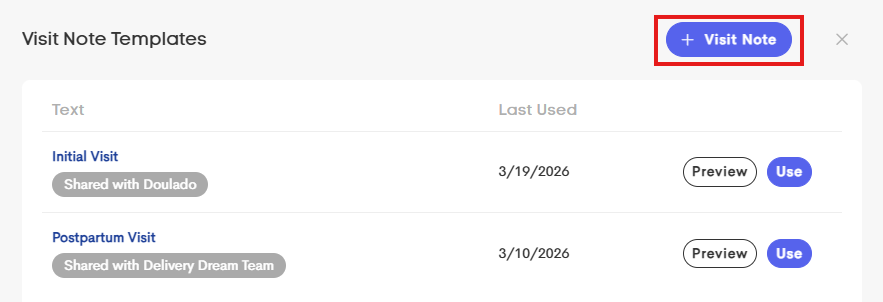
-
This will direct you to the template creation window. Customize accordingly, and click on Save once you're done.