
Lead Form: Using the Lead Form
Lead Forms allow potential clients to submit their information directly to your business.
You can share the form using a direct link or embed it on your website, making it easy for new clients to reach out and begin the intake process.
When a client completes and submits the form, their information is sent to your account so you can review the details and follow up as needed.
Direct Link
The lead form can be accessed using the direct link URL found on the lead form view.

- Form Title in Header: This defaults to “New Client Form” when the Lead Form’s Title (Publicly Visible) field is left blank.
- When the user presses the Submit button:
-
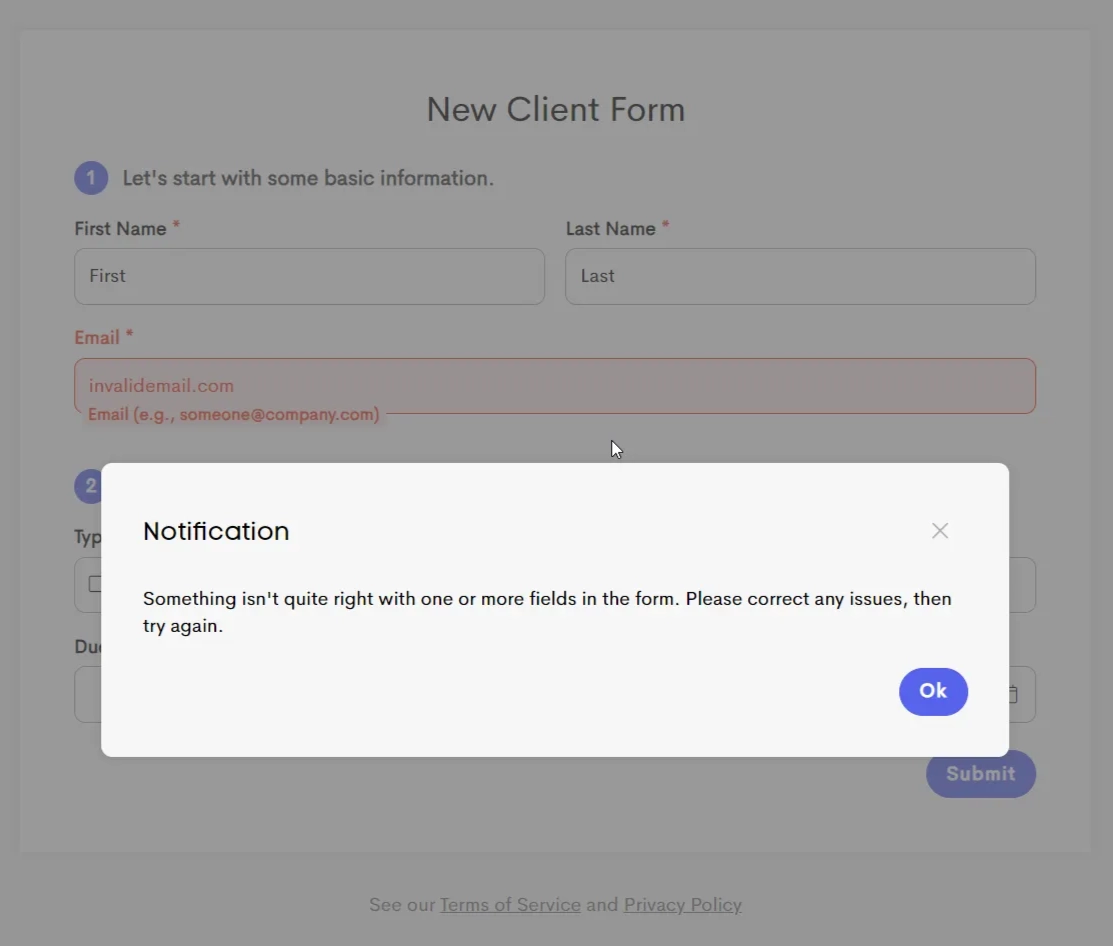
If one or more required fields are left blank, or if any fields contain invalid data, the user is presented with a modal displaying the message:
“Something isn't quite right with one or more fields in the form. Please correct any issues, then try again.”
-
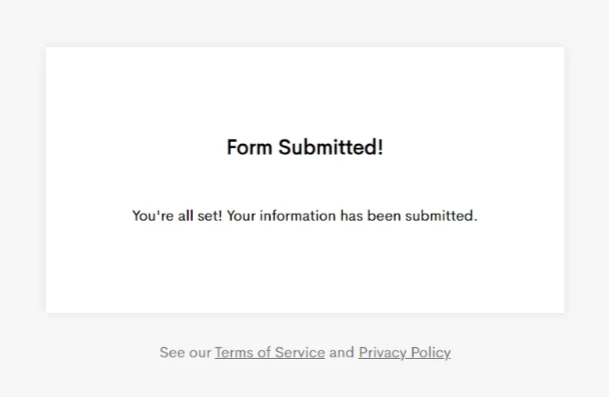
If all required fields are filled, and no field value is invalid, the form is successfully submitted, then a message is displayed:
“Form Submitted! You're all set! Your information has been submitted.”
-
Embedded
The lead form can be embedded by copying the embed code and pasting in your website.
Some website builders refer to this as “Embed” or “Iframe” or even “HTML Block”.