
Payers: Saving Covered Services
Saving covered services for each payer allows you to:
- Customize service codes required for each insurance program
- Auto-fill claim information
- Submit claims faster and with greater accuracy
Once set up, covered services can be reused anytime you create a claim for that payer.
Codes and rules vary significantly; always check your specific insurance payer (e.g., Medi-Cal, private insurers) guidelines for accepted codes, modifiers, and limits.
Why Save Covered Services?
By saving covered services for each payer, you can:
- Automatically populate claim fields
- Ensure consistency across claims
- Speed up claim creation from visits or the claims dashboard
⚠️ Important: The codes shown in the video are examples only. Always reference your payer’s provider manual to confirm correct codes, modifiers, and rates.
Step 1: Open the Claims Dashboard
- Navigate to the Claims Dashboard in Doulado.
- Locate the payer you want to set up (for example, Medi-Cal).
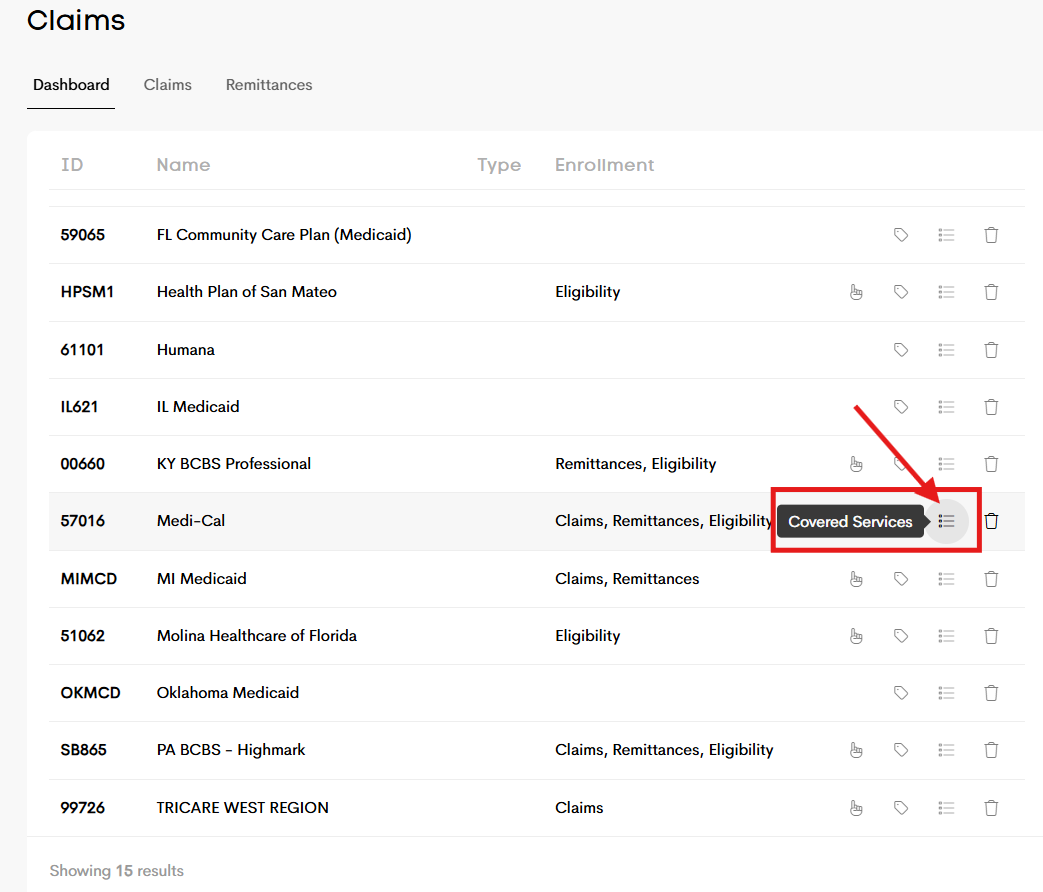
Step 2: Add a Covered Service for a Payer
- Select the payer (e.g., Medi-Cal).
- Open the Covered Services tab.
- Click Add Coverage.
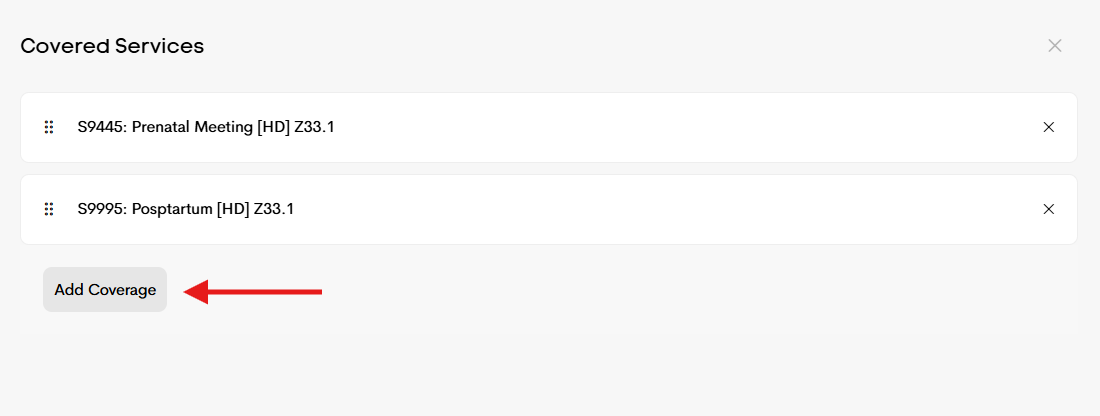
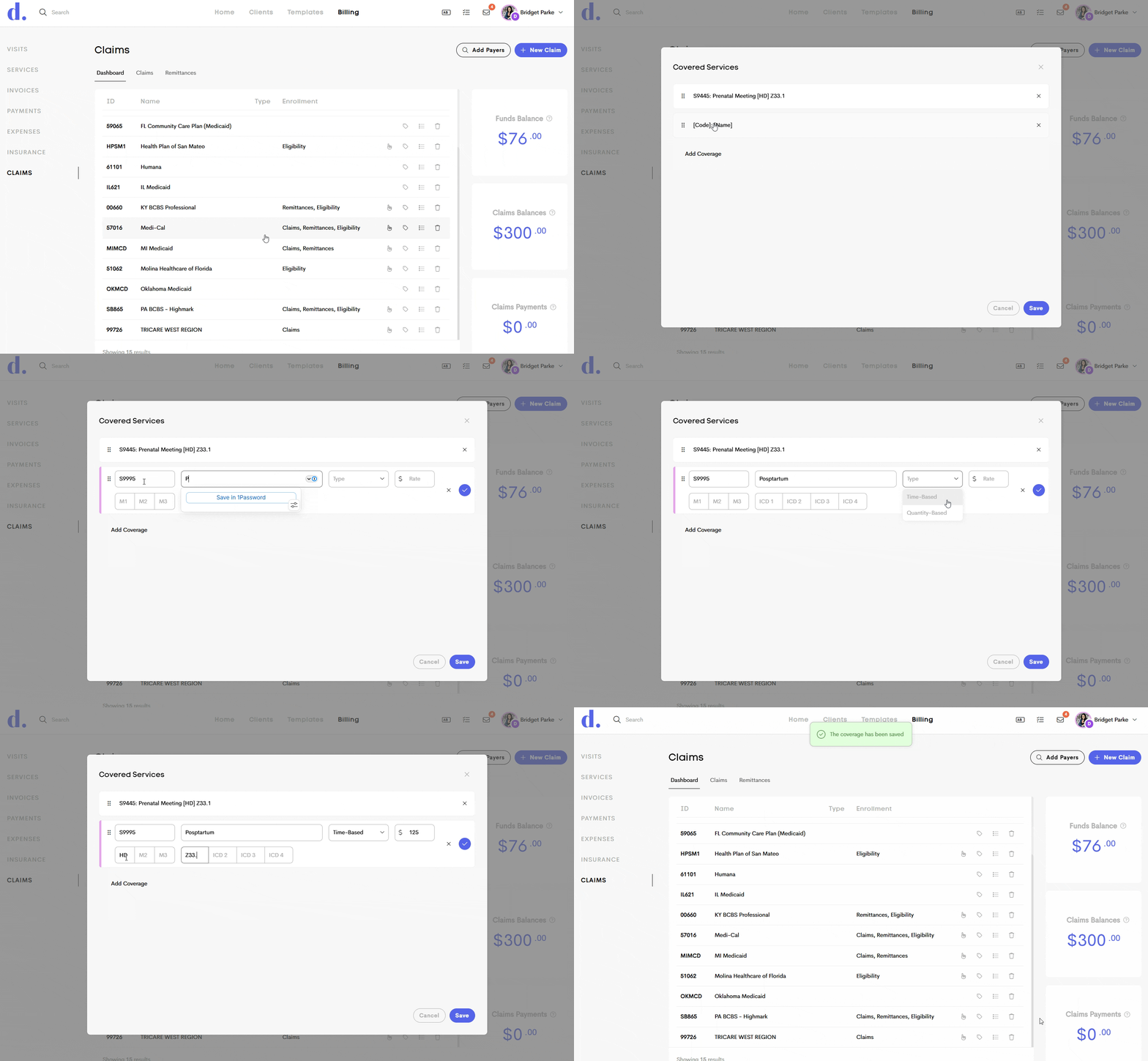
Step 3: Enter Covered Service Details
Fill out the service information:
-
Service Code: Enter the service or procedure code (HCPCS or CPT Codes) associated with this service. Doula billing uses specific codes related to doula care, and can be found on provider portals or provider manuals from each payer.
Codes often vary per payer.
- Service Name: Enter a clear name to help you identify the service later. This name is not shown in the claim, but used to identify the correct codes in your dropdown menu.
- Example: Prenatal Meeting
- Billing Type: Select the option that matches how your payer reimburses you. Choose whether the service is:
- Time-based, or
- Quantity-based
- Rate: Enter the reimbursement amount for this service.
- Modifiers: Add any required modifiers.
- Example: Modifier HD for doula services (if applicable)
- Include additional (up to 3) modifiers if required by the payer.
- ICD-10 Code: Enter the diagnosis code tied to this specific service (e.g., pregnancy-related ICD-10 codes). In a claim, that code fills into Box 21:

- Click Save Covered Service. You can repeat these steps to add additional services, such as postpartum visits or other covered care types.
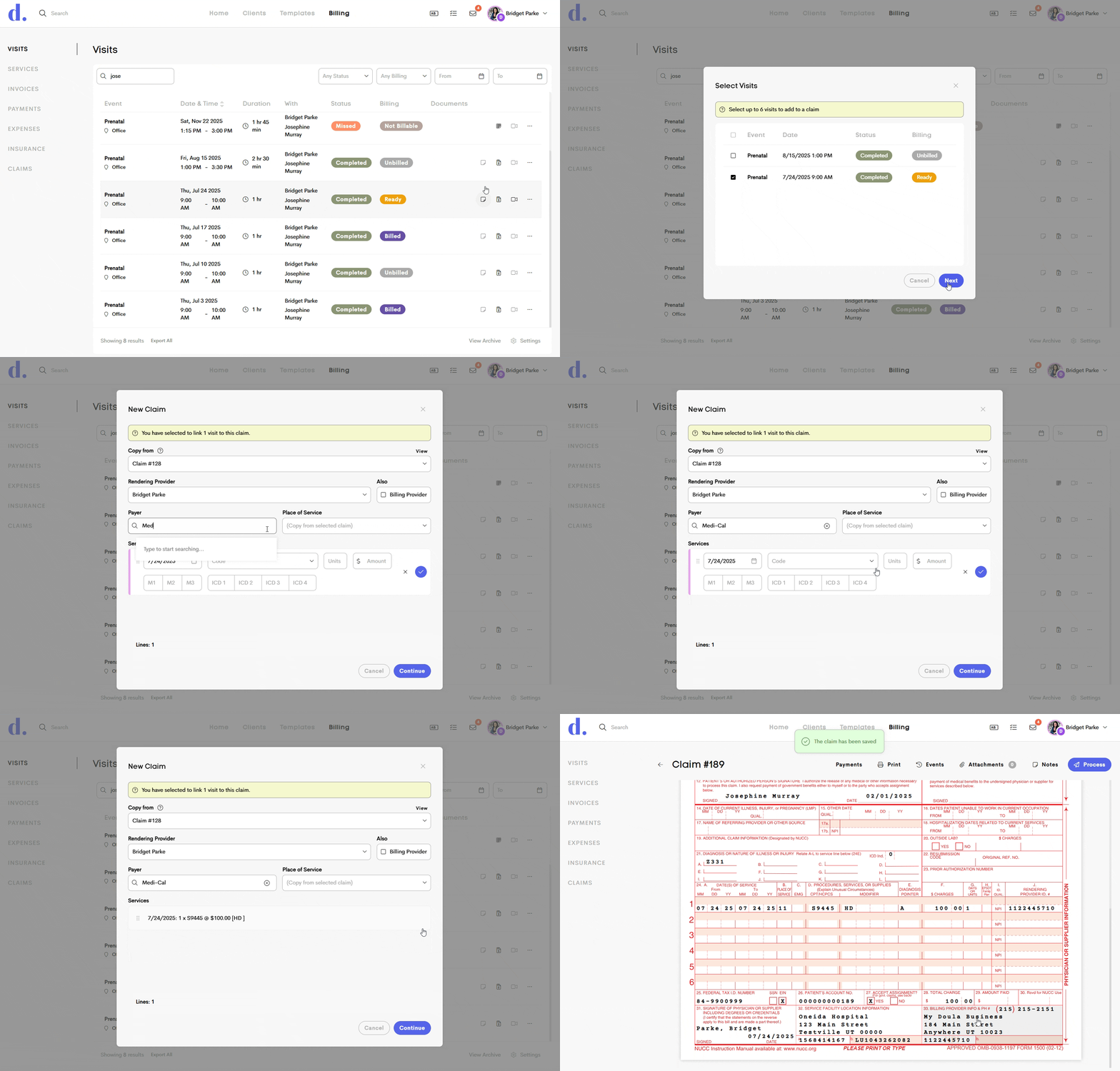
How to Use Saved Covered Services When Creating a Claim
Once a covered service is saved, you can use it when submitting claims.
- Create a Claim
- Start a claim from:
- A completed visit, or
- The Claims Dashboard
-
Select the client, adjust provider (if needed) and add payer details
Use the service dropdown to choose one of your saved covered services for each date
Doulado will automatically fill in:
- Service code
- Modifiers
- ICD-10 code
- Rate
If you are billing multiple service dates, you can add additional services from the dropdown.
- Review and Submit
- Review the claim details.
- The ICD-10 code will appear linked to the corresponding service line.
- Add or adjust place of service details if needed.
- Continue and submit your claim.
Please note: Multiple places of service can often be included on a single claim. However, inpatient and outpatient services must be submitted on separate claims.
Always verify payer-specific requirements and guidelines, as doula billing rules may vary by payer.