
Verify Your Bank Account
If you choose to add a bank account as your payment method, it must be verified before it can be used within Doulado.
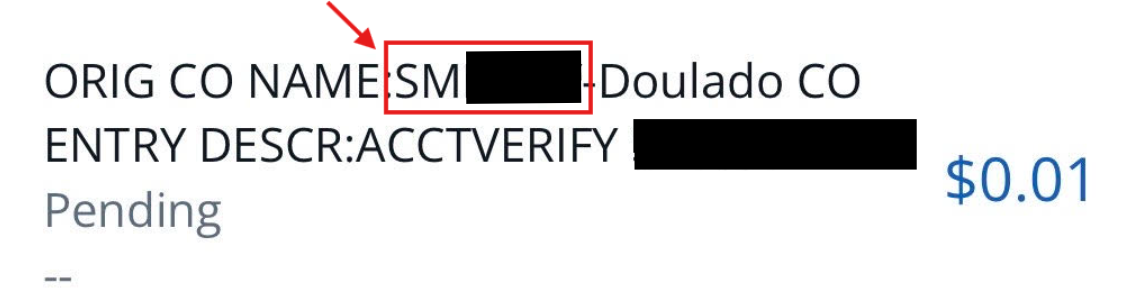
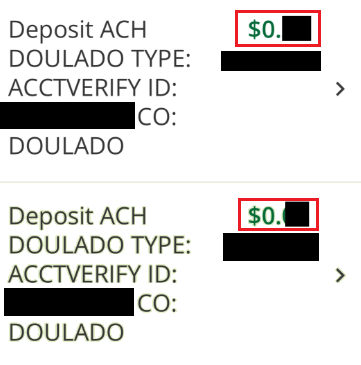
To complete verification, we will send either a single $0.01 deposit with a 6-character code in the description, or two small deposits, for example 32 and 45 cents, to your bank account.
These deposits typically arrive within a few business days.
Once either option appears, you can easily enter the code or confirm the deposit amounts by navigating back to your Payment Methods within your profile (see below).
This process allows the payment processor to verify your ownership of the bank account.
An example of the 6-character code you may receive attached to a $.01 deposit:
An example of 2 small deposit amounts you may receive:
Verify Your Bank
Once one of the options above are received, follow these steps:
-
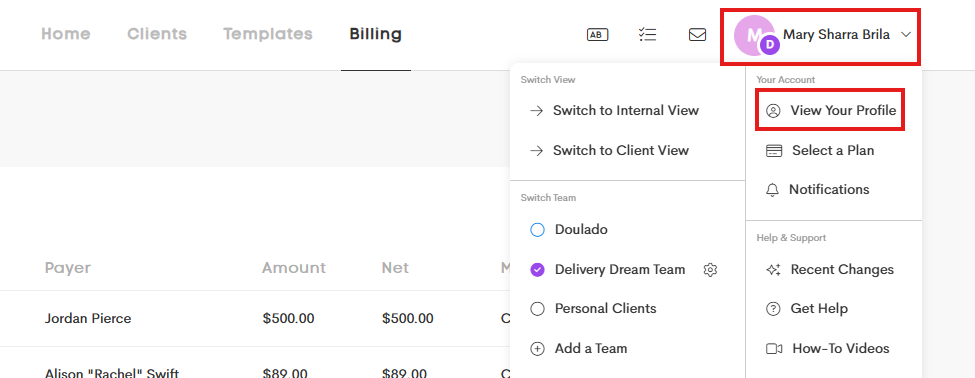
Open your Personal Profile by clicking on your User Menu on the top-right corner and click on View Your Profile.
- Go to the Payment Methods section and click on the Verify icon.

- The box that shows will be determined by the verification method that you should have received, either a 6-character code, or 2 small deposits.
- You can enter the code or amounts in spaces below. Accept the authorization, and then Verify.
|
|
|


- If successful, you will receive an email confirming that the new payment method is now verified.

If you have an invoice due, you can now reopen it—either through the invoice email notification or in your client portal—and complete your payment using your saved bank account payment method.
When a bank account is added, you will have 3 attempts for amount-based microdeposits or 10 attempts for descriptor code-based microdeposits to complete bank account verification. If the verification fails, you will need to delete the payment method and restart the process. Reach out to support@doulado.co if you need assistance!