
Client Journey: Upload a File to a Client Journey
A computer file relevant to a particular client can be uploaded to that client's journey, to be later viewed in Doulado or downloaded to your device.
- Go to the Files tab of a Client Journey or Profile, and use the File button.

-
Fill the required fields, and enable any required options, then use the Save button.
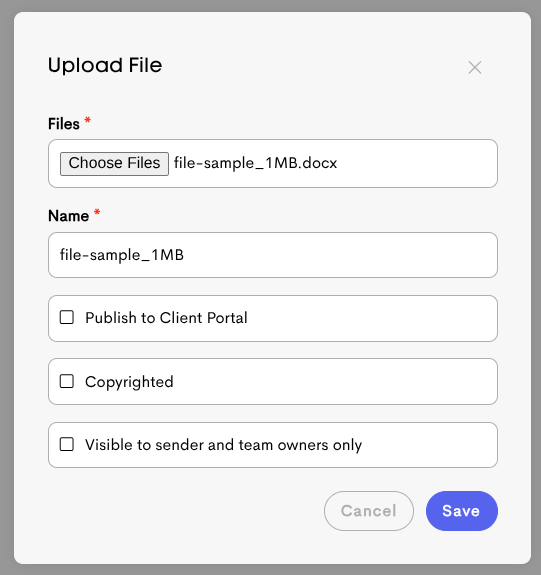
- Files: Select the file to upload.
- Name: If required, edit the name of the file as it should be displayed in Doulado.
- Publish to Client Portal: Enable this option to make the file also available to the client in their portal.
- Copyrighted: Enabling this indicates to other team members that this is a copyrighted file.
- Visible to sender and team owners only: Enabling this will make the file visible only to you (the uploader) and team owners.
- The uploaded file can now be found in the Journey's Files tab.
